
Why Is My Blink Camera Not Recording Clips
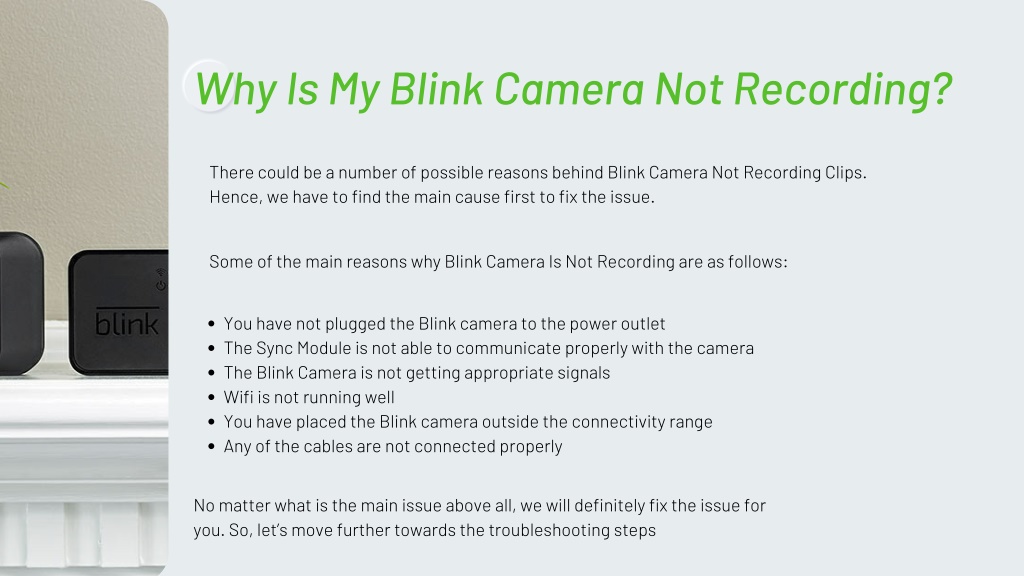
Ever rush to check your Blink camera after hearing a bump in the night, only to find... nothing? Or maybe you were expecting to see that hilarious footage of your dog trying to catch the mailman (again!), but your camera played hooky? It’s like arriving at a party and realizing the DJ forgot to press play – frustrating, a little confusing, and you just want to know what’s going on!
Don't worry, you're not alone in this digital mystery. Blink cameras are fantastic for keeping an eye on things, but sometimes they get a little shy about recording. Let's dig into some common reasons why your trusty guardian might be taking an unscheduled recording break, and how to get it back on track. Think of me as your friendly tech detective, here to help you solve the case!
The Case of the Fickle Wi-Fi Signal
Imagine trying to tell your friend an important story, but they keep cutting in and out because of a bad phone signal. That’s pretty much what happens when your Blink camera’s Wi-Fi connection isn't up to snuff. Your camera needs a strong, stable internet connection to send those precious clips to the cloud.
Must Read
If your Wi-Fi is weak, spotty, or just having an off day, your camera might struggle to communicate. It's like trying to pass a note in class when the teacher is constantly looking – difficult and often fails! Make sure your Wi-Fi router isn't hiding behind too many walls or too far away. A quick router reboot can often work wonders, like a fresh cup of coffee for your home network.
The Drained Battery Blues
This one might seem obvious, but it’s often the culprit! Your Blink camera is a busy little bee, and like any busy bee, it needs energy. When its batteries start to run low, it might decide to conserve power by not recording as often, or at all. It's like your phone hitting 2% – it might let you make an emergency call, but it won't let you stream a movie.
Check the battery status in your Blink app. If they're showing red or getting low, it’s time for a fresh set. Think of it as giving your camera a delicious energy drink so it can get back to its watchful duties!
Motion Detection: Too Picky or Too Lazy?
Your camera's motion detection settings are its eyes and ears. If they’re set too low, your camera might ignore genuine activity, thinking it's just a leaf blowing by. Too high, and it might record every shadow, squirrel, and gust of wind, quickly filling up your storage (more on that in a sec!).
Sometimes, the retrigger time is the issue. This is the cooldown period after one clip before it can record another. If it's set too long, your camera might miss subsequent events. Imagine if you could only remember one thing every five minutes – you'd miss a lot of the conversation! Dive into your app's settings and play around with the sensitivity and activity zones. You want it to be like Goldilocks: just right.
The Full Digital Scrapbook (Storage Woes)
Even digital brains have a memory limit! If you're using cloud storage (via a subscription) or local storage (with a Sync Module 2 and a USB drive), it's possible your storage is full. Think of it like trying to cram one more photo into an already bursting photo album – there's simply no room!

For cloud storage, check your subscription plan and clip retention settings. For local storage, peek at your USB drive on the Sync Module. You might need to delete some old, less important clips to make space for the new adventures.
Is Your Camera Even Armed? (The "Did I Press Record?" Moment)
This is a classic! Your Blink system needs to be armed to record motion. It’s like forgetting to press the "record" button on your old VCR (if you remember those!). If your system is disarmed, your cameras are essentially taking a nap, only showing you the live view when you specifically ask.
Double-check the arm/disarm status in your Blink app. There should be a clear indicator showing whether your system is armed (usually green or an "on" status). It's a simple flick of a switch, but an easy one to overlook!
The Brain Behind the Operation: Your Sync Module
If you have a Blink Sync Module (which most systems do, especially older ones or those with local storage), think of it as the central brain connecting your cameras to the internet. If the Sync Module is offline, disconnected, or just grumpy, your cameras won't be able to communicate or record clips.
Ensure your Sync Module is plugged in, powered on, and showing a solid blue and solid green light (indicating it's connected to both power and the internet). A quick power cycle (unplug for 10 seconds, then plug back in) can often wake it up if it's having a sulk.
Software Snags and Digital Hiccups
Sometimes, technology just needs a good old fashioned reset. A temporary software glitch, a pending update, or a communication hiccup can stop recordings in their tracks. It's like when your computer freezes and all it needs is a restart to get back to normal.
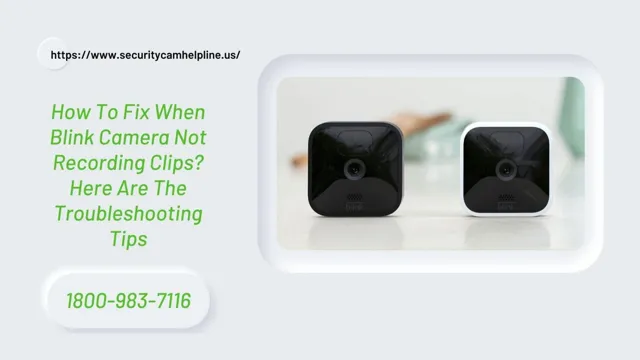
Try restarting your camera (remove batteries for a few seconds, then reinsert) or even your Sync Module. Make sure your Blink app and camera firmware are updated to the latest versions. Developers are always squashing bugs, so staying updated is like giving your system a fresh bill of health.
Why Bother? Because Life's Little Moments Matter!
So why go through all this trouble? Because having a recording camera isn't just about security (though that's super important!). It's about catching that hilarious squirrel trying to steal birdseed, knowing when your package arrived, seeing who's at the door when you're not home, or even just having peace of mind that everything's okay.
It’s about turning those "Did you see that?!" moments into actual, watchable clips. It's about feeling connected to your home and the little world around it, even when you're miles away. And honestly, who doesn't love a good home video of unexpected antics?
Getting your Blink camera back to recording is usually a straightforward fix. Most of these issues are easily resolved with a little investigation and a few taps in your app. So next time your camera goes silent, don’t panic! Grab a cup of coffee, check these points, and get ready to capture those clips again. You've got this!