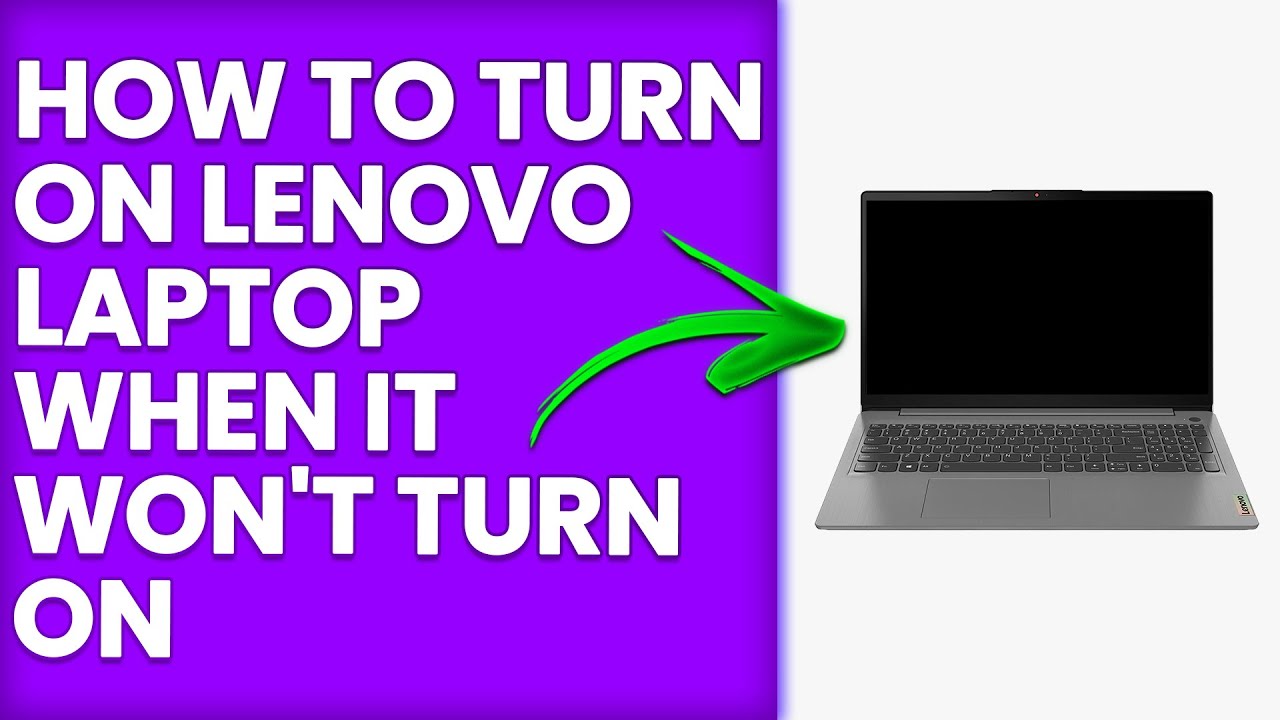
Lenovo Laptop Wont Turn On

Okay, let's be real. We've all been there. You're ready to dive into a new episode of "Severance" (because who isn't obsessed?), or maybe you're just trying to finish that super important presentation. You press the power button on your trusty Lenovo laptop… and… nothing. A black screen stares back at you, as unresponsive as a teenager being asked to clean their room. Don't panic! We're here to help.
First things first: take a deep breath. Channel your inner Keanu Reeves and stay calm. Before you start contemplating tossing your laptop out the window like a printer in "Office Space," let's troubleshoot. It's probably something simple.
The Obvious (But Often Overlooked) Suspects
Let's start with the basics. Think of this as the laptop equivalent of checking if the power cord is plugged in (because, yes, we've all done it).
Must Read
- Power Cord Check: Is the power cord securely plugged into both the laptop and the wall? Ensure the wall outlet is working. Try plugging in a lamp or your phone charger to double-check.
- Battery Blues: If you're running solely on battery, it might be completely drained. Let it charge for at least 30 minutes, even if the charging light doesn't immediately come on. Sometimes, the battery needs a little kickstart.
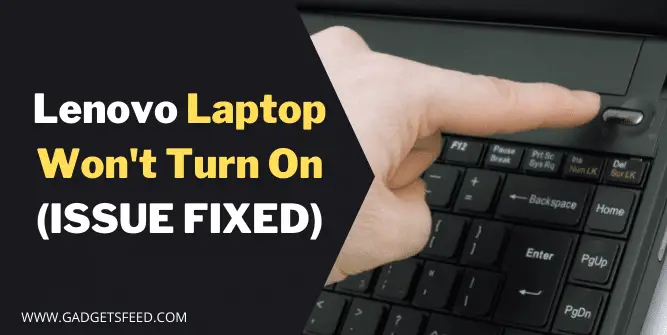
- Power Button Woes: Sometimes, the power button itself is the culprit. Try holding it down for a full 30 seconds. This can sometimes reset the system.
Beyond the Obvious: Diving a Little Deeper
Still staring at a void? Alright, let's move on to some slightly more advanced troubleshooting. Don't worry, it's not rocket science (unless you're actually using your Lenovo for rocket science – in which case, good luck!).
- The External Device Dilemma: Sometimes, an external device can interfere with the boot-up process. Unplug everything – external hard drives, USB drives, printers, everything. Then, try turning on your laptop.
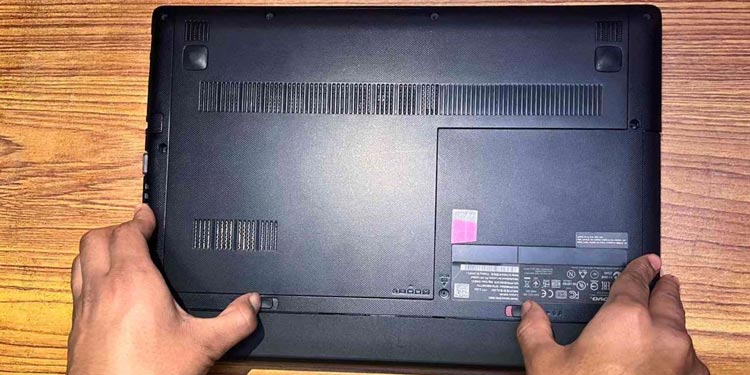
- The BIOS Reset: This sounds intimidating, but it's not as scary as it seems. Try a hard reset. Disconnect the power adapter and remove the battery (if possible – some Lenovo laptops have internal batteries). Then, press and hold the power button for 60 seconds. Reconnect the battery and power adapter, and try turning it on. This often clears out minor glitches in the BIOS, the laptop's basic operating system. Think of it as giving your laptop a digital cleanse.
- The Display Conundrum: It's possible your laptop is on, but the display isn't working. Shine a flashlight at the screen at a very close angle. Can you see a faint image? If so, the backlight might be the issue. This often requires professional repair.
When to Call in the Experts
If you've tried all of the above and your Lenovo is still stubbornly refusing to cooperate, it's time to seek professional help. Resist the urge to start disassembling your laptop with a screwdriver (unless you are a computer technician, in which case, carry on!). You could end up doing more harm than good.
![Top 10 Causes of the Blue Screen of Death & Fixes [2025]](https://oneclicktechnologies.us/wp-content/uploads/2025/04/laptop-wont-turn-on-lenovo.jpg)
Find a reputable computer repair shop or contact Lenovo support directly. Explain the steps you've already taken. This will save them (and you) time and help them diagnose the problem more quickly.
Important Note: Before taking your laptop in for repair, back up your data if possible! If you can't turn on your laptop, this might be tricky. Some repair shops offer data recovery services, but it's always best to be prepared. Think of it like backing up your memories – precious and irreplaceable.
Fun Fact Interlude!
Did you know that the name "Lenovo" is a combination of "Le-" (from "Legend") and "Novo" (Latin for "new")? So, even if your Lenovo is acting up, remember it's supposed to be a symbol of new beginnings!
And for all you "Hitchhiker's Guide to the Galaxy" fans out there, don't forget the most important rule: DON'T PANIC! Even a seemingly dead laptop can often be resurrected with a little patience and troubleshooting.
A Moment of Reflection
Life, like a laptop, can sometimes feel unresponsive. We get stuck in ruts, facing blank screens and frustrating setbacks. But just like troubleshooting a laptop, persistence, patience, and a willingness to try different approaches can often lead to a solution. And sometimes, knowing when to ask for help is the smartest move of all. Now, go forth and conquer your digital (and real-world) challenges!