
How To Get Desktop Goose On Chromebook
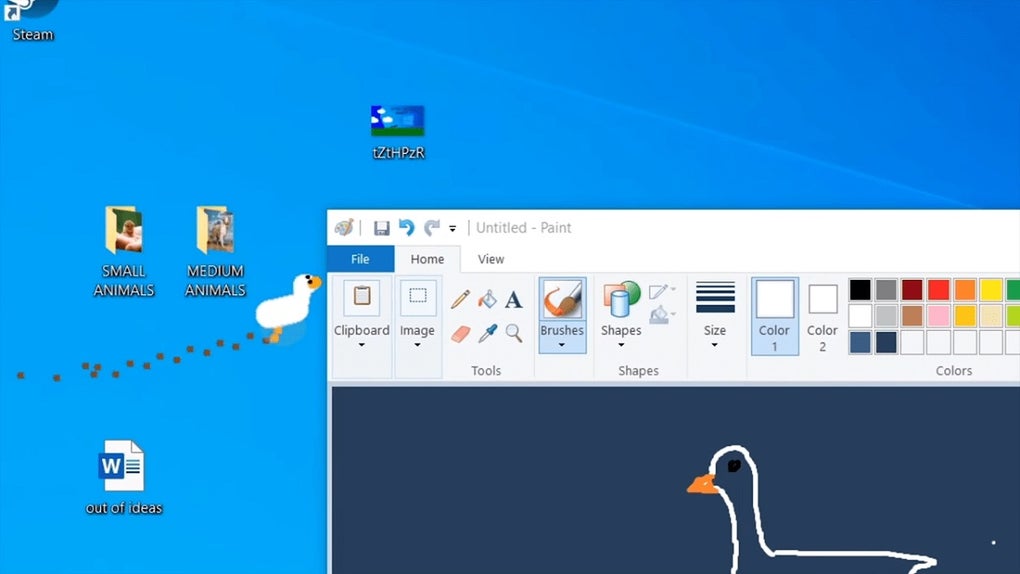
Ever heard of a Desktop Goose? Imagine a little digital goose waddling around your computer screen, causing delightful chaos. It’s like having a mischievous pet, only it lives entirely within your Chromebook.
Want one? It's trickier than downloading a regular app on a Chromebook, but totally doable. Get ready for a fun workaround!
First Things First: Linux Time!
Chromebooks have a hidden superpower: Linux. Enabling it is the key. It’s like opening a secret passage to a whole new world of software.
Must Read
Go to your Chromebook settings. Search for "Linux (Beta)". Then, simply click "Turn on." The Chromebook will then do some downloading and installing.
Hold on a sec...
This might take a few minutes. Think of it as brewing a particularly potent cup of digital tea. Patience, young padawan!
Next Up: Getting the Goose-Prerequisites
After enabling Linux, you'll need some tools. These are the building blocks to get the goose running.
Open the Linux terminal. You can find it in your app launcher, usually labeled "Terminal". Type the following commands, one at a time, pressing Enter after each:
sudo apt update
sudo apt upgrade
The terminal is simply a way to install the neccesary tools to allow our goose to live on the screen.
Now, install Wine. Type this command:

sudo apt install wine
Wine is a program that allows you to run Windows programs on Linux. The terminal will prompt to ask if you want to proceed, and you should type y for yes.
Why Wine?
The Desktop Goose was originally made for Windows. Wine lets us trick the Chromebook into thinking it's running Windows, just enough to get the goose going.
Downloading and Installing the Goose
Download the Desktop Goose files. A quick search online will lead you to the official download page, or a trusted source. Download the .zip or .exe file.
Move the downloaded file to the Linux files section. This is important for the next step.
Open the Linux terminal again. Navigate to the directory where you saved the Desktop Goose file.
cd /home/yourusername/
Remember to replace "yourusername" with your actual username!
Then, run the .exe file using Wine. Type the following command, replacing "DesktopGoose.exe" with the actual name of the downloaded file:
wine DesktopGoose.exe
This launches the installation process, as if you're on a Windows machine.
Goose is Loose! (Hopefully)
If all goes well, the Desktop Goose should now be waddling around your screen. Prepare for the fun to begin!
He might drag memes, leave muddy footprints, and generally be a delightful nuisance. Enjoy the chaos!
Troubleshooting Goose Mishaps
Sometimes, things don't go perfectly. Here are a few common issues and how to tackle them.
Goose isn't showing up? Double-check that you've installed Wine correctly and that you're running the .exe file from the correct directory in the terminal.
Goose is glitching? Restarting your Chromebook can often solve minor glitches. You might also need to update your Linux environment using the sudo apt update and sudo apt upgrade commands.

Goose is too annoying? The Desktop Goose usually comes with configuration files. You can edit these files to customize his behavior or even temporarily disable him.
A Word of Caution
Installing software from unofficial sources can sometimes be risky. Only download the Desktop Goose from trusted websites to avoid potential problems.
Living with Your Desktop Goose
Having a Desktop Goose is an experience. It’s like having a tiny, digital roommate who loves to cause trouble (in the best way possible).
He might interrupt your work, but he'll also bring a smile to your face. Consider it a stress reliever, a little dose of silliness in your day.
You can even customize your Desktop Goose. Some versions allow you to change his appearance or add custom memes for him to drag around.
The Goose and Creativity
The Desktop Goose can also be surprisingly inspiring. His unexpected antics might spark new ideas or simply break you out of a creative rut.
Think of him as a muse, albeit a very disruptive one. Embrace the chaos and see where it leads you!
Goose Alternatives: Other Digital Companions
If the Desktop Goose isn't quite your style, there are other digital companions out there. From digital cats to virtual fish, there's a pet for everyone.

Explore the world of desktop pets and find one that brings you joy. After all, a little bit of digital companionship can go a long way.
You could also look for browser extensions that do similar things. There are extensions that add falling snow, or little creatures that walk across your screen.
Is It Worth It?
Getting the Desktop Goose on a Chromebook takes a little effort, but the payoff is pure, unadulterated fun. It’s a chance to unleash a little chaos and inject some humor into your digital life.
So, is it worth it? Absolutely! If you're looking for a way to brighten your day and add a touch of whimsy to your Chromebook, give the Desktop Goose a try.
Just be prepared for the honking and the meme-dragging. You've been warned!
More than Just a Goose
Ultimately, the Desktop Goose is more than just a silly program. It's a reminder to not take ourselves too seriously. It is also a way to learn about Linux!
It is a chance to embrace the unexpected and to find joy in the little things. And who knows, maybe a little digital goose is exactly what you need to make your day a little brighter.
Have fun with your new, chaotic friend!