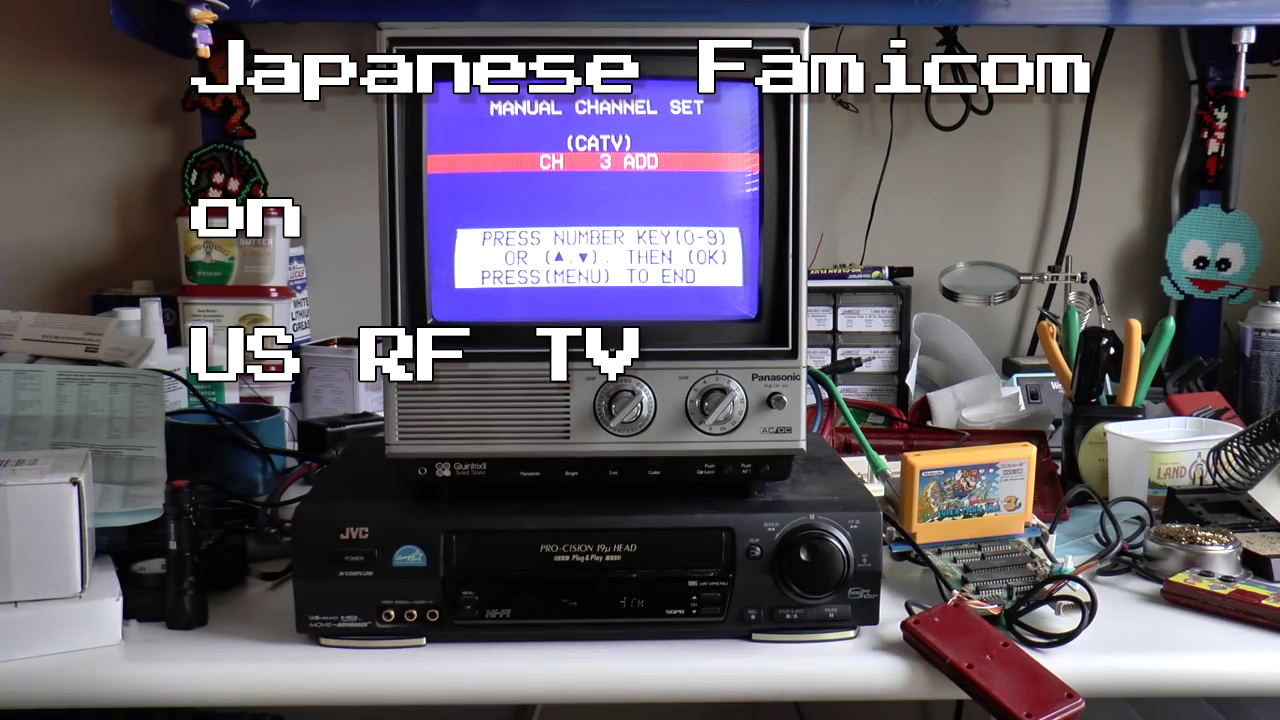
How To Watch Rf Channels On Tv
Hey there, friend! Ever wondered about those mysterious "RF channels" lurking on your TV? You know, the ones that seem like relics from a bygone era? Well, fear not! We're about to dive into the world of RF channels together, and I promise it's less complicated than assembling IKEA furniture. (Okay, maybe just a tad more challenging than eating pizza.)
So, what exactly are RF channels? Think of them as the original way TV signals were broadcast – way back when dinosaurs roamed the earth (or, you know, the 1950s). They're basically channels received directly through an antenna, using radio frequency signals. No fancy cable box, no streaming subscription needed. Just good ol' fashioned airwaves!
Finding Your RF Mojo: Connection Time!
First things first, you'll need an antenna. That rabbit ears you've got hiding in the attic? Perfect! A more modern digital antenna? Even better! The key is to get that signal coming in. Think of it like inviting the TV fairies to your house.
Must Read
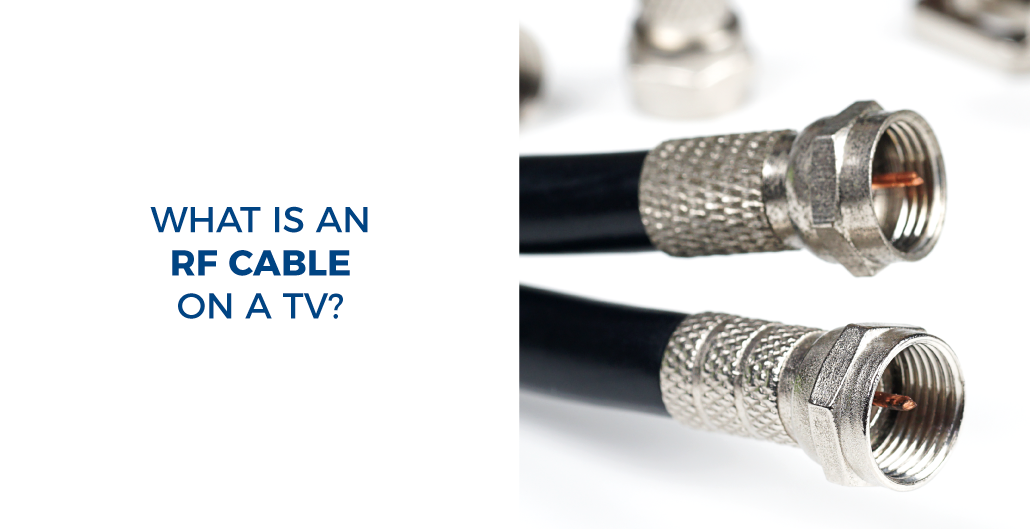
Next, locate the antenna/cable input on your TV. It's usually a round, threaded connector on the back. Screw in the coaxial cable (that's the cable with the little metal connector on the end) from your antenna. Make sure it's snug, but don't Hulk-smash it! We don't want any broken TVs before we even get started.
Now, here's where things get slightly technical, but don't panic! Grab your TV remote – your trusty sidekick in this adventure. You're going to need to access your TV's settings menu.

Channel Surfing Like a Pro (Almost)
Navigate to the settings menu. It might be labeled "Menu," "Settings," or something equally cryptic. Every TV is a little different, so you might have to hunt around a bit. Think of it as a treasure hunt for TV channels!
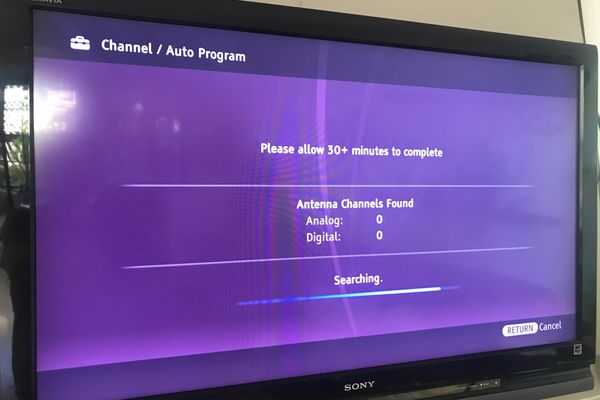
Look for a section labeled "Channel," "Tuning," or "Setup." Inside, you're looking for something called "Auto Program," "Auto Tune," or "Channel Scan." This is where the magic happens! Select this option, and your TV will automatically search for available RF channels. Important: make sure your input source is set to 'Antenna' or 'Air'. Some TVs default to 'Cable' which won't find anything if you don't have a cable box connected.
This process can take a few minutes, so grab a snack, do a little dance, or contemplate the meaning of life. Whatever floats your boat. Just be patient.
Once the scan is complete, your TV will have hopefully found some channels! Now, you can use your remote to flip through them and see what treasures you've unearthed. Be prepared for anything! You might find local news, classic sitcom reruns, or maybe even a public access channel with someone teaching you how to knit sweaters for squirrels. The possibilities are endless!
Troubleshooting: When Things Go Wrong (and They Sometimes Do)
If you're not finding any channels, don't despair! Here are a few things to check:
Why Bother with RF Channels?
Okay, so why even bother with all this antenna business when you have Netflix, Hulu, and a million other streaming services? Well, for one thing, it's free! Who doesn't love free TV? Plus, it's a great way to get local news and programming. And let's be honest, there's a certain nostalgic charm to flipping through over-the-air channels. It's like stepping back in time!
Plus, having access to RF channels can be a lifesaver during power outages or internet disruptions. When the zombie apocalypse hits (or, you know, just a really bad storm), you'll be glad you have a backup plan for staying informed. You could even start your own broadcast! (Just kidding… mostly).
So, there you have it! You're now officially equipped to conquer the world of RF channels. Go forth, explore the airwaves, and discover the hidden treasures that await! Remember, even if you only find a handful of channels, it's all part of the adventure. Embrace the randomness, enjoy the free entertainment, and feel good about mastering a slightly obscure but surprisingly useful TV skill. Happy watching!