
How To Share Blink Camera Access With Family
Picture this: It’s Tuesday, 3 PM. You’re stuck in a meeting, practically counting the minutes until freedom. Suddenly, your phone buzzes with a notification – “Motion detected at Front Door!” Your mind immediately races. Is it the package you’ve been waiting for? Is it the neighbor's cat plotting world domination again? Or maybe, just maybe, it’s your teenager finally home from school, forgetting their key for the third time this week.
You want to check, but you’re in the middle of explaining Q3 projections (or pretending to, anyway). Wouldn't it be amazing if your partner, who’s actually at home, could just… check it out themselves? No frantic texts from you, no waiting for them to call you back, no risking looking at your phone during a very important (and potentially boring) presentation.
Welcome to the modern dilemma of shared home security. We all want peace of mind, but sometimes that peace needs to be a team effort. And if you're rocking a Blink camera system, you're in luck, because sharing access with your crew is surprisingly easy, once you know the secret handshake. Let's dive in, shall we?
Must Read
The "Don't Do This" Way (Seriously, Just Don't)
Now, I know what some of you might be thinking: "Just give them my login info, right? Easy peasy!" Bzzzt! Wrong answer, my friend. While technically possible, sharing your primary Blink account credentials is like giving everyone the keys to your entire house, including your secret snack stash and that super private diary. Not ideal for security, privacy, or keeping track of who armed what!
Every notification, every clip, every setting change would ping everyone, leading to a notification nightmare. Plus, if someone leaves the family (or you have a falling out with that "trusted" friend), revoking access becomes a whole ordeal. Trust me on this one; there’s a much, much better way.
The Right Way: Blink's Shared Access Feature
Thankfully, Blink is smarter than that. They've built in a fantastic feature called "Shared Access," designed precisely for this scenario. It lets your family members (or trusted friends, pet-sitters, you name it) view and manage specific camera systems without handing over the keys to the kingdom. It's like giving them a spare key to just one room, not the whole mansion.
Ready to empower your household? Let’s get you set up.
Step-by-Step Guide to Sharing Your Blink Cameras:
1. Open the Blink App: First things first, grab your phone and open up the Blink app. You're the master of the universe here, the primary account holder, so you'll be initiating the invite.
2. Navigate to System Settings: Tap on the little gear icon, usually found at the bottom right of the home screen, to dive into your Settings. This is where the magic happens.
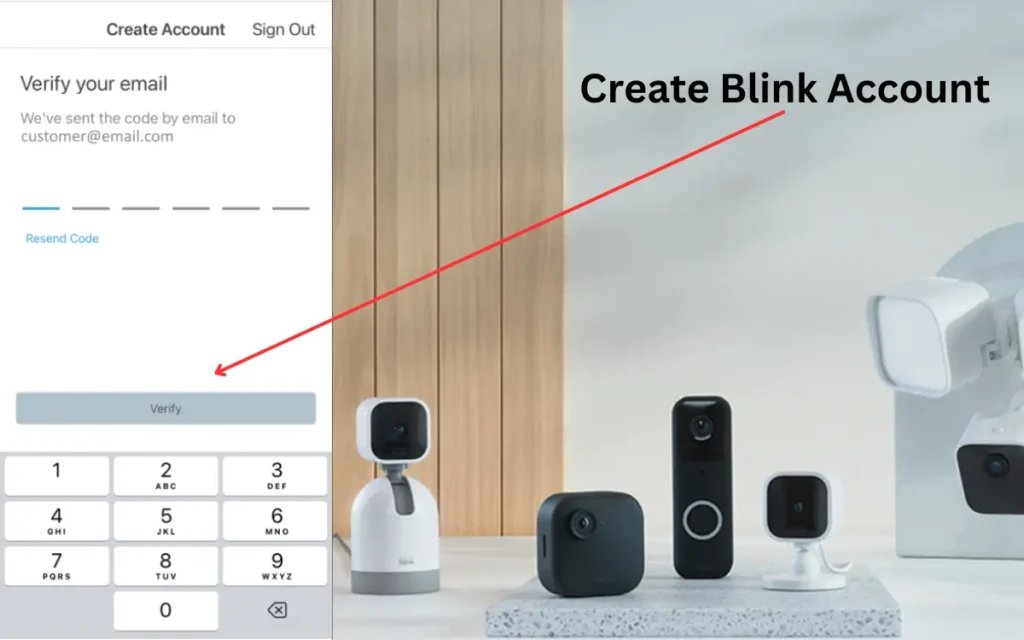
3. Select Your System: Next, look for "System Settings" (or sometimes it just says your system's name, like "Home System" if you named it). Tap on the specific system you want to share. Remember, you share systems (which are tied to a Sync Module), not individual cameras. If you have multiple Sync Modules, you can choose which one to grant access to.
4. Find "Shared Access": Within your System Settings, you'll find an option for "Shared Access." Give that a tap. See? Told you it was there!
5. Invite a User: Now, you'll see a list of anyone you've already shared with, or the option to "Invite a User." Tap that glorious button and enter the email address of the person you want to grant access to. Make absolutely sure it's an email they actually check, because that's where their invitation lands. Double-check for typos!
6. The Invitation Journey: Once you've sent the invitation, your chosen family member will receive an email from Blink. They'll need to click the link in that email, which will prompt them to either log into their existing Blink account or create a new (free!) one if they don't have one already. This is a super important step: they must accept the invitation! Without acceptance, the access won't be granted.
7. Access Granted!: After they accept, voila! That shared system will magically pop up in their Blink app, ready for them to monitor. They'll see a new "system" in their account, separate from any they might already own.
What Can Shared Users Actually Do? (And What They Can't)
So, what can these new co-pilots actually do? Well, they can view live feeds from the shared cameras, access and watch recorded clips, and even arm and disarm the specific system you've shared. This means they can check on the dog, see if the kids got home, or disarm the alarm when they're the first ones through the door, without bothering you.
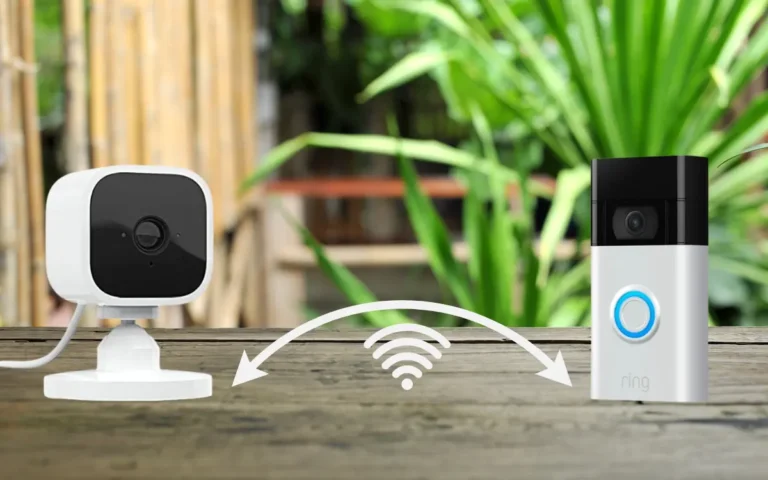
But – and this is a big, important but – they cannot mess with your main account settings, add or remove cameras from your system, change subscription plans, or generally wreak havoc on your Blink empire. They're more like trusted guests with a specific pass, not the landlord.
Why Go Through All This?
Why bother with a few extra taps? Simple: peace of mind, shared responsibility, and far fewer "Hey, can you check the camera?" texts. Your spouse can verify the package delivery, your college-bound kid can check on the house when they're back for a weekend, and your pet sitter can keep an eye on Fido without needing your main password. It's smart, secure, and incredibly convenient for everyone involved. It builds a collaborative approach to home security, which, let's be honest, is how most households operate anyway.
A Few Pro-Tips:
- Only share with people you trust implicitly. This goes without saying, but it's worth reiterating.
- Give them a heads-up on how the Blink app works, especially how to arm/disarm the system, so they don't accidentally disarm it when you're expecting it to be armed (we've all been there!).
- You can always revoke access later if things change. Just go back to the "Shared Access" section for that system, tap on the user, and remove them. Easy peasy.
So there you have it. No more frantic texts, no more sharing your sacred login details. Just a few taps, an email, and your Blink camera system is a true family affair. Go forth and share, securely and smartly! Your future, less stressed self will thank you.