How To Share A Contact In Outlook
Hey there, tech explorer! Ever found yourself in that delightful situation where someone asks, "Hey, do you have Sarah's contact info? You know, the one who makes those amazing cookies?" And you're like, "Of course I do! But... how do I actually share it easily?" Don't worry, we've all been there! Today, we're diving into the super-simple, surprisingly-fun world of sharing contacts in Outlook. Trust me, it's easier than frosting a cupcake!
Why Bother Sharing Contacts? (Besides Being Awesome, Obviously!)
Okay, so sharing contacts might not sound like the most thrilling topic. But think about it! You're basically being a digital matchmaker, connecting people and fostering connections. Isn't that kind of… amazing? Seriously, sharing contacts saves people time, prevents typos (we've all been victims of the auto-correct demon!), and generally makes life a little bit smoother. Plus, it makes you look like a total rockstar! Who wouldn't want that?
Let's break it down. Sharing contacts can:
Must Read
- Save your friends from endless Google searches (nobody likes that!).
- Help colleagues collaborate more effectively (teamwork makes the dream work!).
- Make you look like a tech wizard (even if you're just following these simple steps!).
See? It's a win-win-win!
Sharing Contacts in Outlook: The Step-by-Step (It's Easier Than You Think!)
Alright, enough pep talk! Let's get down to business. Here's how to share a contact in Outlook, broken down into bite-sized, super-digestible steps. We’ll cover sharing as a vCard (which is generally the best way), but also touch on other options.
Method 1: Sharing as a vCard (The Recommended Way)
A vCard is basically a digital business card. It's a standard format that works across different email programs and devices. Think of it as the universal language of contact sharing. And trust me, it’s always the right way to go.
- Open Outlook: Pretty self-explanatory, right? Fire up that email client!
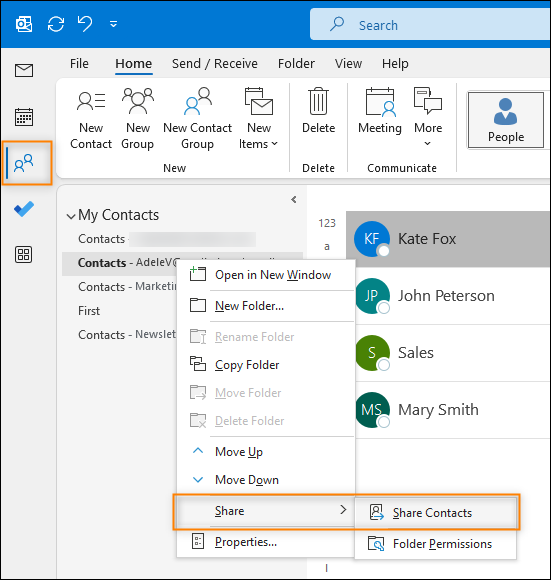
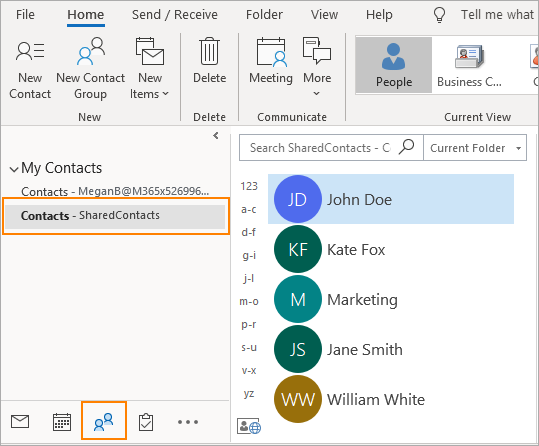
- Go to the People Pane (Contacts): Look for the little people icon (usually at the bottom left). Click it! This takes you to your contact list.
- Find the Contact You Want to Share: Scroll through your list, or use the search bar to find the lucky contact you want to share.
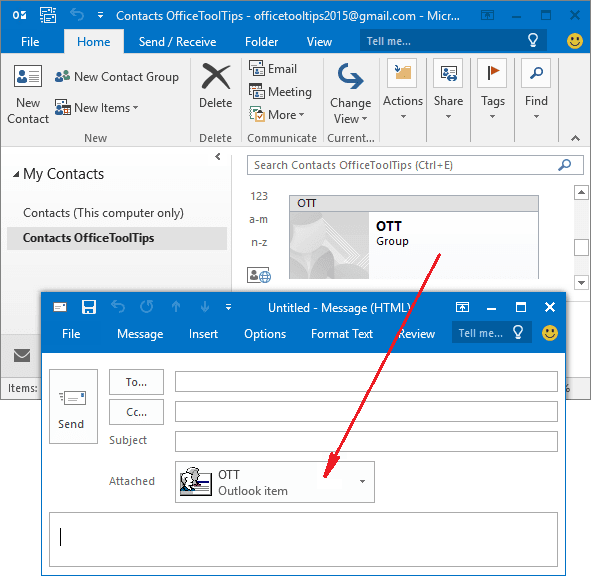
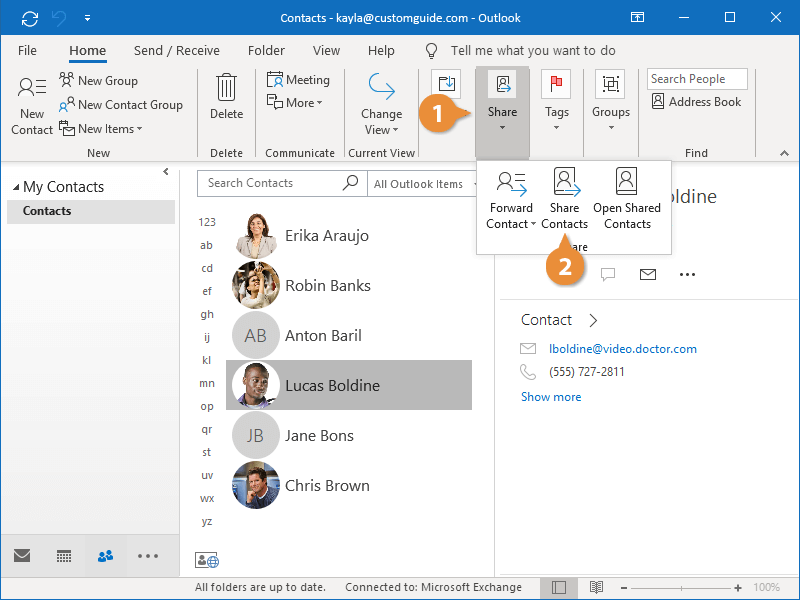
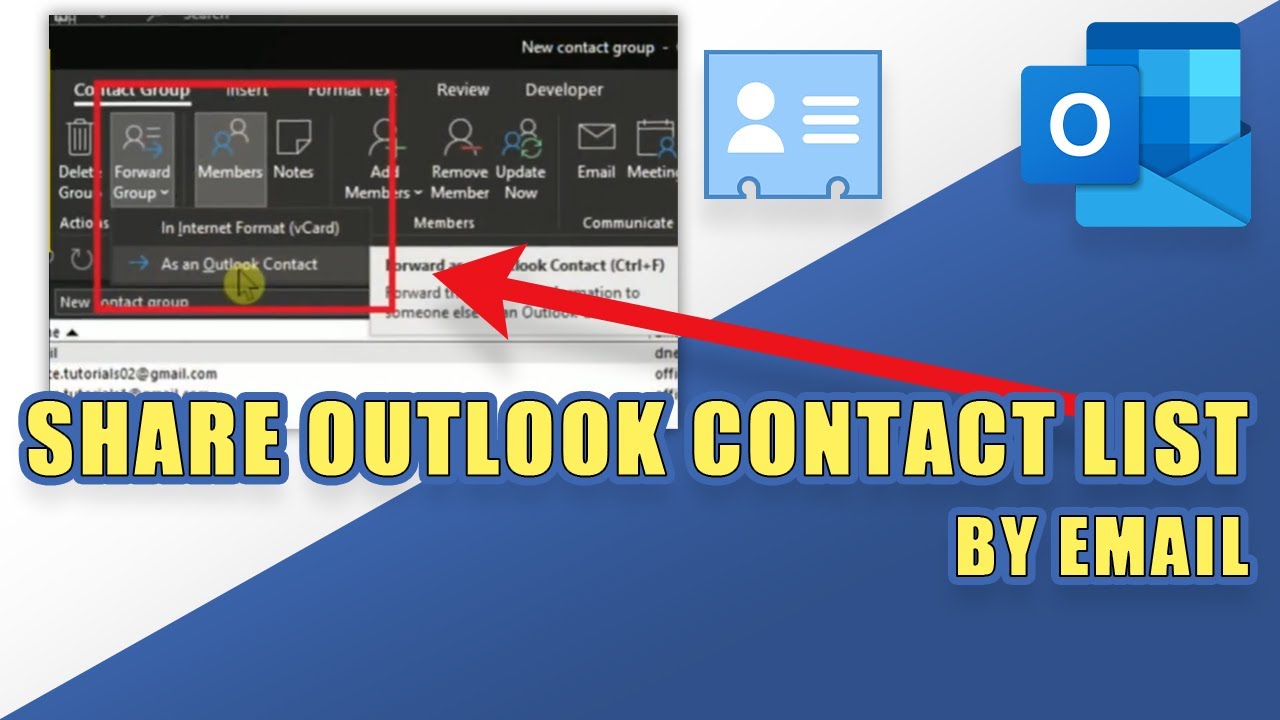
- Forward as vCard: Right-click on the contact. You should see an option that says something like "Forward as vCard" or "Send as vCard." Click that! (Isn't this exciting?!)
- Compose Your Email: A new email window will pop up, with the contact attached as a .vcf file (that's the vCard!). Add the recipient's email address, a subject line (like "Sarah's Contact Info!"), and a friendly message.
- Send!: Hit that send button and bask in the glory of your digital generosity!
Ta-da! You've just shared a contact like a pro!
Method 2: Copying and Pasting (The... Let's Just Say "Less Elegant" Way)
Okay, sometimes you might be tempted to just copy and paste the contact information into an email. While technically possible, it's not the best approach. Why? Because it can be messy, prone to errors, and not easily imported into other contact lists. But, if you really want to...
- Open the Contact: Double-click on the contact to open its full details.
- Select and Copy: Carefully select all the information you want to share (name, email, phone number, etc.) and copy it (Ctrl+C or Cmd+C). Be careful not to miss anything important!
- Paste into Email: Paste the information into the body of your email (Ctrl+V or Cmd+V).
See? Not as smooth as the vCard method. I highly recommend sticking with the vCard.
Pro Tips for Sharing Like a Superstar
- Double-Check Before You Send: Make sure the contact information is accurate before you share it. Nobody wants to give out the wrong phone number!
- Add a Personal Touch: Include a brief message explaining why you're sharing the contact. "Hey John, I thought you might want to connect with Sarah. She's amazing!" goes a long way.
- Respect Privacy: Only share contacts with people who have a legitimate reason to connect. Don't be a digital spammer!
Ready to Become a Contact-Sharing Master?
So there you have it! Sharing contacts in Outlook is a breeze. With a few simple clicks, you can connect people, save time, and become the hero of your social circle. Now go forth and share! Explore the other features that Outlook has to offer. Things like creating contact groups, tagging contacts, and using filters to organize everything. The possibilities are endless!
Feeling inspired? That's the spirit! The world of digital productivity is vast and exciting. Keep learning, keep exploring, and keep connecting people. Who knows what amazing things you'll help create!