
How To Reprogram Honeywell Alarm System
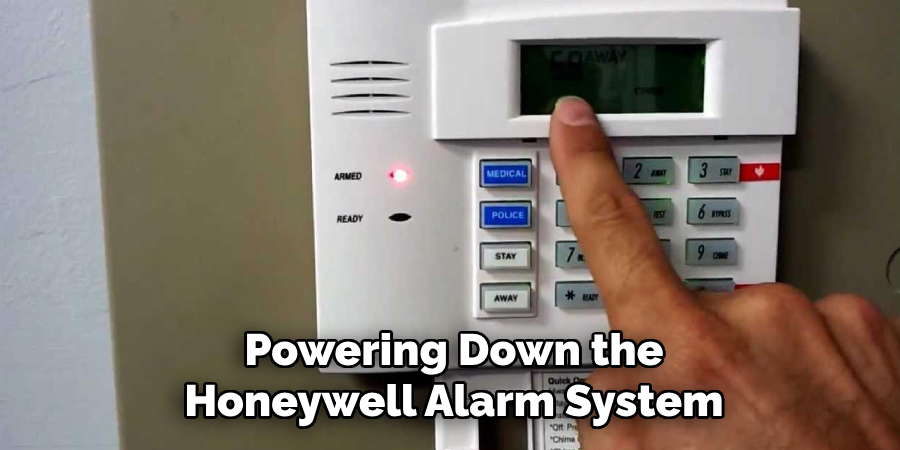
Alright, buckle up, buttercup! Ever stare at your Honeywell alarm keypad like it’s a cryptic alien device, silently judging your lack of tech-savviness? Well, fear not, because today we’re going to yank that control panel by its digital ear and show it who’s boss. Reprogramming your Honeywell alarm system might sound like something only a certified tech wizard can do, but I promise you, it's more like teaching an old dog new tricks – and just as rewarding (minus the slobbery kisses).
Think of me as your friendly, slightly caffeinated guide on this journey to alarm system enlightenment. We're going to make this fun, easy, and maybe even a little bit hilarious. Let’s dive in!
Why Reprogram Your Digital Guardian?
Why would you even want to mess with a perfectly good (or not-so-perfectly-good) alarm system? Good question! Maybe you’ve got new sensors you want to add (hello, smart home goals!). Or perhaps you just moved into a new place, and the previous owner's "secret" code was "1234," which isn't exactly Fort Knox level security. You might want to:
Must Read
- Add or remove security zones (like that new shed you just put up, or that window you sealed shut).
- Change user codes for family, friends, or the cat sitter.
- Adjust entry/exit delays (because who needs a heart attack every time they come home?).
Basically, you want your alarm system to work for you, not the other way around.
First Things First: Gather Your Techy Toolkit!
Before we start mashing buttons like a mad scientist, let's get our ducks in a row. You'll need two crucial things:
1. Your System's Manual: Yes, that dusty tome you probably tossed into a drawer. Dig it out! While I’ll give you general steps, different Honeywell models have slightly different quirks. The manual is your bible, your Rosetta Stone, your… well, you get the picture.
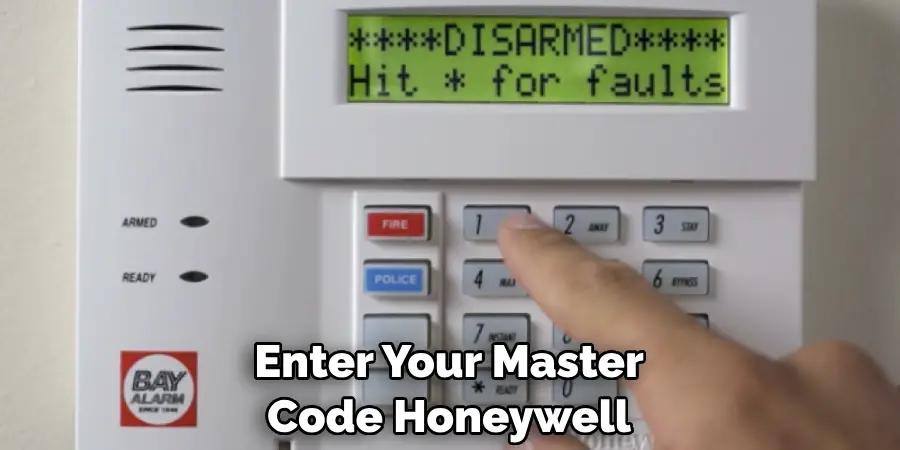
2. The Installer Code: This is the Holy Grail. It's a 4-digit code that grants you access to the deep, dark secrets of your alarm system's programming. It's usually different from your everyday user code. If you don’t have it, try some common defaults like 4112, 6120, or 6140. If those don't work, you might need to contact a professional or, in some cases, power cycle the panel to revert to default (but that’s a whole other can of worms, so try the defaults first!).
Diving Into the Matrix: Entering Programming Mode
This is where the magic happens! To get into programming mode, you’ll typically perform a sequence of key presses. It’s like entering a cheat code in an old video game.
Most Honeywell Vista panels (which are super common) follow this pattern:
1. Enter your Installer Code (e.g., 4112). 2. Press the [8] key. 3. Enter your Installer Code again.

So, it's something like: [4][1][1][2] + [8] + [4][1][1][2].
If successful, your keypad should display something like "20", "Installer 20", or "Program". This means you're in! Congratulations, you've just unlocked the inner workings of your alarm system. Take a bow!
Navigating the Control Panel Labyrinth
Now that you're in programming mode, you'll use the asterisk [] key followed by specific two-digit codes to access different programming fields. Think of the [] key as your "enter" button for menu options.
For example:
- To add or modify zones (those individual sensors on doors, windows, etc.), you'll often use codes like 56 (for zone programming) or similar. Your manual will tell you the exact field numbers.
- To change other system attributes like time or date, there are specific field numbers for those too.
Here’s the deal: each field number has specific options you can program. The manual is crucial here to tell you what numbers to input for things like "zone type" (e.g., "01" for entry/exit, "03" for perimeter, "05" for day/night). It's like filling out a very important (and slightly boring) survey.
Important tip: Take your time! Double-check everything before moving on. There’s no undo button here, folks, just more programming.
Exiting Stage Left: Saving Your Work!
Once you’ve made all your glorious changes, you need to exit programming mode and save your masterpiece. This is super easy:
Press [] + [9][9].
The system should emit a happy little beep, and the display will return to its normal "Ready to Arm" state. You’ve successfully exited programming mode and saved all your changes. It's like hitting "save" and "log out" all at once, but with more beeps!
Oopsie-Daisy Moments (It Happens!)
Did you accidentally set off a phantom siren? Or maybe the keypad isn't responding as expected? Don’t panic! This is usually just part of the learning curve.
- If you get stuck or make a mistake, you can often just re-enter programming mode (Installer Code + 8 + Installer Code) and try again.
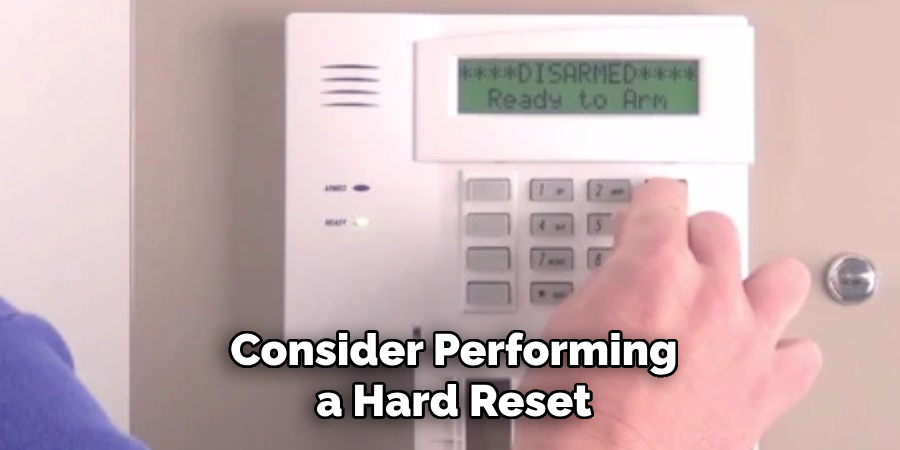
- If things go really sideways, refer to your manual for troubleshooting. Sometimes a quick power cycle (disconnecting the main power and then the battery, waiting a minute, then reconnecting) can help clear minor glitches – but use this sparingly and only if comfortable!
You're a Security Superhero!
See? That wasn't so bad, was it? You just wrangled your Honeywell alarm system into submission and made it do your bidding. You’re not just a homeowner; you’re a Honeywell hacker (the good kind, obviously!). Feel that surge of empowerment? That’s the feeling of mastering your domain, one keypad press at a time. Go forth and enjoy your perfectly customized, supremely secure home, knowing you're the one pulling the strings. Now, go reward yourself with a snack; you've earned it!