How To Make A Poster Mockup In Photoshop
Ever wondered how designers magically showcase their poster designs in realistic settings before they're even printed? Or how businesses tease their upcoming campaigns with captivating visuals? The secret often lies in creating poster mockups. It might sound complicated, but it's actually a fun and surprisingly accessible skill to learn, especially if you have access to Adobe Photoshop.
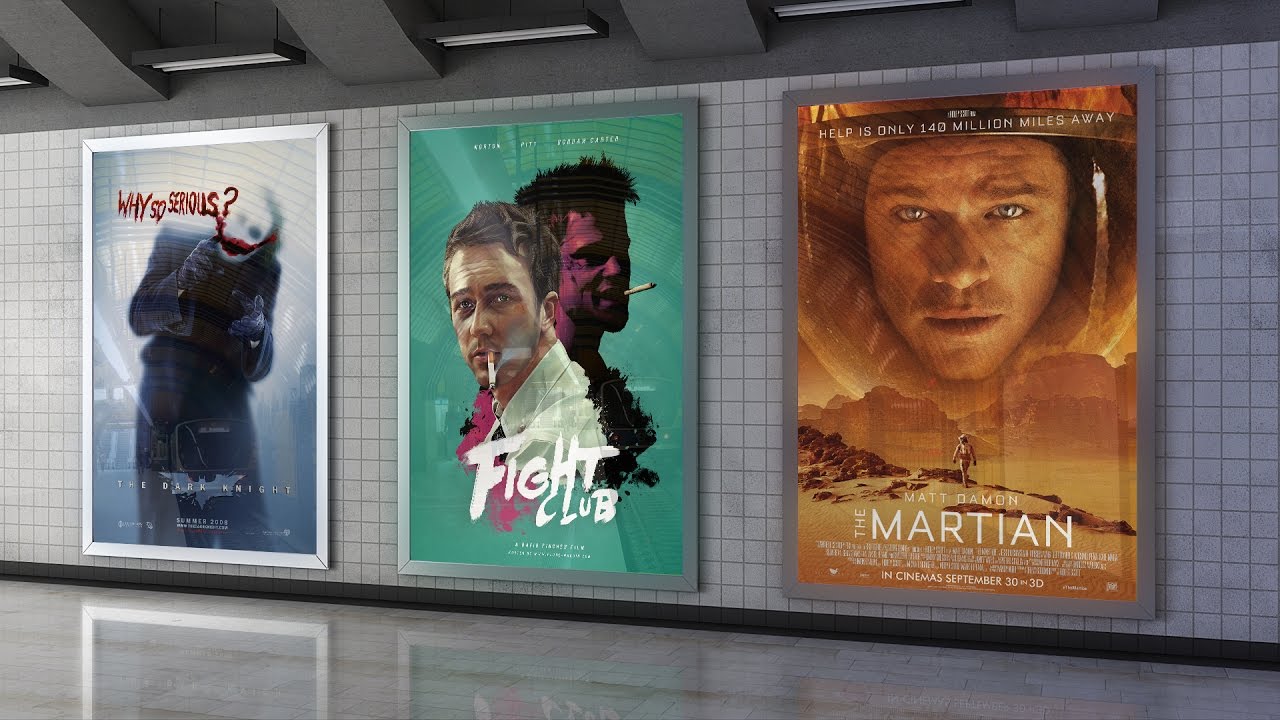
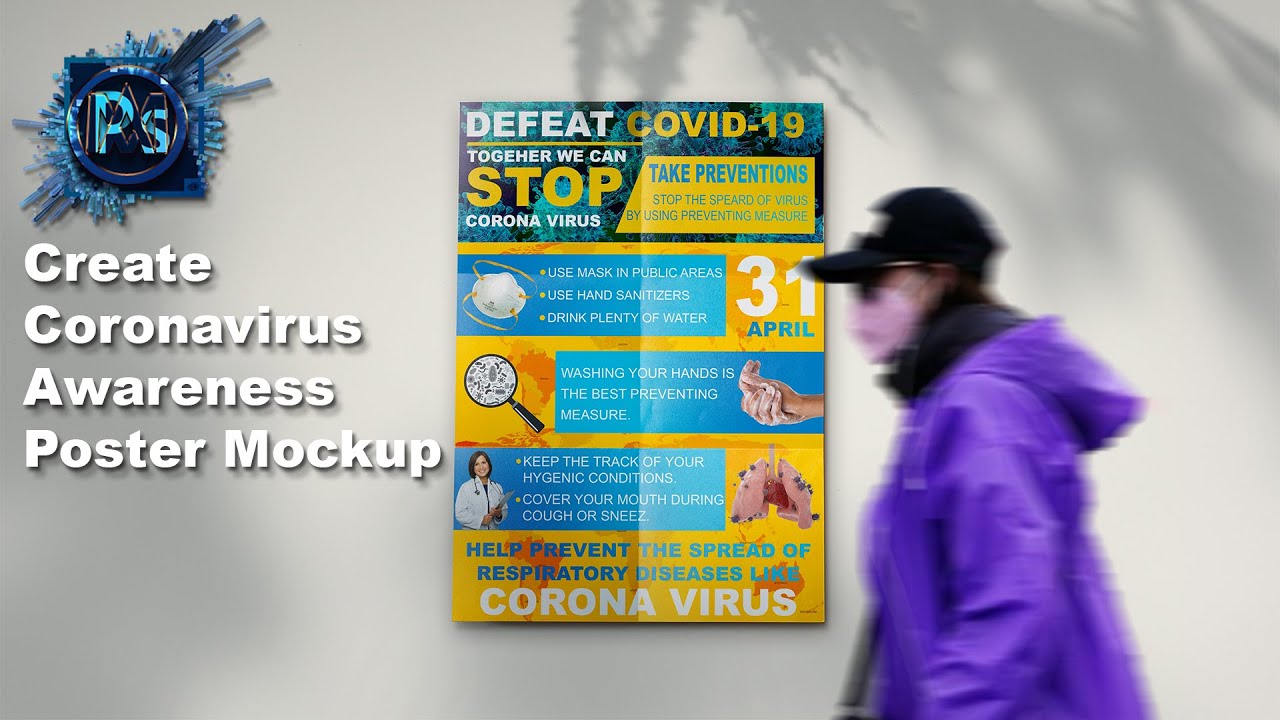
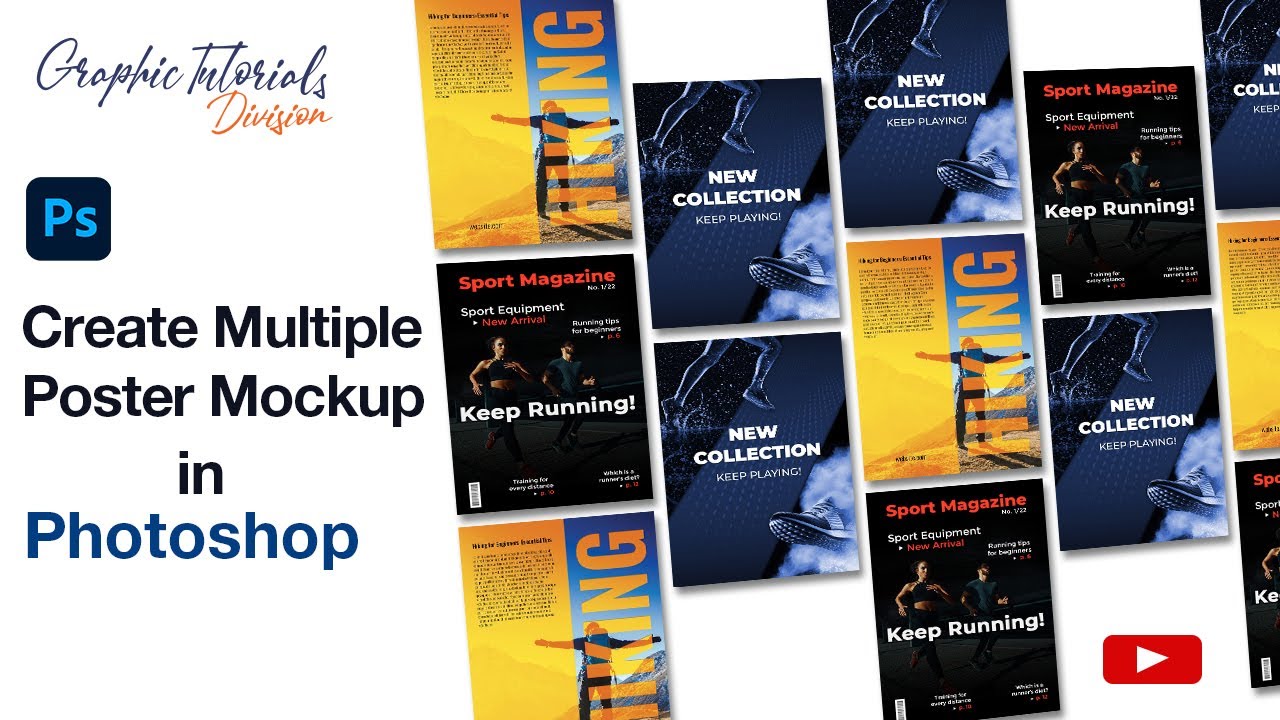
A poster mockup is essentially a digital representation of your poster design placed onto a photo or digital template that simulates a real-world environment. Think of it as digitally pasting your poster onto a brick wall, a billboard, or inside a framed display. The purpose of a mockup is to give you and others a realistic preview of how your design will look in its intended context. This is incredibly useful for several reasons. First, it helps you visualize the impact of your design – does the color palette work well with the surrounding environment? Is the typography legible from a distance? Second, it allows you to present your work professionally to clients or colleagues, showcasing your ideas in a polished and engaging manner. Finally, it can help you identify potential problems early on, allowing you to make necessary adjustments before committing to costly printing or production.
The benefits of using poster mockups extend far beyond the design world. In education, students creating posters for school projects can use mockups to present their work in a more engaging and visually appealing way. Imagine a history project where a student showcases their research by placing their poster design onto a mockup of a historical building! In daily life, if you're planning a community event, you can use mockups to visualize how your promotional posters will look on local notice boards or shop windows. Even if you're just designing a poster for your own room, a mockup can help you decide on the best placement and frame style.
Must Read
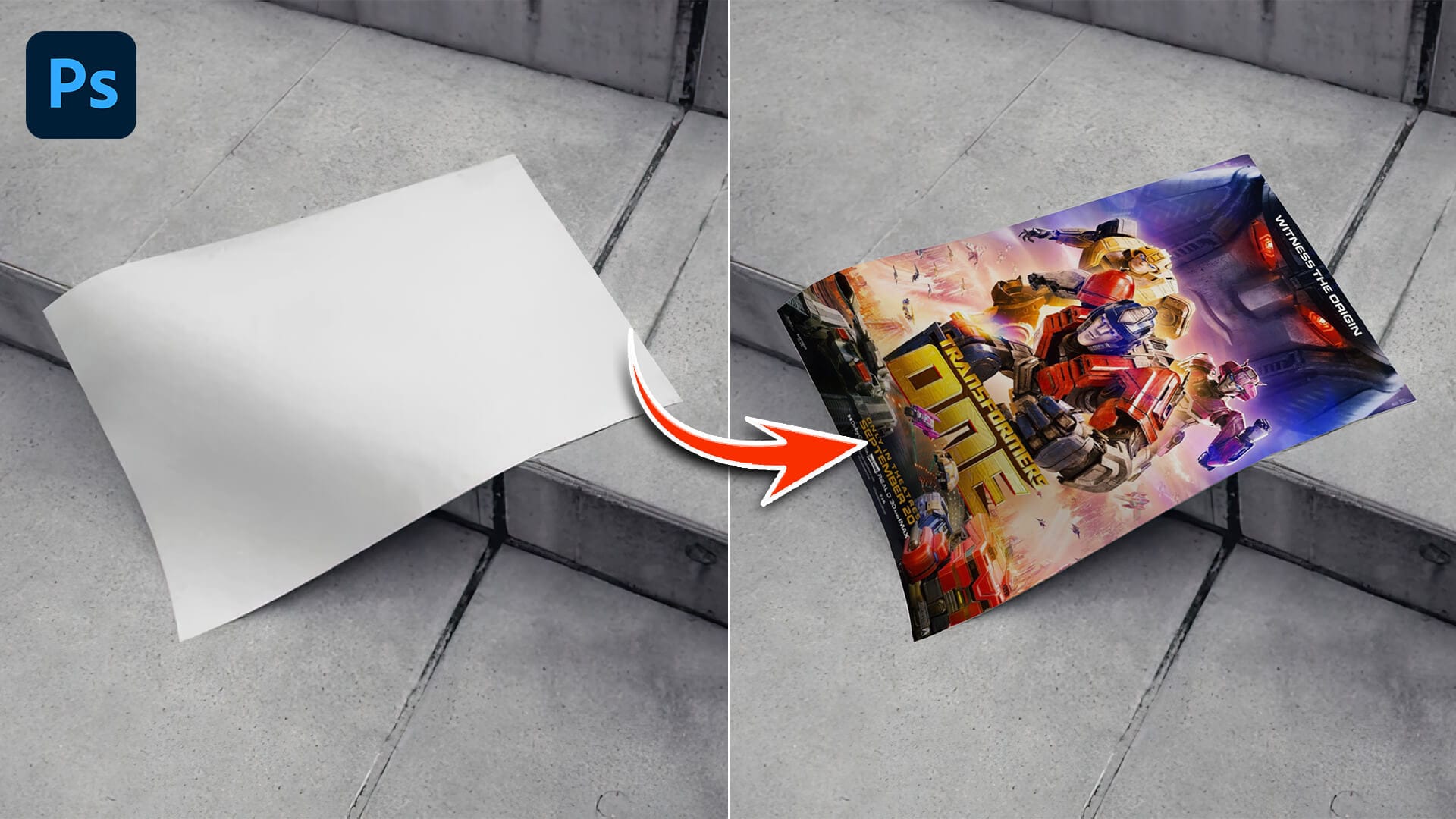
So, how do you actually create a poster mockup in Photoshop? The easiest way is to utilize pre-made mockup templates. There are tons of free and paid resources available online (search for "free poster mockup PSD" to get started). These templates typically use smart objects in Photoshop. Simply double-click on the smart object layer, which will open a new document. Paste your poster design into this new document, save it, and voila! Your design will automatically appear warped and perspective-corrected within the original mockup.
Here are a few practical tips for exploring poster mockups:
- Start with free templates: Don't feel pressured to buy anything. Explore free resources first to get a feel for the process.
- Experiment with different environments: Try placing your poster on a variety of backgrounds (city streets, interior walls, etc.) to see what works best.
- Pay attention to lighting and shadows: A good mockup will have realistic lighting and shadows that enhance the overall effect.
- Don't be afraid to adjust the mockup: Photoshop allows you to customize the lighting, colors, and textures of the mockup to better suit your design.
Creating poster mockups in Photoshop is a powerful tool that can elevate your design presentations and help you visualize your ideas in a more realistic and engaging way. So, dive in, experiment, and have fun! The possibilities are endless.