How To Get Sound Off A Video
Ever been there? You're scrolling through your phone, ready to share that hilarious video of your cat attempting (and spectacularly failing) to jump on the counter. But then you realize… the audio is all wrong. Maybe it's just the clatter of dishes, a neighbor's leaf blower, or, heaven forbid, you making some questionable singing noises in the background. Don't worry, we've all been there! The good news is, muting that audio is often easier than you think.
Why Mute a Video Anyway?
Okay, so why should you even bother learning how to silence a video? Think of it this way: you wouldn't wear socks with sandals to a fancy dinner, would you? (Okay, maybe some people would… but you get the point!). Sometimes, the audio just doesn't fit the occasion.
Here are a few common scenarios where muting is your best friend:
Must Read
- Sharing on Social Media: Maybe you caught a great moment of your kid playing, but your own running commentary is less than stellar. Mute it and add some fun music!
- Presentation Time: Showing a video in a meeting? Distracting background noise can kill the mood. Silence is golden!
- Personal Memories: Sometimes you just want to relive the visuals without the cacophony of sounds. A quiet stroll down memory lane, anyone?
- Avoiding Copyright Issues: Got a great video, but it has someone else's copyrighted music playing in the background? Mute it to be safe!
The Easiest Way: Your Phone's Built-in Editor
Believe it or not, your smartphone is probably already equipped to handle this task. Most phones have a basic video editor built right in. It’s like having a mini-movie studio in your pocket!
Here’s the general idea (it might vary slightly depending on your phone):
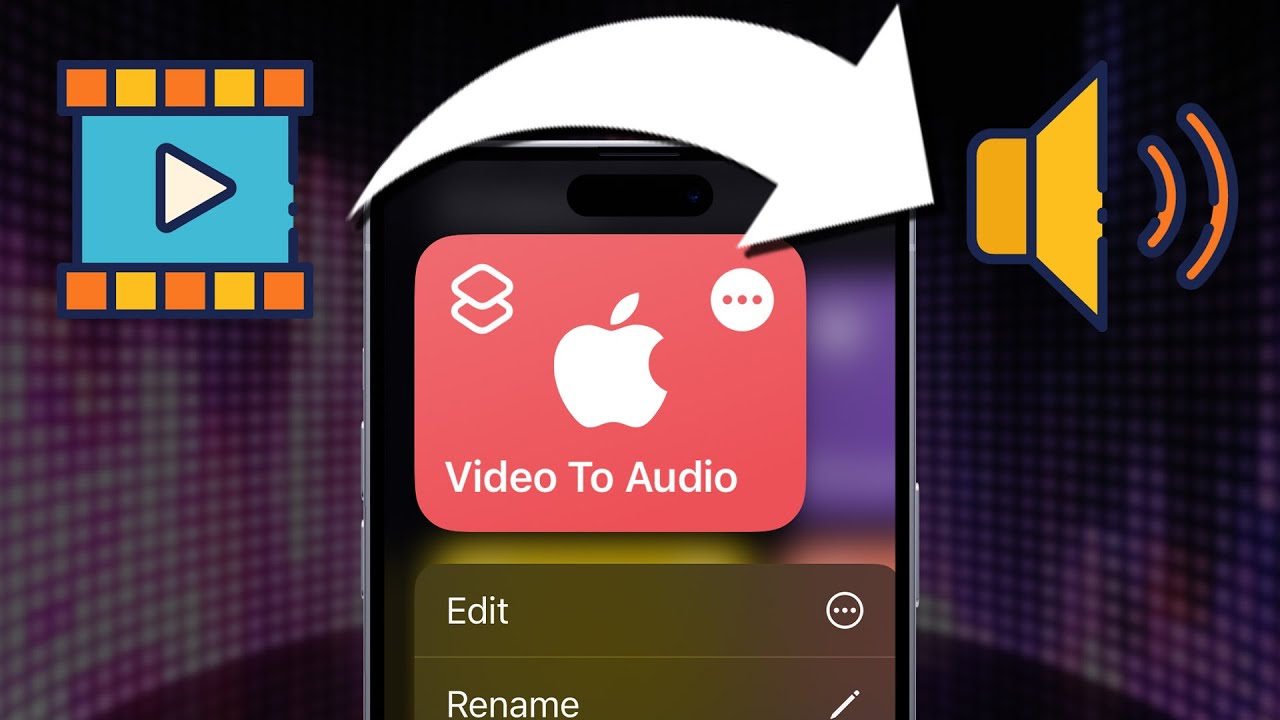
- Open the video you want to mute in your phone's gallery.
- Look for an "Edit" button. It might look like a pencil, a set of sliders, or something similar.
- Once in the editor, look for an audio icon. This could be a speaker symbol.
- Tap the audio icon. You should see options like "Mute," "Volume," or a slider to adjust the audio level.
- Select "Mute" or drag the volume slider all the way down.
- Save the edited video. Your phone will usually give you the option to save it as a new file, so you don't overwrite the original.
See? Easy peasy! Think of it like ordering a coffee – you know where the espresso machine is, and which buttons to press. Same idea!
Level Up: Third-Party Apps
While your phone's built-in editor is great for quick fixes, sometimes you need a bit more power. That’s where third-party apps come in. These apps often offer more advanced features, like adding music, trimming clips, and even color correction.
Some popular options include:

- iMovie (iOS): A free and powerful video editor from Apple.
- InShot (iOS & Android): User-friendly and packed with features.
- FilmoraGo (iOS & Android): Another great option with a wide range of tools.
Using these apps is generally similar to using your phone's editor, but with more bells and whistles. Just import your video, look for the audio editing options, and mute away!
Online Options: Mute From Your Computer
Sometimes, you’re working with a video file on your computer and want to mute it quickly. There are plenty of online video editors that allow you to do just that, without having to download any software. This is perfect for a one-time fix!

Simply search for "online video mute" on Google, and you'll find a bunch of free and easy-to-use tools. Most of them will ask you to upload your video, then offer a simple mute button. Once muted, you can download the new, silent version.
A Few Extra Tips
Here are some extra nuggets of wisdom to help you on your muting journey:
- Always save a copy: Before making any changes, save a copy of your original video. That way, if you mess up, you can always go back to the original. Think of it like backing up your computer – it's a lifesaver!
- Test, test, test: After muting the video, play it back to make sure the audio is completely gone. You don't want any surprise noises creeping in!
- Explore the options: Don't be afraid to experiment with different apps and tools. You might discover some hidden gems!
So there you have it! Removing sound from a video is simpler than you thought, right? With these tips and tricks, you'll be muting like a pro in no time. Now go forth and create some silent masterpieces!