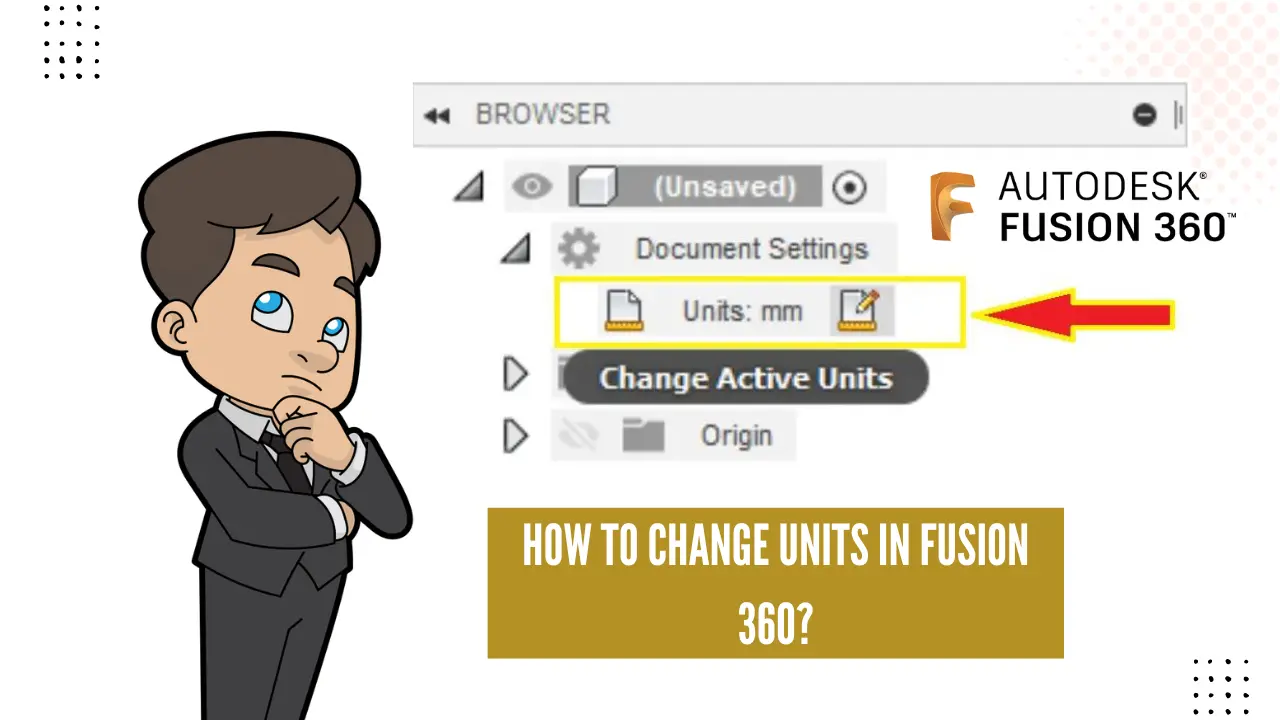
How To Chantge Units In Fusion

Hey there, fellow Fusion 360 enthusiast! Ever found yourself staring at a design, thinking, "Wait a minute, is this in millimeters when it should be inches? Argh!" Don't worry, we've all been there. Changing units in Fusion 360 is surprisingly simple, once you know where to look. Let's dive in and make sure your designs are always measuring up correctly!
The Big Picture: Document Settings
The key to changing units lies within the Document Settings. Think of it as the control panel for your current project's overall measurements. It's not just for units, but we're focused on that today, because, let's face it, that's probably why you're here. (Unless you're just bored. In which case, welcome! Hope you enjoy the unit-changing adventure!)
To find Document Settings, look to the browser, that panel on the left side of your screen where you see all your components, bodies, and sketches listed. At the very top, you should see the name of your design file (e.g., "MyAwesomeWidget.f3d"). Hover your mouse over the file name. You'll see a little gear icon appear to the right. That's the magic button! Click it!
Must Read
Clicking the gear brings up a lovely little window called, you guessed it, Document Settings! This is where the unit-changing party starts.
Picking Your Preferred Units
Inside the Document Settings window, you'll see a section labeled Units. Right next to that label is a dropdown menu, probably displaying your current unit of measure (like "mm" or "in"). Click that dropdown, and you'll be presented with a glorious list of options:

- Millimeters (mm)
- Inches (in)
- Centimeters (cm)
- Meters (m)
- Feet (ft)
Choose the units that make the most sense for your project. Building a tiny micro-robot? Maybe millimeters are your friend. Designing a massive garden shed? Feet might be a better fit. It all depends on the scale of your creation! Pro-tip: plan ahead! Changing units mid-project can be done, but it sometimes leads to scaling weirdness if you're not careful. Ask me how I know... let's just say I once designed a "dollhouse" that could comfortably house a family of giraffes.
Applying the Change
Once you've selected your desired unit, simply click the OK button at the bottom of the Document Settings window. Boom! Fusion 360 will now display all measurements in your chosen units. You might need to regenerate your design if anything looks a bit off, but usually, it's a smooth transition.
But What About Individual Sketches?
Okay, this is a slightly more advanced topic. Sometimes, you might want to use different units for a specific sketch within your design. For example, you might want to design a component in millimeters while the rest of your project is in inches (perhaps you're importing a part designed using the metric system). Unfortunately, you can’t directly change the units of a single sketch independently of the Document Settings.
The best workaround is to design the sketch in the Document Settings units and then scale the resulting solid body to the correct size. To do this, use the Scale command (found under the Modify menu). Select the body, choose a fixed point, and enter a scale factor to convert between the units. This ensures accurate representation of the component within the overall design.

It's not ideal, but it gets the job done! Think of it as a little Fusion 360 "hack." 😉
A Final Word of Caution (and Encouragement!)
Remember that changing units can affect existing dimensions in your design. Always double-check your measurements after making a change to ensure everything is still accurate. It's better to catch a scaling issue early than to realize your parts are completely the wrong size after you've sent them off for manufacturing! I've definitely learned this lesson the hard way, trust me.
And that's all there is to it! Changing units in Fusion 360 is a simple process that can save you a lot of headaches down the road. So go forth and design, measure, and build with confidence! You've got this! Remember, every "mistake" is just a learning opportunity disguised as a minor panic attack. Happy designing!