
How To Change Honeywell Thermostat Wifi
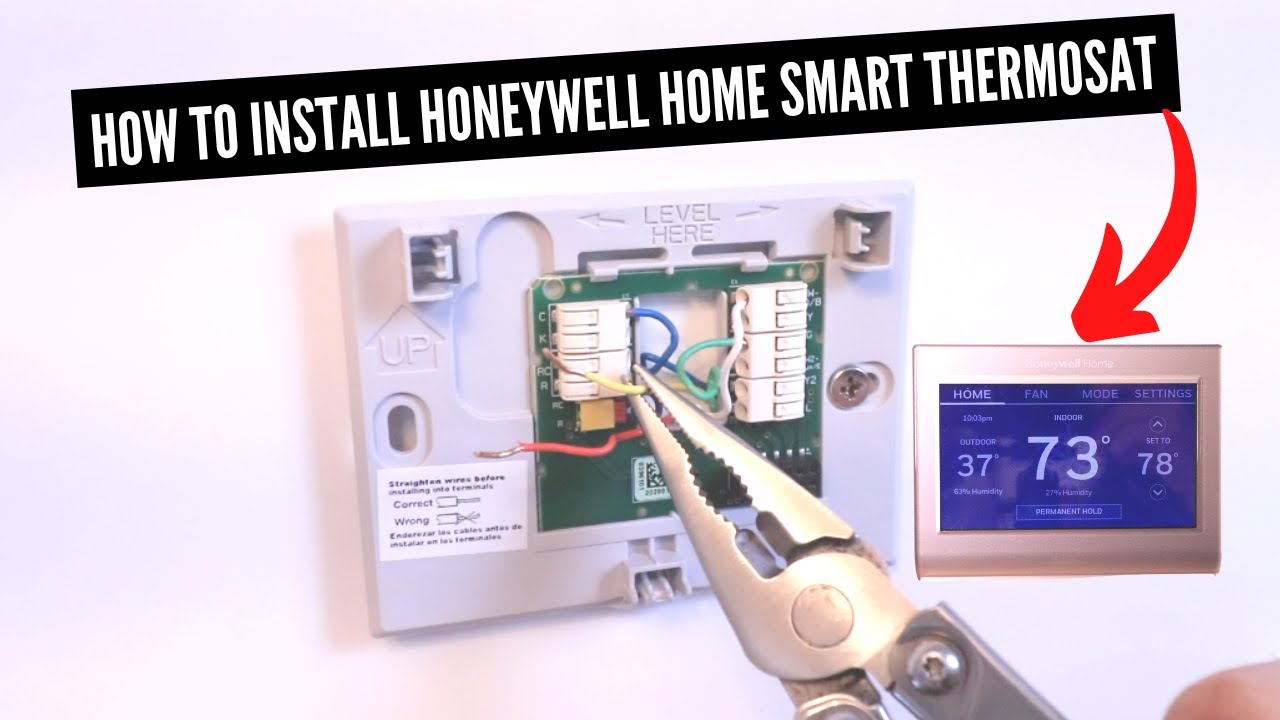
Alright, friend! So, you’ve taken the plunge. New router? Fancy new internet provider? Or maybe your old Wi-Fi password just felt a bit… last decade? Whatever the reason, you’re now faced with the monumental task of telling your trusty Honeywell thermostat about its new digital playground. Sounds daunting, right? Like teaching an old dog new tricks, but the old dog is a sleek piece of tech and the trick is speaking fluent Wi-Fi.
Fear not, intrepid home manager! Changing your Honeywell thermostat’s Wi-Fi connection is less like rocket science and more like a gentle, tech-savvy stroll in the park. Seriously, it's easier than trying to get a cat to wear a tiny hat (trust me on that one). Let’s dive in!
First Things First: Don't Panic!
Take a deep breath. Your thermostat isn't judging you for not knowing this off the top of your head. It’s just patiently waiting for you to tell it where the digital party is happening. Think of your Wi-Fi as your thermostat's lifeline to the outside world – its eyes and ears for weather updates, energy reports, and your remote commands from the couch. We’re just giving it a new pair of specs!
Must Read
Before we begin, make sure you have your new Wi-Fi network name (SSID) and, more importantly, its password handy. No, don't just "think" you know it. Write it down! Is it a mix of random letters, numbers, and symbols that would make a cryptographer weep? Excellent! Just make sure it’s exact. Caps matter, spaces matter, everything matters! Your thermostat is very particular about its spellings.
The Great Thermostat Reconnaissance Mission
Most Honeywell Wi-Fi thermostats follow a similar tune, though the buttons might be slightly different depending on your model. Don’t worry, we're looking for the same kind of digital breadcrumbs.

Step 1: Wake Up Your Thermostat
Give your thermostat a gentle tap or press its screen to make sure it’s awake and ready for action. If it's a touchscreen, a simple tap usually does the trick. For models with physical buttons, pressing one of them should light up the display.
Step 2: Find the Wi-Fi Setup Menu
This is where the magic (or at least, the crucial step) happens. Look for a menu option that screams "Wi-Fi," "Network," "Menu," or maybe even a little gear icon.
- For most models (especially the newer ones): Tap "Menu" on the screen. Then, scroll through the options until you find something like "Wi-Fi Setup," "Connect Wi-Fi," or "Network." It might even just be a Wi-Fi symbol!
- If you're struggling: Sometimes, on older models, you might need to press and hold a specific button for a few seconds. If "Menu" isn't leading you to Wi-Fi glory, don't be afraid to consult your thermostat's specific manual. A quick Google search for "[Your Honeywell Thermostat Model] Wi-Fi setup" usually works wonders!
Step 3: Disconnect and Reconnect
Once you’re in the Wi-Fi setup menu, your thermostat will likely ask you to either disconnect from the current network (if it’s still trying to cling to the old one) or immediately start scanning for new networks.

Select the option to "Scan for Networks" or "Connect to New Network." Your thermostat will then put on its digital spectacles and look for all available Wi-Fi networks in your area. This might take a few seconds. Try not to tap your foot impatiently; it's doing its best!
Step 4: Pick Your Poison (I Mean, Your Network!)
A list of network names (SSIDs) will pop up. Find your new Wi-Fi network name in the list. This is why having it written down is so helpful! Tap on it to select it.

Step 5: The Sacred Password Entry
Here it is: the moment of truth! Your thermostat will prompt you to enter the password for your chosen Wi-Fi network. Carefully, painstakingly, enter that password exactly as it appears. Remember our chat about caps and symbols? This is where it pays off.
Once entered, press "Done," "Connect," or "OK." Your thermostat will then attempt to connect.
Did It Work? The Grand Finale!
If all goes well, your thermostat will show a message like "Connection Successful!" or display a happy little Wi-Fi symbol at the top of its screen. Bravo! Give yourself a high-five! You’ve just performed digital surgery with a steady hand.
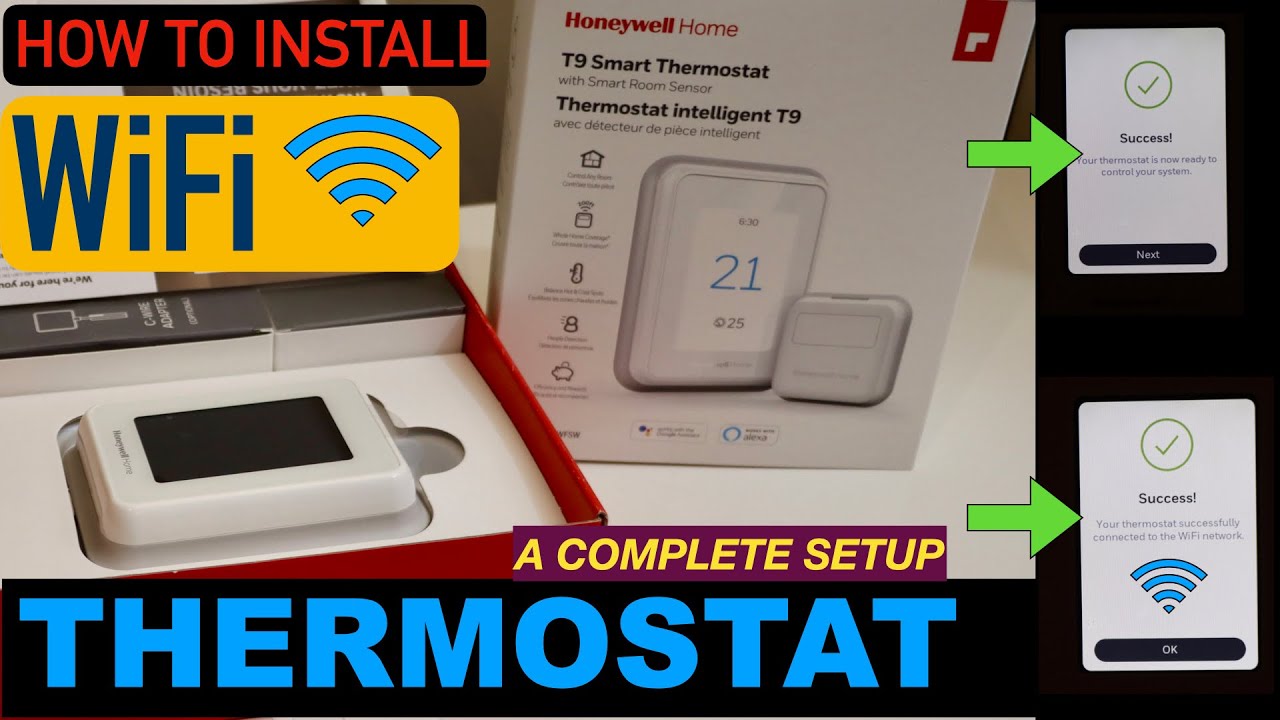
To double-check, open up your Honeywell Home app on your smartphone. Does your thermostat show up? Can you control it remotely? If yes, then congratulations, you’re officially a Wi-Fi wizard!
Troubleshooting Tidbits (Just In Case!)
What if it didn't work? Don't toss your thermostat out the window just yet!
- Check that password again! Seriously, it's almost always the password.
- Reboot your router: Unplug your Wi-Fi router for 30 seconds, then plug it back in. Sometimes, it just needs a little nap.
- Reboot your thermostat: Many models have a small reset button, or you can often remove it from its wall plate for a minute.
- Is your network 2.4GHz? Most smart home devices prefer the 2.4GHz band. If you have a dual-band router, make sure your thermostat isn't trying to connect to a 5GHz network, which some older models can't see.
You Did It!
See? That wasn’t so bad, was it? Your Honeywell thermostat is now happily chatting away with your new Wi-Fi, ready to make your home perfectly comfortable, just the way you like it. You've conquered the tech, tamed the network, and emerged victorious. Go ahead, bask in the glow of your smart home prowess. Now, what's next? Maybe teaching that cat to fetch? (Probably not, let's not push our luck.) Enjoy your perfectly connected, perfectly comfortable home!