
How To Add Inventory On Square
Alright, let's talk about something exciting: Square Inventory. I know, I know, maybe "exciting" is a strong word. But hear me out! It's the key to knowing whether you actually have that mermaid-shaped bath bomb Brenda wanted. And that, my friends, is extremely exciting when Brenda is waiting.
Adding inventory on Square isn't brain surgery. Unless, of course, you're adding inventory of brains for a brain surgery practice. Then, maybe it's a little bit. But for everyone else, it's a breeze.
The "Manual Labor" Method (aka, the "Old School" Way)
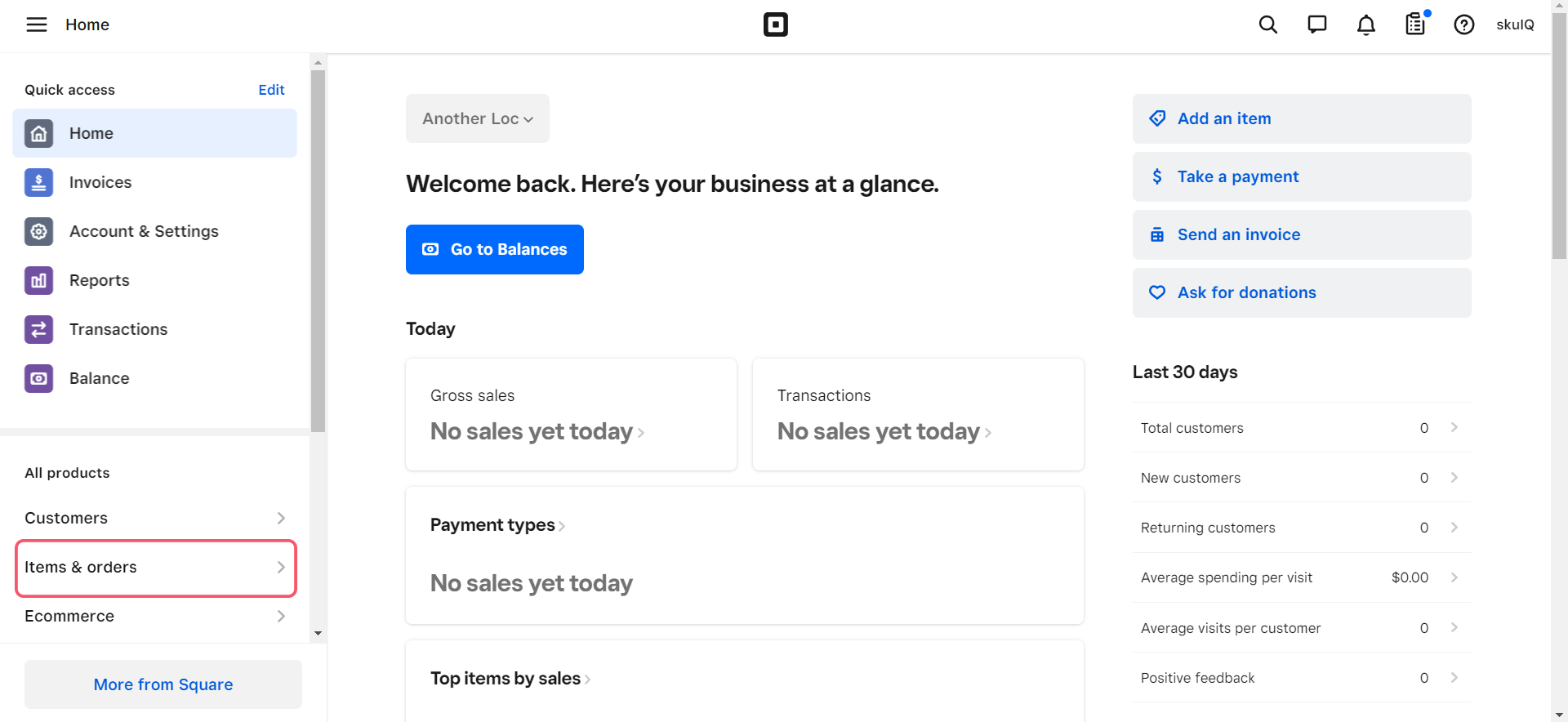
First, log into your Square Dashboard. This is like your business's control panel, except hopefully less likely to explode. Navigate to the "Items" section. It's usually on the left-hand side, looking all innocent.
Must Read
See that big, inviting "+ Create Item" button? Yeah, that's your target. Click it! A whole new world of inventory possibilities is about to open up. Or, you know, a form. But same difference.
Now, the fun begins. You get to name your item. "Super Shiny Rock." "Mysterious Box." "Left Sock (Single)." Be creative! Just make sure you can actually find it later.
Next, add a price. Don't undersell yourself! Unless you're trying to get rid of that single left sock. Then, by all means, undersell away.
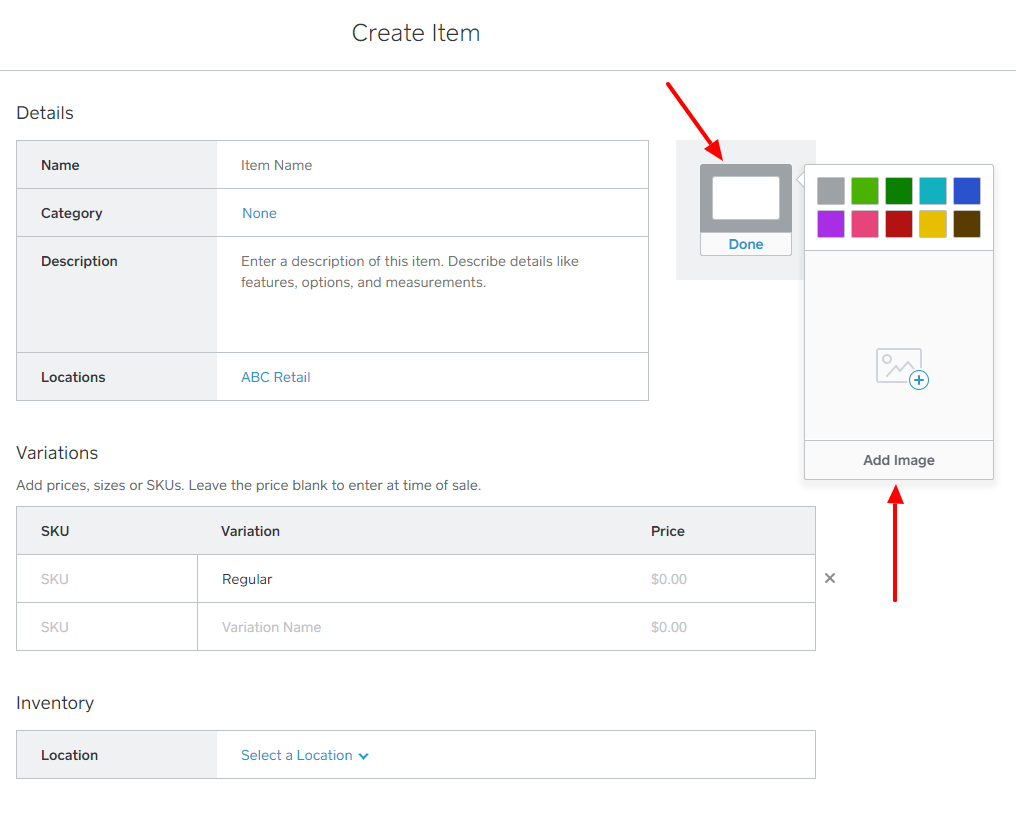
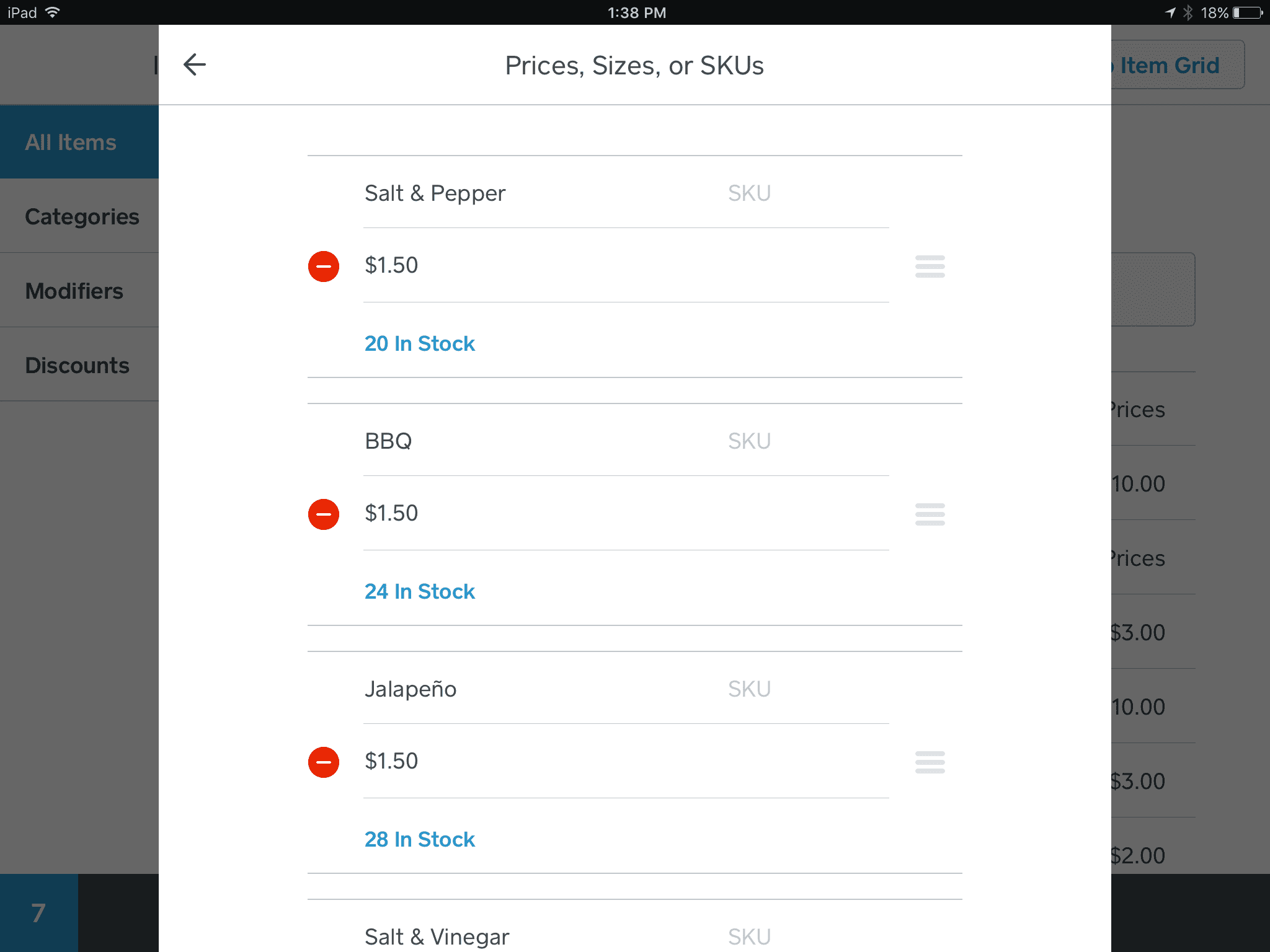
Here's where the inventory magic happens. Scroll down (or look for the inventory section). You'll see a box where you can enter the number of items you have in stock. Type in the number. Boom! You've officially added inventory.
Don't forget to hit "Save"! This is crucial. I once spent an hour adding inventory only to accidentally close the window. I'm still not over it.
The "Bulk Action" Approach (For the Slightly More Advanced)
Okay, so maybe you have, like, a lot of items. Like, hundreds. Adding them one by one would take approximately forever. That's where the bulk action comes in. It's like adding inventory with a rocket launcher! (Figuratively speaking, please don't try to launch rockets at your inventory.)
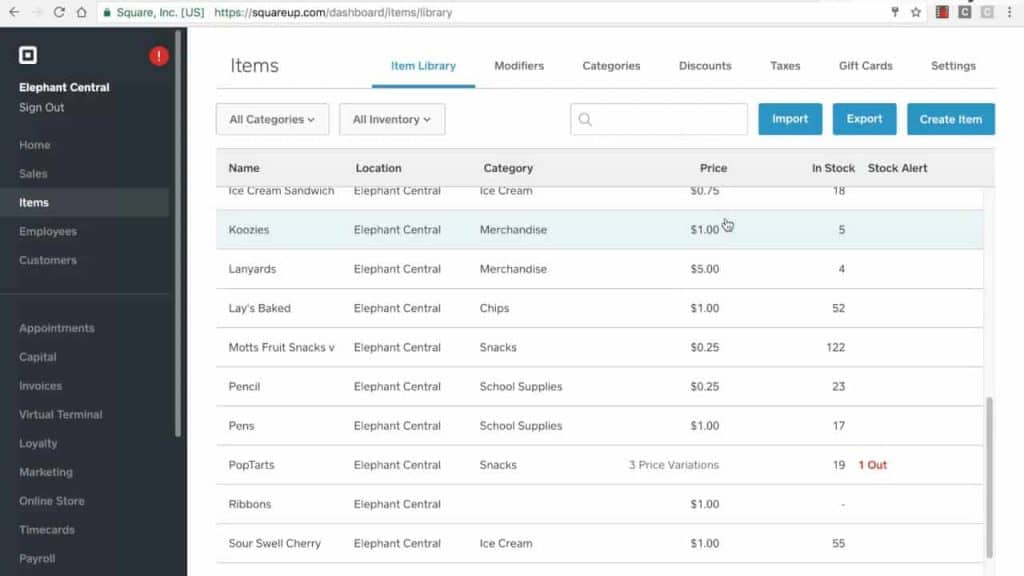
Go back to your "Items" section on the Square Dashboard. Look for an "Import" or "Bulk Edit" option. It might be hiding, so play detective.
You'll probably need to download a CSV template. Don't panic! A CSV is just a fancy spreadsheet. Open it in Excel, Google Sheets, or whatever spreadsheet program floats your boat.
Now, fill in the template with all your item information: name, price, SKU (if you have one), and, of course, the all-important quantity. Be precise! Typos can lead to inventory chaos.
Save the CSV file and upload it back to Square. Cross your fingers and hope for the best! Square will process the file and (hopefully) update your inventory.
Pro Tip: Start with a small batch of items to test the import process. That way, if something goes wrong, you only have to fix a few items, not your entire inventory. Trust me on this one.
My Unpopular Opinion: Embrace the Imperfection
Here's a secret: perfect inventory management is a myth. Things get lost. Things get broken. Someone "accidentally" takes home a stapler. It happens.

Don't beat yourself up if your Square Inventory isn't 100% accurate. Just do your best. Regularly reconcile your physical inventory with what's in Square. Adjust as needed. And maybe invest in a stapler lock.
Ultimately, adding inventory on Square is about giving yourself a fighting chance. It's about knowing what you have, what you need, and how much that mermaid bath bomb is going to cost Brenda. And that's a battle worth fighting!
Now go forth and conquer your inventory! Just try not to get too stressed about it. Remember, it's just stuff. (Unless it's mermaid bath bombs. Those are precious.)
Bonus Tip: Explore Square's app marketplace! There are tons of apps that integrate with Square to help you manage your inventory even more efficiently. (And potentially more excitingly!)