Dropping Hive Table Removes File From S3 As Well
Ever wondered what happens to your data when you delete something in the cloud? It's like tidying up a digital garage, but sometimes, you might accidentally throw away something you wanted to keep! We're diving into the fascinating world of Hive tables and Amazon S3, specifically looking at what happens when you drop (delete) a Hive table. Think of Hive as a helpful librarian organizing books (your data) stored in a giant warehouse (S3). Dropping a Hive table might remove the actual data files from that warehouse, and that's what we'll explore.
Why should you care? Well, for beginners, understanding this prevents accidental data loss! Imagine accidentally deleting all your family photos because you didn't realize where they were stored. For families, this means being extra careful about who has permissions to delete data and understanding the consequences. And for tech hobbyists, this knowledge is crucial for building reliable data pipelines and avoiding unexpected costs (since storing data in S3 costs money!).
So, what's the deal? Hive, a data warehouse system built on top of Hadoop, often uses S3 as its storage layer. When you create a Hive table, you're essentially telling Hive where to find your data files in S3. Now, when you `DROP TABLE my_table;`, Hive does a couple of things. Firstly, it removes the table definition from its metadata store (think of it as deleting the entry from the library catalog). Secondly, and this is the critical part, it might also delete the actual data files in S3. Whether or not the files are deleted depends on how the table was created.
Must Read
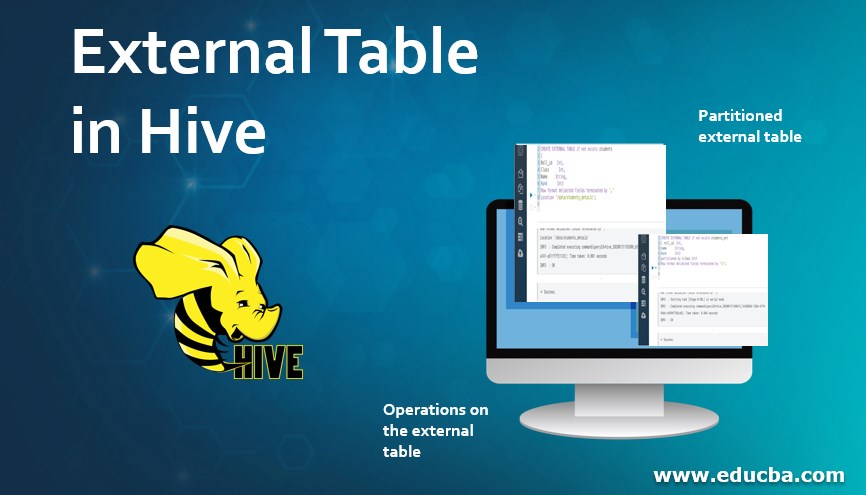
Let's look at examples. If you created an internal table (also known as a managed table) in Hive, then dropping the table will delete the data in S3. Hive "owns" the data and manages its lifecycle. However, if you created an external table, dropping the table only removes the metadata. The data in S3 remains untouched. Think of it like this: an internal table is like a book the library owns and can discard; an external table is like a book someone loaned to the library – the library only removes the catalog entry, but the book itself stays with its owner.
Variations can occur based on configurations and versions. Some configurations might be set to always retain data even after a drop, providing an extra safety net. It's always best to check your specific setup.

Here are some simple, practical tips to get started and avoid accidental data loss:
- Understand the difference between internal and external tables. This is the most crucial step.
- Use `EXTERNAL` tables for data you want to keep separate from Hive's management. For example, data you might use with other tools or want to archive.
- Test on a small dataset first. Before deleting a large table, try the `DROP TABLE` command on a smaller test table to confirm the behavior in your environment.
- Regularly back up your data. Even with precautions, backups are essential for disaster recovery.
- Double-check the table definition before dropping. Use `DESCRIBE FORMATTED my_table;` to see if it's an internal or external table.
Understanding the nuances of Hive table deletion and its impact on S3 storage might seem daunting, but it's empowering! By following these simple guidelines, you can confidently manage your data and avoid those dreaded "oops" moments. Knowing that you're in control of your data, and not accidentally deleting precious information, brings a great sense of digital peace! Remember, data wrangling can actually be fun!