
Why Won't My Watch Ping My Phone
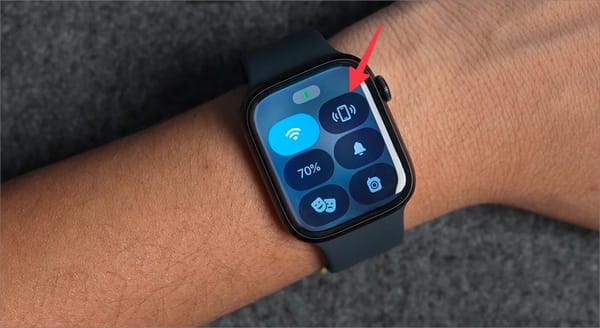
Okay, so your watch refuses to play hide-and-seek with your phone, huh? I get it! There's nothing more frustrating than thinking you're this close to finding your wayward device, only to be met with…silence. Don't worry, you're not alone, and we're going to crack this case together. Think of me as your tech-savvy sidekick!
Is it Just Being Moody? (Basic Checks First!)
Before we jump into the really exciting (and potentially scary) stuff, let's start with the basics. Sometimes, the simplest solution is the right one. Like, did you even turn the feature on? Don't laugh; we've all been there! (Okay, maybe just me…a few times.)
Here's a quick checklist:
Must Read
- Bluetooth: Is it enabled on both your watch AND your phone? This is the lifeline, folks! Imagine trying to have a conversation without, you know, actually talking.
- Connection: Are your devices actually connected? Check your Bluetooth settings. If they're not paired, it's like expecting your dog to fetch a stick you never threw.
- Range: Is your phone within shouting distance of your watch? Bluetooth has its limits. If you're trying to ping your phone from across a football field, well, good luck with that. Maybe invest in a really loud whistle instead?
App-solutely Essential Permissions (Permissions Problems!)
Okay, basics covered? Great! Now let’s talk about permissions. You see, sometimes apps get a little...greedy. Or maybe you were being too stingy with the permissions. Either way, your watch app needs the right clearances to boss your phone around (in a helpful way, of course!).
Here’s the drill:
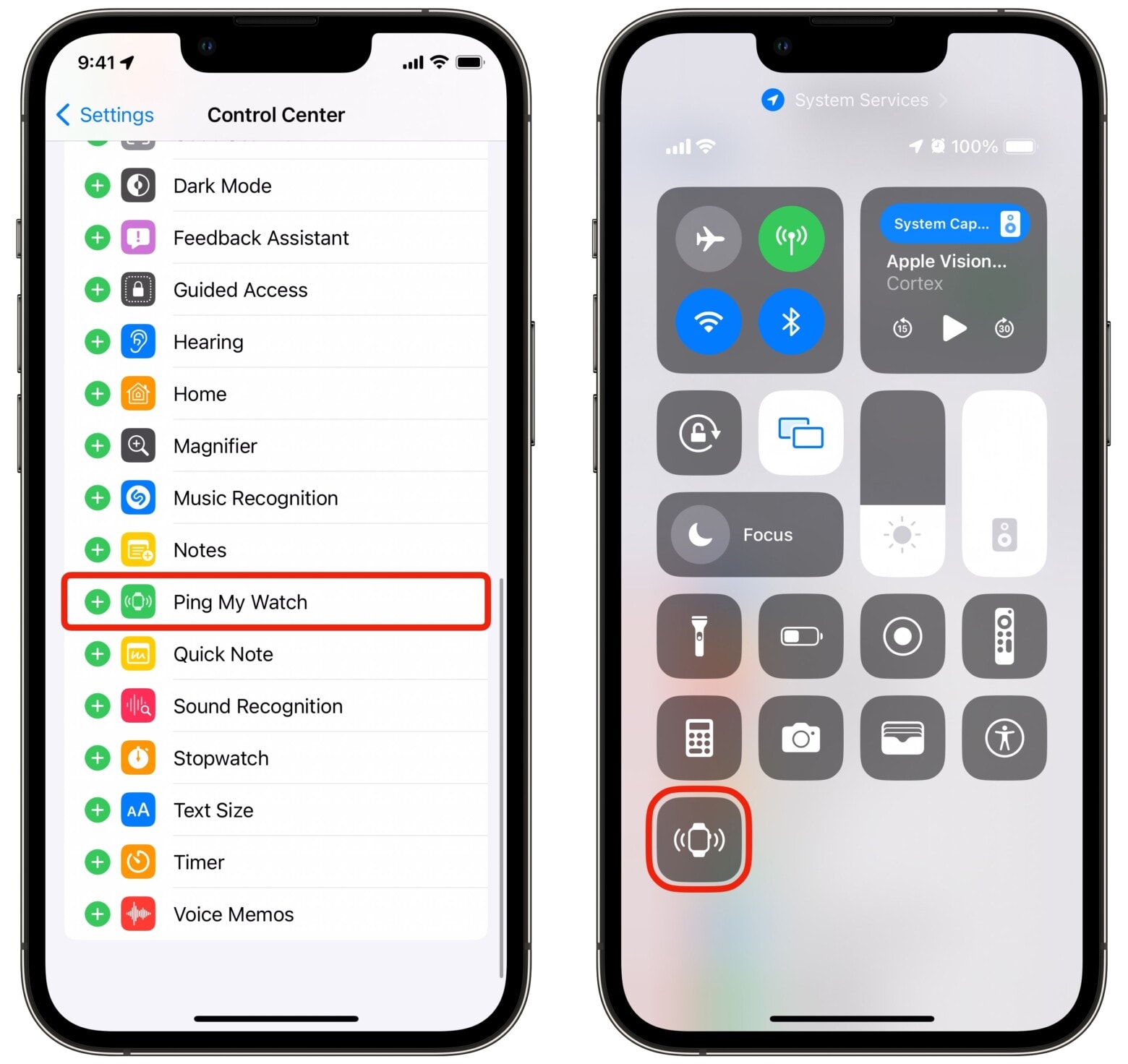
- Go into your phone's settings and find the app for your watch.
- Look for “Permissions” or “App Permissions.”
- Make sure it has permission to access things like:
- Location: This helps with general connectivity and sometimes is required for the "find my phone" feature.
- Bluetooth: Duh! (But double-check anyway!)
- Notifications: Sometimes the "ping" relies on a notification being sent to your phone.
If any of these permissions are denied, flip that switch! It's like finally giving your watch the password to the phone-finding club.
Battery Blues and Do Not Disturb Drama
Let's face it, we all get a little cranky when our batteries are low. And your devices are no different. Sometimes, when your phone is trying to conserve power, it might restrict background activities, including responding to your watch's desperate pleas for attention.
Also, a sneaky culprit could be "Do Not Disturb" mode. It silences everything, including your watch's "ping." Check both your phone and watch to make sure DND isn't enabled. It’s like putting a gag order on your tech!
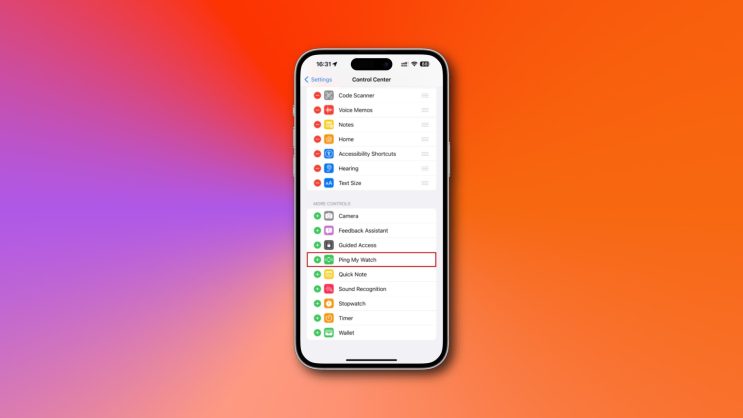
A quick reboot can also work wonders. Think of it as giving your phone and watch a little digital spa day. Power them down, wait a few seconds, and power them back up. Sometimes, that's all it takes to clear out the digital cobwebs.
App Updates and Software Snags
Is your watch app up-to-date? Outdated software can be buggy and cause all sorts of weird issues. Check the app store (Google Play or Apple App Store) for any available updates. Think of it as giving your app a little digital makeover. Keeps it fresh and functional!
If all else fails, consider reaching out to the manufacturer's support. They might have specific troubleshooting steps for your particular watch model. Plus, sometimes it’s just nice to vent to someone who really understands the ins and outs of the technology.
:max_bytes(150000):strip_icc()/A2-PingYouriPhoneFromYourAppleWatch-annotated-0afd2dbafed24dedaf7f1a467dbe81e8.jpeg)
Factory Reset: The Last Resort (Handle with Care!)
Okay, if you've tried everything else and your watch is still ignoring your phone, it might be time for the nuclear option: a factory reset. But proceed with caution! This will wipe all your data from the watch, so make sure you have a backup if possible.
Think of it as a complete digital detox for your watch. Sometimes, it's necessary to start fresh and clear out any lingering software gremlins.
Important: Refer to your watch's manual or the manufacturer's website for instructions on how to perform a factory reset. You don't want to accidentally brick your watch!
:max_bytes(150000):strip_icc()/B4-PingYourAppleWatchWithYouriPhone-annotated-36706bcb99cb4237a60374ae2ca56f3e.jpg)
Conclusion: You've Got This!
So, there you have it! A whirlwind tour of troubleshooting tips to get your watch and phone back on speaking terms. I know it can be frustrating, but don’t give up! With a little patience and persistence, you'll have them working together in no time.
And remember, even if your watch never pings your phone again, you’re still awesome! Maybe it’s a sign to detach from technology a little more. Go outside! Smell the roses! (Just, you know, try not to lose your phone while you're smelling the roses.)
Happy phone-finding!