
Sum Time In Excel Over 24 Hours
Ever stared at a spreadsheet, feeling a bit like you’re wrestling an octopus in a tutu? You’re not alone.
We've all been there, especially when tackling the mysterious world of time in Excel.
The Great Time Caper
Imagine you’re tracking the hours worked on a ridiculously ambitious office bake-off.
Must Read
Brenda from accounting, bless her competitive heart, stayed up 30 hours straight perfecting her triple-layered carrot cake.
You dutifully plug in the hours into your spreadsheet, ready to crown her the baking queen (or king!).
But then, bam!, the numbers go wonky.
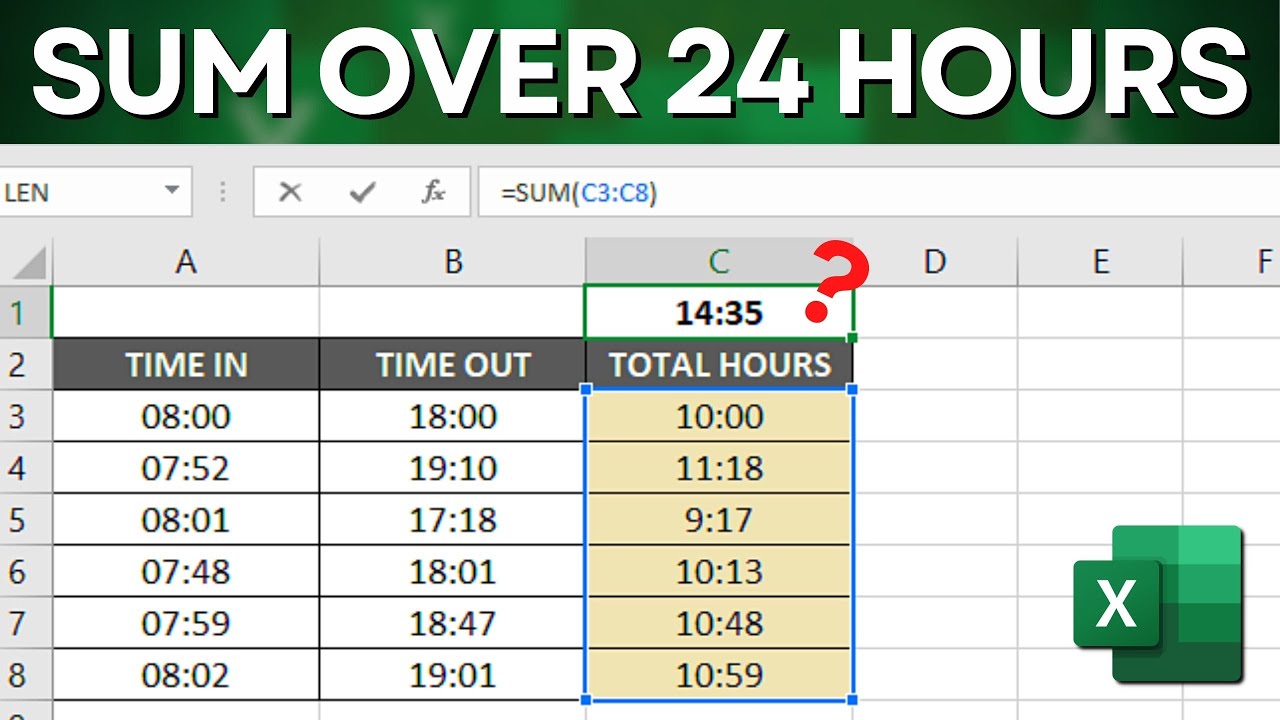
Instead of seeing 30 glorious hours, Excel stubbornly shows you something like "6:00".
Where did those other 24 hours vanish off to?
It's like the time thief of spreadsheets struck again, laughing maniacally as your calculations crumble before your very eyes.
The 24-Hour Wall
The problem, dear friends, lies in Excel's default formatting.
It treats time like a clock, resetting to zero after every 24 hours.
Think of it as Excel having a tiny, internal clock that gets reset every day, no matter how hard Brenda's baking efforts.
It's like the world's most punctual toddler constantly saying, "Time for bed!".
This can be surprisingly frustrating when dealing with projects that span multiple days or overnight shifts.

Imagine the confusion if you were tracking Santa's epic Christmas Eve journey, and his total flight time inexplicably shrunk to a mere few hours!
Unlocking the Time Vault: Format Cells!
Fear not, intrepid spreadsheet warriors! The solution isn't as complicated as Brenda's carrot cake recipe.
It all boils down to telling Excel, "Hey, I need you to show me the total time, not just what's left over after the 24-hour mark."
The secret weapon? Format Cells.
Select the cells containing your time values.
Then, right-click and choose "Format Cells."
A magical window appears, filled with formatting options.
Under the "Number" tab, select "Custom."
Now, this is where the real fun begins.
In the "Type" box, you need to enter a special code to tell Excel what to do.
For total hours, you'll use something like "[h]:mm".
That "[h]" is the key. It tells Excel to display the total number of hours, even if it exceeds 24.
The "mm" represents the minutes, ensuring you don't lose any precious seconds spent decorating gingerbread men.
If you want to include seconds, you can use "[h]:mm:ss".
Click "OK," and presto!
Brenda's 30 hours of baking glory are now visible for all to see!
The time thief has been defeated! You've saved the day!
Beyond the Basics: The Power of Sum
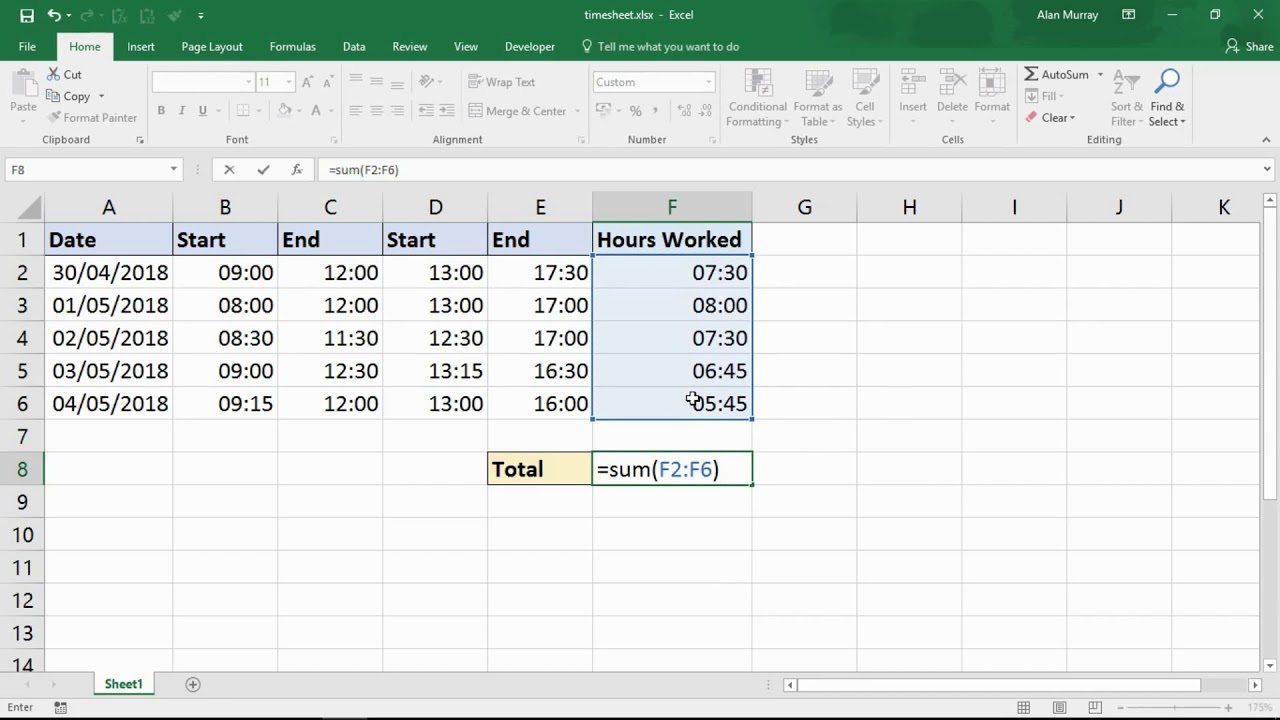
Now that you've unlocked the power of displaying time correctly, let's add it all up.
Imagine you have a list of several employees' worked hours, all nicely formatted with the "[h]:mm" trick.
You want to know the total hours spent on the office bake-off extravaganza.
The SUM function is your best friend here.
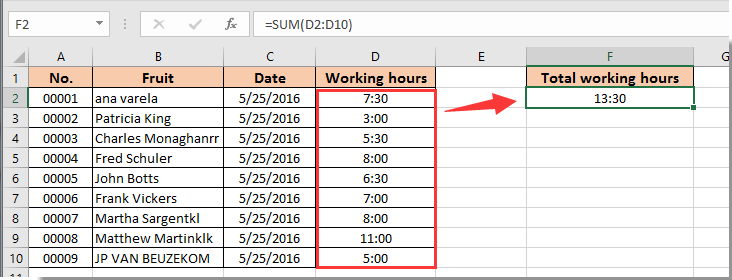
In an empty cell, type "=SUM(A1:A10)" (or whatever range contains your time values).
Press Enter, and boom!
The total hours worked on the bake-off are displayed, accurately reflecting the collective effort of all the bakers.
You can now confidently present the results to your boss, showcasing the team's dedication and the sheer volume of sugar consumed.
A Tale of Two Time Formats
Let’s consider the case of a team working tirelessly on a project with a looming deadline.
Each member logs their hours diligently, using the standard "h:mm" format, unaware of the time-telling trickery ahead.
Their manager, David, a stickler for accurate reporting, decides to compile their hours for a progress update.
He uses the SUM function, but the results are bafflingly low.
He scratches his head, suspecting a conspiracy by the team to underreport their efforts (perhaps to sneak in extra naps during work hours).
Meanwhile, across the office, Sarah, the team's resident Excel guru, witnesses David's frustration.
With a knowing smile, she approaches him and whispers the secret of the "[h]:mm" format.
David's eyes widen in realization, and he quickly applies the fix.
The corrected total hours reveal the team's true dedication, proving they were burning the midnight oil (and consuming copious amounts of coffee) to meet the deadline.
David, humbled by his initial suspicion, buys the entire team a round of celebratory donuts.
And so, the power of correct time formatting saves the day and fosters team spirit.
The Unexpected Benefits
Mastering time calculations in Excel isn’t just about avoiding spreadsheet errors.
It's about unlocking a whole new level of understanding and control over your data.
Suddenly, you can track project progress with laser-like precision, identify bottlenecks, and optimize resource allocation.
Imagine you're a project manager overseeing the construction of a magnificent gingerbread castle.
By accurately tracking the hours spent on each stage of the project, you can identify which gingerbread architects are the fastest, which areas require more attention, and which types of icing are most efficient to apply.
This data-driven approach allows you to manage the project more effectively, ensuring the gingerbread castle is completed on time and within budget (and doesn't collapse under its own sugary weight).
A Final Word of Wisdom
So, the next time you find yourself wrestling with time in Excel, remember the story of Brenda's bake-off and David's doughnut dilemma.
Don't let the 24-hour wall defeat you.
Embrace the power of "Format Cells," unleash the SUM function, and become the master of your spreadsheets.
And who knows, you might even discover that you enjoy taming these digital beasts, one cell at a time.
After all, behind every successful spreadsheet lies a tale of perseverance, a dash of humor, and a whole lot of time well spent.
Happy calculating!