
How To Turn Off Speech Recognition
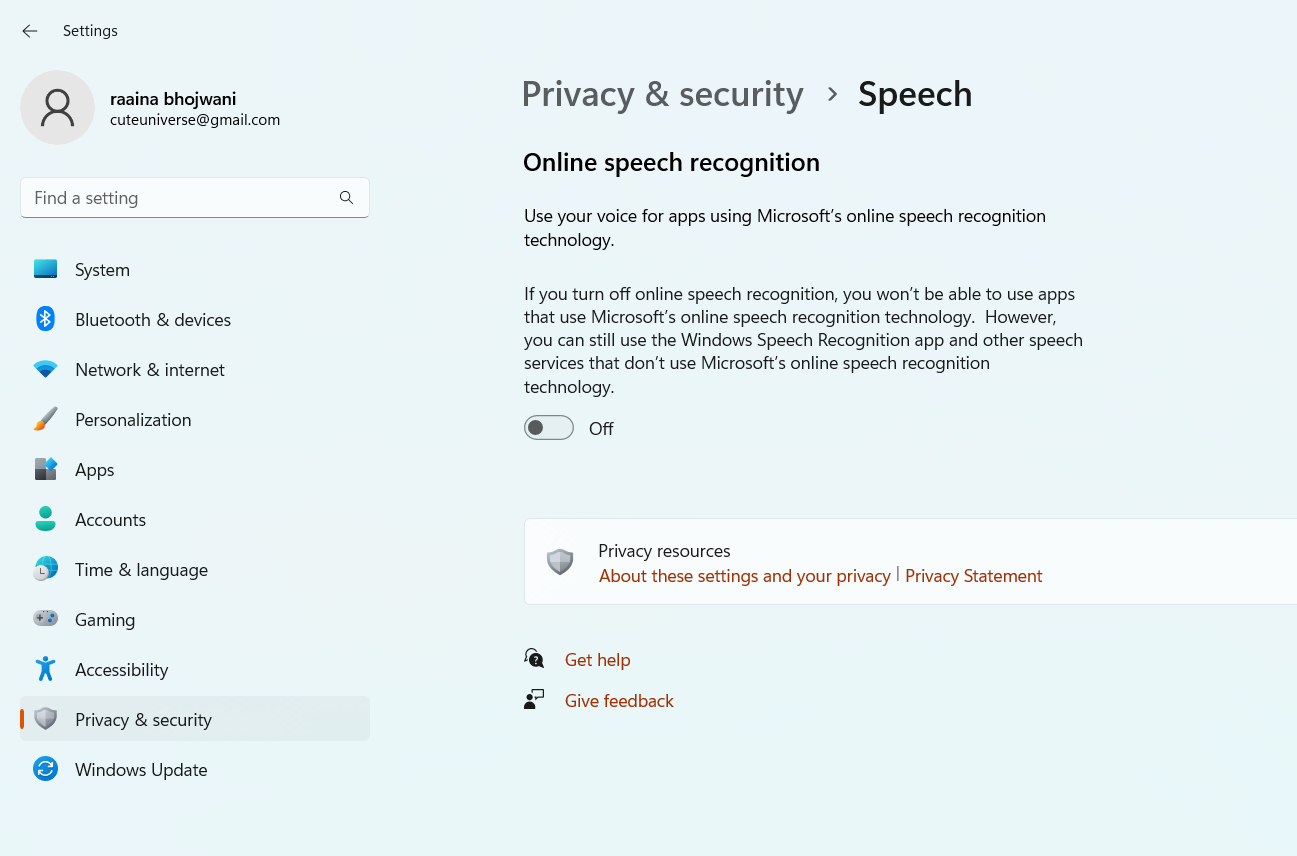
Okay, let's talk about that little voice in your computer (or phone, or tablet…) that's always listening. You know, the one that promises to transcribe your every word into digital magic? It's speech recognition, and sometimes, bless its digital heart, it needs a vacation.
Think of it like this: imagine your overly enthusiastic golden retriever. He's adorable, right? Eager to please. But sometimes, he brings you muddy tennis balls when you really needed that important document. Speech recognition can be the same way. It’s trying its best, but its best sometimes involves hilarious misinterpretations and turning your serious emails into Dadaist poetry.
So, how do we give this eager beaver a break? Well, it depends on the device. Let’s start with the trusty computer.
Must Read
Silencing the Digital Scribe on Your Computer
If you're on a Windows machine, you’ve probably encountered Cortana. She’s that little circle (or search bar) patiently waiting for your command. But if Cortana’s gotten a little too eager for her own good, here's how to gently tell her to take five:
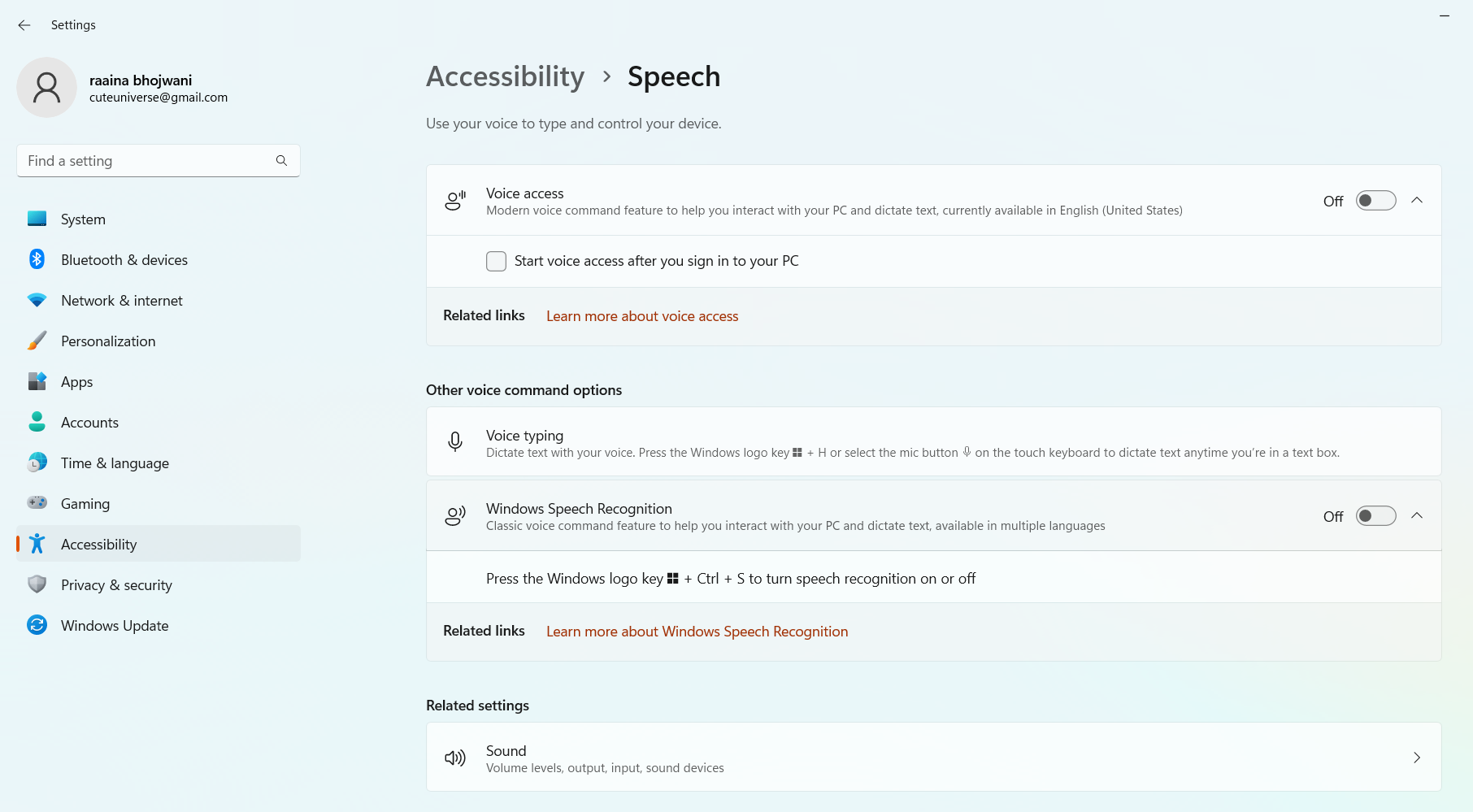
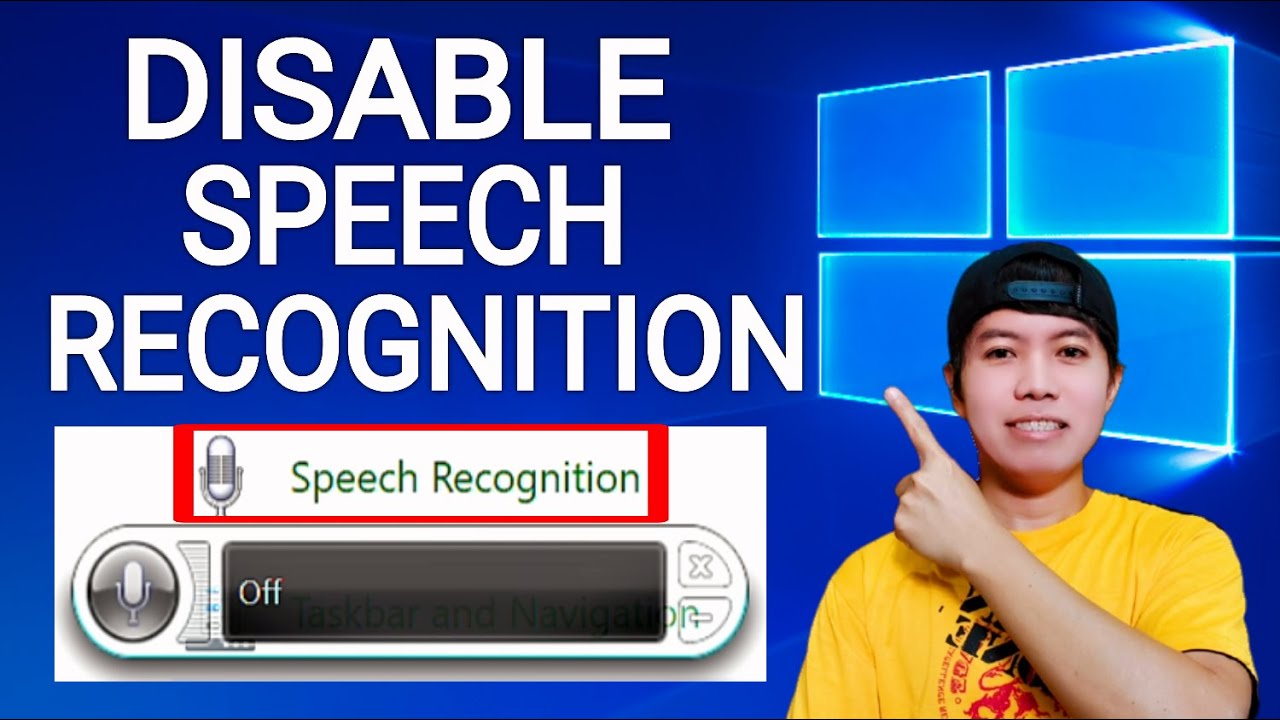
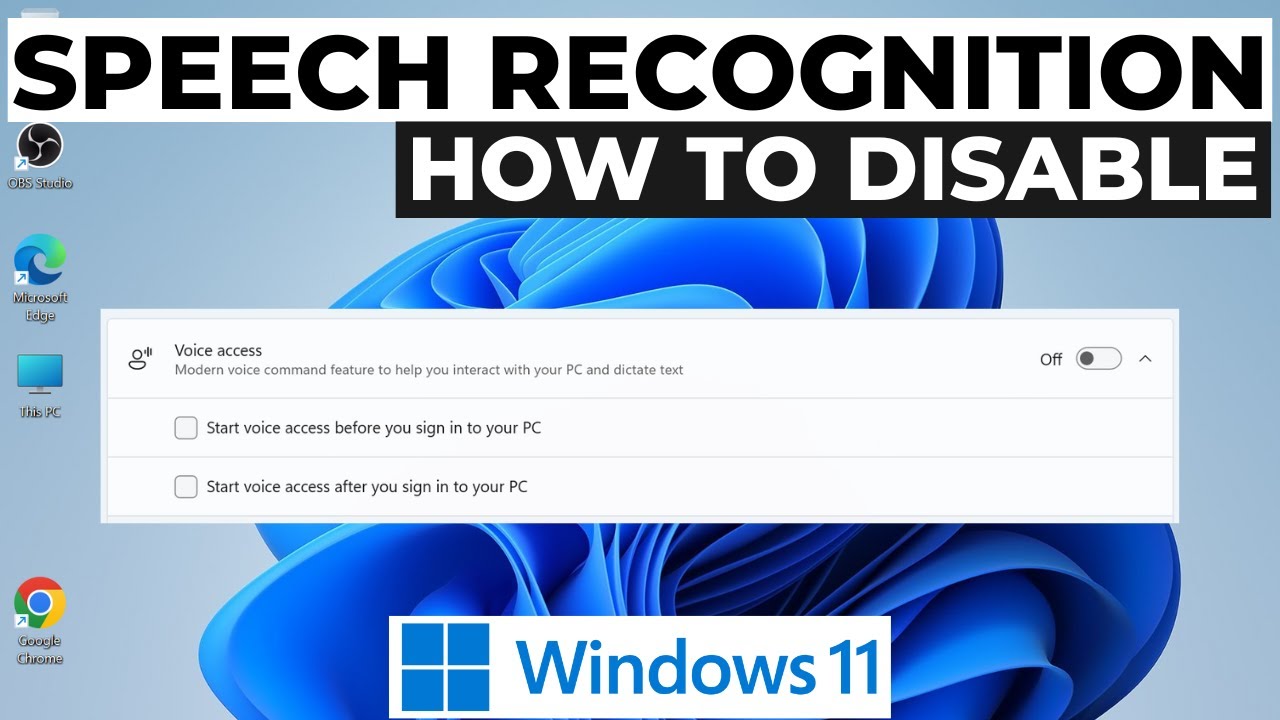
- Click on the Start button (that Windows logo in the corner).
- Type "speech recognition" into the search bar.
- Click on "Windows Speech Recognition" in the search results.
- A little window will pop up. Click "Turn Off Speech Recognition."
Voila! Peace and quiet restored. You can now whisper sweet nothings to your cat without your computer documenting every purr and meow.
Now, for those sporting the bitten apple – the Mac crew – things are slightly different, but just as straightforward:
- Click on the Apple menu in the upper-left corner of your screen.
- Select "System Preferences."
- Click on "Accessibility."
- Scroll down and find "Voice Control."
- Uncheck the box that says "Enable Voice Control."
Boom! Silence. You are now the master of your own digital destiny, at least when it comes to speech recognition.
Muting the Mobile Mouthpiece
Our phones. Oh, the tiny, powerful rectangles that hold our lives. They're listening too! Often, that's super convenient. But what about when you’re having a private conversation about surprise parties or the best way to fold fitted sheets? Time to reign things in.
On an Android device, the steps can vary slightly depending on the manufacturer, but the general idea is the same:
- Go to Settings.
- Find "Language & Input" (or something similar).
- Look for "Voice Input" or "Google Assistant" (or whatever voice assistant you use).
- Disable the voice input option.
For the iPhone aficionados:

- Open the Settings app.
- Tap on "Siri & Search."
- Toggle off the "Listen for 'Hey Siri'" option.
And if you really want to be thorough, go to "Accessibility" in Settings, then "Voice Control," and turn that off too.
Embrace the Silence (But Don't Forget the Mute Button!)
Turning off speech recognition can feel liberating. Like finally taking off those shoes that are just a little too tight after a long day. You can speak freely, sing off-key in the shower, or have top-secret phone calls without fear of digital eavesdropping.
But remember, speech recognition can be a fantastic tool! It’s helpful for accessibility, dictating long emails when your fingers are tired, and even just searching for that obscure song that's been stuck in your head all day. The key is finding the right balance. Know when to let the digital ear listen, and when to give it (and yourself) a well-deserved break.
So, go forth and enjoy the quiet! And maybe, just maybe, teach your overly enthusiastic digital assistants some manners along the way. After all, a little digital discretion goes a long way.
And always remember the golden rule: Before ranting about your boss, double-check that microphone icon. You never know who might be listening (or transcribing!).