
How To Turn Alexa On And Off
Alright, picture this: You’re deep into a super important, probably very dramatic, phone call. Maybe you’re discussing the mysteries of the universe, or perhaps just what you’re having for dinner – equally weighty topics, let’s be real. Suddenly, from across the room, a chipper voice pipes up, completely unbidden: "The weather in your area is currently partly cloudy with a temperature of 72 degrees Fahrenheit. Would you like to hear tomorrow's forecast?"
You freeze. Your phone call partner, bless their heart, is utterly bewildered. You, meanwhile, are frantically gesturing towards the glowing ring, eyes wide with a mix of panic and utter betrayal. Sound familiar? Yeah, me too. My Alexa once decided to chime in during a particularly tender moment with a fun fact about sloths. SLOW-MOVING. SLOTHS. I mean, come on, girl, read the room!
It’s moments like these – moments of unexpected sloth facts or unsolicited weather reports – when you realize that while having a chatty AI assistant is often super handy, there are definitely times you just need her to take a chill pill. Or, you know, just completely power down. Because let's be honest, sometimes you just need some peace and quiet without the risk of an accidental Amazon order for a year's supply of banana peels.
Must Read
And that, my friends, is precisely why knowing how to master the on and off switch for your digital assistant is a superpower you absolutely need in your life. It’s not rocket science, thankfully, but there are a few nuances. So, let’s dive in, shall we?
The Art of Silencing Alexa: How to Turn Her Off
So, you’ve decided it’s time for Alexa to take a break. Maybe it’s privacy, maybe it’s a sensitive conversation, or maybe you just can't handle another dad joke. Whatever the reason, you've got options, ranging from "snooze" to "full digital detox."
1. The Quick & Easy: The Mute Button
This is your go-to for a temporary reprieve. Look at the top of your Echo device. You'll see a button with a microphone icon, usually with a line through it. Give that bad boy a press. You’ll know it’s worked because the light ring (or some other indicator, depending on your device) will likely turn red. And Alexa, bless her heart, might even tell you, "Microphone off."

What this does: It physically disables the microphone. She can’t hear you. She won’t respond to "Alexa." She's still powered on, still connected to Wi-Fi, but she's effectively deaf. Perfect for private chats, movie night, or just when you need a moment of blissful silence without unplugging.
2. The Ultimate Disconnect: Unplug Her!
Sometimes, you just need to pull the plug. Literally. If you want Alexa completely off, not just muted, then the most straightforward method is to simply unplug the power adapter from the wall outlet or from the back of the device itself.
Why this works: No power, no Alexa. She’s completely off, no network connection, no nothing. This is great if you’re moving, going on vacation, or just want a total digital detox. It's the most definitive "off" you can get.

3. A Gentle Nap: Disabling Voice Activation (Software Option)
While not strictly "turning her off," you can make Alexa less responsive by disabling her wake word. This is done through the Alexa app.
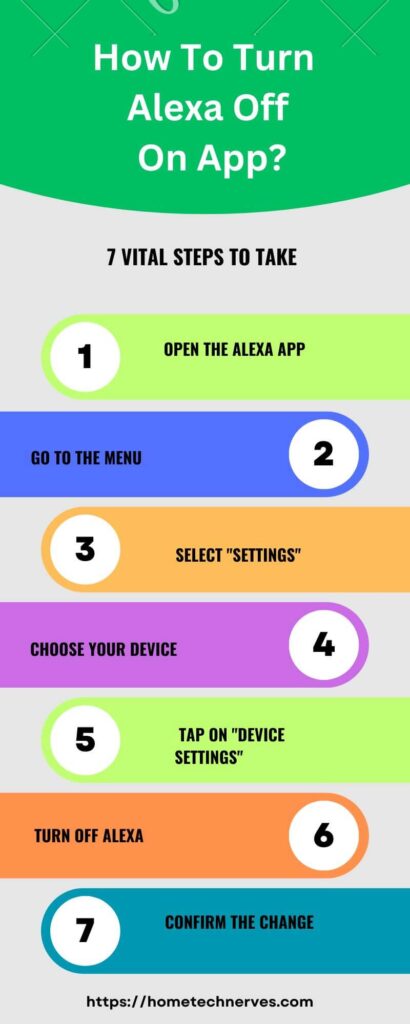
- Open the Alexa app on your phone.
- Tap "Devices" at the bottom.
- Select "Echo & Alexa," then choose your specific device.
- Scroll down to "Wake Word" and you can often select "off" or "disabled." Some devices might require you to set a custom wake word you never use, or you might find settings for "Tap to Talk" rather than always listening.
This method lets the device stay on and connected for other smart home functions, but she won't spontaneously respond to "Alexa" or other wake words. Handy, right?
Waking Alexa Up: How to Turn Her On
Alright, the digital nap is over. You're ready to invite Alexa back into your life, perhaps for some morning news, a music marathon, or to finally tell you a decent joke (she tries, bless her). Turning her back on is usually even simpler than turning her off.
1. Plug Her In! (If You Unplugged Her)
If you went for the ultimate power-off, simply plug the power adapter back in. Your Echo device should boot up automatically. You’ll usually see a swirling blue light as it connects to your Wi-Fi, eventually settling back into its normal, ready-to-listen state (often a solid blue, or no light at all if she's waiting for you).
2. Unmute Her (If You Muted Her)
If you just hit the mute button, then guess what? You hit it again! Press that microphone button on top of your device once more. The red light ring (or other indicator) will disappear, and Alexa might even confirm, "Microphone on."
She's now listening again, ready to answer all your burning questions about sloth mating habits or the current temperature. You're welcome.
3. Re-enable Voice Activation (If You Disabled It)
If you tweaked settings in the Alexa app to silence her wake word, just head back to the same spot:
- Alexa app > "Devices" > "Echo & Alexa" > Your specific device.
- Find the "Wake Word" option and set it back to "Alexa" or your preferred wake word.
And just like that, she's back in action, ready to serve (and occasionally interrupt) once more!
So there you have it, folks. No more surprise sloth facts when you least expect them. You are now fully equipped to give Alexa a break, or bring her back into the fold, whenever you see fit. Because ultimately, who’s the boss here? (Hint: It’s you. Mostly.)