
How To Take A Screenshot On Motorola
Ever wanted to freeze a moment on your phone screen? It's like having a digital time-stopping device. Motorola phones make it super simple to capture those on-screen memories. Ready to learn how?
The Button Mash Boogie
This is the classic, tried-and-true method. Think of it as a secret handshake between you and your phone. It involves a quick press of two buttons.
Power and Volume Down: A Dynamic Duo
Find the power button (usually on the right side). Now locate the volume down button (also on the side). Get ready for the magic to happen.
Must Read
Press and hold both buttons simultaneously. Just a quick tap will do, like a little digital high-five. You should see a flash on the screen, and maybe hear a satisfying camera shutter sound.
Voila! Your screenshot is saved. Check your gallery or photos app; it's waiting for you there.
The Three-Finger Swipe: A Futuristic Flourish
This method feels like something straight out of a sci-fi movie. It's smooth, it's stylish, and it's surprisingly easy once you get the hang of it. Prepare to unleash your inner tech wizard!
Enable the Gesture (If Needed)
First, make sure this feature is enabled. Go to your phone's settings. Look for "Gestures" or "Motions" - it might be under "Display" or "System."
Find the option for "Three-finger screenshot" or something similar. Switch it on! Now, you're ready for the swipe.
Swipe to Capture
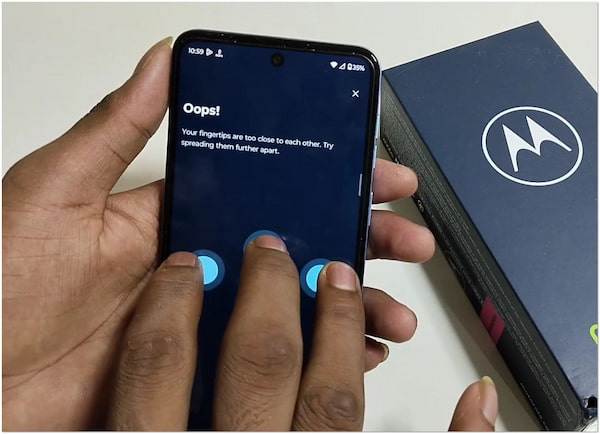
Place three fingers on the screen. Now, swipe down in one swift motion. It’s like conducting an orchestra of pixels!
Did you see that flash? Hear that click? You've successfully snagged a screenshot with a simple swipe. It's pure digital elegance.
Scrolling Screenshots: Capturing the Epic Saga
Sometimes, one screen just isn't enough. You need to capture an entire conversation, a lengthy article, or a sprawling webpage. That's where scrolling screenshots come in handy.
The "Capture More" Option
Take a regular screenshot using either button mash or three-finger swipe. Look for a little "Capture more" button or icon that appears after you take the screenshot.
Tap on that button! Your phone will start scrolling down the page. It will also extend the screenshot to include all the content you want to capture.
Adjust the scrolling area as needed. When you've captured everything, tap "Save." You now have one long, glorious screenshot of the entire page.
Editing and Sharing: Adding Your Personal Touch
Now that you've captured your digital masterpiece, it's time to add your personal flair. Most Motorola phones have built-in editing tools.
Cropping and Annotating
Open your screenshot in the gallery. Look for editing options like "Crop," "Draw," or "Annotate." You can crop out unnecessary parts of the screen.

You can also draw on the screenshot to highlight important details. Add arrows, circles, or even funny doodles to make it your own.
Sharing Your Creation
Once you're happy with your edited screenshot, share it with the world! Tap the "Share" icon. Choose your favorite social media platform, messaging app, or email.
Send your screenshot to friends, family, or followers. Prepare for the likes, comments, and maybe even a few surprised emojis.
Troubleshooting: When Things Get Tricky
Sometimes, things don't go quite as planned. Don't worry, even the best screenshot artists encounter hiccups. Here are a few common issues and how to fix them.

Buttons Not Working?
Make sure you're pressing both buttons at the same time. A slight delay can prevent the screenshot from capturing. If the buttons are physically damaged, consider a repair or alternative method.
Three-Finger Swipe Not Registering?
Double-check that the feature is enabled in your settings. Try swiping a bit slower or faster to find the right speed. Make sure your fingers are making good contact with the screen.
Screenshot Not Saving?
Check your phone's storage space. If it's full, you won't be able to save new screenshots. Clear some space by deleting old photos, videos, or apps.
Screenshotting: More Than Just a Picture
Taking screenshots is more than just capturing an image. It's about preserving moments, sharing experiences, and expressing yourself in the digital world. So go ahead, start snapping! You might be surprised at the creative possibilities.
So there you have it! A few simple ways to capture the magic on your Motorola screen. Now go forth and screenshot with confidence!