How To Reset Wifi On Honeywell Thermostat

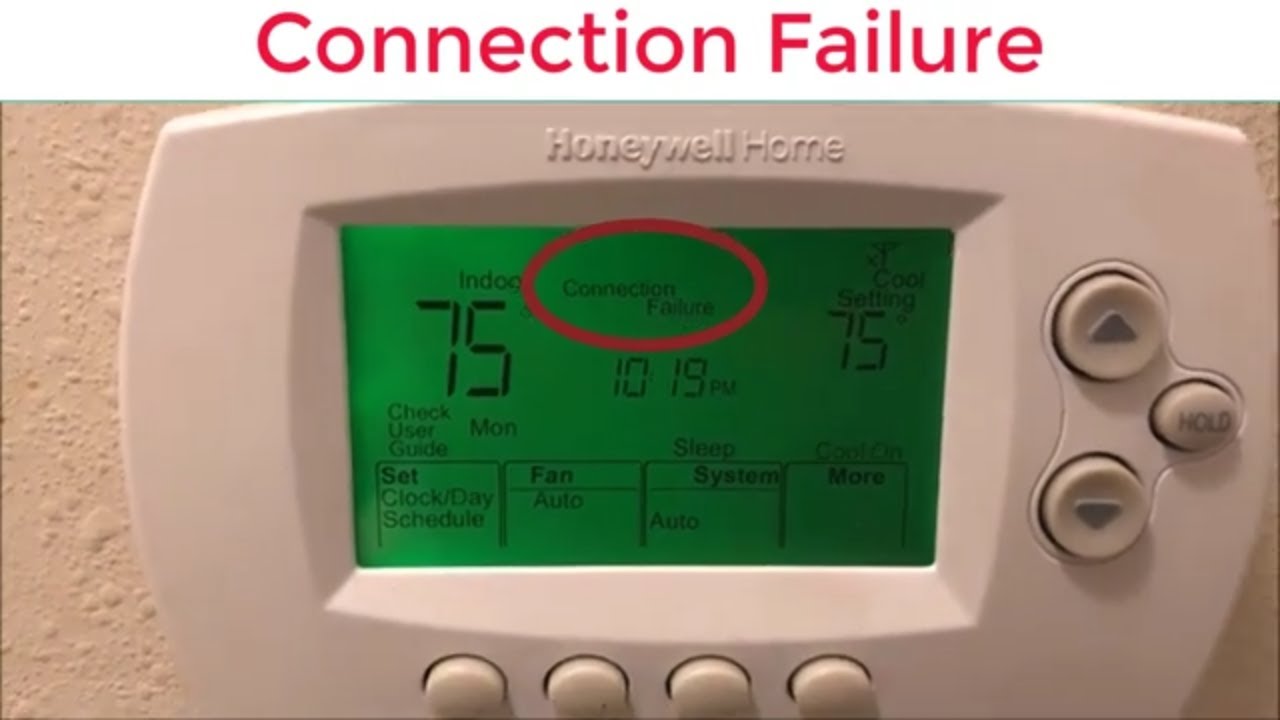
Ever walked into a perfectly smart home, only to find one of your trusty digital companions—say, your thermostat—suddenly playing coy with the internet? It's like your smart home threw a party, and your thermostat decided to sit in the corner, unplugged from the conversation. Frustrating? A little. But here’s the fun part: most tech tantrums, especially Wi-Fi-related ones, have a surprisingly simple fix. And today, we're tackling a common one: resetting the Wi-Fi on your Honeywell thermostat. It's less like digital surgery and more like a gentle, guided reset for a happier, smarter home.
Why would you need to do this digital dance? Plenty of reasons! Maybe you've upgraded to a shiny new Wi-Fi router, finally changed that 'password123' to something more secure, or perhaps your internet just had a little hiccup and your thermostat decided to stay disconnected. Whatever the reason, resetting the Wi-Fi isn't just about getting back online; it's about reclaiming control. You want to adjust your temperature from bed, check energy usage from work, or simply enjoy the peace of mind that your home's climate is intelligently managed. A Wi-Fi reset ensures your thermostat isn't just a pretty face on the wall; it's a smart, connected brain.
Ready to get your Honeywell back in the digital fold? Grab your thermostat and let's walk through it. While models vary slightly, the core principle is the same across most modern Honeywell Wi-Fi thermostats.
Must Read
- Awaken the Beast (or rather, the screen): First things first, make sure your thermostat's screen is active. Tap it if it's asleep.
- Dive into the Menu: Look for a Menu, Settings, or a gear icon. This is your gateway to deeper configurations. Tap it.
- Locate Wi-Fi Setup: Now, scroll or navigate through the options until you find something like Wi-Fi Setup, Network, or Connect Wi-Fi. This is often where the magic happens.
- Forget the Past (and the old network): If your thermostat was previously connected, you might see an option to Disconnect, Forget Network, or Clear Wi-Fi Settings. This is crucial for a fresh start, especially if you changed your router or network name. Select it. Your thermostat might even prompt you to press and hold a button for a few seconds to confirm this action. Pay attention to any on-screen instructions here!
- Scan for New Horizons: Once disconnected, your thermostat should automatically start scanning for available Wi-Fi networks. If not, look for an option like Scan or Rescan.
- Pick Your Network: From the list that appears, find your home's Wi-Fi network (your SSID). Make sure you select the correct one!
- Enter the Secret Code (your password): You'll be prompted to enter your Wi-Fi password. This is where accuracy counts! Type it carefully. Many thermostats will have an on-screen keyboard.
- Connect and Confirm: Once entered, confirm the password and your thermostat will attempt to connect. A little patience might be needed here. Look for a confirmation message like 'Connected' or a steady Wi-Fi symbol appearing on the screen.
Troubleshooting Tip: If it doesn't connect right away, double-check your password. Sometimes a quick reboot of your main Wi-Fi router (unplug for 30 seconds, then plug back in) can also clear up any stubborn connection issues on the router's end.
And there you have it! Your Honeywell thermostat should now be back online, happily chatting with your home network and ready to obey your every command from your smartphone app. It’s a small reset, but a big win for your smart home harmony. Enjoy the comfort!