
How To Play Music Through Mic Vrchat

Alright, gather 'round, fellow VRChat adventurers! You wanna be the life of the party, the sonic sorcerer, the… uh… DJ Potato of your group? You wanna blast your questionable music taste directly into your friends’ unsuspecting ears? Then you've come to the right place! We’re diving headfirst into the murky, sometimes baffling, but ultimately rewarding world of playing music through your mic in VRChat. Hold onto your hats, it's gonna be a bumpy ride.
Why Would You Even Want To Do This?
Okay, fair question. Maybe you're planning a virtual rave. Maybe you're serenading your crush (proceed with caution, folks, SERIOUSLY). Or maybe, just maybe, you want to inflict "Baby Shark" on your friends until they beg for mercy. (Please, for the love of all that is holy, don’t do that. We’re trying to be helpful here!). Whatever your (hopefully not malicious) intent, let's get you set up.
The (Surprisingly) Simple Basics
Now, before you start dreaming of virtual concerts, let's face it: playing music through your mic is basically like shouting into a tin can. It's not exactly audiophile-grade. Expect some quality loss. Think of it as a retro, lo-fi vibe. A little static? All part of the charm! (Or, you know, a sign something is horribly wrong. Let’s hope for charm.)
Must Read
You’ll need a few key ingredients:
- Music. Duh. (I mean, unless you're planning on beatboxing everything yourself. In which case, respect.)
- A microphone. This is kind of important. The one built into your headset should do the trick, but a dedicated mic is usually better quality.
- Some kind of software to route audio. This is the secret sauce.
It's this software that tricks your computer into thinking your music is actually coming from your microphone. Think of it as a digital ventriloquist act, but with audio. Pretty neat, huh?

The Software Side of Things: Our Virtual Sound Engineers
Here are a couple of popular options. There are others, but these are like the Beyoncé and Jay-Z of audio routing software. Dependable, popular, and likely to get the job done.
Voicemeeter Banana
This is a free (donations appreciated!) piece of software that’s incredibly powerful… and also looks like something designed in the 90s. Don't let the interface scare you. Once you get the hang of it, it's like wielding the power of a small recording studio. It lets you mix audio inputs and outputs, creating a virtual soundboard right on your computer. You can basically reroute audio to anywhere you want, including your mic.
Virtual Audio Cable (VAC)
VAC is another great option, though it's not free (it costs around $30-50). It's a little less intimidating than Voicemeeter, but also less flexible. Think of it as the reliable minivan of audio routing software. It gets you where you need to go, no frills attached. You install it, and it creates virtual audio cables that you can then use to connect your music player to your microphone input in VRChat.
The Setup: Let's Get This Show On The Road!
Okay, buckle up! We're about to get slightly technical. Don't worry, I'll hold your hand (virtually, of course. Social distancing and all that). This is where you will need to actually download one of the options and follow along. I will provide generic instructions applicable to most applications.
- Install your chosen audio routing software. Obvious, but gotta say it.
- Configure your input and output devices in the software. This is where you tell the software where your music is coming from (your music player, Spotify, etc.) and where you want it to go (your virtual microphone).
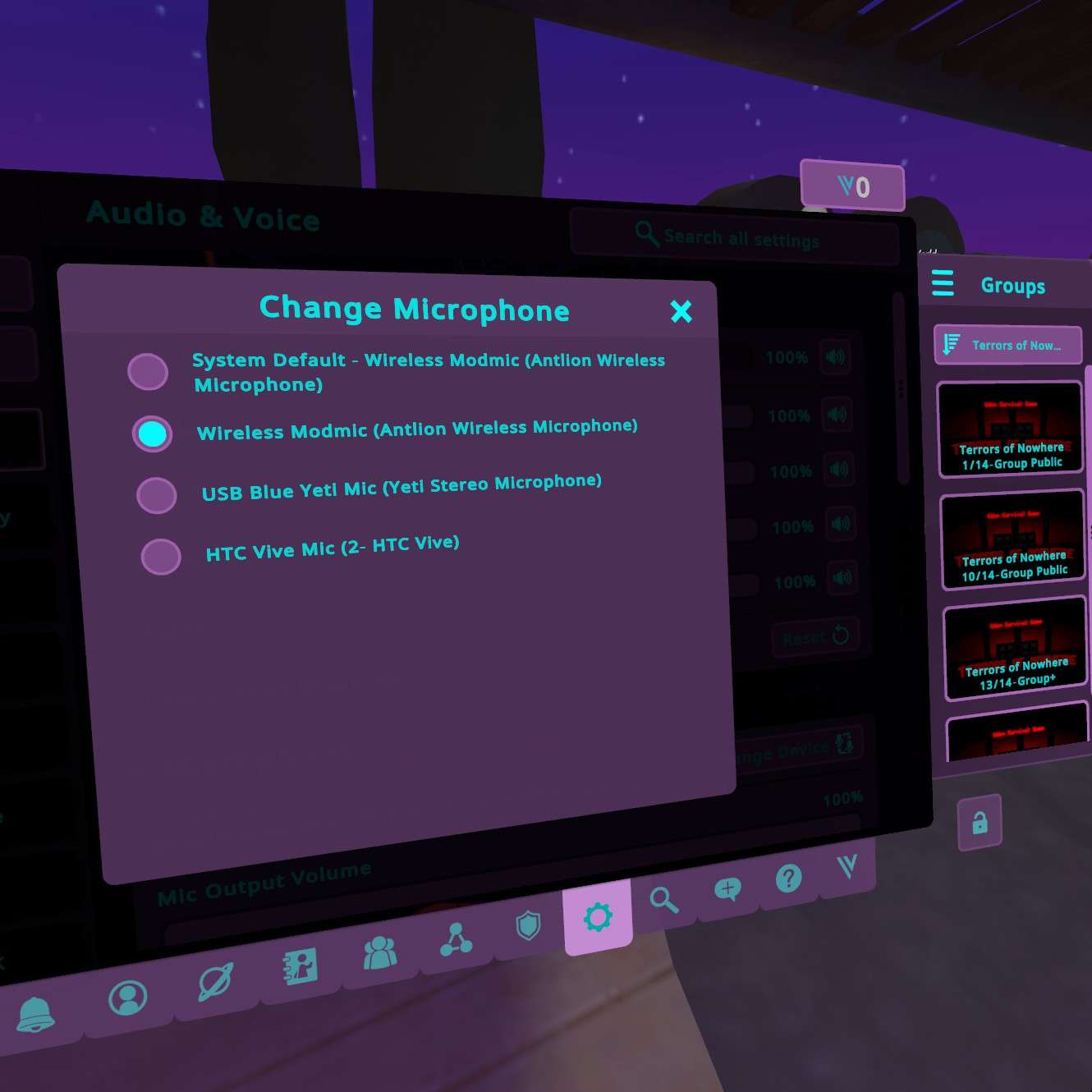
- Set your VRChat microphone to the virtual microphone created by the software. This is the key step! In VRChat's audio settings, choose the virtual microphone instead of your actual microphone.
- Test, test, test! Play some music (maybe start with something less offensive than "Baby Shark") and see if your friends can hear it in VRChat.
Important Note: You might need to restart VRChat after installing the audio routing software for it to recognize the new virtual microphone.

Troubleshooting: When Things Go Wrong (And They Will)
Let's be real, things rarely work perfectly the first time. Here are some common problems and potential solutions:
- Nobody can hear your music: Double-check your input and output devices in the audio routing software and in VRChat. Make sure the right devices are selected.
- Your music sounds distorted or crackly: Adjust the audio levels in the audio routing software. Too much gain can cause distortion.
- You can't hear your own music: You might need to enable "listen to this device" in your Windows sound settings (but be careful, this can cause feedback!).
- You sound like a robot: Check your sample rate settings in the audio routing software and in VRChat. Mismatched sample rates can cause all sorts of weirdness.
A Word of Caution (Because Lawyers Exist)
Be mindful of copyright laws! Playing copyrighted music in a public setting (even a virtual one) without permission is generally a no-no. Maybe stick to royalty-free tunes or your own original compositions (if you're brave enough!). Also, remember that not everyone will appreciate your musical stylings, so be respectful of others. Don’t blast music at full volume without asking first. It's like being a good neighbor, but in the metaverse.
Go Forth and DJ (Responsibly)!
So there you have it! You're now armed with the knowledge (and hopefully the patience) to play music through your mic in VRChat. Go forth and spread the joy of music… or, you know, just annoy your friends with your questionable taste. Just remember to be respectful, be mindful of copyright, and for the love of all that is holy, please, please don't play "Baby Shark".
