How To Play Maschine 1 Projects On Maschine 2

Let's face it, there's a reason you fell in love with Maschine in the first place. Whether it's the tactile workflow, the instant inspiration, or the sheer power of building beats and tracks from scratch, Maschine has a special place in many producers' hearts. Maybe you’re a bedroom producer crafting future hits, a live performer captivating audiences, or simply someone who enjoys the creative outlet of music production. Whatever your reason, the ability to access your older projects is essential to keeping that creative fire burning.
Why is accessing those older Maschine 1 projects in Maschine 2 so important? Well, think about it: music production isn't always linear. Sometimes you start a project, get stuck, and need to revisit it later with fresh ears. Or perhaps you've built up a library of incredible sounds and patterns in Maschine 1 that you want to leverage in your newer tracks. Upgrading doesn't mean abandoning. Being able to easily access your older projects allows you to tap into that well of inspiration and keep your creative process flowing smoothly.
You see this all the time in the music world. Producers remixing their old tracks with updated sounds, DJs incorporating classic loops into their live sets, and composers re-imagining old themes for new films. The ability to revisit and repurpose your past work is a powerful tool for any musician, and Maschine makes that incredibly accessible.
Must Read
Okay, so how do you actually do it? Don't worry, it's not as daunting as it might seem! Maschine 2 is designed to be backwards compatible, meaning it can generally open Maschine 1 projects without much fuss. Here's the breakdown:
1. Locate Your Project Files: First, make sure you know where your Maschine 1 projects are stored on your computer. They usually have a ".mxprj" extension.
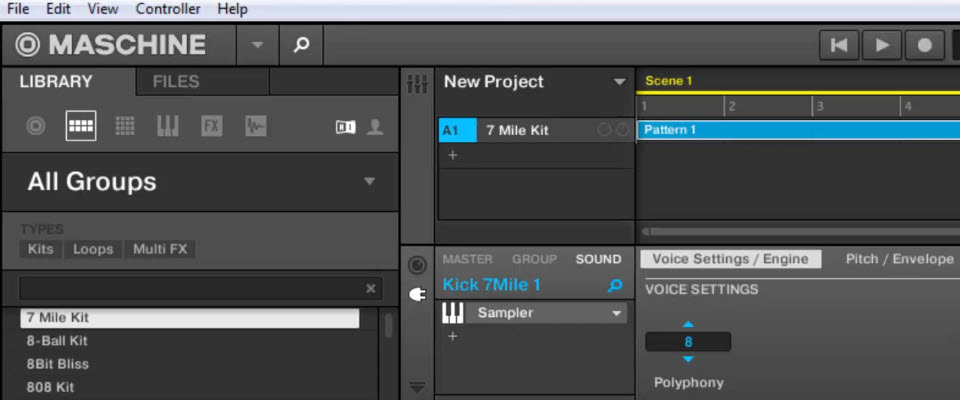
2. Open in Maschine 2: Simply open Maschine 2 and go to "File" -> "Open Project." Navigate to the location of your Maschine 1 project file and select it.
3. Be Patient: Depending on the complexity of the project and the speed of your computer, it might take a few moments for Maschine 2 to load everything. Don't panic if it seems like it's taking a while.
4. Potential Issues and Fixes: Sometimes, you might encounter issues like missing samples or plugins. This is usually because the plugins are named differently or located in different folders. Maschine will prompt you with a dialog box to help you locate them. Take the time to find the missing components; it's worth it!
5. Save As: Once your project is loaded and everything seems to be working correctly, it's a good idea to "Save As" and create a new version of the project in Maschine 2 format (usually ".mxprj2"). This will ensure that the project is fully compatible with Maschine 2 and you won't have any future compatibility issues.
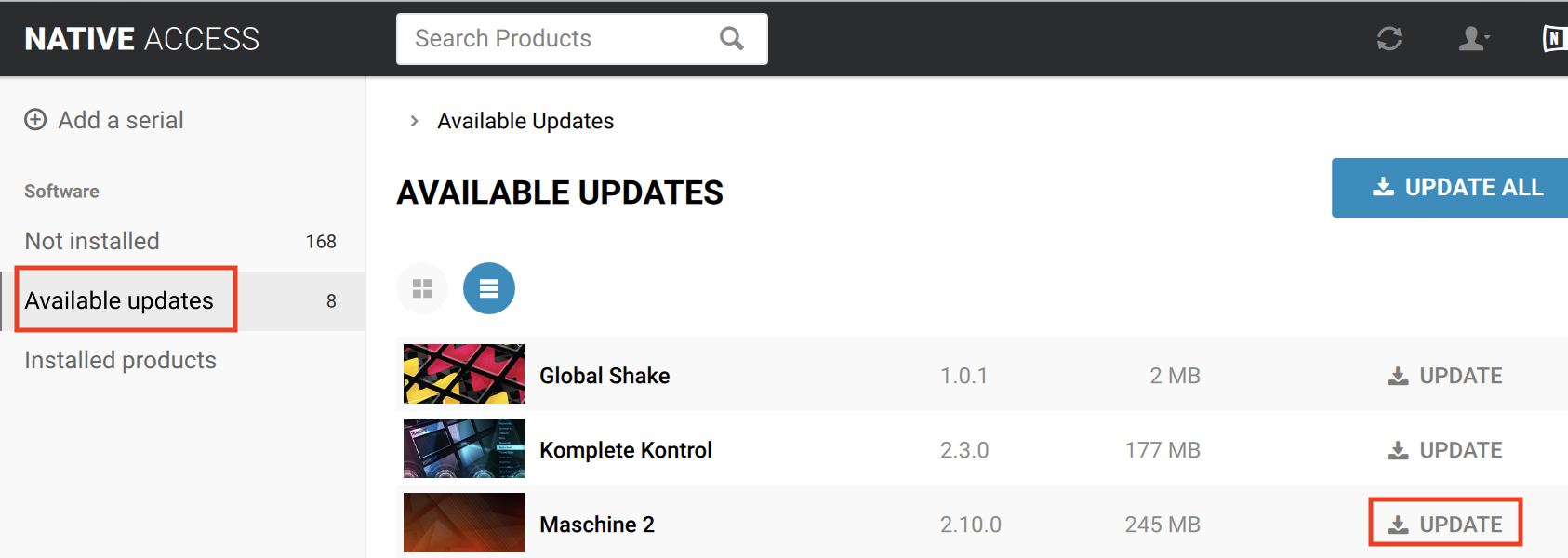
Pro Tip: If you are having issues, try updating Maschine 2 to the latest version. Native Instruments constantly releases updates that improve compatibility and fix bugs.
By following these simple steps, you can unlock a treasure trove of musical ideas and breathe new life into your old Maschine 1 projects. So go ahead, dust off those old beats and see what magic you can create!