How To Know How Much Power Your Pc Is Using

Ever found yourself staring at your PC, humming away, and wondered just how much electricity it's truly chugging? It's a bit like looking under the hood of your car, but for your digital workhorse. Learning how to know your PC's power usage isn't just for the ultra-techy; it's a fascinating peek into the hidden life of your electronics, and honestly, a pretty fun skill to pick up!
The purpose of understanding your PC's power consumption is multi-faceted and surprisingly beneficial. Firstly, it helps you become a more energy-conscious user. Think about your electricity bill – those numbers aren't just arbitrary! Knowing which components or tasks draw the most power can help you identify energy hogs and potentially save a bit of cash. Beyond your wallet, there's an environmental angle too. Reducing unnecessary power usage contributes to a smaller carbon footprint, making you a friend to both your finances and the planet.
The benefits extend further. For laptop users, understanding power draw can illuminate why your battery life fluctuates so wildly. For desktop users, it’s invaluable when planning upgrades; you can ensure your power supply unit (PSU) can handle new, more demanding components. It’s also a great diagnostic tool. Unexpectedly high power draw can sometimes signal an issue, like a background process running amok or a component struggling.
Must Read
How does this translate to daily life or even education? Imagine a curious student embarking on a STEM project, comparing the energy efficiency of different types of computers or the impact of various applications (say, a simple word processor versus a graphically intensive game). In daily life, it’s handy for the gamer who wants to know if their high-end rig is a true power monster, or the remote worker tracking the efficiency of their home office setup. You could even use it to settle a friendly debate about whose PC is the "greenest"!
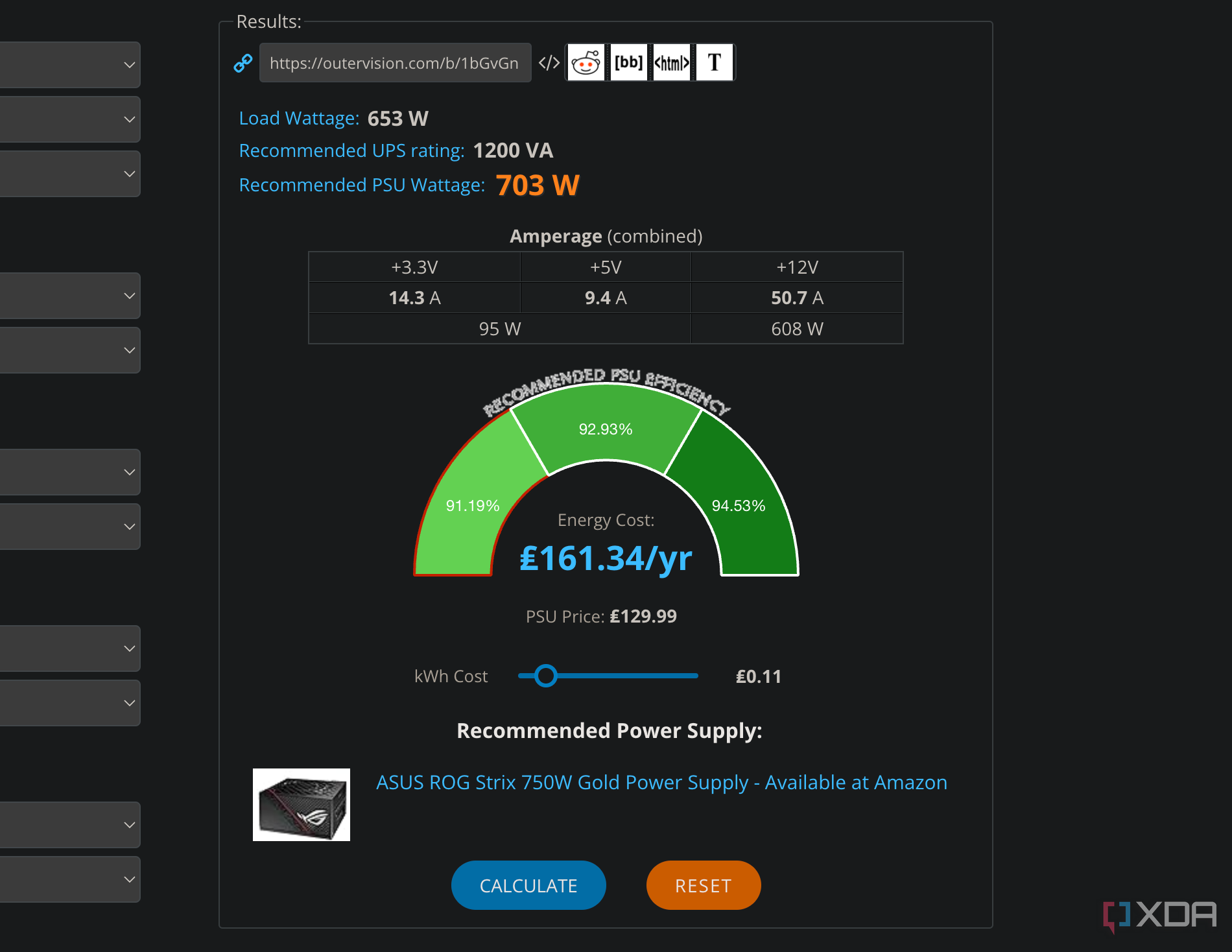
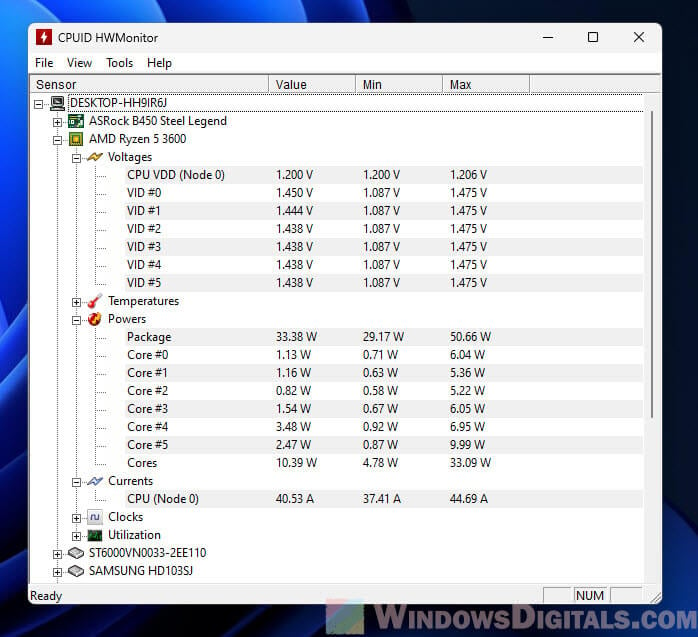
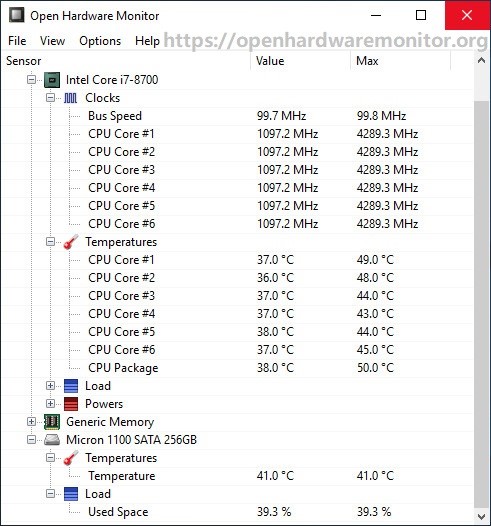
So, how do you actually embark on this journey of discovery? It's simpler than you might think! One of the most straightforward and satisfying ways is with a physical device called a Kill-A-Watt meter (or similar power meter). You simply plug it into your wall socket, then plug your PC (or its power strip) into the meter. Voilà! It instantly displays the actual wattage your entire system is drawing. It’s wonderfully direct and gives you an instant, tangible number. For a more granular view, especially if you want to see per-component usage, software solutions come into play. Tools like HWMonitor or HWiNFO can read sensors inside your PC, giving you estimates for CPU, GPU, and sometimes even SSD power consumption. While not perfectly precise without specialized hardware, they offer fantastic insight. Most operating systems also have built-in tools; for example, Windows Task Manager (under the "Details" tab or specific process properties) or macOS Activity Monitor can give you hints about power impact per application. Experiment with these simple methods, run different programs, and watch those numbers fluctuate – it's an incredibly satisfying way to become a true PC power detective!