How To Group And Ungroup In Illustrator

Alright, design adventurers! Let's talk about something super handy, almost like having a secret weapon in Adobe Illustrator: grouping and ungrouping! Now, I know what you might be thinking: "Grouping? Sounds boring." But trust me, it's the kind of boring that makes your life infinitely easier and more creative. It's like being able to move an entire army of shapes with a single click. Who wouldn't want that kind of power?
So, why is grouping and ungrouping so essential? Imagine you've painstakingly created a complex illustration – a cute cartoon character, a detailed logo, or a mind-bending abstract design. It's made up of dozens of individual shapes, lines, and text elements. Now, try to move the whole thing without grouping it. Disaster! Pieces go flying everywhere, your carefully crafted masterpiece dissolves into chaos, and you're left with a digital jigsaw puzzle. This is where grouping comes to the rescue.
Grouping allows you to combine multiple objects into a single, cohesive unit. Think of it as putting a rubber band around a bunch of pencils. Suddenly, they're one object you can move, resize, rotate, and transform without affecting their individual relationships. The benefit? Control. Efficiency. And the sweet, sweet satisfaction of not accidentally mangling your hard work.
Must Read
Here's how it works in Illustrator:

- Select your objects: Use your Selection Tool (the black arrow) to click and drag a box around all the elements you want to group together. You can also click on each object individually while holding down the Shift key to select multiple items.
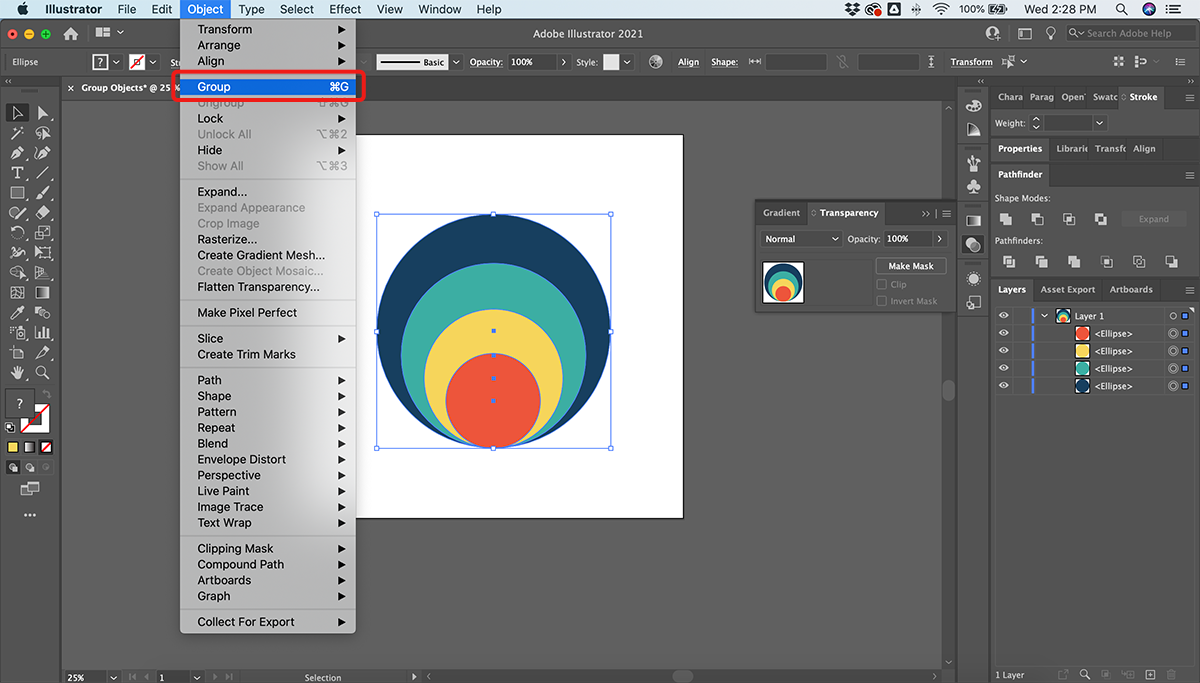
- Group 'em up: Go to Object > Group in the menu bar. Alternatively, you can right-click (or Ctrl-click on a Mac) on your selected objects and choose "Group" from the context menu.
- Voila! Your objects are now grouped! Click anywhere on the group to select it as a single unit.
But what if you need to tweak something within the group? That's where ungrouping comes in! It's the reverse of grouping – breaking your united objects back into their individual components.
Ungrouping is just as simple:
- Select your group: Click on the group you want to ungroup.
- Break it apart: Go to Object > Ungroup in the menu bar. Or, right-click (or Ctrl-click) on the group and choose "Ungroup."
- Freedom! Your objects are now individual again, ready for you to edit, move, or manipulate as needed.
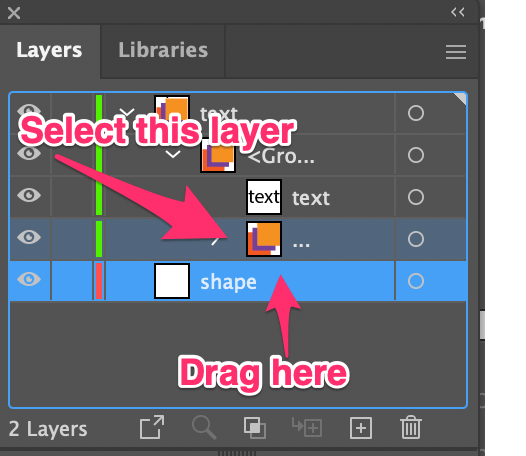
Pro Tip: You can have groups within groups! This is called nesting, and it allows for even more complex organization. If you have nested groups, you may need to ungroup multiple times to get down to the individual objects.
So, go forth and conquer the Illustrator landscape with your newfound grouping and ungrouping skills! It's a fundamental technique that will save you time, headaches, and potentially your sanity. Happy designing!