How To Connect Google Nest Thermostat To Wifi
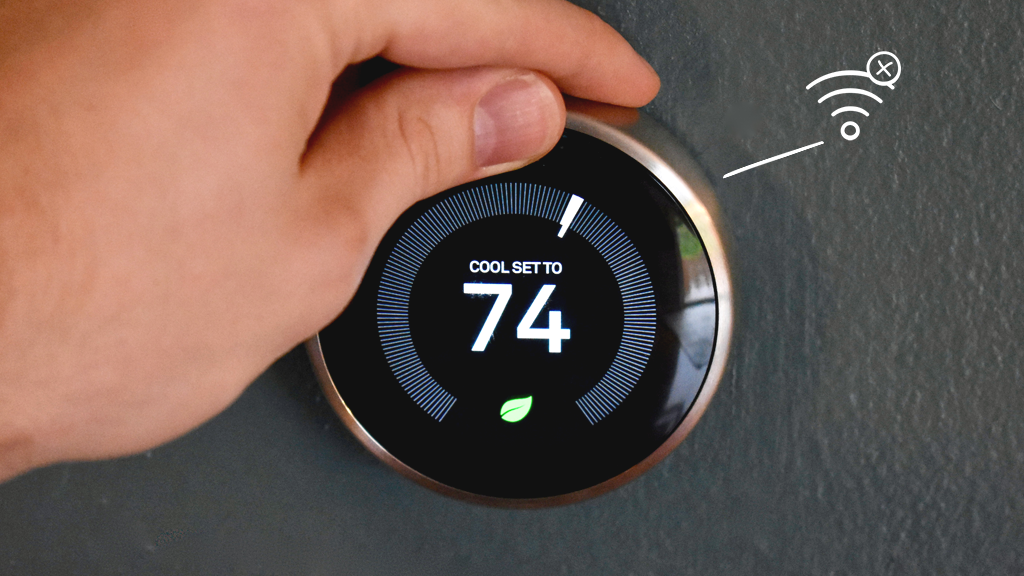
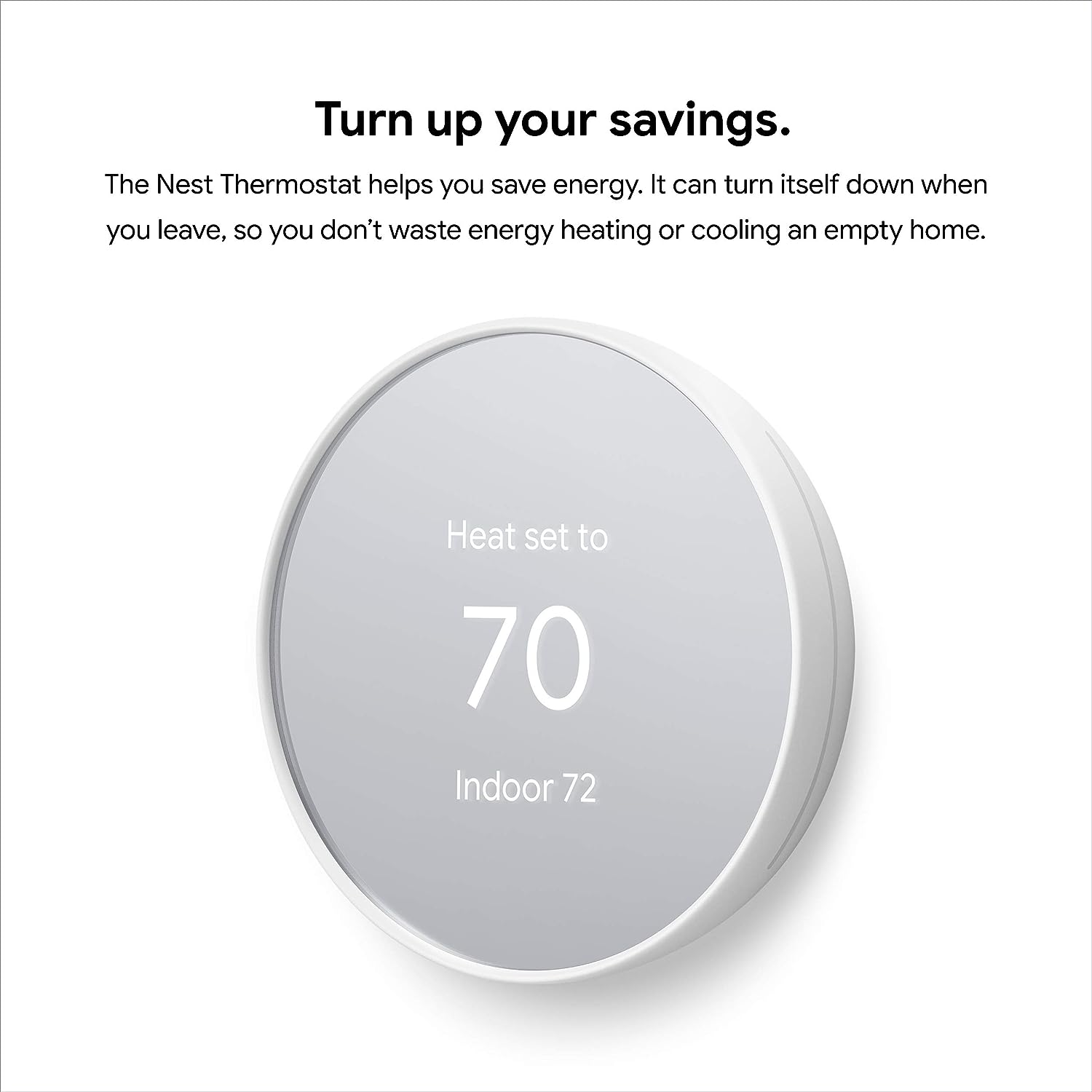
Alright, so you've got this sleek, intelligent device on your wall – your Google Nest Thermostat. It’s pretty cool, right? But to truly unlock its superpowers, to have it whisper sweet nothings about energy savings and remotely adjust your cozy haven from across town (or even the couch), it needs to be online. Think of it like a smart superhero waiting for its signal. And that signal, my friend, is your Wi-Fi.
Connecting your Nest to your home’s Wi-Fi isn’t a mission impossible. In fact, it's more like a chill Sunday afternoon puzzle. Let's get you connected so your home can be as smart and comfy as you deserve, without breaking a sweat.
The Pre-Flight Checklist: A Quick Scan Before Takeoff
Before we dive into the digital ether, let's make sure a few ducks are in a row. These little steps can save you a world of head-scratching later:
Must Read
- Power Up: If you have a Nest Thermostat (the entry-level model) or a Nest Thermostat E, ensure it has enough battery juice. If it's dim or unresponsive, it might just need a little charge. The Nest Learning Thermostat usually draws power from your HVAC system, so you're generally good there.
- Know Your Network: This sounds obvious, but you’d be surprised! Grab your Wi-Fi network name (SSID) and, crucially, your password. It’s like finding your car keys before a road trip – essential! If it’s been a while, often these details are on a sticker on your router.
- Router Proximity: While Nest thermostats have decent Wi-Fi range, being reasonably close to your router helps, especially for the initial connection. No need to move mountains, but just a mental check.
Let's Get Connected: Your Nest's Digital Debut
Ready? Great. Let’s walk through the steps on your Nest thermostat itself. It's surprisingly intuitive, a testament to good design:
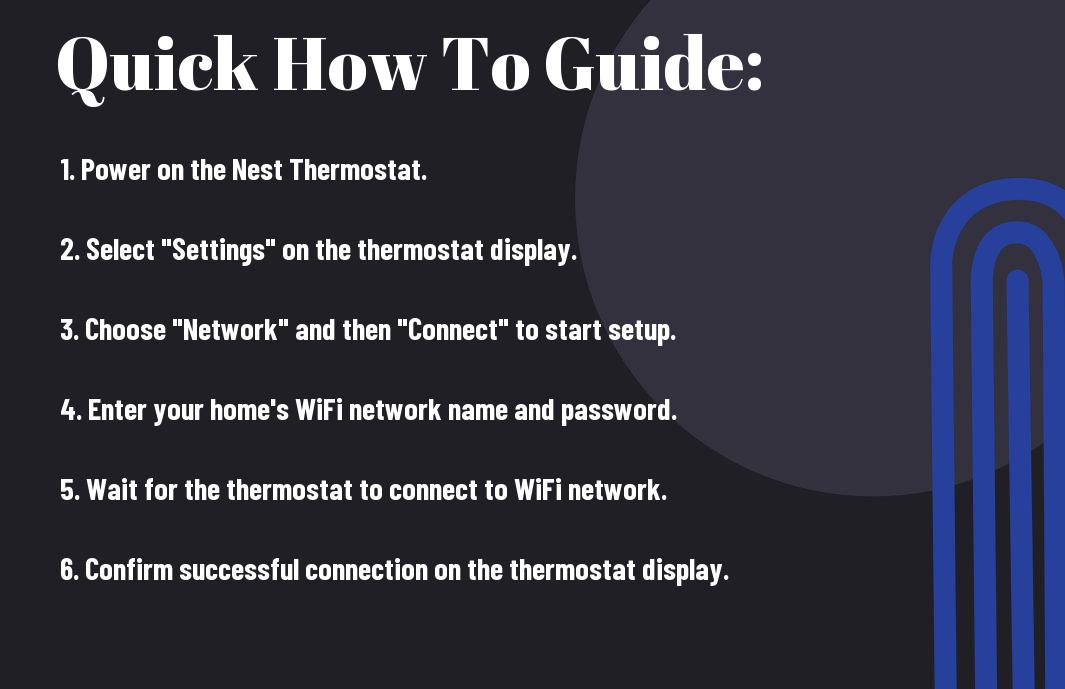
Step 1: Wake Up Your Nest. Gently press on your Nest Thermostat’s display to wake it up. If it's a Nest Learning Thermostat, rotate the outer ring until the main menu appears.
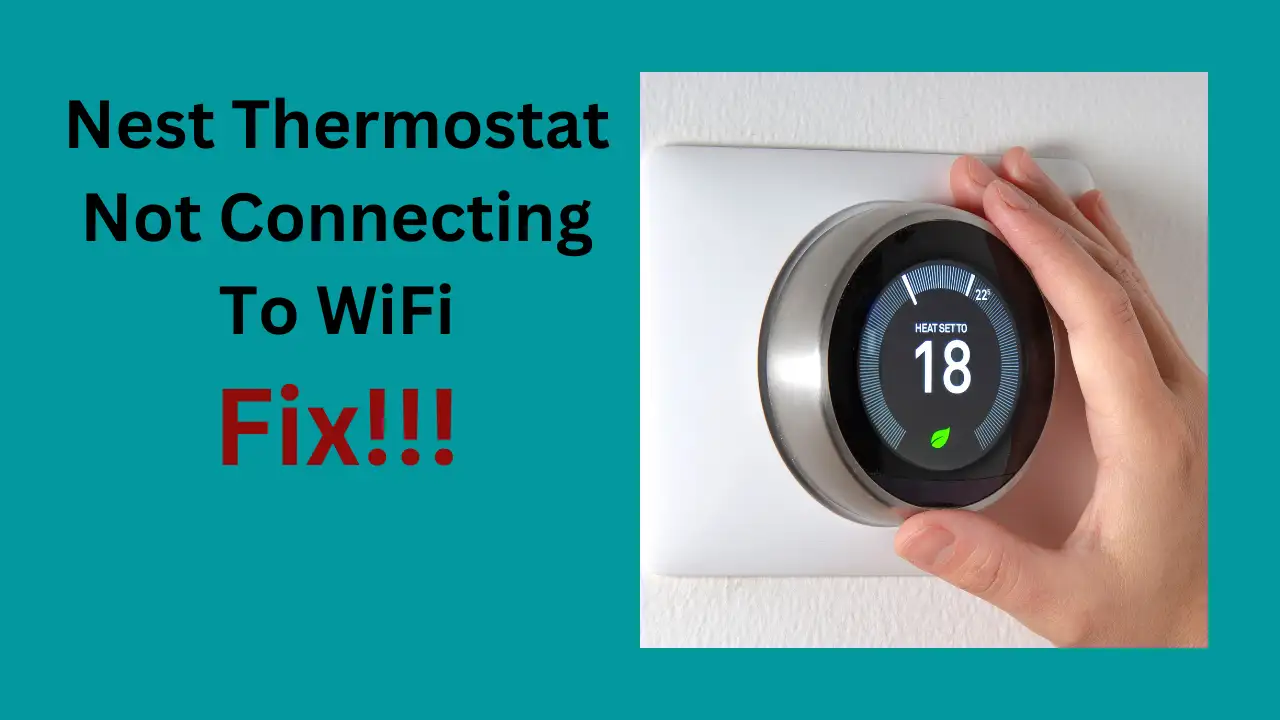
Step 2: Navigate to Settings. Depending on your model, you’ll either swipe left/right and select "Settings" (for Nest Thermostat E and Nest Learning Thermostat) or tap the gear icon (for Nest Thermostat). Look for the gear icon or "Settings" text. It's universally recognized as the place where the magic happens.
Step 3: Find the Network Option. Once in Settings, scroll or swipe until you see "Network" or "Wi-Fi." Select it. This is where your Nest starts sniffing out available networks, just like you might check your phone for bars.
Step 4: Choose Your Home Network. Your Nest will display a list of available Wi-Fi networks. Find yours and select it. This is where knowing your network name comes in handy!
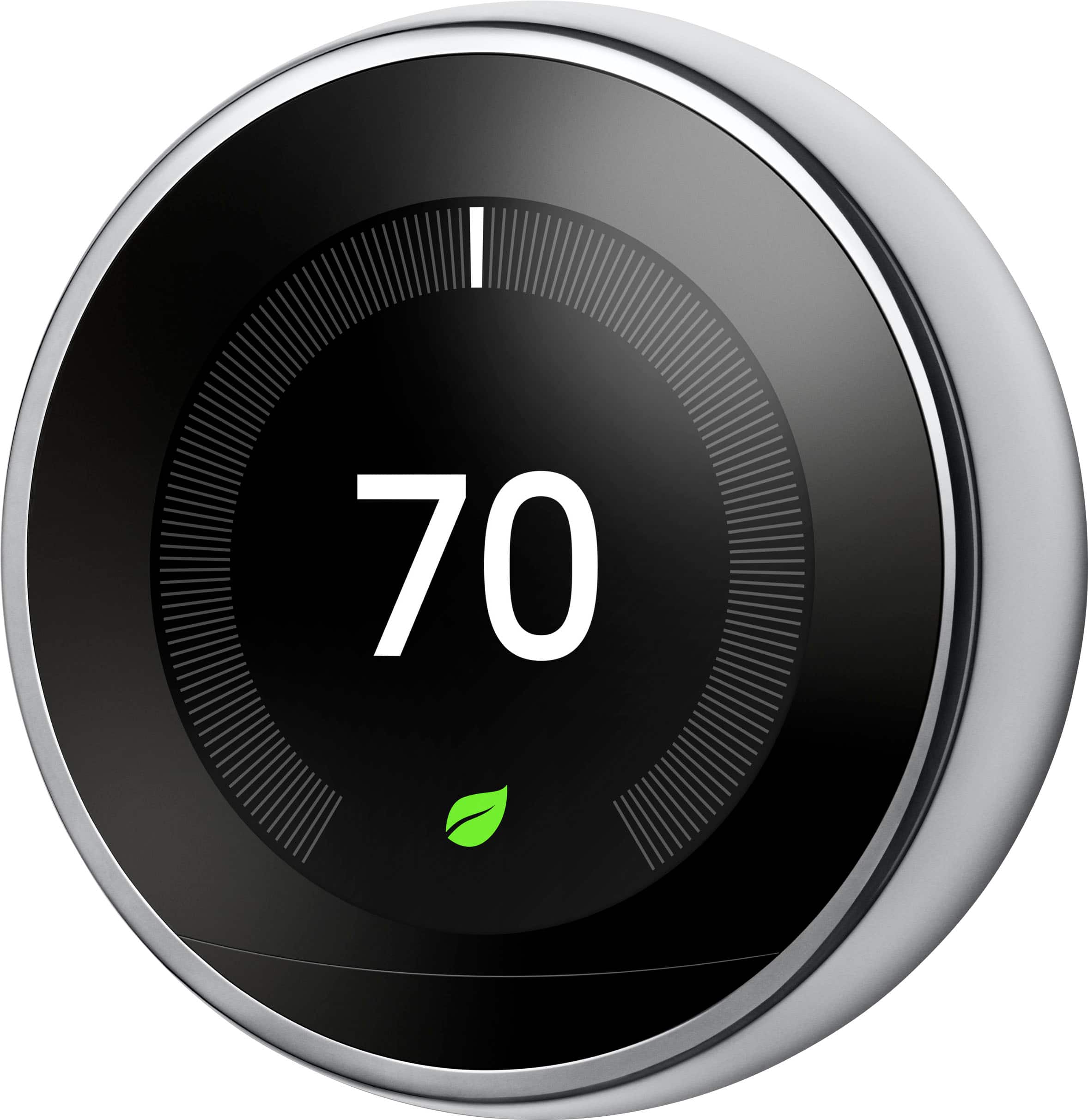
Step 5: Enter Your Password. Now for the moment of truth! Using the Nest’s scroll wheel or touch controls, input your Wi-Fi password. Take your time; typos happen to the best of us. This is often the trickiest part, but patience is a virtue, especially with digital keypads.
Step 6: Connect and Confirm. Once the password is in, select "Connect." Your Nest will then attempt to join the network. If successful, you’ll usually see a confirmation message on the screen, perhaps a little Wi-Fi symbol, and a happy little chime. Success!
Oops, Didn't Work? Troubleshooting Tips!
Sometimes, tech plays hard to get. If your Nest isn't connecting, don't fret. Here are a few quick fixes:
- Double-Check Password: Seriously, this is the number one culprit. Re-enter it slowly and deliberately.
- Router Reboot: The classic "have you tried turning it off and on again?" method. Unplug your Wi-Fi router for 30 seconds, then plug it back in. Wait a few minutes for it to fully restart, then try connecting your Nest again.
- Move Closer: If your Nest is far from the router, try moving a Wi-Fi extender or the router itself closer temporarily for the initial connection.
- Nest App: If you've previously set up your Nest with the Google Home app or Nest app, sometimes the app can guide you through reconnection or provide more diagnostic info.
Why This Matters: Your Smart Home Awaits!
With your Nest Thermostat happily humming along on your Wi-Fi network, a whole new world of convenience and savings opens up. You can now:
- Control from Anywhere: Adjust your home’s temperature from your phone, whether you're stuck in traffic, lounging at the park, or on vacation in Fiji. Imagine arriving home to the perfect temperature, every single time.
- Smart Learning: For Nest Learning Thermostats, it starts to learn your preferences and build a schedule tailored to your life, saving energy without you lifting a finger. It’s like having a mind-reading butler for your climate!
- Energy Reports: Get insights into your energy usage, helping you make smarter, greener choices and potentially save on bills.
- Voice Control & Automation: Integrate with Google Assistant (or Alexa!) for voice commands, or connect with other smart home devices to create routines that make your home effortlessly efficient.
Connecting your Google Nest Thermostat to Wi-Fi is more than just a tech task; it's a step towards a more comfortable, efficient, and genuinely smarter home. It’s about creating those little pockets of calm and convenience in our busy lives, ensuring that when you walk through your front door, your home greets you with the perfect, welcoming embrace. Enjoy the comfort of a truly connected home!