Why Does My Monitor Keep Flashing On And Off
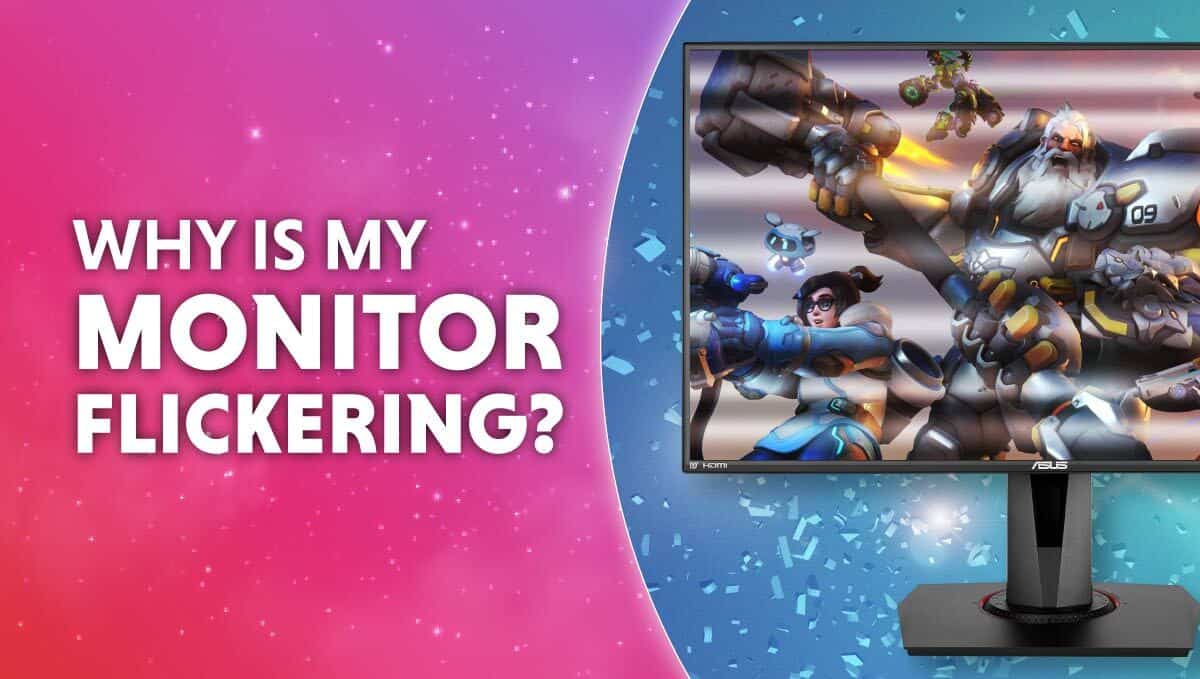
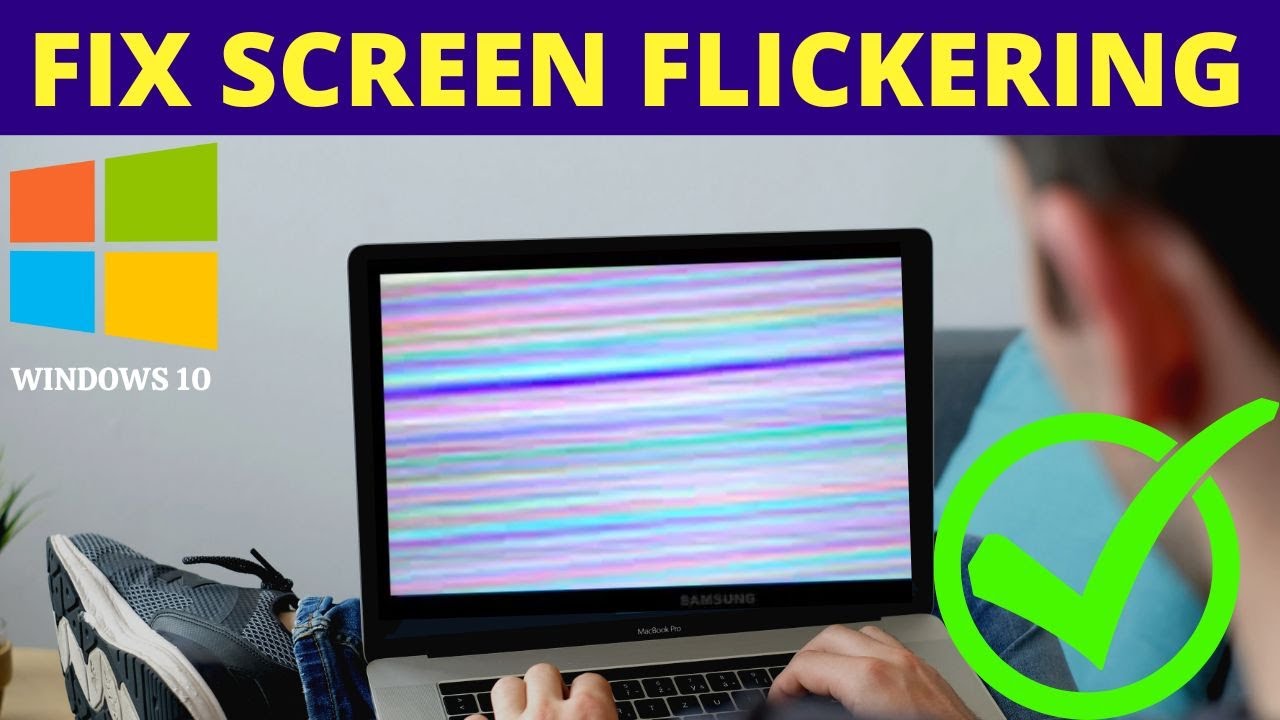
Alright, settle in, grab your coffee. Let's talk about that moment of sheer, unadulterated terror when your computer monitor decides it wants to moonlight as a disco strobe light. You know the one: flick, black, flick, black. It's not a subtle hint; it's a full-blown, in-your-face declaration that your digital life is having an existential crisis.
You’re staring at it, probably blinking in sync with the screen, muttering ancient incantations under your breath. Is it possessed? Is it trying to communicate in Morse code? Or did your cat finally learn how to hack into your display settings? Fear not, my friend, for usually, the culprit is less supernatural and more… well, let's just say, often hilariously simple.
The Obvious Suspects: The Cable Caper and the Power Play
First things first, let’s rule out the digital equivalent of forgetting your keys in your hand. The cables. Oh, the humble, easily forgotten cables. Your monitor has at least two: one for power, and one for the video signal (HDMI, DisplayPort, VGA if you're really living in the past, DVI if you're just slightly less past-dwelling). When your monitor starts doing its strobe light impression, the first thing to do is give these a gentle but firm
Must Read
And speaking of power, is your monitor actually getting it? It sounds like a joke, but trust me, I've seen fully grown adults stare blankly at a dead monitor for five minutes before realizing the power strip was off. Or the plug wasn't fully in the wall. Or, even better, a mischievous pet decided the power cable was a tasty chew toy. So, check the
The Digital Drama: Refresh Rates and Drivers
Okay, so your cables are tighter than a drum, and the monitor has definitely been fed its electrons. Still flashing? Now we enter the slightly more technical (but still surprisingly common) territory. Imagine your graphics card and your monitor are two friends trying to agree on what movie to watch. One wants a high-octane action flick (high refresh rate), the other prefers a slow-burn documentary (lower refresh rate). If they can't agree, things get
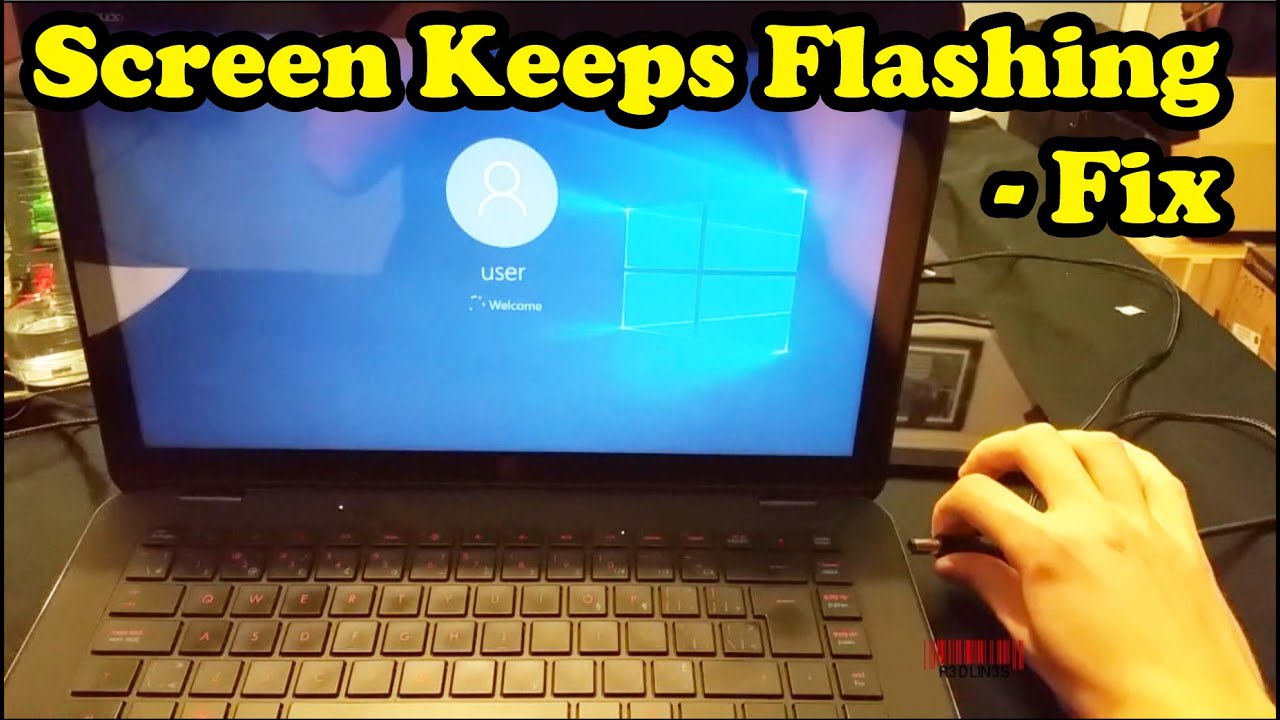
This is often a refresh rate mismatch or a resolution disagreement. Your monitor might be set to a refresh rate or resolution that your graphics card (or even the monitor itself) can't quite handle consistently. If you recently changed settings, or updated a game, this could be your culprit. Try booting into Windows Safe Mode (which uses a very basic display driver) to see if the flashing stops. If it does, head straight to your display settings and set the refresh rate to something standard, like 60Hz, and the resolution to your monitor’s native one. It's like finding common ground on a movie night.
And then there are drivers. Oh, the drivers. These are the software translators that allow your operating system to talk nicely to your graphics card. If these drivers are outdated, corrupted, or just plain cranky, your monitor might decide to throw a tantrum. Imagine trying to talk to someone whose translator keeps forgetting words – total chaos! A quick trip to your graphics card manufacturer’s website (NVIDIA, AMD, Intel) to download and install the
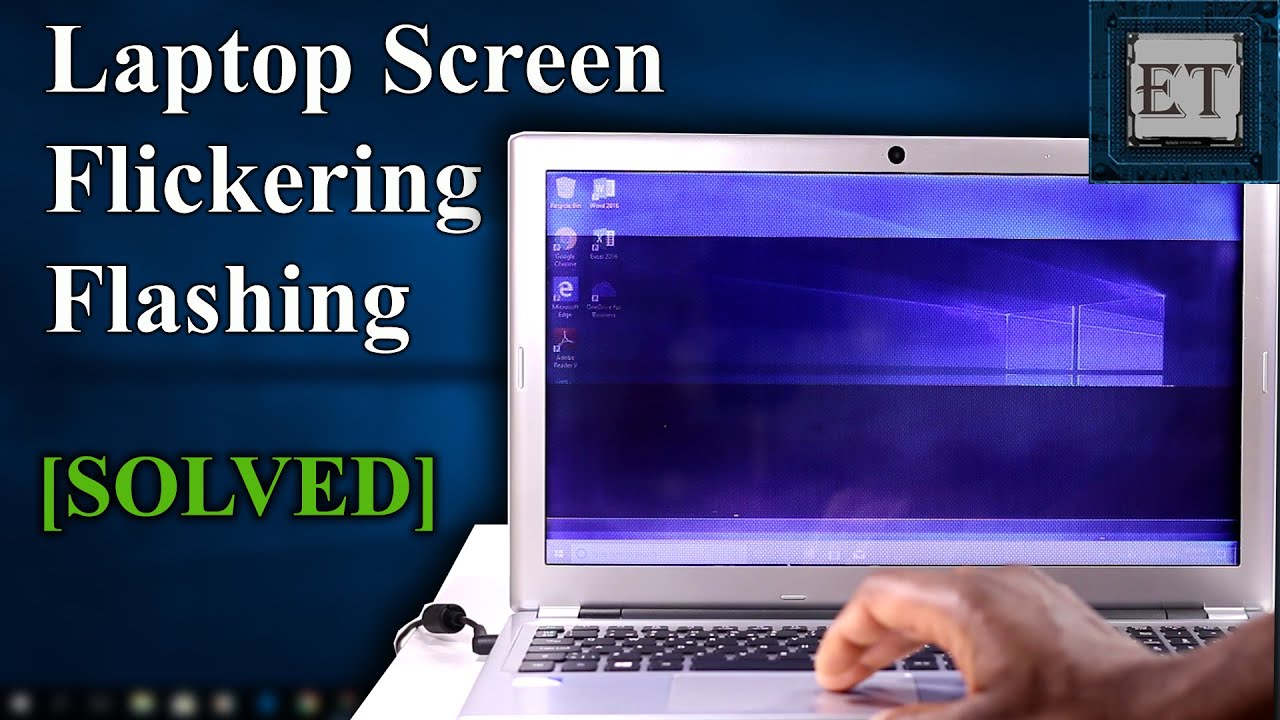
The Ghost in the Machine: Interference and Hardware Hiccups
Still flashing? Don’t worry, we’re not summoning exorcists just yet. Sometimes, your monitor’s flickering can be caused by
Then there’s the sad, inevitable truth: sometimes, parts just get old or decide to take an early retirement. Your graphics card might be struggling, especially if it’s overheating or simply on its last legs. Or, heaven forbid, the monitor itself could be dying. This is often accompanied by other symptoms, like strange colors, lines, or specific areas of the screen acting up. If you have a spare monitor (or can borrow one), try swapping it out. If the problem disappears, congratulations! Your old monitor has officially entered the great recycling bin in the sky. If the problem persists with a new monitor, then it’s likely your PC's graphics card, which is a slightly bigger (and often more expensive) conversation for another day.
In conclusion, while a flashing monitor can feel like a direct assault on your productivity and sanity, remember that it's usually just your tech trying to tell you something in its own dramatic way. Most of the time, a little cable wiggle, a power check, or a software tweak will set things right. And if not, well, at least you have a great excuse to finally upgrade to that glorious, ultra-wide display you’ve been eyeing!