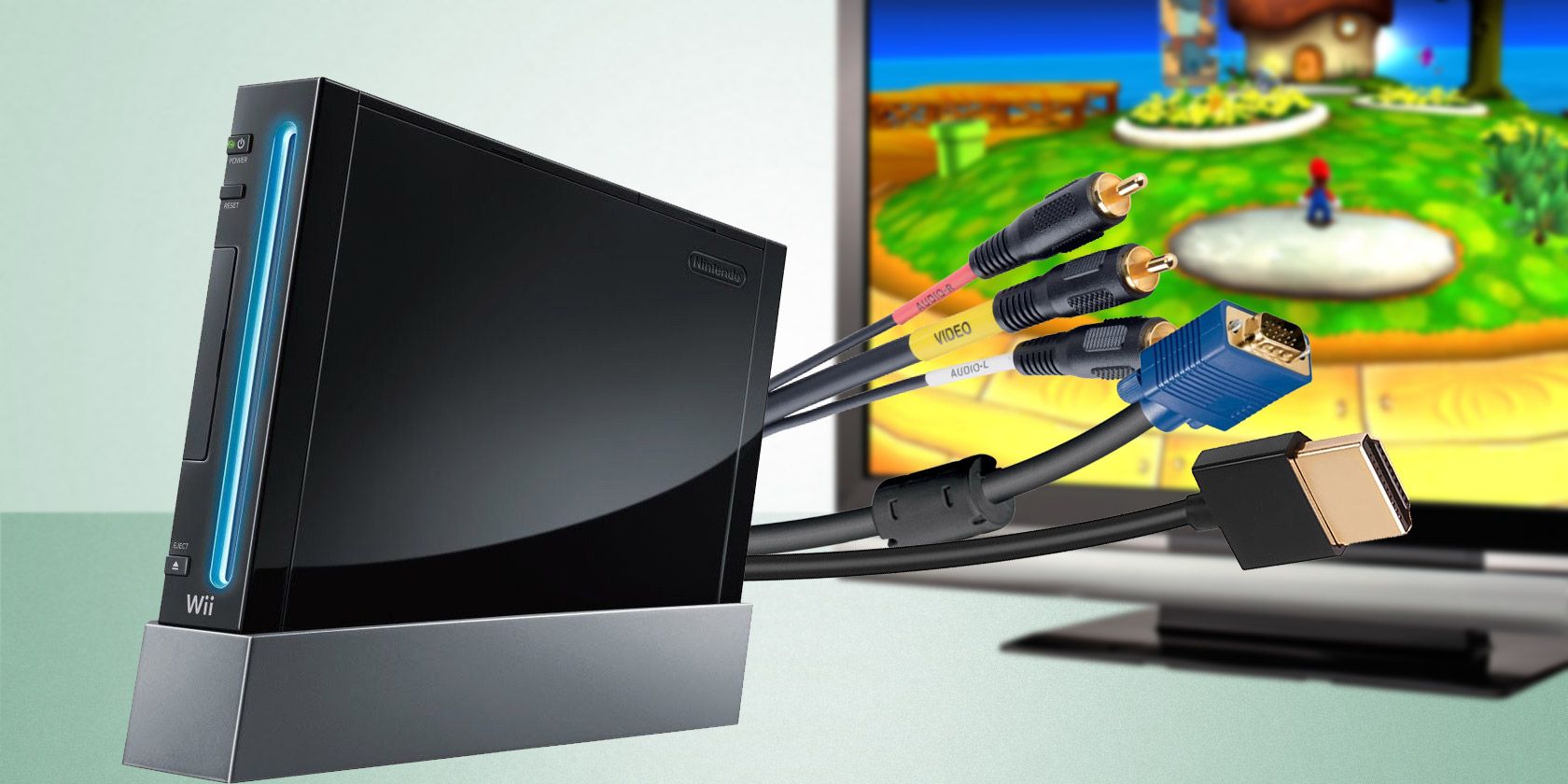
How To Connect A Wii To A Smart Tv

Remember the good old days? Before streaming services took over, there was a humble little console called the Wii. And guess what? You can still dust it off and bring those fun memories back to life, even on your shiny new smart TV! Think of it like reuniting with an old friend – a little effort, but totally worth it.
Why Bother Connecting Your Wii to a Smart TV?
Okay, I get it. You're probably thinking, "Why would I want to play Wii Sports when I can binge-watch my favorite shows in 4K?" Well, here’s the thing: nostalgia is powerful! Plus, Wii games are fantastic for some good old-fashioned family fun. Imagine gathering everyone around the TV for a hilarious round of bowling, or a competitive dance-off. It's a guaranteed way to get everyone off their phones and actually interacting.
Think about it as a digital detox, a way to unplug and reconnect with simpler times. It's like rediscovering your favorite childhood toy in the attic - a wave of happy memories instantly washes over you!
Must Read
The Connection Quest: What You'll Need
Before we embark on this retro gaming adventure, let's gather our supplies. Luckily, it's pretty straightforward.
* Your Wii Console: Obviously! Make sure it's the original Wii, not the Wii U (which already has HDMI capabilities). * The Wii's AV Cables (Red, White, and Yellow): These are the standard composite cables that came with your Wii. If you've lost them, don't panic! They're readily available online or at most electronics stores. * Your Smart TV: Should have composite input ports (the red, white, and yellow ones) – older models always do, newer ones sometimes include them via adapter or direct connection. Check the back or side of your TV.
Connecting the Wii Directly to Your TV (The Easy Way)
If your smart TV has those familiar red, white, and yellow ports, you’re in luck! This is the easiest way to connect your Wii.
- Locate the AV Input: On the back or side of your TV, find the set of red, white, and yellow ports labeled "AV Input," "Composite," or something similar.
- Match the Colors: Plug the corresponding colored plugs from the Wii's AV cables into the matching ports on your TV. Red goes into red, white into white, and yellow into yellow. Easy peasy!
- Turn on the TV and Select the Correct Input: Using your TV remote, change the input source to "AV," "Composite," or whatever label corresponds to the ports you just used. You might have to cycle through the options until you see the Wii menu on your screen.
- Power on the Wii: Flip the power switch on the Wii (usually located on the front of the console).
- Get Ready to Game! If everything is connected correctly, you should see the Wii menu on your TV screen. Grab your Wii Remote and get ready to relive those classic gaming moments!
The AV to HDMI Adapter: Bridging the Gap for Modern TVs
Many newer smart TVs have ditched the old composite inputs in favor of HDMI. Don't worry, that doesn't mean you can't connect your Wii. An AV to HDMI adapter is your best friend here.
![How to Connect Wii to Smart TV [Full Guide]](https://www.boostvision.tv/wp-content/uploads/2024/11/1732601725-how-to-connect-wii-to-smart-tv-banner.webp)
These adapters take the analog signal from the Wii's AV cables and convert it into a digital HDMI signal that your TV can understand. They're relatively inexpensive and easy to use.
- Connect the Wii's AV Cables to the Adapter: Plug the red, white, and yellow cables into the corresponding ports on the adapter.
- Connect the Adapter to Your TV via HDMI: Use an HDMI cable to connect the adapter to an available HDMI port on your TV.
- Power the Adapter (If Necessary): Some adapters require external power via a USB cable. Plug the USB cable into a USB port on your TV or a wall adapter.
- Select the Correct HDMI Input: Using your TV remote, select the HDMI input that you connected the adapter to.
- Power on the Wii: Turn on your Wii and enjoy the game.
A Few Things to Keep in Mind
* Picture Quality: The Wii wasn't designed for high-definition TVs, so the picture quality might not be as crisp as you're used to. Don't expect 4K resolution! But hey, that’s part of the charm, right? It’s like watching an old home movie – a bit grainy, but full of heart. * Sound: Make sure the audio cables (red and white) are securely connected to both the Wii and the TV (or adapter). If you're not getting sound, double-check the connections and the TV's volume settings. * Experiment: Don't be afraid to try different HDMI ports or AV inputs on your TV. Sometimes, it's just a matter of finding the right setting.Time to Relive the Magic!
There you have it! Connecting your Wii to a smart TV is a simple way to inject some fun into your living room and rediscover the joys of classic gaming. So go ahead, dust off that Wii, gather your friends and family, and get ready to create some new memories with an old favorite!
Think of it as a delicious throwback Thursday…every day! Enjoy!