
How Do I Change The Wi-fi On My Ring Doorbell
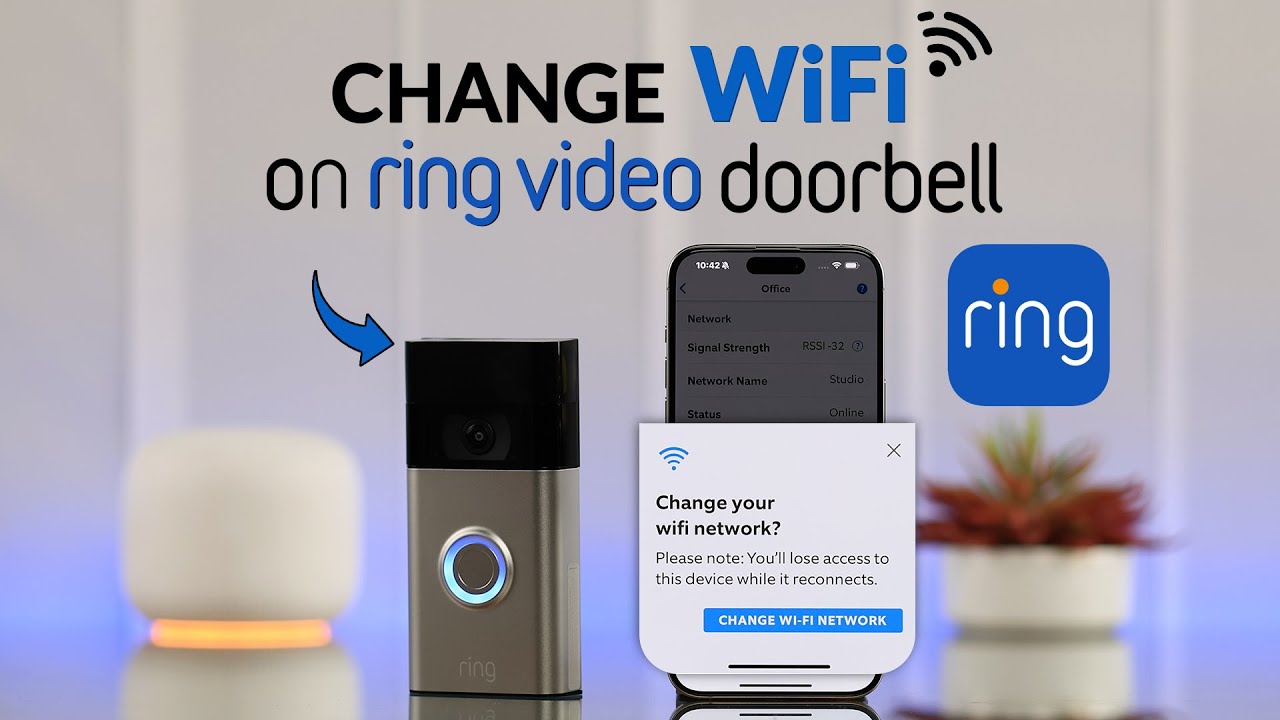
Alright, let’s talk about that moment. You know the one. You’ve just upgraded your internet, or maybe you’ve moved. Perhaps your old router finally bit the dust. And now? Your trusty Ring doorbell is staring at the void, disconnected. No more motion alerts. No more spying on those pesky package pirates. It’s like your digital doorman has gone on an unannounced coffee break. But don't fret! Changing the Wi-Fi on your Ring is easier than teaching an old dog new tricks. Probably. Maybe.
Why the Digital Detour?
So, why are we even doing this? Well, your Ring doorbell is a creature of habit. It remembers its old Wi-Fi network like a favorite chew toy. When that network vanishes, it gets a little lost. It's not broken; it's just temporarily bewildered. Think of it as a tiny, highly advanced guard dog that needs you to point it to the new treat cupboard. It’s a common rite of passage for smart home owners, a badge of honor, even!
Maybe you swapped out that ancient router for a sleek, super-fast mesh system. Go you! Or perhaps you moved into a new pad and your Ring decided the old Wi-Fi signal was still worth chasing, even if it's three towns over. Whatever the reason, reconnecting it is all about giving it new marching orders. It’s a fun little tech puzzle, a delightful digital quest for connection.
Must Read
The Great Wi-Fi Migration: Your Step-by-Step Adventure!
First things first: grab your phone. And make sure your Ring doorbell has some juice. If it’s hardwired, you’re golden. If it’s battery-powered, maybe give it a quick charge just in case. We don't want it conking out mid-setup!
Step 1: Locate the Mystery Button!
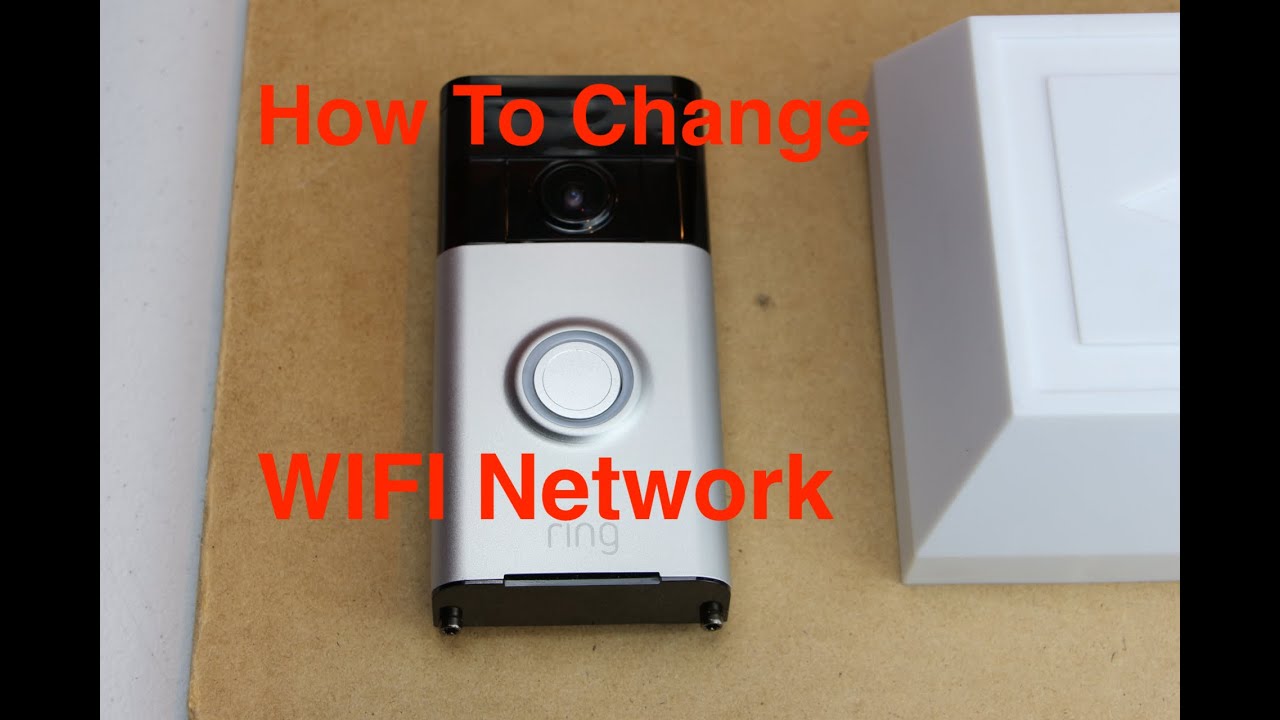
This is where the magic begins. Your Ring doorbell has a hidden button. Yes, a secret button! For most Ring Video Doorbells, you'll need to carefully remove the doorbell from its mounting bracket. Often, it's held by a security screw at the bottom. Once off, you'll see a small, orange button on the back. For the Ring Doorbell 2, 3, 3 Plus, and 4, the button is usually under the faceplate – you just need to pop it off. It’s like finding a treasure chest, but instead of gold, you get... Wi-Fi!

This little orange button? It’s your doorbell’s brain reset, its spiritual awakening. Press and hold that orange button for a few seconds. Not too long, not too short. Just right. You’ll know you’ve done it when the light on the front of your Ring starts to spin or pulse blue. This means it’s entered "setup mode" – it's basically saying, "Okay, I'm ready for new instructions, boss!" It’s a moment of digital vulnerability, and you are its guide.
Step 2: Unleash the App!
Now, open the Ring app on your phone or tablet. If you’re not already logged in, do that. You are the commander of this smart home army, after all. On the main dashboard, tap the three lines (hamburger menu) in the top left corner. Then, select Devices. Find your disconnected Ring doorbell. It might have a little sad cloud icon next to it, or just not be showing a live view.
Once you’ve tapped on your device, look for the Device Health tile. Tap that. Inside Device Health, you should see an option like "Change Wi-Fi Network" or "Reconnect to Wi-Fi." Give it a hearty tap. The app will then walk you through the connection process, which is surprisingly friendly.

Step 3: Connect to the Ring’s Own Secret Network!
Your phone will temporarily disconnect from your home Wi-Fi and look for a special network broadcast by your Ring. It usually starts with "Ring-" followed by some numbers and letters. It’s like your Ring is creating its own tiny, private hotspot, just for you. Connect to this network. Sometimes your phone tries to be smart and switch back to your home Wi-Fi – don't let it! Stick with the "Ring-" network until the app tells you otherwise.
This is a fun little dance between your phone and your doorbell. They’re having a private conversation, setting up the ground rules for future communication. You’re just the matchmaker!
Step 4: Pick Your New Wi-Fi!
Once connected to the Ring’s temporary network, the app will show you a list of all the Wi-Fi networks in range. Find your new, super-duper, amazing home Wi-Fi network. Select it! Then, and this is crucial, enter your Wi-Fi password. Double-check it! Triple-check it! That password is the key to your Ring’s continued happiness and security. It’s like handing over the secret handshake to the cool kids' club.
Step 5: The Grand Reconnection!
After you enter the password, your Ring doorbell will try to connect to your new network. The light on the front of the Ring might do some more fancy flashing or spinning. It’s working! It’s thinking! It’s communicating with the digital universe! Once it connects, the Ring app will confirm it. You might even hear the familiar "Hello" or "Your Ring is now connected" from the doorbell itself. That, my friend, is the sound of victory.
Put your doorbell back on its mount (and don’t forget that tiny security screw!). Give it a test. Press the button. Check the live view. Feel the surge of accomplishment! Your digital doorman is back on duty, sharper than ever.
Uh Oh! What if it's Being Stubborn?
Sometimes, technology likes to play hard to get. If your Ring isn't reconnecting, don't throw it into the neighbor's yard just yet. (Unless your neighbor's yard is its intended spot, of course!) Here are a few quick tips:
- Is your Wi-Fi router close enough? Sometimes the signal just isn’t strong enough. Try moving the router a bit, or consider a Wi-Fi extender.
- Did you really enter the password correctly? It's the most common culprit!
- Try a full router reboot. Unplug it for 30 seconds, then plug it back in. Sometimes, the router just needs a little nap.
- Give it another try. Sometimes, the first attempt is just a practice run. Tech can be finicky, like a diva on stage.
Remember, your Ring doorbell isn't trying to annoy you. It just wants to see who's at the door. And alert you to squirrels. It really loves alerting you to squirrels. It's truly a silent hero, guarding your packages and your peace of mind.
So there you have it! The thrilling, dramatic, yet ultimately straightforward saga of changing your Ring doorbell's Wi-Fi. You've conquered the invisible airwaves, tamed the digital beast, and brought your smart home back into harmony. Now, go enjoy that newfound connection. Ding-dong!