
How To Change A Code On A Kwikset Lock
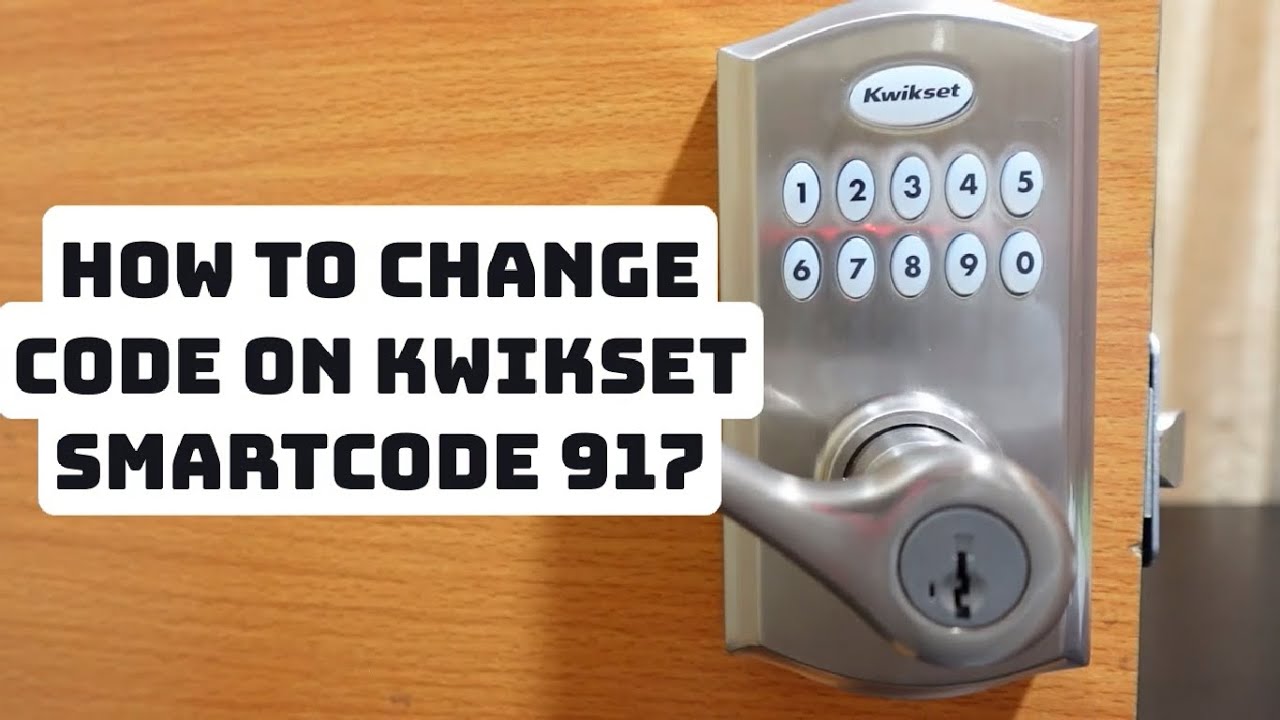
You know that feeling, right? The one where you’ve just had a whole crew in your house – maybe they were fixing a leaky pipe, installing new floors, or, heaven forbid, painting your living room a color you’re already regretting. You gave them the super-secret, never-before-shared Kwikset code to your front door because, well, they needed access, and you were busy living your best life. Fast forward a week, the job’s done, they’re gone, and you’re suddenly staring at your front door, wondering if Bob from "Bob's Best Pipes" still has free rein to pop in for a coffee whenever he fancies. Awkward.
Or maybe it's less dramatic. Perhaps you had a houseguest who stayed a little too long (we've all been there, no judgment!) and now it’s time for some digital spring cleaning. Whatever your reason, the idea of having an old, shared code floating around feels... a little like leaving your diary open on the coffee table. You just want that peace of mind, don't you?
Well, my friend, you’ve come to the right place. Changing the code on a Kwikset lock, especially their SmartCode series, is actually a breeze once you know the secret handshake. And no, you don't need a degree in advanced lock-picking or a hidden scroll from ancient times. It's surprisingly intuitive, which, let's be honest, isn't always a given with smart home tech!
Must Read
Why Bother Changing Your Kwikset Code?
Beyond the "Bob's Best Pipes" scenario, there are plenty of stellar reasons to hit refresh on your door code. Think about it:
- New roommates or tenants moving in (and old ones moving out – phew).
- That one time you accidentally told your password out loud while half-asleep.
- Seasonal visitors, like your aunt who visits every Christmas and just had to have the code.
- Or simply because you're a human who craves ultimate control over your personal security. And why shouldn't you have it?
It’s all about maintaining control over who has access to your sanctuary. Consider it a digital rekeying, but without the locksmith bill or the need to fiddle with tiny, pointy metal things.
The Magic Button: Where It All Begins
The beauty of most Kwikset SmartCode locks lies in one unassuming little button: the Program Button. This is your gateway to security bliss. Generally, you’ll find it on the interior side of your lock assembly. Yes, the part that faces inside your house. You might need to pop open a cover or peek around the battery pack, but it's usually quite accessible. Look for a small, often red or black, button.

Now, while Kwikset has a range of models (910, 912, 913, 914, 915, etc.), the core principle for changing a user code remains largely the same. It’s like different flavors of ice cream; the cone-holding method is universal.
Let's Get Down to Business: Changing That Code!
Ready? Grab your phone (maybe to set a timer for yourself, or just to scroll social media after your triumph). Here’s the typical process for adding a new user code – which effectively replaces the need for an old one, or simply gives you a fresh start:
Step 1: Locate the Program Button.

As mentioned, it's on the inside. Open your door, take a deep breath, and find that magical little button. Some models might have a small cover you need to slide off first. Don't be shy; it's meant to be pressed!
Step 2: Press the Program Button.
Press and release it quickly. You should hear a beeping sound, and the lock's keypad will likely flash or light up. This tells you the lock is now in "programming mode" and is ready for your instructions. Think of it as the lock saying, "Okay, I'm listening!"

Step 3: Enter Your New User Code.
This is where the magic happens! Within about 5 seconds of pressing the Program Button, punch in your desired new 4 to 8 digit code on the exterior keypad. Make it something memorable but not obvious (no "1234," please, we’re better than that!).
Step 4: Press the Lock Button.
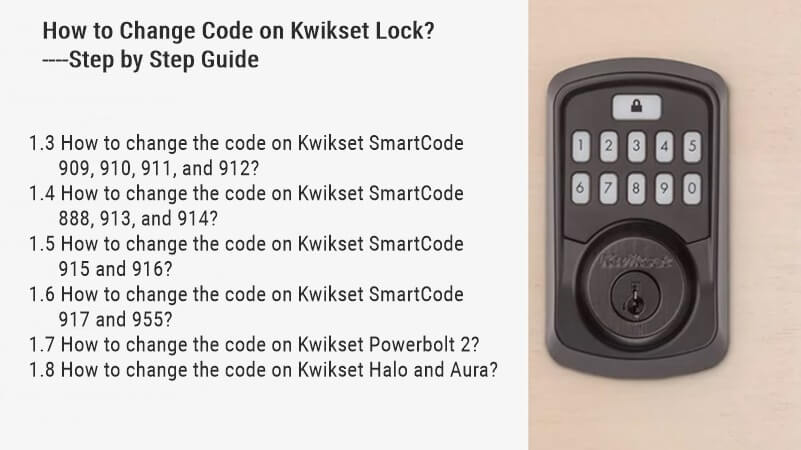
After entering your new code, press the "Lock" button on the keypad. This is usually the largest, dedicated lock symbol button. You'll likely hear a single long beep, or two quick beeps, indicating success! If you hear three short beeps, something went wrong. Don't panic; just try again from Step 2.
Step 5: Test It Out!
This step is crucial! Close your door (but maybe don't fully latch it just yet, or keep it ajar, in case of a mishap – better safe than sorry, right?). Press the "Lock" button to lock the door. Then, enter your new code and press the "Lock" button again. The deadbolt should retract, unlocking the door. If it works, give yourself a pat on the back! If not, don't fret; check the common troubleshooting tips below.
Quick Troubleshooting & Pro-Tips
- Batteries: Seriously, check them. Low batteries can make your lock act wonky and refuse to program new codes. Fresh alkaline batteries are your friend.
- Read Your Manual: Yes, I know. It's boring. But sometimes specific Kwikset models have slightly different steps. A quick glance at the manual (or a PDF version online) can save you headaches.
- Mastercode: Some Kwikset locks allow you to set a Mastercode. If you've set one, you might need to enter it before programming new user codes. If you don't know it, you probably haven't set one, so don't worry about it!
- Factory Reset: If all else fails and your lock is just not cooperating, a factory reset might be in order. This clears all existing codes and settings. Consult your specific lock's manual for these instructions, as it can vary.
See? That wasn't so bad, was it? You’ve just reclaimed your digital key, effectively giving Bob from "Bob's Best Pipes" a gentle, digital nudge to stay on his side of the neighborhood. Now go forth and enjoy the serene feeling of knowing your home's access is exactly how you want it!