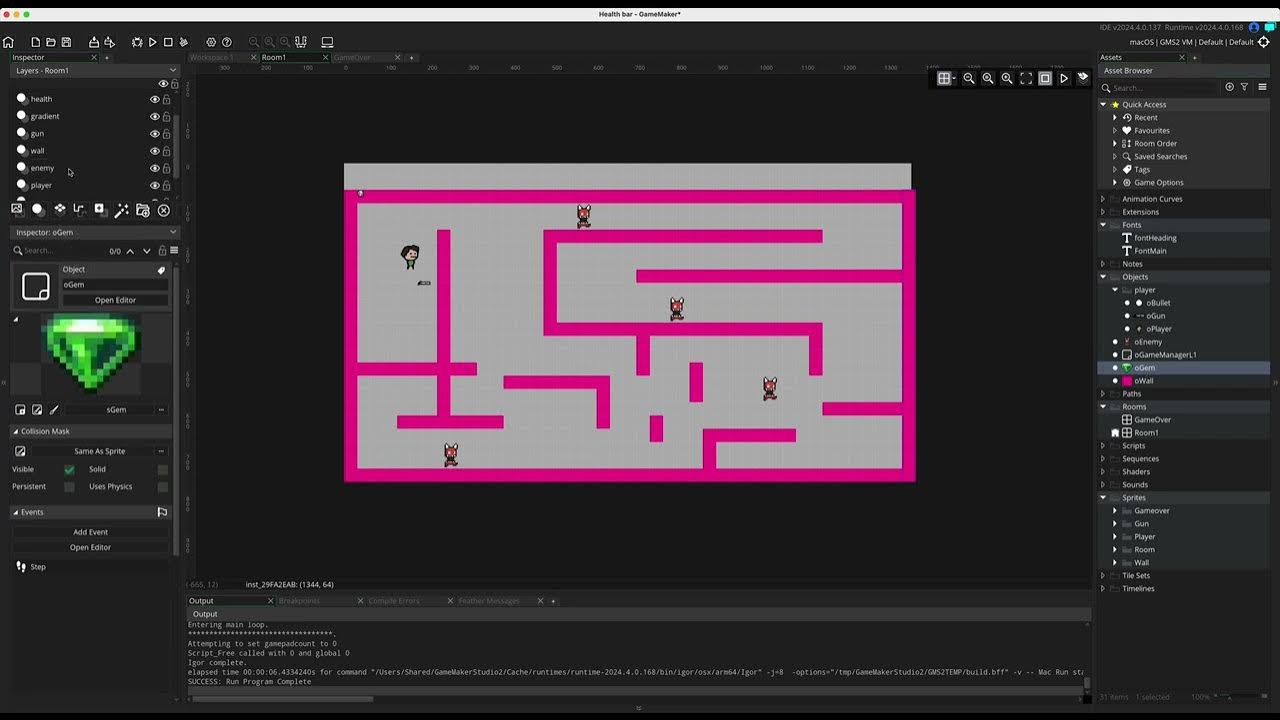
How To Add Health Bar In Game Maker

Ever played a video game and felt that surge of adrenaline as your health bar dwindled, signaling imminent doom (or a desperate scramble for a health potion)? Adding a health bar to your Game Maker creations is a fantastic way to provide clear feedback to the player, making the game more engaging and, frankly, more fun! It's like giving the player a visual representation of their endurance, adding a layer of strategy and excitement to the gameplay.
Why is this useful? Well, for beginners, it's a relatively simple yet impactful way to learn about variables, drawing, and object interaction in Game Maker. You'll get hands-on experience manipulating values and seeing them reflected visually on the screen. For families and those creating games for younger players, a visible health bar helps them understand cause and effect. Did they get hit by an enemy? Watch the health bar drop! It’s a great learning tool disguised as entertainment. And for seasoned hobbyists, mastering different health bar styles and implementing advanced features (like health regeneration or temporary invincibility) can really elevate the polish and professionalism of their projects.
There are several ways to approach creating a health bar. The most common is a simple rectangle that shrinks as the character takes damage. You can achieve this by drawing a rectangle whose width is tied to the character's health variable. Another popular variation is using a series of sprites. For example, you could have ten heart sprites, and as the player loses health, you destroy or hide hearts one by one. This can add a more charming or thematic feel to your game. Finally, you could get fancy with it and use a gauge or a circular progress bar, maybe even adding a background texture for a truly polished look!
Must Read
Ready to get started? Here are a few practical tips:
- First, create a variable in your player object to represent their health (e.g., `health = 100;`).
- Next, in the draw event of your player object, use `draw_rectangle(x1, y1, x2, y2, outline)` to draw the health bar. Remember to calculate `x2` based on the player's health variable and the maximum health (e.g., `x2 = x1 + (health / max_health) * bar_width;`).
- Don't forget to update the health variable when the player takes damage! For example, in the collision event with an enemy, subtract from the health variable (e.g., `health -= 10;`).
- Consider clamping the health variable to prevent it from going below zero (e.g., `health = max(0, health);`). This will stop your health bar from drawing weirdly!
Adding a health bar to your game is more than just a technical exercise; it's about improving the player experience and making your game more engaging. Whether you're a complete beginner or a seasoned game developer, experimenting with different health bar styles and mechanics can be incredibly rewarding and add a real sense of accomplishment to your project. So, dive in, experiment, and have fun bringing your game to life, one health point at a time!