
How Do I Enable 2.4ghz On My T-mobile Router
Ever found yourself staring blankly at a device that just refuses to connect to your super-speedy Wi-Fi? Maybe it’s your grandma’s ancient smart picture frame, or that quirky smart plug you bought on a whim. Chances are, your snazzy T-Mobile router is throwing a 5GHz party, and your device is only invited to the 2.4GHz shindig. Don't worry, we're about to fix that with a little digital wizardry!
Let's talk Wi-Fi bands. It's like having two different radio stations. The 5GHz band is the fast lane. Think drag racing – quick, powerful, but it loses steam over distance and through walls. Your gaming console and streaming devices love it. But then there's the unsung hero, the 2.4GHz band. It's slower, yes, but it’s a marathon runner! It goes further, pokes through walls like a champ, and is the preferred stomping ground for older devices and most smart home gadgets.
Why Does My T-Mobile Router Hide 2.4GHz?
Good question! T-Mobile's home internet gateways (the Nokia Arcadyan, Sagemcom, or even the older 'trash can' models) are pretty smart. They often use something called "band steering" or have a "combined network." This means they try to be helpful by automatically pushing devices to the faster 5GHz band. Sounds great, right? Until your vintage Roomba or that peculiar smart bulb from 2017 throws a digital tantrum because it only speaks 2.4GHz.
Must Read
It's like inviting someone to a party but giving them directions only to the VIP lounge, when all they wanted was the main dance floor! Your device just wants to groove on its preferred frequency, bless its digital heart.
Unleashing the 2.4GHz Beast: The T-Mobile App Is Your Magic Wand!
Good news! You won't need to be a network engineer or dig out ancient router login passwords. T-Mobile has made this delightfully simple. Your smartphone is about to become your command center.
First things first, make sure you have the T-Mobile Internet app installed on your phone. If you don't, grab it from your app store. It's your digital key to unlocking router secrets. You'll log in using your T-Mobile account credentials.
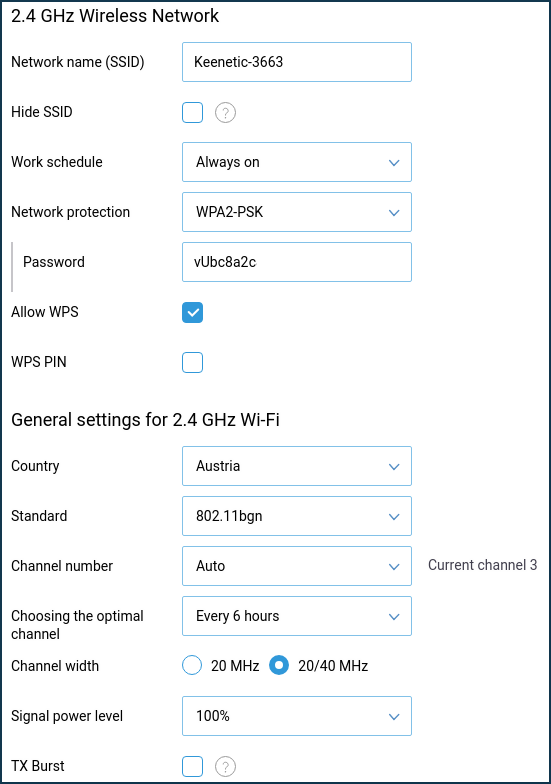
Once you’re in, it’s like stepping into the control room of your home network. Look for a section usually labeled "Network" or "Wi-Fi Settings." This is where the magic happens. You're looking for an option to "Separate Bands" or something similar, like turning off "Band Steering."
Most T-Mobile gateways, like the popular Nokia 5G Gateway, will let you split your Wi-Fi networks right from the app. You'll typically see your main Wi-Fi name (SSID). Tap on it. Now, you should find an option to enable a separate 2.4GHz network. The app might even suggest adding "_2.4G" to the end of your existing network name. For example, if your Wi-Fi is "MyAwesomeNet," you can create "MyAwesomeNet_2.4G." This makes it super clear which is which!
Pro Tip: Give your new 2.4GHz network a slightly different name. This way, when you're connecting your devices, you can visually choose the right one. It's a small change but makes a world of difference!
What If the App Doesn't Play Along?
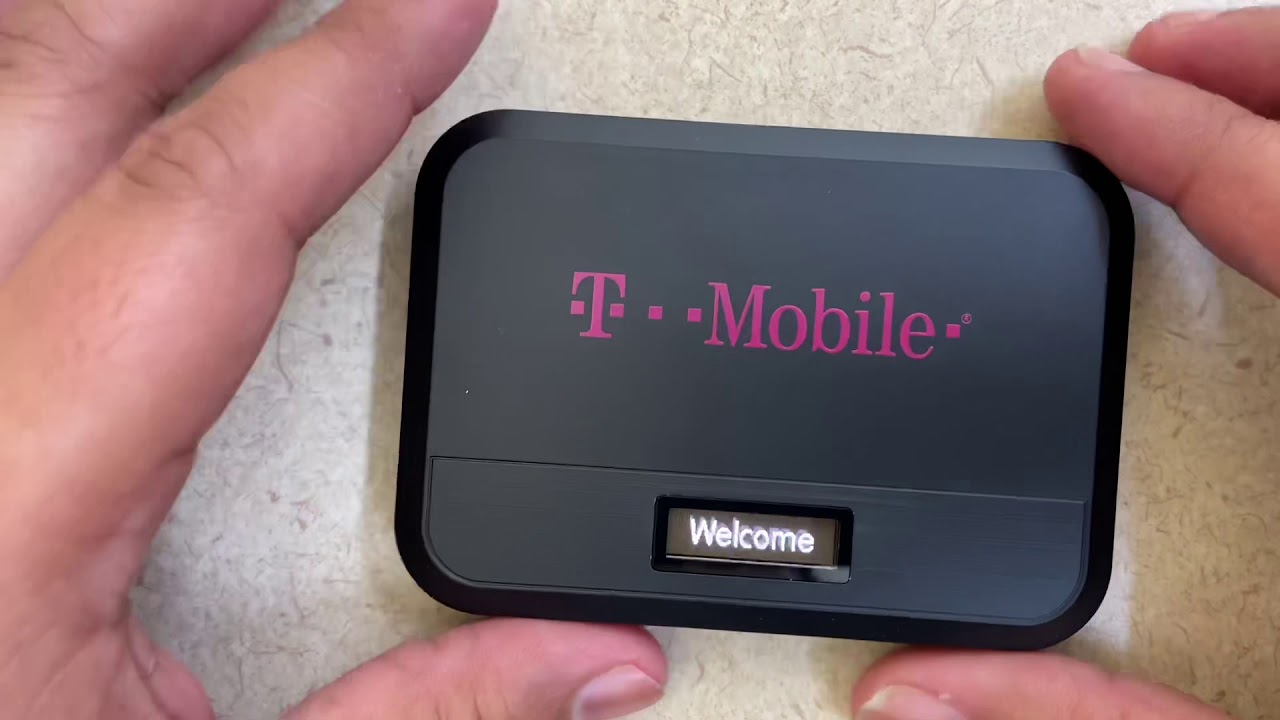
Sometimes, tech can be a bit quirky. If you don't see the option to separate bands in the app, first try restarting your T-Mobile gateway (just unplug it for 30 seconds and plug it back in). Sometimes, a quick reboot clears things up.
If that still doesn't work, don't fret! While T-Mobile strongly encourages app usage, you can sometimes access the gateway's admin interface directly through a web browser. Usually, you'd type something like "192.168.12.1" or "192.168.1.1" into your browser's address bar while connected to the gateway's Wi-Fi. However, T-Mobile has simplified (or locked down, depending on your perspective!) these gateways. The app is definitely your primary weapon for this task.
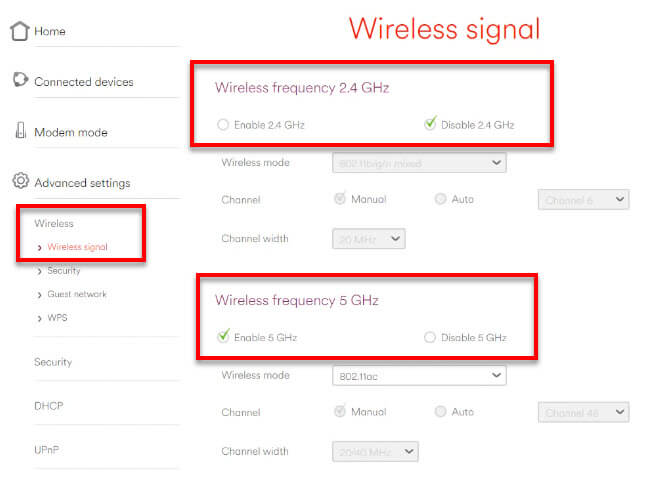
Why Bother? The Quirky Joys of 2.4GHz!
Think about it. By enabling 2.4GHz, you're not just solving a tech problem; you're becoming a digital savior! You're giving new life to those slightly older, but still perfectly functional, smart devices. That smart thermostat from yesteryear? Connected! Your outdoor security camera that needs to battle through three layers of brick? It’s online!
It's like discovering a secret passageway in your house that leads to all sorts of forgotten treasures. Your smart speaker can now chime in from the garage, your pet feeder can dispense kibble from across the house, and your smart plugs can finally turn on those festive lights from the other side of the yard. It's a victory for connectivity, range, and making everything in your smart home just work.
So go forth, digital explorer! Embrace the 2.4GHz band. It might be the slower, older sibling, but it's reliable, it's resilient, and it's ready to connect all those devices that have been feeling a little left out. Your smart home (and perhaps your sanity) will thank you!