
How Do I Change My At&t Wifi Password

Alright, folks, let's talk about something that unites us all: the mysterious quest to change your AT&T Wi-Fi password. It's a journey many of us embark on, often spurred by a desperate plea from a houseguest, a security "aha!" moment, or simply because your current password is still "password123" and you're starting to feel a tiny bit exposed.
You know the drill. Someone asks for the Wi-Fi, you rattle off a string of characters that sounds like a cat walked across a keyboard, and then watch them squint at their phone, typing each letter with the reverence of a monk deciphering ancient scrolls. Or, worse, it's that password you set seven years ago, deeply personal, and now everyone from your Aunt Carol to the pizza delivery guy (who just needed to look up directions, honest!) knows it. It's time for a change, my friend. It’s time to reclaim your digital kingdom!
Why Bother Changing It, Anyway?
Besides the obvious privacy concerns (seriously, "password123" is basically an open invitation), maybe you just moved, or you suspect your neighbor's kids are using your bandwidth to stream their entire anime collection. Perhaps you've forgotten it yourself, and that little sticker on the router is as faded as your memory of the 90s. Whatever the reason, taking control of your Wi-Fi password is like finally cleaning out that junk drawer – a little effort for a lot of peace of mind.
Must Read
Step 1: The Great Router Hunt (and the Tiny Sticker)
First things first: you need to find your AT&T Wi-Fi gateway. It's usually a modem-router combo, probably tucked away in a corner, blinking quietly like a digital sentry. Once you've located this mystical device, you're looking for a sticker – often on the side or bottom. This sticker is your treasure map, containing the default Wi-Fi name (SSID), the default password, and most importantly for this mission, the "Device Access Code" or "System Password", and sometimes the "User Name" (which is often just admin).
If your password is still the one on the sticker, good for you, you've skipped a step! But if you changed it ages ago and now it's gone the way of your car keys (always in the last place you look, usually the fridge), you might need to use that Device Access Code.

Step 2: Entering the Digital Gateway
Now, grab your laptop or phone and connect to your AT&T Wi-Fi network (even if you don't know the password, if you're connected via an Ethernet cable, you're golden). Open your web browser – Chrome, Firefox, Edge, whatever floats your digital boat. In the address bar, where you usually type Google or Facebook, you're going to type a magic number: 192.168.1.254. This is your router's secret lair, its control panel. Hit Enter.
You should be greeted by a login screen. It will ask for a Username and a Password. For the username, it’s usually admin. For the password, this is where that "Device Access Code" or "System Password" from the sticker comes in handy. If you previously changed the router's login password, well, you'll need to remember that one. If all else fails, a factory reset (a tiny button you can press with a paperclip, usually for 10-15 seconds) will reset everything to the sticker defaults, but be warned: this will kick everyone off and reset any custom settings you have. Proceed with caution, intrepid explorer!
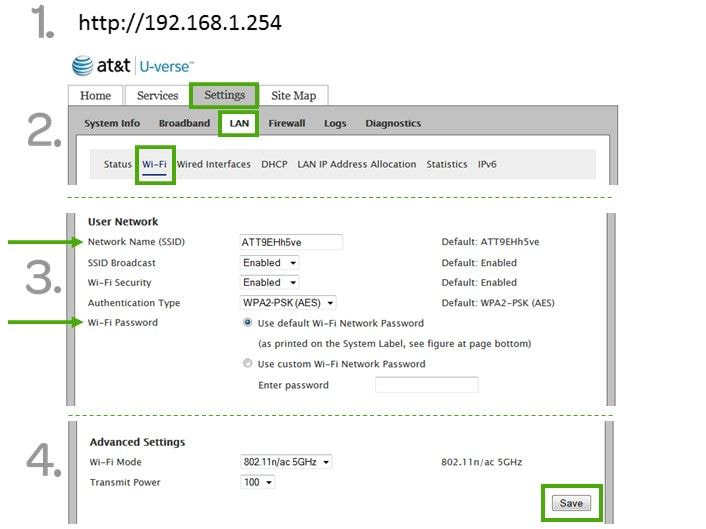
Step 3: Navigating the Wireless Wonderland
Once you're in, congratulations! You've successfully infiltrated your own network. You’re practically a hacker, but for good! Now, you need to find the Wi-Fi settings. Look for tabs or menus that say something like "Wi-Fi," "Wireless," "Network," or "Home Network." Click on it.
You'll likely see your current Wi-Fi network name (SSID) and a field for the password (sometimes called a "Key" or "Passphrase"). This is your moment!
Step 4: Crafting Your New Digital Shield
This is where the creativity comes in. Ditch "password123." Forget "MyWifiRocks!" Think memorable, but secure. A favorite movie quote, a line from a song, or a combination of random words and numbers. "PandaBearJugglesPineapples77!" is a lot better than "Summer2023!" Remember to use a mix of uppercase and lowercase letters, numbers, and symbols for maximum digital fortitude.
Type your new, brilliant password into the field. Most interfaces will ask you to confirm it by typing it again, just to make sure you didn’t accidentally hit a rogue key. This is a good thing – nobody wants to lock themselves out of their own internet fortress!

Step 5: The Grand Finale and Reconnecting Everything
Once your new password is set, look for a button that says "Apply," "Save," or "Update." Click it with the conviction of a thousand suns! Your router will probably do a little digital hiccup, maybe even restart for a minute or two. Don't panic; it's just processing your genius.
And just like that, you've done it! You’ve changed your AT&T Wi-Fi password. Now comes the slightly less glamorous part: reconnecting every single device in your house. Your phone, your tablet, the smart TV, the gaming console, that weird smart toaster you bought on a whim. It’s like herding digital cats, but think of it as a fresh start. Your network is now more secure, more "you," and ready for a new era of internet bliss.
Take a moment to pat yourself on the back. You tamed the tech beast. You navigated the digital labyrinth. You, my friend, are now a certified Wi-Fi wizard. Go forth and enjoy your newly secured internet!