
How Can You Tell If Your Battery Is Dead
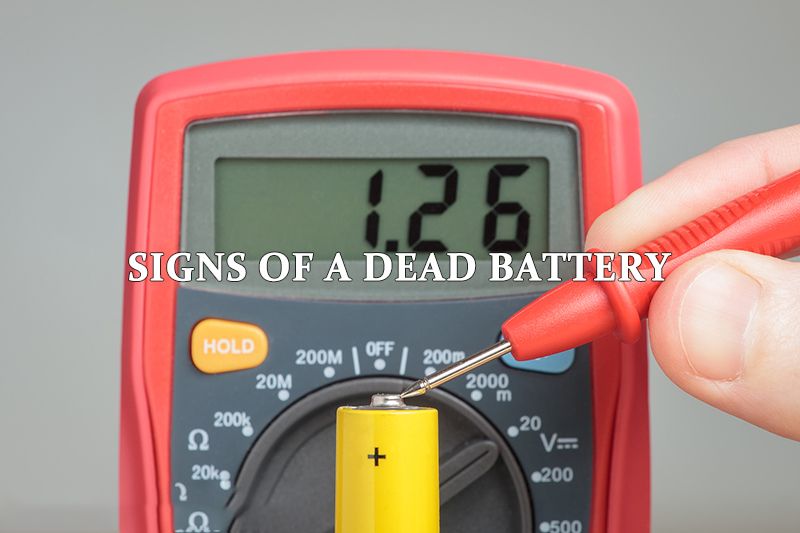
Okay, so picture this: You reach for your phone, your laptop, your trusty remote control... and nothing. Zilch. Nada. It’s like it’s decided to take an impromptu vacation to the Land of the Unresponsive. Your first thought, probably mumbled with a sigh, is, “Ugh, is the battery dead?”
And let's be real, nine times out of ten, it totally is! But sometimes, just sometimes, it can be a sneaky little trickster. So, how do you really tell if your battery has kicked the bucket, or if it’s just having a diva moment? Grab a coffee, let's chat about it.
The “Absolutely No Signs of Life” Brigade
This is the most obvious one, right? You press the power button, you poke it, you might even whisper sweet nothings to it (don't judge, we've all been there). And what happens? Absolutely nothing.
Must Read
- Your screen is a black void. No faint glow, no brand logo trying to boot up, just pure darkness.
- No little indicator lights blinking. Even those tiny LEDs that usually give you a glimmer of hope? Completely dark.
- You plug it into the charger, and... still nothing. No charging icon, no little vibration of life. It’s like the charger isn’t even connected, even though it totally is. This is a pretty strong contender for a very dead battery.
Sometimes you might get a super quick flicker, like a ghost saying “boo!” and then vanishing. That’s another tell-tale sign the battery tried its best, gave up, and went to sleep forever.
The “Slow Fade to Black” Ensemble
These are the trickier ones, the batteries that die with a whimper, not a bang. They try to fool you, the sneaky things!
- It used to charge up in an hour, now it takes three hours. And then? It dies after 30 minutes of use. It’s like it’s holding its breath, pretending to be full, only to collapse on you. Very dramatic.
- Your device is suddenly lagging like crazy. Apps crash, web pages take forever to load, and scrolling feels like wading through treacle. Sometimes, a weak battery can't provide enough consistent power, making your device act super sluggish. It's not lazy, it's just... tired.
- Random shutdowns. You’re in the middle of a crucial text, an intense game, or watching the cutest cat video, and BAM! Power off. No warning, no polite goodbye. Just gone. This happens because the battery can't handle the power demands anymore. So rude, right?
- Is your phone getting... chunky? Seriously, check the back or sides. If your battery is starting to swell or bloat, that's a HUGE red flag. It means gases are building up inside, and that’s not just a dead battery, it’s a potentially dangerous one. Get that checked out immediately!
"Is it the Charger or the Battery?" - The Age-Old Question
Hold up! Before you mourn your battery, let's play detective. What if it’s not the battery's fault at all? What if it’s the charger, or even the wall outlet?
- Try a different charger. Seriously, grab one that you know works for another device (if possible, or borrow a friend's). Sometimes charger cables get kinks, or the adapter just decides to retire.
- Switch outlets. Maybe your wall socket is just having a bad day and isn't sending any juice. Unlikely, but hey, stranger things have happened!
- Clean the charging port. Lint and dust can build up in there, blocking the connection. Grab a toothpick or a can of compressed air (gently!) and see if that makes a difference. You’d be surprised!
The "Power Button Prank"
This sounds silly, but hear me out. Are you sure you’re pressing the power button correctly? Sometimes, devices need a firm, sustained press. Don't just tap it like it's hot! Hold it down for a good 10-15 seconds. Seriously, try it. You might feel a little silly, but hey, if it works, who cares?

For some devices, especially phones, a "force restart" (often holding power and volume down simultaneously) can sometimes kick a sleepy device back to life, even if the battery is just really low and not quite dead yet. Google "force restart [your device model]" to see if yours has a specific combo!
The Dreaded Battery Icon
Ah, the little icon that sends shivers down our spines. If your device does manage to power on for a second, but you immediately see that little battery icon with a red sliver, or worse, an "X" or an exclamation mark over it, then yeah, your device is practically screaming, "MY BATTERY IS DYING!" It’s like a little digital ambulance siren. Heed the warning, friend.

Also, many modern phones have a "Battery Health" section in their settings. If yours is showing a significantly degraded capacity (like below 80%), it’s probably time to consider a replacement. Your phone is literally telling you it's tired.
So, What Now?
If you've gone through this checklist and your gadget is still stubbornly refusing to cooperate, it’s probably safe to say that yes, your battery has officially crossed over to the great beyond. It’s had a good run, right?
Don't panic! Depending on your device, a battery replacement might be straightforward and affordable. Or, if it's an older device, it might be a sign it's time for an upgrade. Either way, at least now you know for sure! No more wondering, just solutions. You're welcome! 😉
