
Honeywell Pro Series Thermostat Instructions
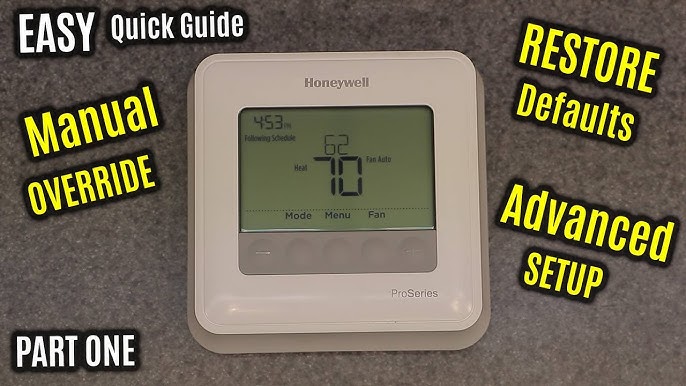
Alright, confession time. You know that feeling when you upgrade something in your house, expecting pure, unadulterated bliss and effortless integration? Like, you bought a smart gadget, and now it's demanding to connect to all your other smart gadgets, and suddenly you're debugging your home network just to toast bread. Yeah, that feeling.
My personal nemesis used to be the thermostat. Not the fancy new ones, oh no. I’m talking about the old-school, clicky-wheel, "is it 68 or 72 degrees, who even knows?" kind. Every season change was a battle, a dance of guesswork and existential dread about my energy bill. Then came the upgrade, the promise of modern comfort: the Honeywell Pro Series Thermostat. Sounds professional, right? Like it requires a degree in HVAC engineering just to set the fan speed. But here’s the curious part: it's actually pretty intuitive once you get past the initial "oh god, another new gadget" anxiety. And trust me, dear reader, we're going to conquer that anxiety together.
First Impressions: The Brain of Your Home's Climate
So, you've got this sleek box on your wall. Maybe an HVAC pro installed it, saving you the joy of deciphering ancient wiring diagrams (good choice, by the way, safety first!). Or maybe you're a brave soul who tackled it yourself – hats off to you! Either way, it's there, quietly judging your temperature preferences. The Honeywell Pro Series isn't just a fancy digital display; it's the command center for your home's comfort. And knowing how to issue those commands? Pure power.
Must Read
Getting Started: The Absolute Basics (No Degree Required)
Let's tackle the simplest things first, because, honestly, this is 90% of what most of us need. Look at your thermostat's main screen. What do you see?
1. The Mode Button: Heat, Cool, Off, Auto.

This is your master switch. Tap it (or press, depending on your specific model) to cycle through options. "Heat" is for when you're shivering and dreaming of hot cocoa. "Cool" for when you feel like you're melting into the couch. "Off" is self-explanatory (and great for when you open all the windows on a lovely spring day, right?). And "Auto"? It lets the thermostat decide whether to heat or cool to maintain your set temperature. A true unsung hero.
2. The Fan Button: Auto, On.
Another crucial choice. "Auto" means the fan only kicks on when your heating or cooling system is actively running. This is usually the go-to for energy efficiency. "On" means the fan runs continuously, circulating air even when the system isn't heating or cooling. Good for air circulation, maybe not so much for your electricity bill. My advice? Stick with Auto unless you have a specific reason.

3. Setting the Temperature: The Big Numbers!
This is where the magic happens. You'll likely see up and down arrows, or a plus and minus sign. Tap them to adjust your desired temperature. The current temperature in your home will probably be shown nearby. Simple, right? But also, surprisingly satisfying.

Unlocking Genius: Scheduling Your Comfort
Here’s where the "Pro" in Honeywell Pro Series really shines, and where you can save some serious dough on energy bills. Scheduling is your personal climate butler.
Look for a button that says "Schedule" or an icon that looks like a calendar or a clock. When you tap it, you'll enter the programming mode. Most Honeywell Pro Series models allow you to set different temperatures for different times of the day and different days of the week.
- Wake: What temp do you want to wake up to?
- Leave: When you're out, why heat/cool an empty house?
- Return: Come home to comfort, not an icebox or a sauna!
- Sleep: A cooler temp for sleeping might save energy and help you snooze better.
It sounds complicated, but usually, it's just a matter of selecting the time period, then adjusting the temperature with your trusty up/down arrows. Once you set it, the thermostat remembers. No more frantic adjustments every morning and evening. It’s like having a little personal assistant who always remembers you like it 72°F when you get home. Isn't that just delightful?

The "Hold" Button: When Life Happens
Sometimes, your schedule goes out the window. Maybe you're working from home unexpectedly, or hosting a spontaneous game night. That's where the "Hold" or "Temporary Hold" feature comes in handy. It essentially pauses your schedule and maintains your current temperature. Look for a button that says "Hold." Press it, set your desired temperature, and boom – your schedule is temporarily overridden. Want to go back to your program? Just hit "Run Schedule" (or whatever the equivalent button is) and your smart little friend will pick up where it left off. Easy peasy!
A Little Troubleshooting Nudge (Because We All Need One)
If your thermostat seems unresponsive, first check the batteries (if it uses them – many Pro Series are hardwired, but some have backup batteries). A low battery icon is usually a dead giveaway. If it's still playing hard to get, a quick reset might be in order. Consult your specific model's manual (yes, that paper thing you probably threw in a drawer) for reset instructions, as they can vary. But honestly, most of the time, it's a battery issue, or maybe someone (not naming names, but it might be you) accidentally put it on "Off."
You've Got This!
See? Not so intimidating after all. The Honeywell Pro Series Thermostat is designed to make your life easier and your home more comfortable and energy-efficient. A little curious poking around, and you’ll be a climate control wizard in no time. Go forth and set your perfect temperature, my friend!