
Dell Inspiron 15-3567 Ssd Upgrade

Hey there, friend! Ever feel like your Dell Inspiron 15-3567 (bless its heart) is stuck in molasses? Like, you click on something, and you're just waiting... and waiting... and waiting? Yeah, me too. But I've got some good news!
There's a super simple way to give that old laptop a serious speed boost. I'm talking about an SSD upgrade. Seriously, it's like giving your computer a shot of espresso straight to the motherboard! 😉
So, what exactly is an SSD? Well, think of your old hard drive (HDD) as a vinyl record. It's got all your data spinning around, and a little needle has to find the right spot. Slow, right? An SSD (Solid State Drive) is more like a USB drive. It's all electronic, instant access. No moving parts! Vroom vroom!
Must Read
Why Upgrade to an SSD? (Besides the Obvious Speed Thing)
Okay, so speed is the big one. But there's more! Trust me, it's not just about shaving a few seconds off boot times (though that's pretty sweet too!).
First, Durability. HDDs have all those moving parts, making them more prone to damage if you, say, accidentally bump your laptop (oops!). SSDs? Much tougher. They can handle a little accidental jostling. We've all been there, right? (Please tell me I'm not alone!)

Second, Quieter Operation. Remember that whirring and clicking sound your HDD makes? Gone! Poof! SSDs are virtually silent. It's amazing how peaceful your computing experience can become. Seriously, it's almost zen-like.
Third, Energy Efficiency. SSDs use less power, which means longer battery life. Who doesn't want that? More Netflix on the go! 🎉

Is it Hard to Do? (Don't Worry, I'm No Tech Genius Either!)
Alright, I know what you're thinking: "This sounds great, but I'm not a computer expert!" Don't sweat it! Swapping out your HDD for an SSD in a Dell Inspiron 15-3567 is surprisingly straightforward. I mean, if I can do it...
You'll need a few things:
- A shiny new SSD. I recommend a 2.5-inch SATA SSD. Make sure it's the right size for your laptop! Crucial and Samsung are popular brands.
- A screwdriver. A small Phillips head should do the trick.
- A backup of your data! Seriously, don't skip this step. You don't want to lose all your precious photos and documents! Think of it as an insurance policy for your digital life.
- (Optional) An external enclosure or SATA-to-USB adapter. This can be handy for cloning your old hard drive to the SSD. Cloning just means copying everything over – programs, files, the whole shebang. Way easier than reinstalling everything from scratch!
There are tons of videos on YouTube showing exactly how to do this for your specific model. Search "Dell Inspiron 15-3567 SSD Upgrade" and prepare to be amazed! Follow the instructions carefully, and you'll be golden. Just remember to ground yourself to avoid static electricity – touching a metal part of your computer case usually works.
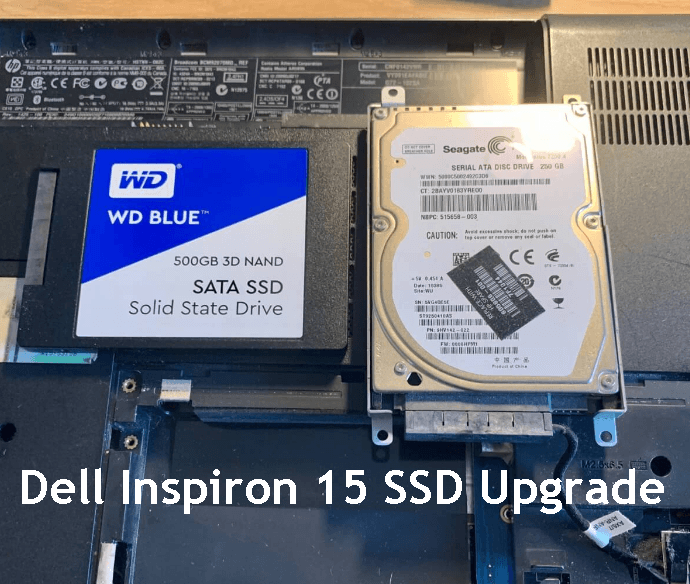
Cloning vs. Clean Install: The Eternal Debate
Okay, so you have two main options after physically installing the SSD: cloning your existing hard drive or doing a clean install of your operating system (like Windows).
Cloning is easier, because it just copies everything. But it also copies any problems you might have had with your old system. Kind of like inheriting your grandma's old armchair, with all the stains and creaks. 😩

A clean install is like getting a brand new armchair! Fresh start! But it takes more time because you have to reinstall all your programs. A bit more work, but potentially a smoother, faster experience in the long run. It's up to you to decide what best fits your needs.
Once you've got everything set up, prepare to be amazed! Your Dell Inspiron 15-3567 will feel like a brand new machine. Programs will load faster, your computer will boot up in seconds, and you'll wonder why you didn't do this sooner! 🎉 You will thank yourself. I promise!
So, what are you waiting for? Go give your old Dell the upgrade it deserves! You'll thank me later (and maybe buy me a coffee? 😉).