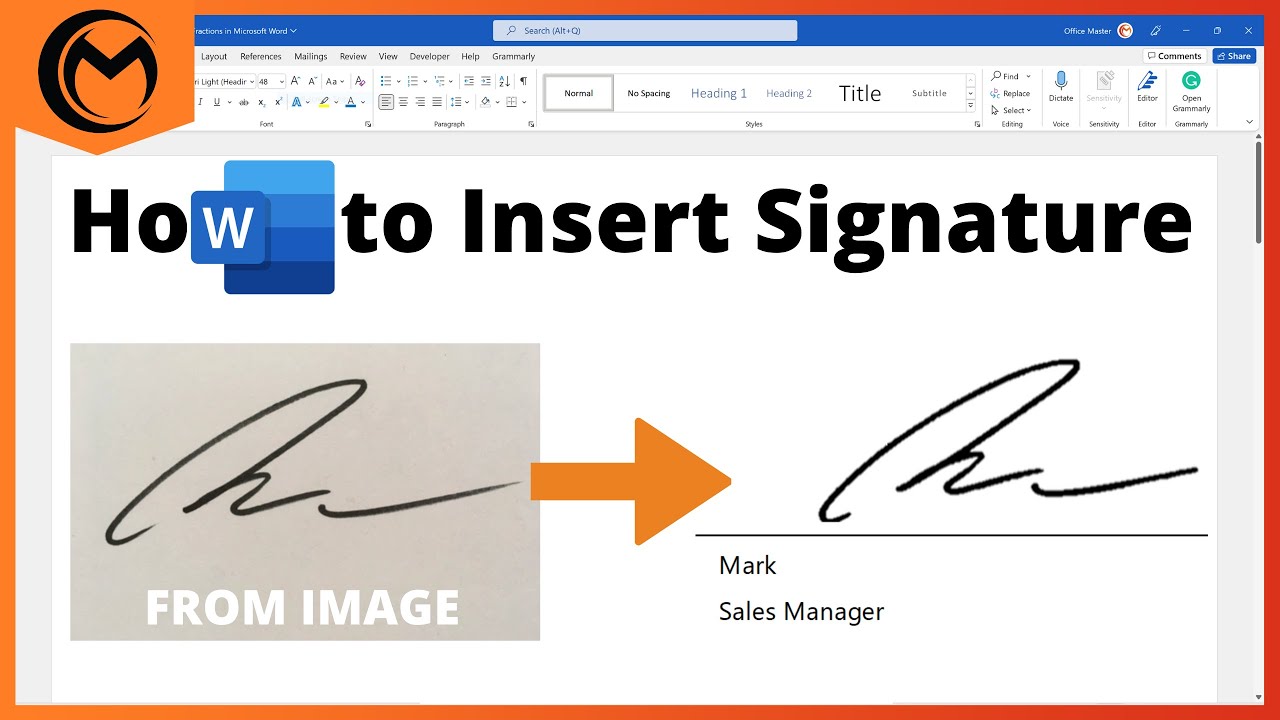
Add A Signature In Microsoft Word

Hey there, wordsmith! Ever wanted to add a touch of your own personal flair to those Word documents? You know, beyond just typing furiously and hoping for the best? Well, today we're diving into the magical world of adding a signature in Microsoft Word. And trust me, it's way easier than trying to parallel park a spaceship. (Although, if you can parallel park a spaceship, please let me know your secrets.)
Why add a signature, you ask? Well, think of it like this: it's the digital equivalent of signing your name on a masterpiece! It adds a professional touch, confirms authenticity, and, let's be honest, just looks darn cool. Plus, it saves you from having to print, sign, and scan everything like it's the dark ages. Efficiency is the name of the game!
First things first: Your Digital John Hancock (or Jane Hancock!)
Before you can slap that signature on your document, you need to, well, have a signature. There are a few ways to skin this particular cat. Don't worry, no cats are actually harmed in the making of digital signatures.
Must Read
Option 1: The Handwritten Hero
Grab a piece of paper and your favorite pen (the fancier, the better, obviously). Sign your name as you normally would. Then, take a picture or scan it into your computer. Make sure it's a clear image, no blurry Picasso-esque scribbles allowed! Save it as a .jpg or .png file. Bonus points if you crop it nicely so there's no unnecessary background clutter.
Pro tip: Use a darker pen on a plain white background for the best results. Think professional headshot, but for your signature.

Option 2: The Typewriter Titan (Without the Typewriter)
Word actually lets you type a signature! Crazy, right? Go to the "Insert" tab, then click "Signature Line" in the "Text" group. A little box will pop up asking for information like your name, title, and email address. Fill it in, and Word will create a placeholder for you. Once inserted into the document, you can double click the line and Word will allow you to type your name, basically faking a real signature. This is perfect if you don't have a scanner handy or if you just really, really love typing.
Be warned: It won't look exactly like your handwritten signature, but it's a solid alternative if you're in a pinch.
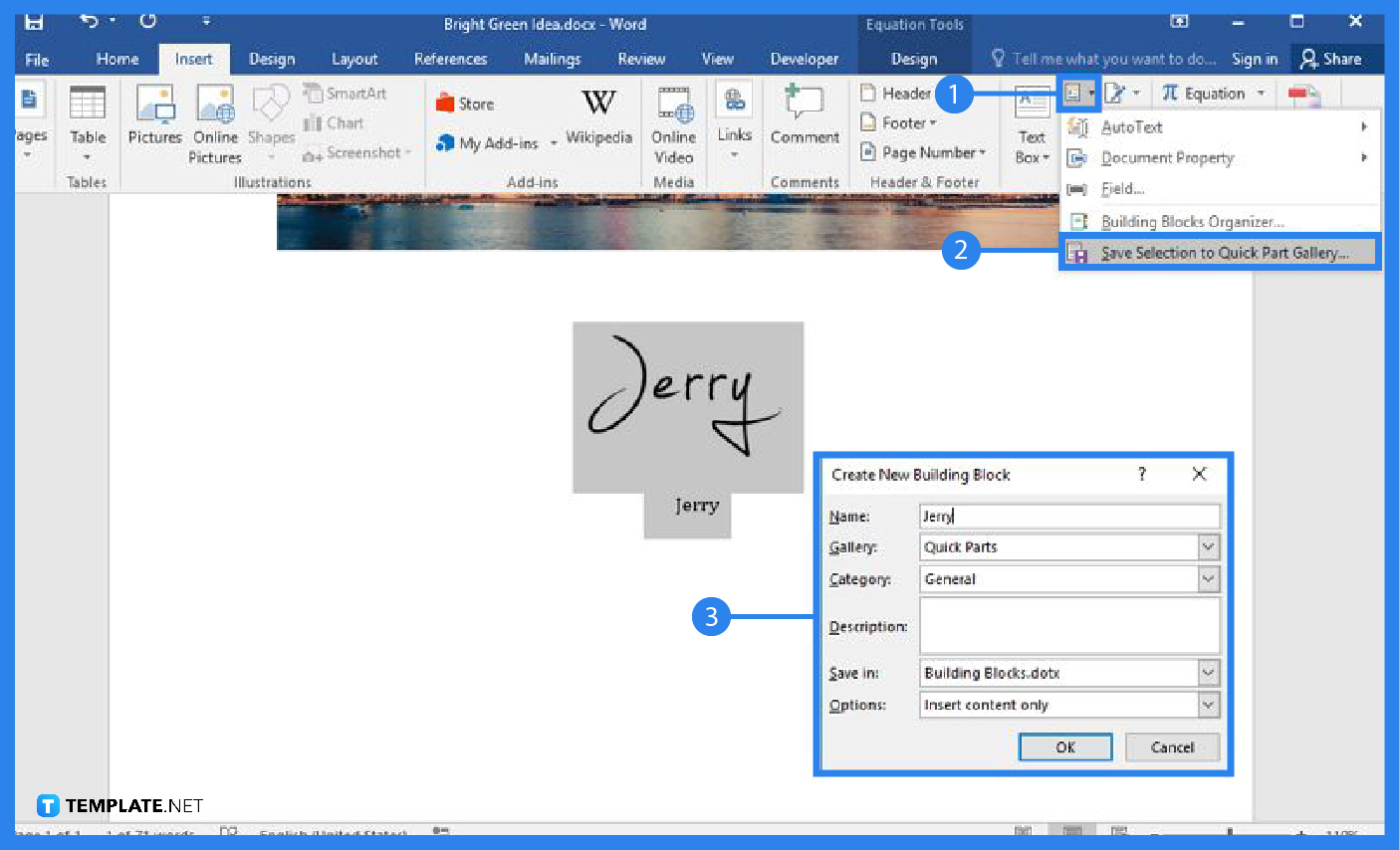
Adding the Signature to Your Document: Let's Get Digital!
Okay, you've got your signature image (or your typed signature line), and you're ready to rock. Here's how to insert it into your Word document.
- Place your cursor where you want your signature to appear.
- Go to the "Insert" tab.
- Click on "Pictures." (If you used the signature line option, it's already there, just skip to step 6!)
- Choose "This Device..." (or wherever you saved your signature image).
- Select your signature image and click "Insert."
- Voila! Your signature appears in your document. Huzzah!
- Now, you might need to resize it. Click on the image and drag the corners until it's the perfect size. Not too big, not too small – just right, like Goldilocks' porridge, but for signatures.
Important: You can adjust the layout options (click on the little square icon that appears next to the image) to make the signature move freely within the document. This is especially helpful for placing it perfectly beneath your closing remarks.

Fine-Tuning for Maximum Impact
Want to make your signature extra special? Here are a few tips and tricks:
- Remove the background: If your signature image has a white background that clashes with your document, you can use Word's "Remove Background" tool (under the "Picture Format" tab) to make it transparent. Magic!
- Add a border: A subtle border can help your signature stand out. Use the "Picture Border" options under the "Picture Format" tab.
- Play with effects: Word offers a variety of picture effects, like shadows and glows. Use them sparingly to add a touch of flair, but don't go overboard. You want professional, not disco ball.
Remember: Less is often more. A clean, clear signature is always better than a cluttered, over-the-top one.
Conclusion: Sign Off in Style!
And there you have it! You've successfully added a signature to your Microsoft Word document. Now you can confidently send out documents knowing they have that extra touch of professionalism and personality. Go forth and sign your name on everything (well, maybe not everything). The world is your oyster, and your signature is the pearl! Remember that whatever you do, own it, and leave your mark, one signed document at a time. You've got this!