Where Do You Find Your Google Wifi Password

Ah, the modern dilemma: you've got a guest coming over, a new smart device to connect, or perhaps you've just forgotten the magic words to your own internet kingdom. We're talking about your Wi-Fi password, specifically for your Google Wifi or Nest Wifi system. It might seem like a small thing, but the relief of quickly finding that password and getting everyone connected is surprisingly satisfying! This isn't just about technical know-how; it's about keeping the good times rolling, the devices streaming, and the smart home humming along without a hitch. It's a useful tidbit for anyone living in our increasingly connected world.
So, who benefits most from knowing this little secret? Pretty much everyone! For beginners, it’s about demystifying your home network. You've embraced Google's simple Wi-Fi system, and now you want to leverage its full potential by easily adding new phones, tablets, or smart plugs. For families, understanding where to find the password means less stress when a visiting grandparent needs to connect, or when your kids get a new gadget for their birthday. You can keep the peace and the connectivity flowing seamlessly. Even for the more tech-savvy hobbyists, a quick refresher on finding the password is invaluable for troubleshooting, setting up advanced home automation, or simply helping out a less tech-inclined friend or neighbor who's also using Google Wifi.
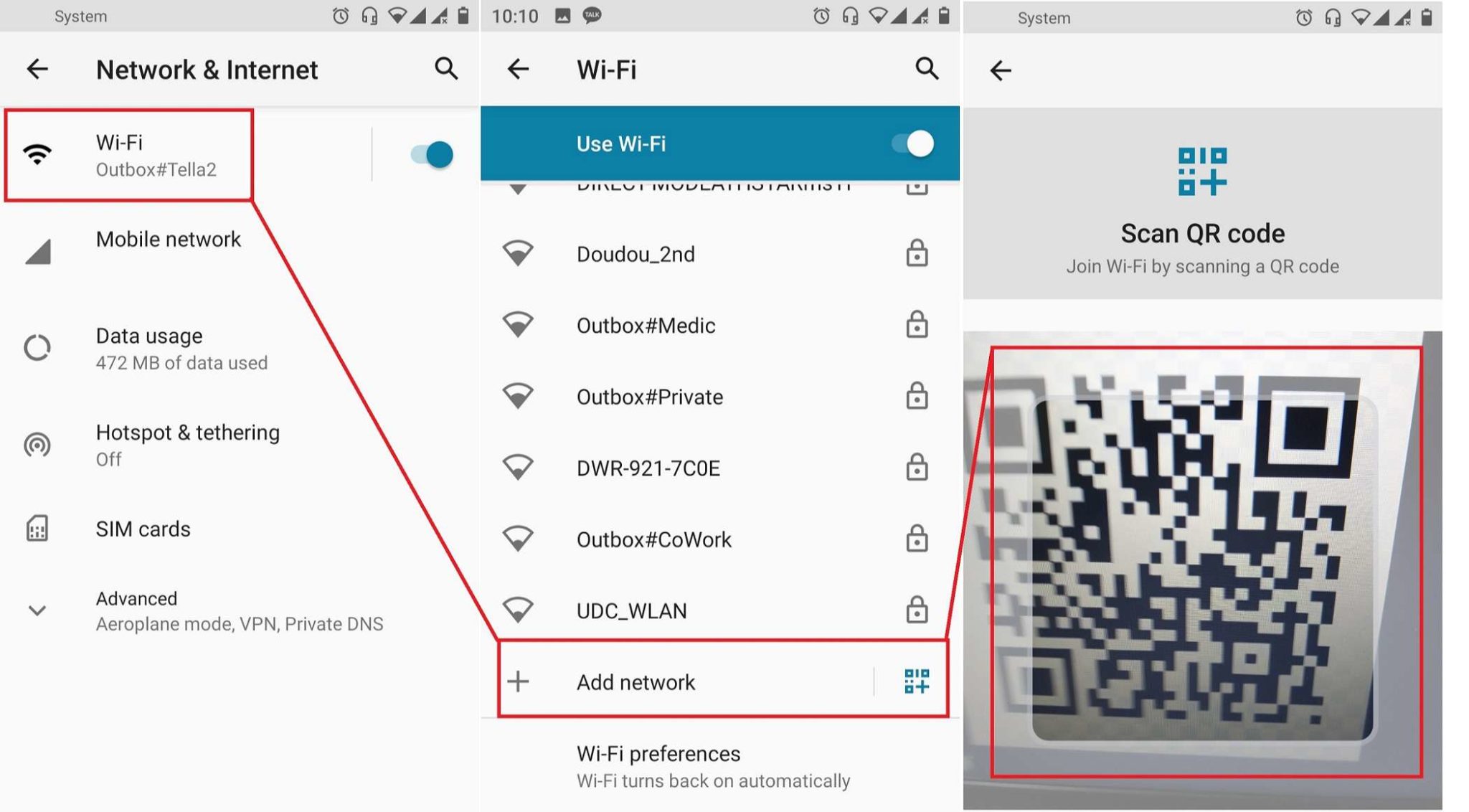
There are typically a couple of main ways to unearth your elusive Wi-Fi password. The most common and direct method is through the Google Home app – the same app you used to set up your Google Wifi in the first place. This is your central command for all things Wi-Fi related. Another variation, though less common for the password itself, might involve looking for a sticker on the bottom of your primary Google Wifi or Nest Wifi router. Sometimes, manufacturers include default passwords there, though you likely changed yours during setup. Lastly, if you have an older device already connected, you might be able to retrieve the password from its network settings, but this can be a bit more convoluted and platform-dependent, making the app the go-to solution.
Must Read
Ready to reclaim your Wi-Fi password? Here are some simple, practical tips to get started:
- Open the Google Home app: Make sure you're signed in with the Google account associated with your Google Wifi network.
- Tap the Wi-Fi icon: You'll usually find this near the top of the app's main screen, or you might navigate to the "Wi-Fi" section.
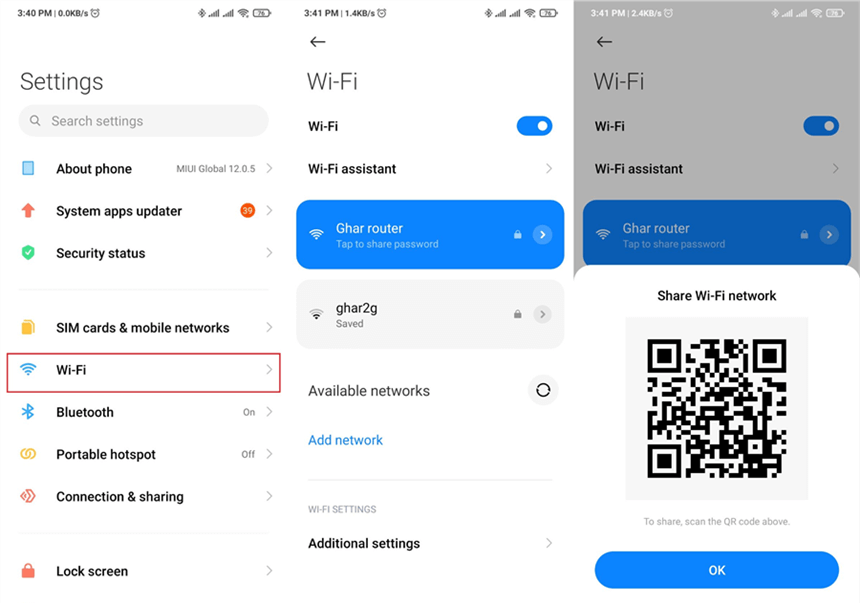
- Select "Show password": Within the Wi-Fi settings, you should see an option to "Show password" or "Share password." Tapping this will reveal your network password. For security, you might be asked to confirm your identity (e.g., with a fingerprint or PIN).
- Consider a Guest Network: For visitors, instead of giving out your main password, Google Wifi makes it super easy to set up a guest network. This keeps your main network secure and simplifies sharing!
- Write it Down (Safely!): Once you have it, consider writing your password on a small card and taping it inside a kitchen cabinet or another secure, yet easily accessible, spot in your home. Just make sure it’s out of plain sight from casual visitors.
In the end, finding your Google Wifi password isn't about being a tech wizard; it's about knowing where to look for a crucial piece of information that keeps your digital life flowing smoothly. There's real value in being able to quickly connect a new device or a friend, ensuring everyone stays online and happy. It turns a potential moment of frustration into a quick, satisfying win, letting you get back to enjoying your smart home and all its connected conveniences. Happy connecting!