
What To Do When Monitor Says No Signal
Picture this: you're geared up for an epic adventure, maybe a virtual one, or perhaps just diving into some serious spreadsheet wizardry. You hit the power button, hear the comforting hum of your machine springing to life, but your monitor? It's a vast, empty canvas of nothingness.
Then, it flashes, like a cruel joke from the digital gods:
"No Signal."Your heart might do a tiny, dramatic lurch. Panic? Absolutely not! We're here to turn that tech tantrum into a triumphant "Aha!" moment.
Deep Breaths: It's Probably Not a Catastrophe
That "No Signal" message feels like your computer is giving you the cold shoulder. But most of the time, it's not a deep, dark hardware conspiracy. It's usually something delightfully simple, hiding in plain sight.
Must Read
Think of it like a lost sock in the laundry; it's there somewhere, just being a little mischievous. We're going on a treasure hunt, and the prize is your screen lighting up!
The Usual Suspects: Cables, Cables, Cables!
Let's start with the absolute basics, the bedrock of all computer connections. Are things actually plugged in? It sounds almost too simple, but trust us, it's the number one culprit.
First, check the power cable for your monitor. Is it snug in the back of the monitor? Is the other end firmly in the wall socket or power strip? Sometimes, a tiny jostle can pull it just enough to lose connection.
Now, for the big one: the video cable. This is the magical wire that carries all the pretty pictures from your computer to your screen. This could be an HDMI cable, a DisplayPort, a DVI, or even an old-school VGA.
Give both ends of this cable a firm push. We're talking "convince it you really mean business" kind of push. Does it feel loose at the back of your computer? What about at the back of the monitor?
Sometimes, these cables can look connected but aren't quite seated properly. A satisfying click or a noticeable firmness is what you're aiming for. It's like making sure your shoelaces are tied before you sprint.
While you're back there, if your graphics card has multiple ports for the same type of cable (like two HDMI ports), try switching to the other one. It's a quick, easy test that sometimes yields surprising results.

You might just discover that one port is having an off day, or maybe your cable prefers the other side of the computer. Don't ask why; just embrace the mystery!
A Little Reboot Magic: The Universal Fix-It Spell
Ah, the classic. When in doubt, turn it off and turn it back on again. This isn't just a meme; it's genuinely powerful troubleshooting magic.
Go ahead and completely shut down your computer. Not just sleep, but a full, glorious shutdown. Then, give it a moment, maybe 30 seconds, before powering it back up.
Do the same for your monitor. If it has a power button, press and hold it for a few seconds until it completely turns off. Unplug it from the wall for a minute for good measure, then plug it back in and power it on.
This grand reset can often clear up any temporary glitches or misunderstandings between your computer and monitor. It's like letting them both take a quick nap to refresh their connection.
The Hidden Heroes & Sneaky Settings
You've checked the cables, you've rebooted like a pro. Still staring at the void? Fear not, we have more tricks up our sleeve, involving some often-overlooked buttons.
The Mysterious Source Button
Behold, the Source button! Or sometimes labeled Input. This unassuming hero is usually found on your monitor itself, typically along the bottom edge or on the back. It's often tiny and easy to ignore.

Its job? To tell your monitor which "door" to look through for a signal. If your computer is sending its signal through HDMI 1, but your monitor is diligently looking at DisplayPort 2, then you're never going to see anything!
Press this button repeatedly. Watch the screen (or imagine what it would be doing if it were on). You should see the input type change:
"HDMI 1", "HDMI 2", "DisplayPort", "VGA".Keep cycling through them.
It's like searching for your favorite TV channel, but for your computer's signal. Eventually, if everything else is in order, you should land on the correct input, and poof! Your desktop appears, glorious and full of life!
Input Switcheroo: The Graphics Card's Little Secret
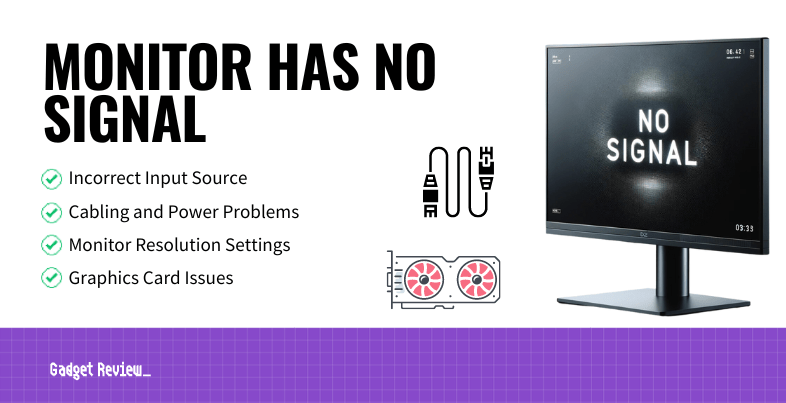
Sometimes your graphics card (the part of your computer that actually makes the pictures) can get a bit confused. It might be trying to send a signal to a port that's not actually connected or active.
If you have an older computer, and especially if it has both a dedicated graphics card and integrated graphics (meaning your motherboard also has video outputs), try this: disconnect your monitor from your graphics card completely.
Then, plug your monitor's video cable into the motherboard's video port instead. These are usually near your USB ports, often tucked away. If you get a signal there, it might point to an issue with your dedicated graphics card.
This little detective move helps us narrow down where the "no signal" problem originates. It's like asking a different person for directions when the first one was clearly lost.
Escalating the Investigation
If the simple stuff hasn't worked, we need to dig a tiny bit deeper. Still easy, still fun, just a smidge more adventurous.
The Graphics Card Gallop (A Gentle Push)
Your graphics card is a powerful beast, usually slotted into your computer's motherboard. Sometimes, if the computer has been moved or jostled, this card can ever-so-slightly unseat itself from its slot.
With your computer completely turned off and unplugged from the wall, open up the side panel. Locate your graphics card – it's usually the largest circuit board plugged into a long slot, with your video ports on the end.
Gently, but firmly, press down on both ends of the graphics card. You don't need to apply superhero strength; just a reassuring push to make sure it's fully seated. Sometimes, you might even hear a faint click.
Close up your computer, plug it back in, and give it another try. This small act of reassurance can sometimes fix what looks like a monumental problem.
The Friend Test: Borrow a Buddy's Brain (or Monitor!)
Here's where we figure out who the real culprit is: the monitor or the computer. Do you have a laptop, a game console, or even another computer lying around?
Try connecting that other device to your "no signal" monitor using the same cable. If the monitor springs to life with that other device, congratulations! Your monitor is likely fine, and the issue points back to your main computer.
Conversely, if you have a spare monitor (or can borrow one from a super understanding friend), try connecting it to your computer. If the spare monitor works, then alas, your original monitor might be the one calling it quits.
This simple swap-test is incredibly effective for pinpointing the source of the trouble. It's like having a second opinion, but for electronics.
When All Else Fails: Call for Backup!
You've navigated the cables, masterminded reboots, discovered hidden buttons, and even performed open-heart surgery on your PC (gently, of course!). If your screen is still stubbornly blank, it's time to bring in the big guns.
Don't feel defeated! You've performed some serious tech wizardry and gathered valuable information. You're practically an IT support trainee now. Sometimes, components genuinely fail, and that's just part of the tech journey.
Reach out to a tech-savvy friend, your local computer repair shop, or your computer's manufacturer support. You'll be able to tell them everything you've already tried, which will make their job much easier.
You'll sound incredibly knowledgeable, and they'll appreciate your thoroughness.
"I checked all the cables, cycled through the inputs, reseated the GPU, and even tested with another device!"You'll be a tech hero in their eyes!
So next time your monitor throws up that dreaded "No Signal," remember these steps. You've got this! Most of the time, it's a simple fix, and you'll be back to your digital adventures in no time, feeling like a true tech champion.