
Split Screen On Minecraft
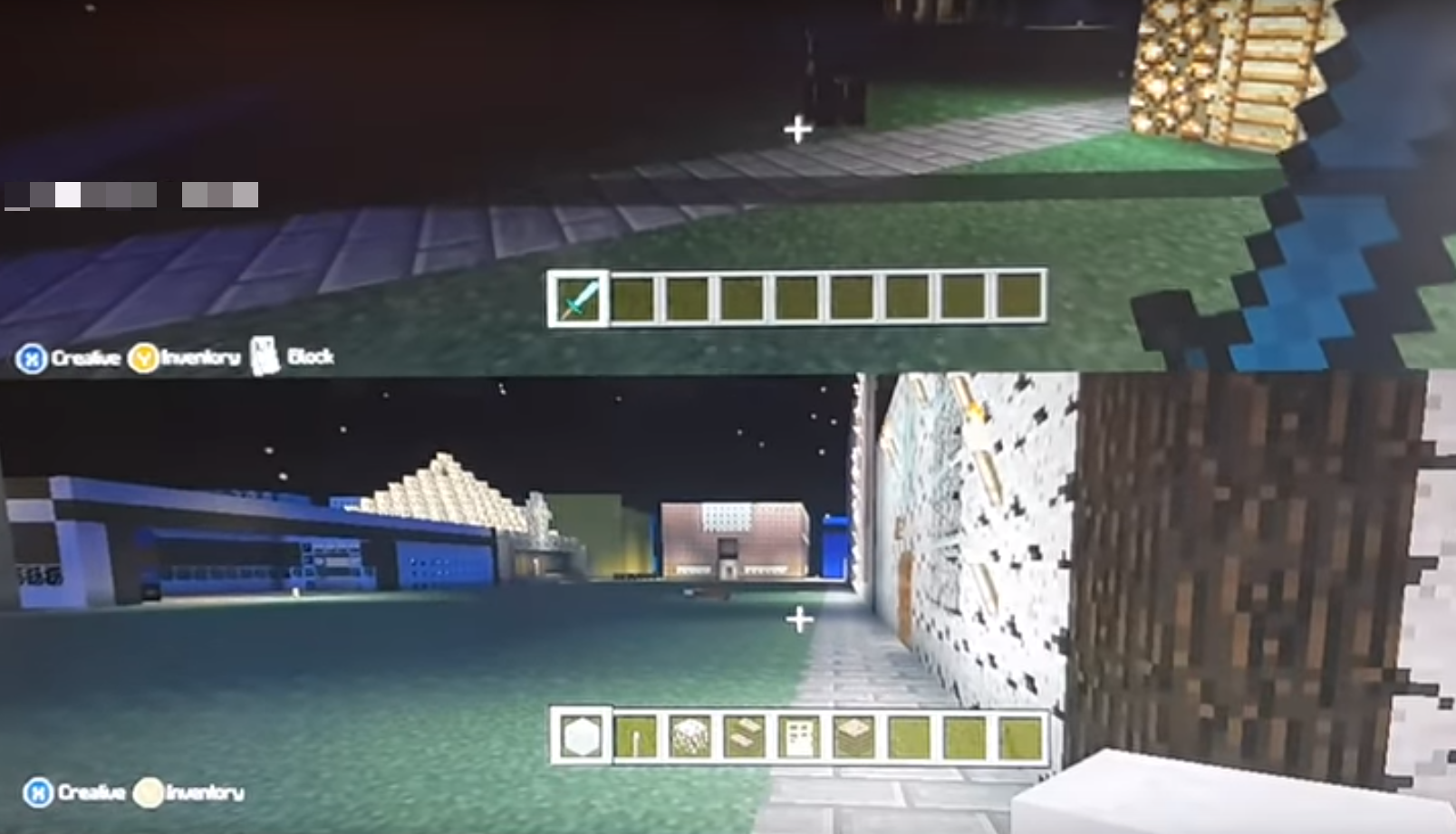
Okay, picture this: it's 2012, I'm crammed on the couch with my younger brother, elbows practically glued together. We're battling creepers in a dimly lit cave on a tiny, old TV screen. The controller is basically being wrestled from my hands every five seconds. And the constant yelling of "MY DIAMONDS!"...good times, right? (Except for maybe my parents). That chaotic, pixelated battlefield was all thanks to Minecraft's split screen.
So, what's the deal with split screen Minecraft, anyway? Let's dive in!
The Magic of Shared Screens
Simply put, split screen lets you play Minecraft on the same TV with your friends or family. Think of it as the ultimate couch co-op experience. No more taking turns, no more relying solely on online multiplayer (though that's still awesome, let's be real). Just good, old-fashioned, face-to-face Minecraft mayhem.
Must Read
It's especially great for introducing newcomers to the game. Instead of throwing them into the deep end of a single-player world and expecting them to instantly understand redstone circuitry (good luck with that!), you can guide them, show them the ropes, and laugh at their inevitable encounters with the dreaded creeper. (We've all been there.)
Which Platforms Support Split Screen?
Alright, before you round up your crew and dust off those controllers, here's the lowdown on platform compatibility:
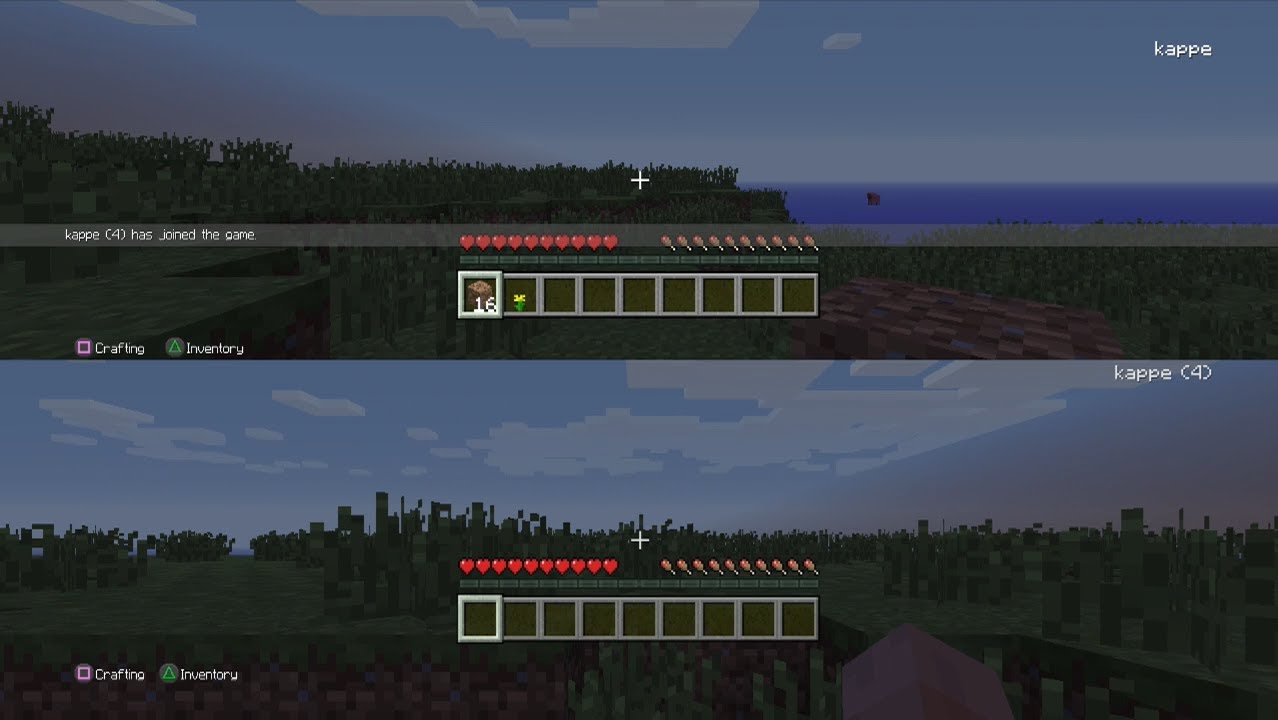
* Consoles: This is where split screen shines! PlayStation (PS4, PS5), Xbox (Xbox One, Xbox Series X/S), and Nintendo Switch all happily support split screen Minecraft. Hurray!
* PC: Sadly, no split screen on the PC version of Minecraft. cue dramatic music You’ll need to stick to online multiplayer for PC shenanigans. (But hey, mods!)
* Mobile: Nope, no split screen on mobile either. Imagine trying to cram four player perspectives onto a tiny phone screen. My eyes hurt just thinking about it.

Setting Up Split Screen: A (Hopefully) Painless Guide
Okay, here's the basic process for getting split screen up and running. Keep in mind that it can vary slightly depending on your specific console, but the general idea is the same:
- Make sure you have enough controllers: Obviously! Each player needs their own controller. This is a hard requirement (unlike remembering to mine coal before nightfall... we've all forgotten, haven't we?).
- Start the game and load a world: Fire up Minecraft and either create a new world or load an existing one. The first player (that's you!) will be the host.
- Connect the other controllers: Turn on the other controllers and make sure they're synced to your console.
- The magic moment: On the console, the other players should be able to join the game by pressing a button on their controller. The screen should then split into the appropriate number of sections.
Pro Tip: Make sure all players have a Minecraft account logged in to their respective profiles on the console. This helps track progress and allows them to save their characters.
Things to Keep in Mind (Because There's Always a Catch)
While split screen is awesome, it's not without its quirks:
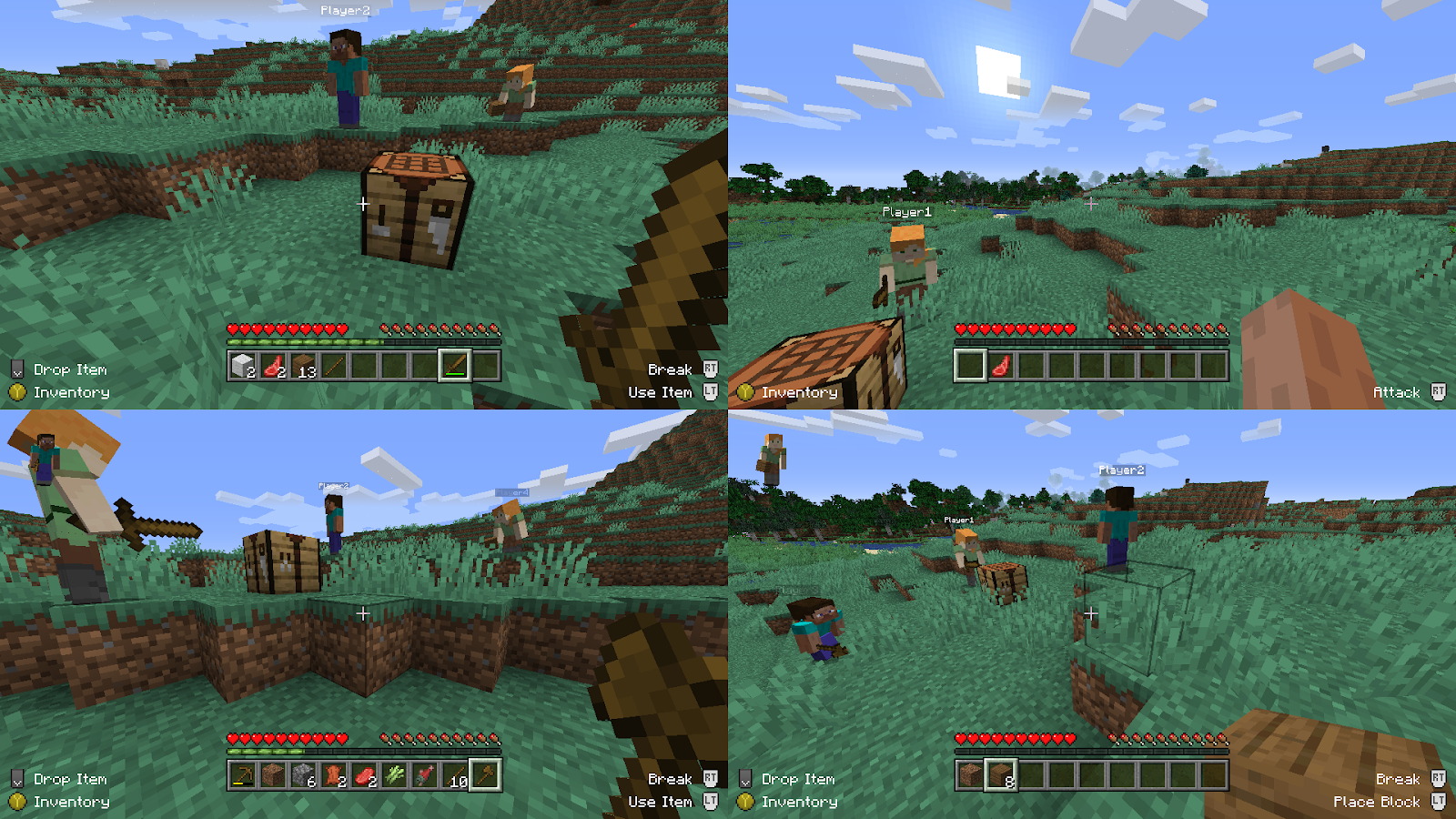
Limited Screen Space: Obviously, the more players you have, the smaller each person's screen real estate becomes. Get ready for some serious squinting, especially on smaller TVs. Playing on a big screen TV definitely helps!
Performance Hit: Running multiple instances of Minecraft on a single console can put a strain on the hardware. You might experience some lag or frame rate drops, especially in more complex or resource-intensive worlds. (Consider reducing render distance if things get choppy.)
Shared Inventory (Optional): Depending on the game's settings, you might be able to enable a shared inventory. This can be great for cooperative play, but also leads to arguments when someone accidentally uses all the diamonds! (Seriously, this is a real thing that can break friendships.)
Is Split Screen Worth It?
Absolutely! Despite the minor drawbacks, split screen Minecraft offers a unique and enjoyable way to experience the game with friends and family. There’s nothing quite like building a massive fortress side-by-side, or teaming up to take down a dragon, all while sharing the same couch. It's a chance to create memories and bond over shared experiences, even if those experiences involve pixelated explosions and the occasional stolen diamond.
So, gather your crew, grab those controllers, and get ready for some split screen Minecraft madness! Just… maybe hide the diamonds this time. 😉