
Pycharm Keeps Running Previous Program
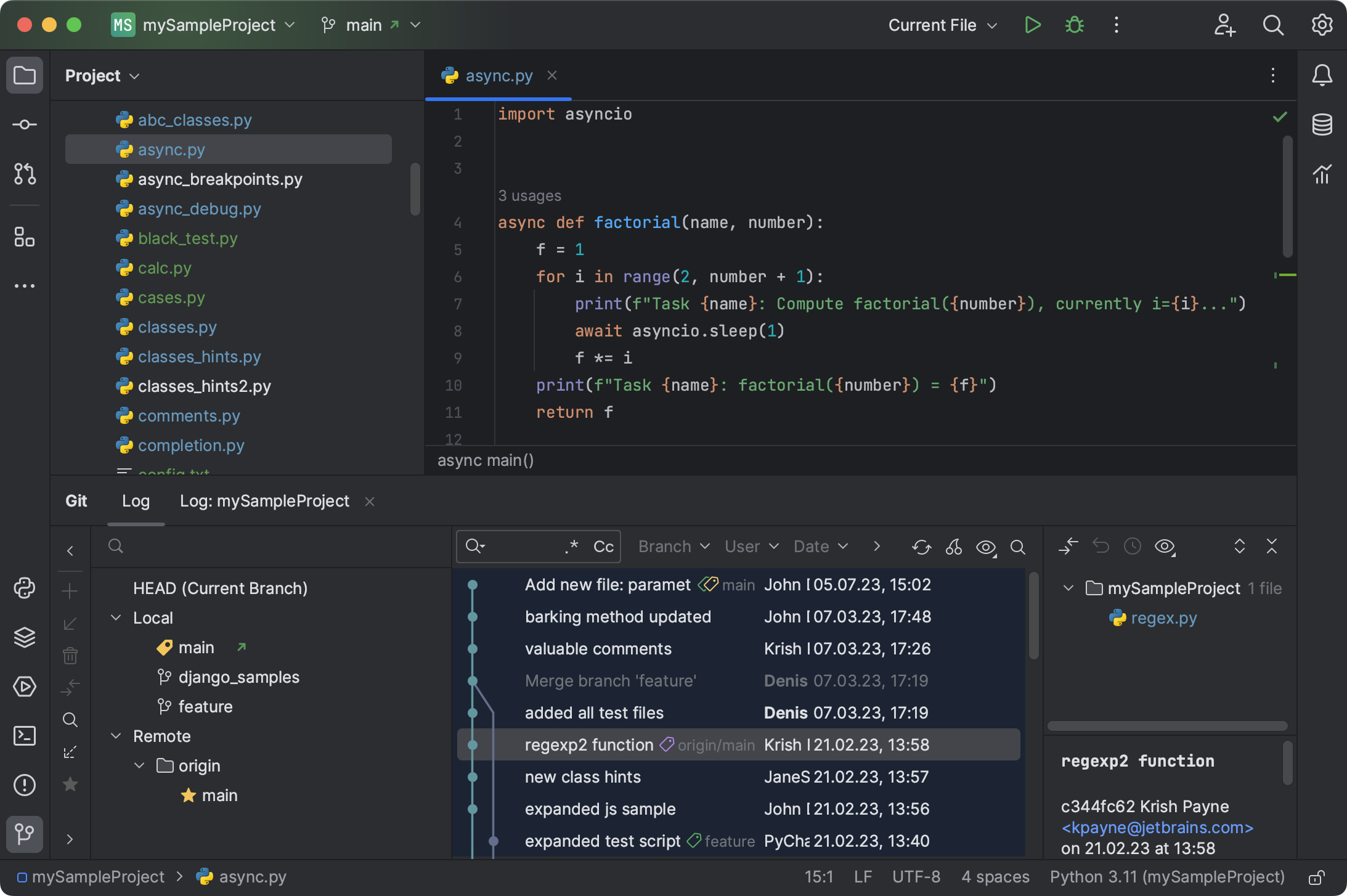
Hey there, code buddy! Ever been stuck in that Twilight Zone of programming where PyCharm stubbornly refuses to run your latest, greatest code and instead keeps resurrecting the ghost of a program you wrote… like, last Tuesday? Yeah, we've all been there. It’s like, "PyCharm, honey, I’ve moved on! Why are you still living in the past?"
Seriously, it’s infuriating, right? You make a change, hit run, and BAM! The same old output stares back at you. You double-check, triple-check… are you going crazy? Did you accidentally enter some weird parallel universe where time doesn't exist? No worries! Let's troubleshoot this little hiccup together.
Common Culprits: The Usual Suspects
Okay, so first things first, let’s round up the usual suspects. This isn't a Sherlock Holmes mystery, but a bit of detective work might be needed. Elementary, my dear Watson! (Sorry, couldn’t resist.)
Must Read
1. The "Run" Configuration Conundrum:
PyCharm uses "Run Configurations" to know which script to execute and how. Sometimes (and I mean sometimes in a very exaggerated, "happens-more-often-than-I'd-like-to-admit" kind of way), you might be running the wrong configuration. Did you create a new file and forget to create a new Run Configuration for it? Check the dropdown menu at the top of PyCharm. Make sure the correct file is selected. Is it? Is it really?
To fix this, go to Run -> Edit Configurations. Ensure the "Script path" points to the correct Python file. You'd be surprised how often this simple step solves the problem. Don't ask me how I know. 😉
2. The Cache Curse (and How to Break It!):
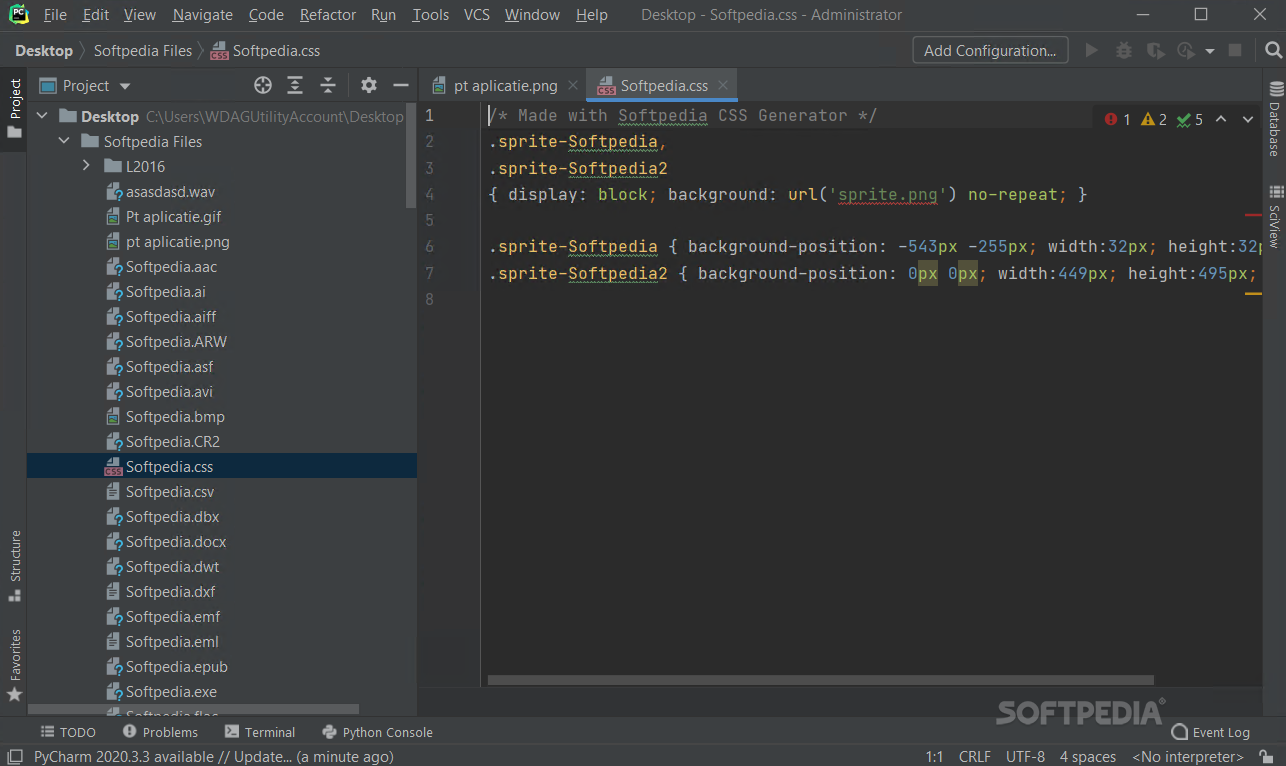
Ah, the dreaded cache. It's supposed to help, but sometimes it becomes the very thing it swore to destroy! PyCharm caches a lot of stuff to speed things up, but occasionally this cached data gets… well, let's just say confused. The result? Your old code lingers on, refusing to die.
The solution? Invalidate Caches and Restart! Go to File -> Invalidate Caches / Restart… Choose "Invalidate and Restart." This will clear PyCharm's cache and hopefully exorcise the ghost of your previous program. Think of it as giving PyCharm a good digital spring cleaning.
3. The Open File Fiasco:
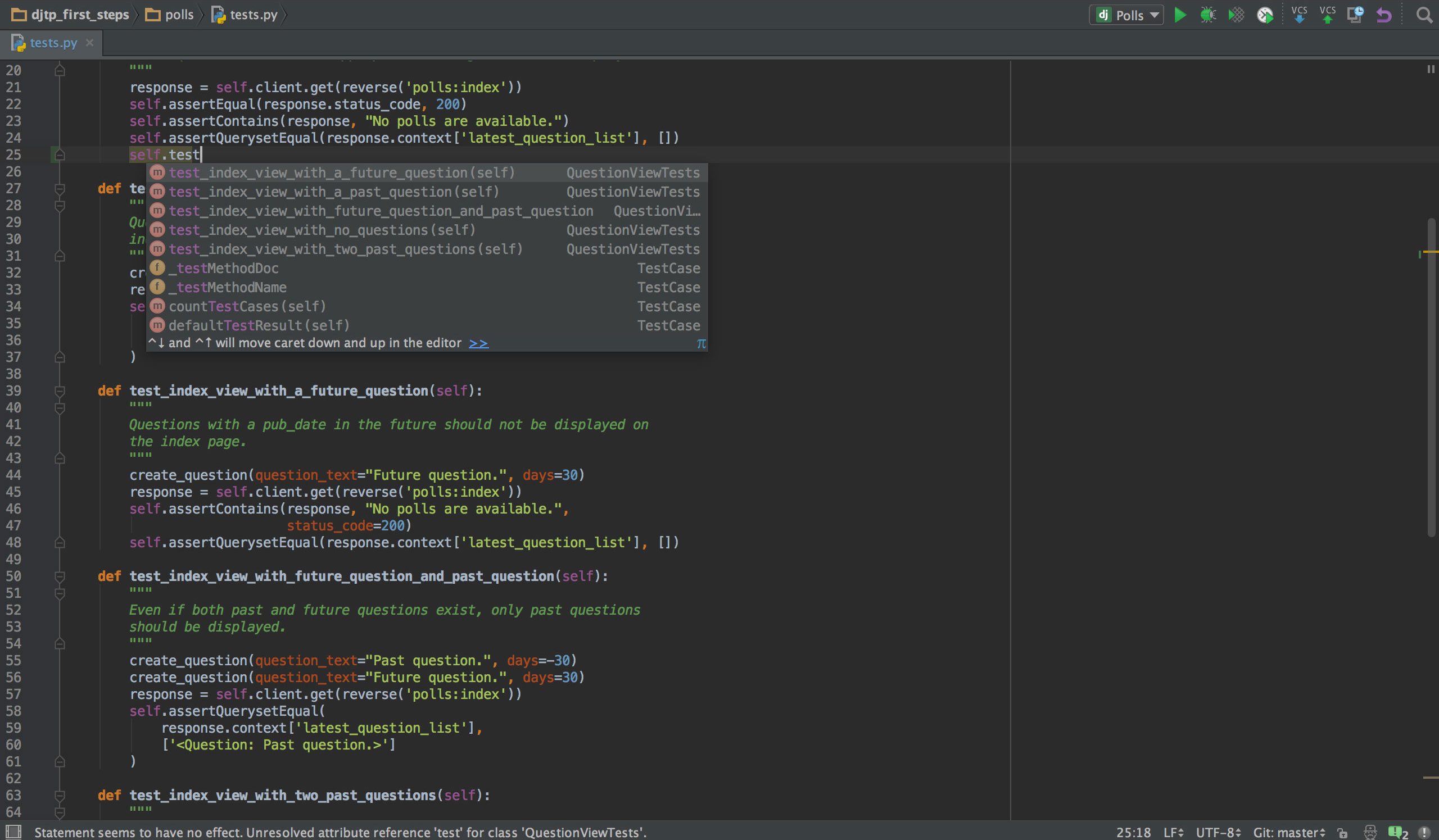
This is a sneaky one. Is the correct file actually open and active in the editor window? I know, sounds silly, but sometimes you have multiple files open, and you might be accidentally running a different one entirely. It's like trying to bake a cake with the wrong recipe open! Pay close attention to which tab is highlighted.
4. The Save Situation:
Okay, another super-obvious one, but we all make mistakes! Did you actually save your changes? I know, I know, duh! But hey, sometimes our fingers get ahead of our brains. Ctrl+S (or Cmd+S on a Mac) is your best friend. Make it a reflex. Save early, save often! Like voting in Chicago, save early and save often! (Too much? Maybe.)
Advanced Tactics: When Things Get Real
Still stuck? Okay, things are getting serious. Time to bring out the big guns!
5. Project Corruption: The Nuclear Option
In rare cases, your entire PyCharm project might be corrupted. This is rare, but if you've tried everything else, it's worth considering. Try creating a brand new project and copying your files into it. It's a pain, I know, but sometimes a fresh start is what you need.
6. Check your PYTHONPATH or sys.path:
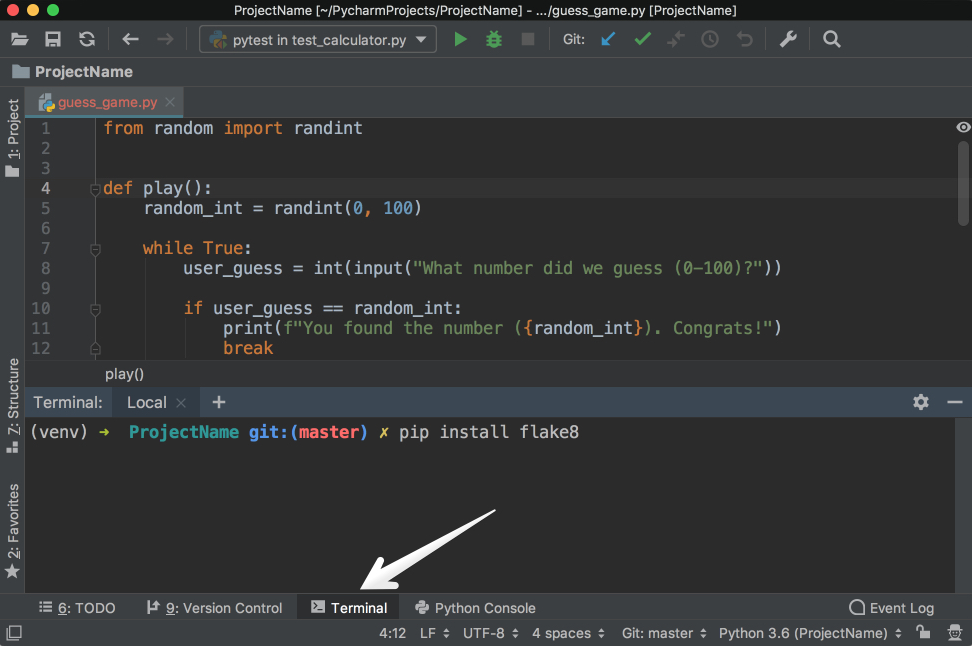
Is your PYTHONPATH configured correctly? This tells Python where to look for modules. If it's pointing to the wrong place, it might be importing an older version of your code. Type this in your python console: ```python import sys print(sys.path) ``` Does it look right?
7. External Factors: The Mysterious Intruder
Is there anything else running that might be interfering? Another process hogging resources? A rogue plugin? It's unlikely, but worth considering if you're completely stumped. Try closing unnecessary applications and restarting your computer (yes, the classic IT advice – it sometimes works!).
The Light at the End of the Tunnel
Debugging can be frustrating, but remember, every problem solved makes you a better programmer! So, take a deep breath, work through these steps, and hopefully, your PyCharm will start behaving itself. And if all else fails… well, there's always Google! Just kidding (mostly). Happy coding!