Manage Accounts On Instagram

Okay, picture this: You're juggling flaming torches, riding a unicycle, and trying to remember your grocery list all at the same time. Sounds a bit chaotic, right? Well, managing multiple Instagram accounts can sometimes feel a little like that! But fear not, fellow Instagram adventurer! We're about to turn that circus act into a smooth, streamlined dance.
Adding Accounts: The More, The Merrier (Maybe!)
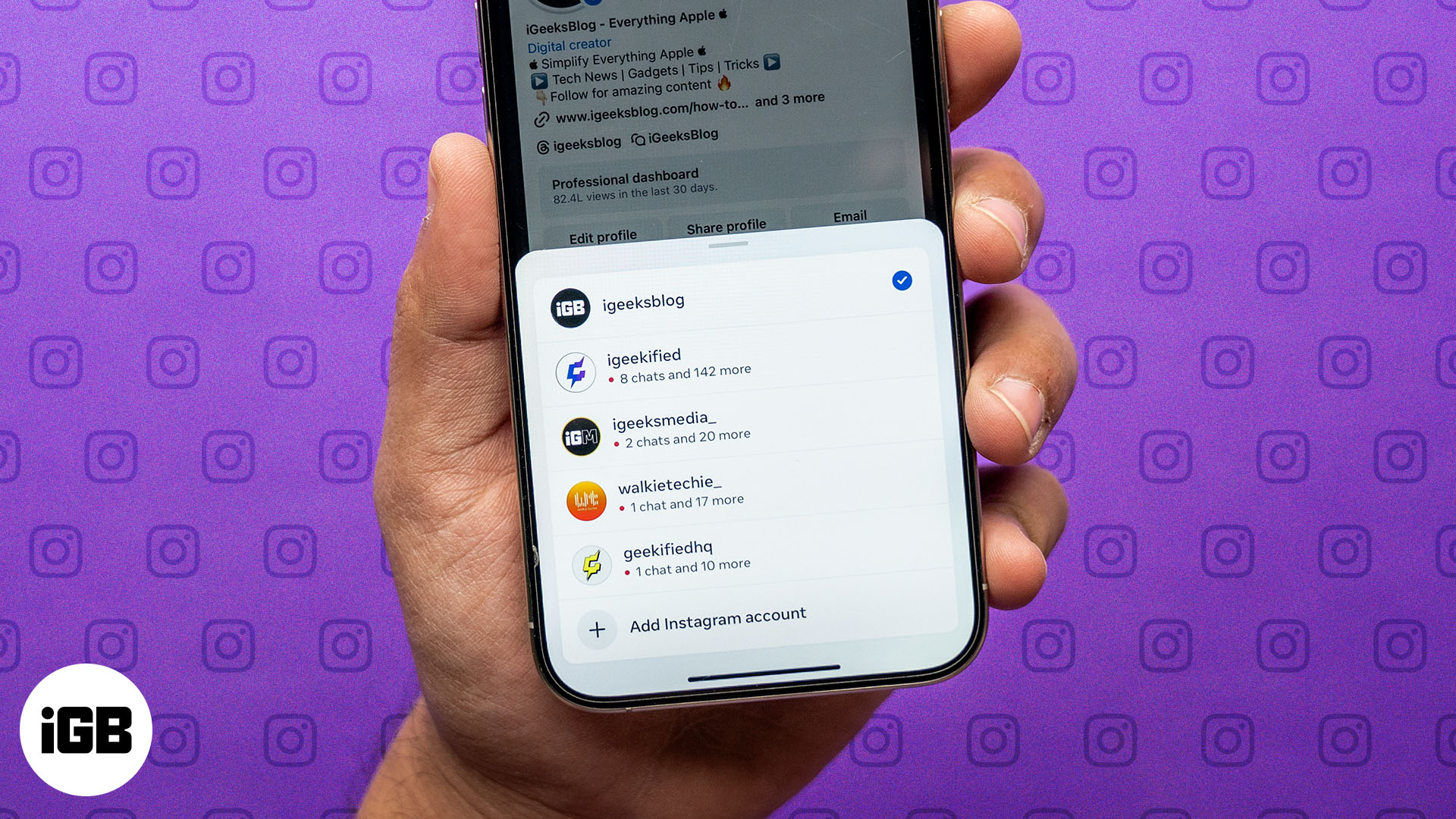
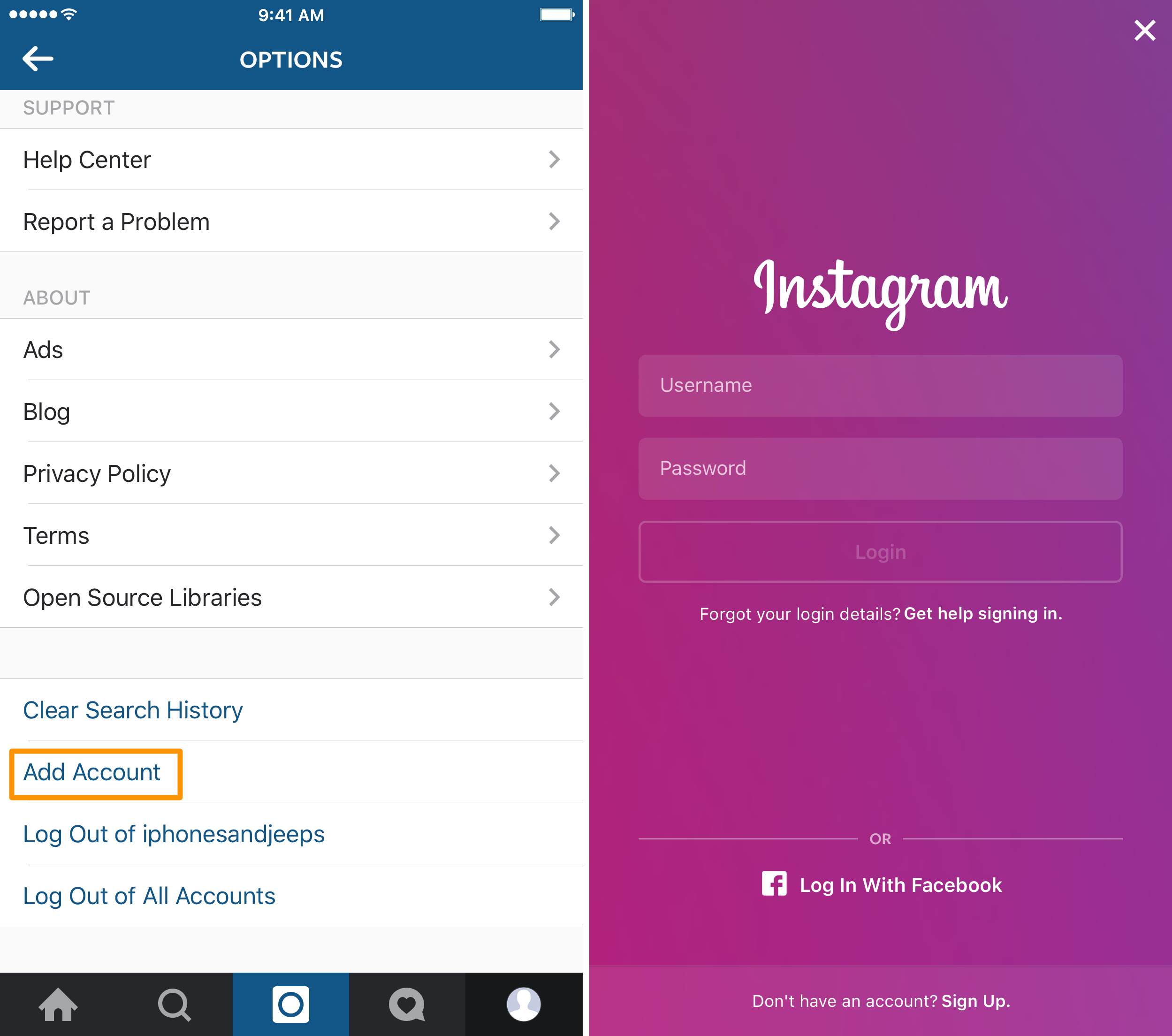
First things first, let's get those accounts added to your app. Think of it like inviting friends to a party – the more the merrier... as long as you can keep track of them all! To add another account, head over to your profile. Tap on your username at the top of the screen. A little menu pops down, like a secret password revealing a hidden stash of chocolate. You'll see the option to "Add Account." Tap that, and voila! You can either log into an existing account or create a brand new one. Easy peasy, lemon squeezy!
Switching Between Accounts: The Speedy Superhero Maneuver
Now comes the fun part: zipping between your accounts like a superhero changing costumes in a phone booth! Again, tap your username at the top. You'll see all your connected accounts listed. Just tap the account you want to switch to, and bam! You're there! It's faster than ordering pizza online (and arguably more rewarding, depending on what kind of pizza you order). This is especially handy if you're running a personal account, a business page for your artisanal sock puppet empire, and a fan account dedicated to your cat's astonishing napping abilities.
Must Read
You can also do a super quick switcheroo by long-pressing on your profile picture at the bottom right corner. It's like having a secret shortcut only you know! Just don't tell everyone. Okay, fine, tell everyone. Sharing is caring!
Notifications: The Signal Fires of Instagram
Alright, let's talk about notifications. Because let's be honest, nothing derails your focus faster than a barrage of dings and buzzes. Instagram lets you customize notifications for each account. Navigate to Settings > Notifications. Here, you can tweak what kind of activity you want to be alerted about – likes, comments, follows, mentions, the whole shebang. Tame those notification beasts, my friend! You'll thank yourself later.
Removing Accounts: Saying Goodbye (For Now)
Sometimes, you need to part ways with an account. Maybe you're handing it off to someone else, or maybe it's just time to say "adios" to that embarrassing account you made in middle school dedicated solely to pictures of your lunch. Whatever the reason, removing an account is pretty straightforward. Go to the account you want to remove, then Settings > Login Info. Tap the three dots next to the account you wish to part with and tap "Remove". Just remember, this only removes the account from your phone; it doesn't delete the account entirely. It's more like politely asking a guest to leave your party – they're still out there, just not at your place right now.
Important Note: Make absolutely, positively, undeniably sure you know the login credentials for any account you remove, or you could find yourself locked out forever. Nobody wants that kind of drama!

A Few Extra Tips and Tricks:
- Use a password manager. Seriously. It's like having a digital bodyguard for your passwords.
- Turn on two-factor authentication for each account for extra security.
- Regularly review your connected apps to make sure everything is on the up-and-up.
So, there you have it! Managing multiple Instagram accounts doesn't have to be a soul-crushing experience. With a little organization and these handy tips, you can navigate the Instagram universe like a seasoned pro. Now go forth and conquer those feeds! And maybe treat yourself to that pizza – you've earned it.
Remember,
"With great power comes great responsibility... and the need to manage multiple Instagram accounts effectively!"- Probably Spiderman