
Lenovo Ideapad 720s-14ikb Dead
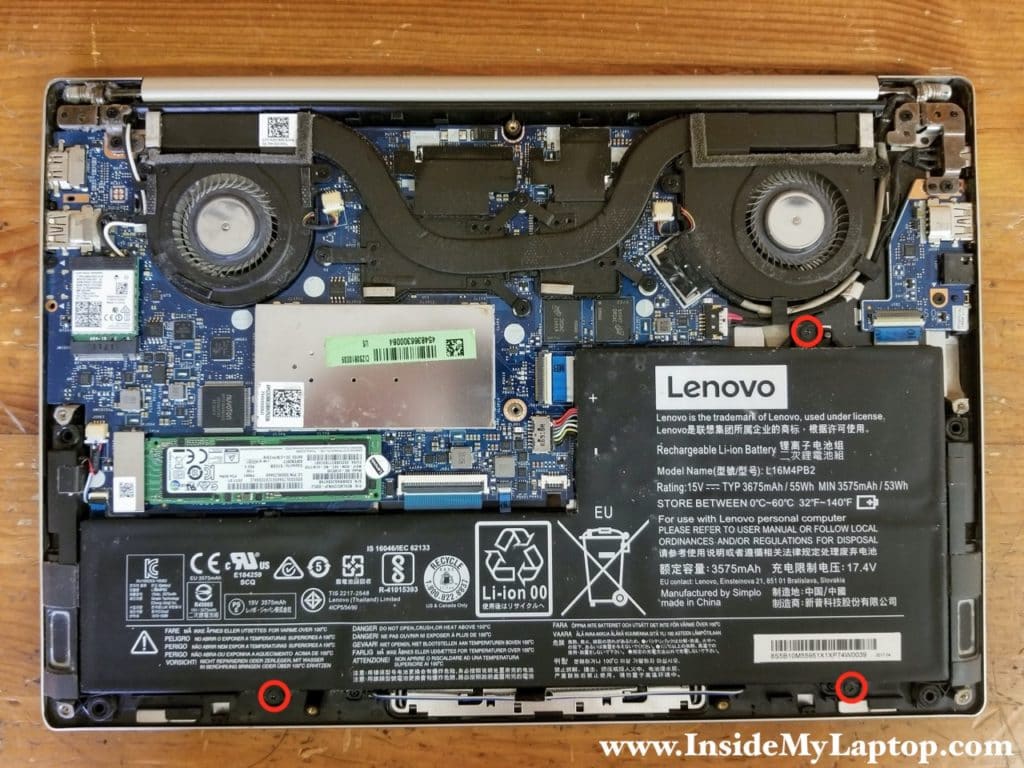
Okay, so your Lenovo Ideapad 720s-14ikb has decided to join the choir invisible, shuffled off its mortal coil, kicked the bucket... you get the picture. It's dead. Don't panic! (Yet.) We've all been there. My toaster oven once went on strike mid-bagel, and the drama was intense. But let's focus on your laptop.
First things first: deep breaths. Seriously. Hold it... exhale. Good. Now, let’s figure out if it's really dead, or just playing possum.
Is It REALLY Dead? The Initial Checks
Sometimes, what seems like a fatal blow is just a minor boo-boo. Let's run through a few basic troubleshooting steps, starting with the obvious (because sometimes we miss the obvious when we're stressed):
Must Read
- Power Cord Check: Is it plugged in? Is the outlet working? (Try plugging in your phone charger. If that doesn't work, you might have a bigger electrical issue than just a dead laptop). Is the power cord properly plugged into the laptop? Wiggle it a bit. Sometimes, the connection is just a little loose.
- Battery Check: Maybe your battery is just completely drained. Leave it plugged in for a solid hour, even if you see no lights. Then, try turning it on. Patience, young Padawan.
- Power Button: Press and hold the power button for a good 15-20 seconds. Sometimes, that's all it takes to reset things. Think of it as giving your laptop a little digital CPR.
Did any of that work? No? Okay, no problem. (Still try to remain calm). We move on to slightly more advanced maneuvers.
The Slightly More Advanced (But Still Not Rocket Science) Stuff
Alright, so the simple stuff didn't work. Let's get a little more hands-on (but not too hands-on. We're not performing open-heart surgery here).

- External Display: Plug your laptop into an external monitor. If you see something on the external monitor, then the problem is likely with your laptop's screen, not the entire system. This is actually good news, relatively speaking. A screen replacement is often cheaper and easier than a whole new motherboard.
- Listen Closely: When you press the power button, do you hear anything? Any fans whirring? Any clicks? Any beeps? (Beeps can be your friend! They're often error codes). Silence? That's… less good. But don't lose hope!
Still nothing? Hmmm… Okay, it might be time to consider the worst. Before you throw it out the window (resist the urge!), let’s consider a few more things.
When It's Time to Say "Maybe...Maybe Not?" (aka Troubleshooting Grey Areas)
Sometimes, a "dead" laptop is just... misbehaving. Here are a few final thoughts before you declare it officially deceased:
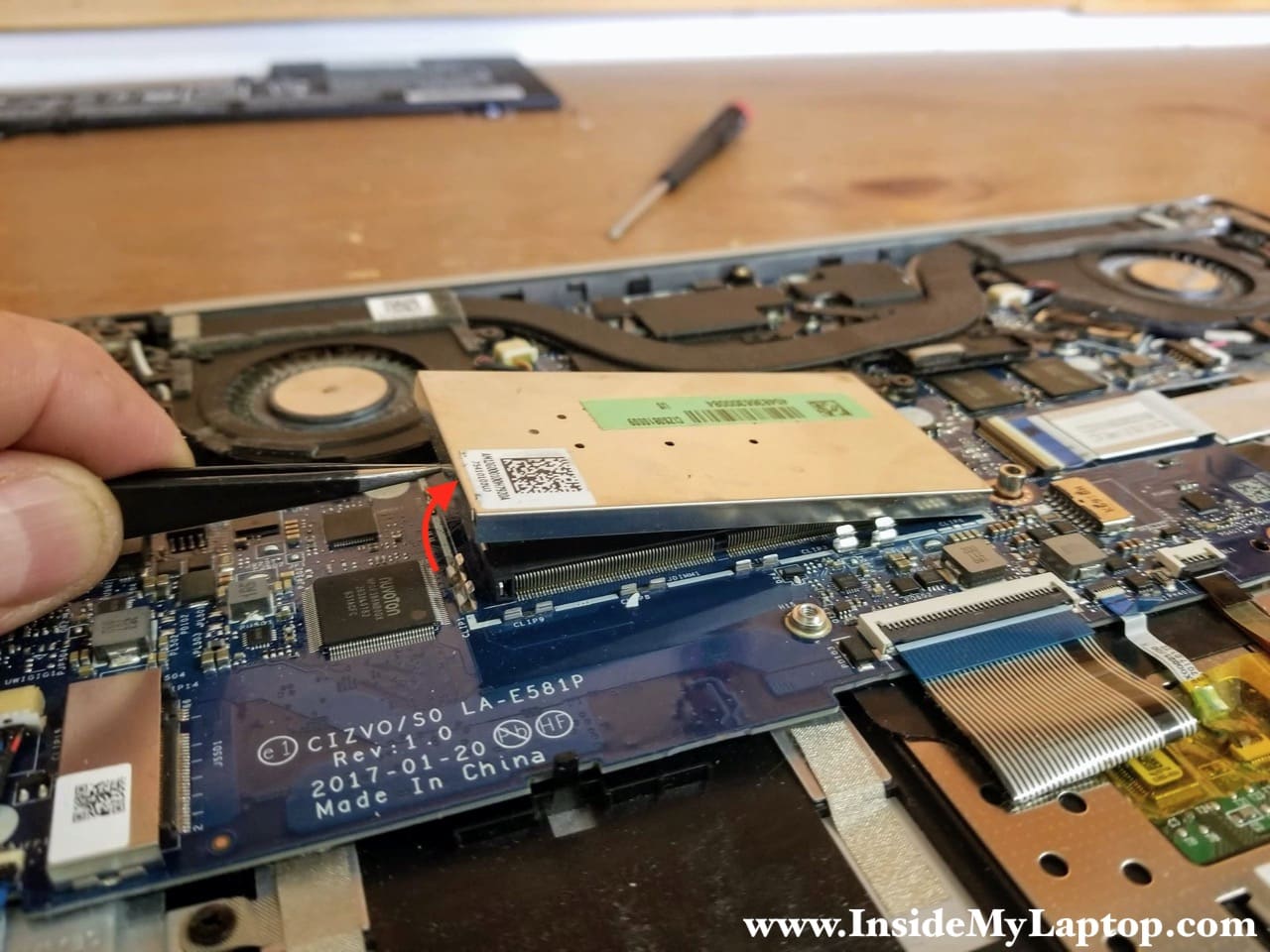
- Recent Activity: Did you recently install any new software or drivers? Sometimes, a faulty driver can cause major problems. If you suspect this might be the case, and you can get to the BIOS screen (usually by pressing Del, F2, or F12 repeatedly when you power on), you might be able to boot into Safe Mode and uninstall the offending software.
- Liquid Damage: Okay, be honest. Did you spill coffee on it? (We’ve all been there!). Even a tiny amount of liquid can wreak havoc. If you suspect liquid damage, immediately disconnect the power and battery (if possible) and take it to a professional. DO NOT try to turn it on. You'll just make things worse.
If none of that worked, and you're still staring at a lifeless Lenovo, then it might be time to face the music. It's likely a hardware issue – possibly the motherboard, the CPU, or some other critical component.
The Part Where You (Maybe) Have to Call in the Pros
At this point, you have a few options:
- Take it to a Repair Shop: A qualified technician can diagnose the problem and give you a quote for repairs. Be prepared for it to potentially be expensive. Motherboard repairs are rarely cheap.
- Consider Data Recovery: If you have important data on the laptop that isn't backed up (shame on you! – just kidding… mostly), a data recovery service might be able to retrieve it. But be warned, this can also be pricey.
- Cut Your Losses: Sometimes, the cost of repair outweighs the value of the laptop. In that case, it might be time to say goodbye and start shopping for a new one.
Final Thoughts: Dealing with a dead laptop is frustrating, I get it! But remember, technology is fickle. Sometimes, things just break. Don't beat yourself up about it. And hey, look on the bright side: you now have an excuse to upgrade to that shiny new laptop you've been eyeing! Or, you could get really crafty and turn your dead laptop into a super cool piece of modern art! The possibilities are endless! Whatever you decide, remember to smile, take a deep breath, and know that even in the face of technological disaster, you are resourceful, resilient, and ready to tackle whatever comes your way. Now go forth and conquer!

