
How To Use An Android Tablet As A Drawing Tablet
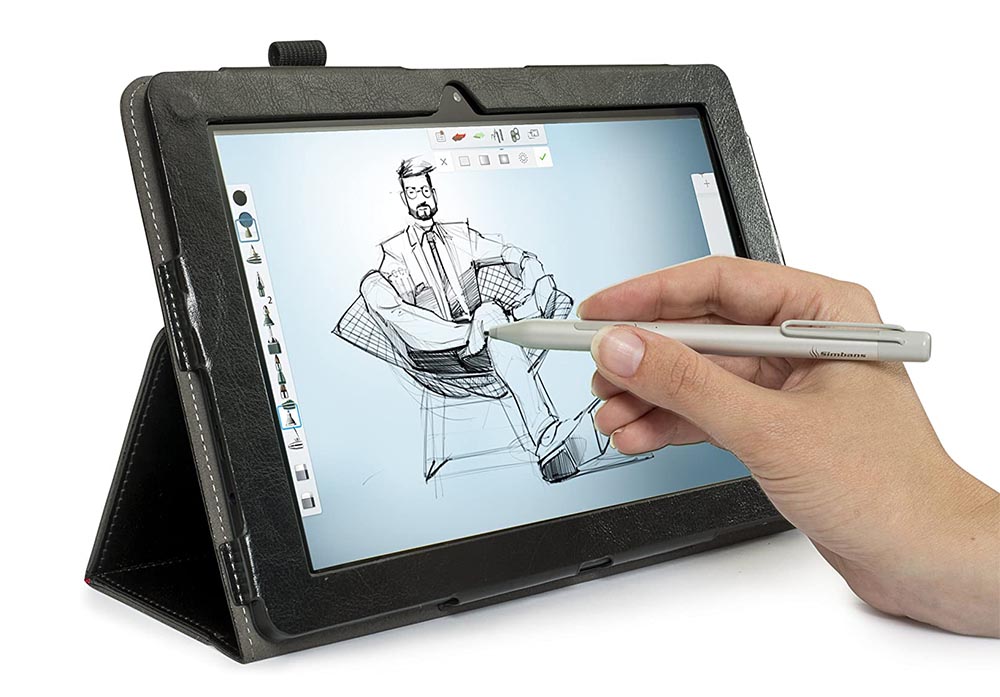
Okay, let's be real. How many of us have doodled on a napkin while waiting for our coffee, sketching out a brilliant (or maybe not so brilliant) idea? Or perhaps you've seen those amazing digital artists creating masterpieces on their fancy tablets and thought, "Wow, I wish I could do that!" Well, guess what? You probably already have a tool sitting right there that can get you pretty darn close: your Android tablet.
Yup, you heard me. That tablet you use for binge-watching your favorite shows or catching up on emails can be transformed into a portable drawing powerhouse. And the best part? It's a lot less intimidating (and often less expensive) than diving straight into professional-grade equipment.
Why Bother Drawing on Your Tablet?
Think of it this way: remember those coloring books you loved as a kid? This is like the grown-up, digital version. You can experiment with colors, textures, and techniques without the pressure of ruining a precious canvas or wasting a ton of art supplies. It's all about experimentation and fun!
Must Read
Plus, drawing on your tablet is incredibly convenient. Imagine being on a long train ride, suddenly struck with artistic inspiration (it happens!). Instead of fumbling for a sketchbook and pencils that are probably broken anyway, you can just whip out your tablet and start creating instantly. No mess, no fuss, just pure creative joy.
And let's not forget the "wow" factor. Imagine sketching a quick portrait of your friend at a coffee shop and then instantly sharing it on social media. Instant artist status! Okay, maybe not instant, but it's definitely a step in the right direction.
Getting Started: The Essentials
So, how do you turn your trusty Android tablet into a digital art studio? Here's what you'll need:
*Your Android Tablet: Obviously! The bigger the screen, the easier it is to work on detailed drawings, but even smaller tablets can work great for quick sketches.
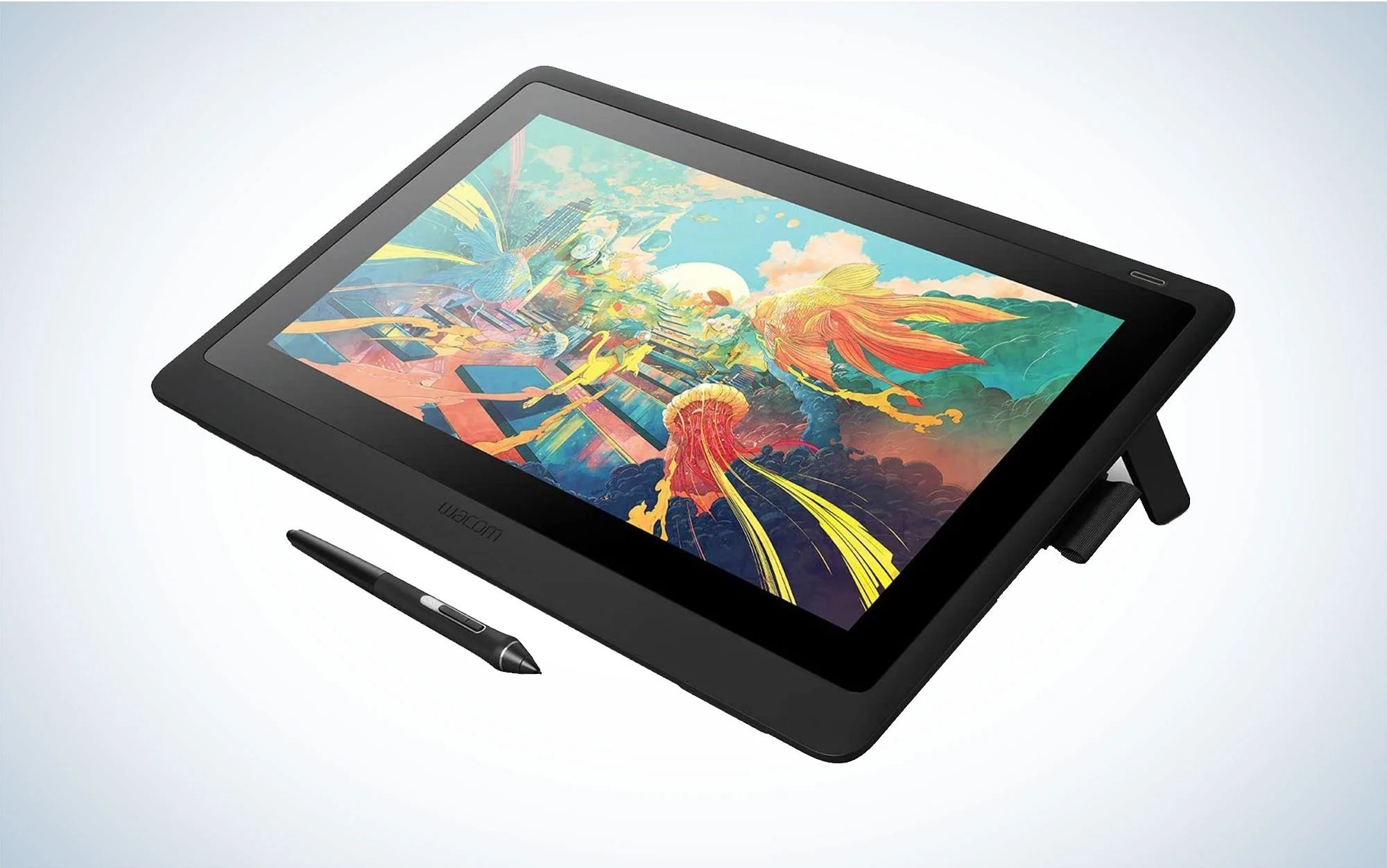
A Stylus: This is where things get interesting. You could use your finger, but a stylus will give you much more precision and control. There are fancy, expensive styluses (like the S Pen if you have a Samsung tablet), but even a basic capacitive stylus will make a huge difference. Think of it like using a paintbrush versus finger-painting. Both can be fun, but one is definitely more precise.
*A Drawing App: There are tons of amazing drawing apps available on the Google Play Store, both free and paid. Some popular options include: *
Autodesk Sketchbook: A powerful and free app with a wide range of brushes and tools.
*MediBang Paint: Another free option, popular for creating manga and comics.
*Adobe Photoshop Sketch: A streamlined version of Photoshop, perfect for sketching and painting.
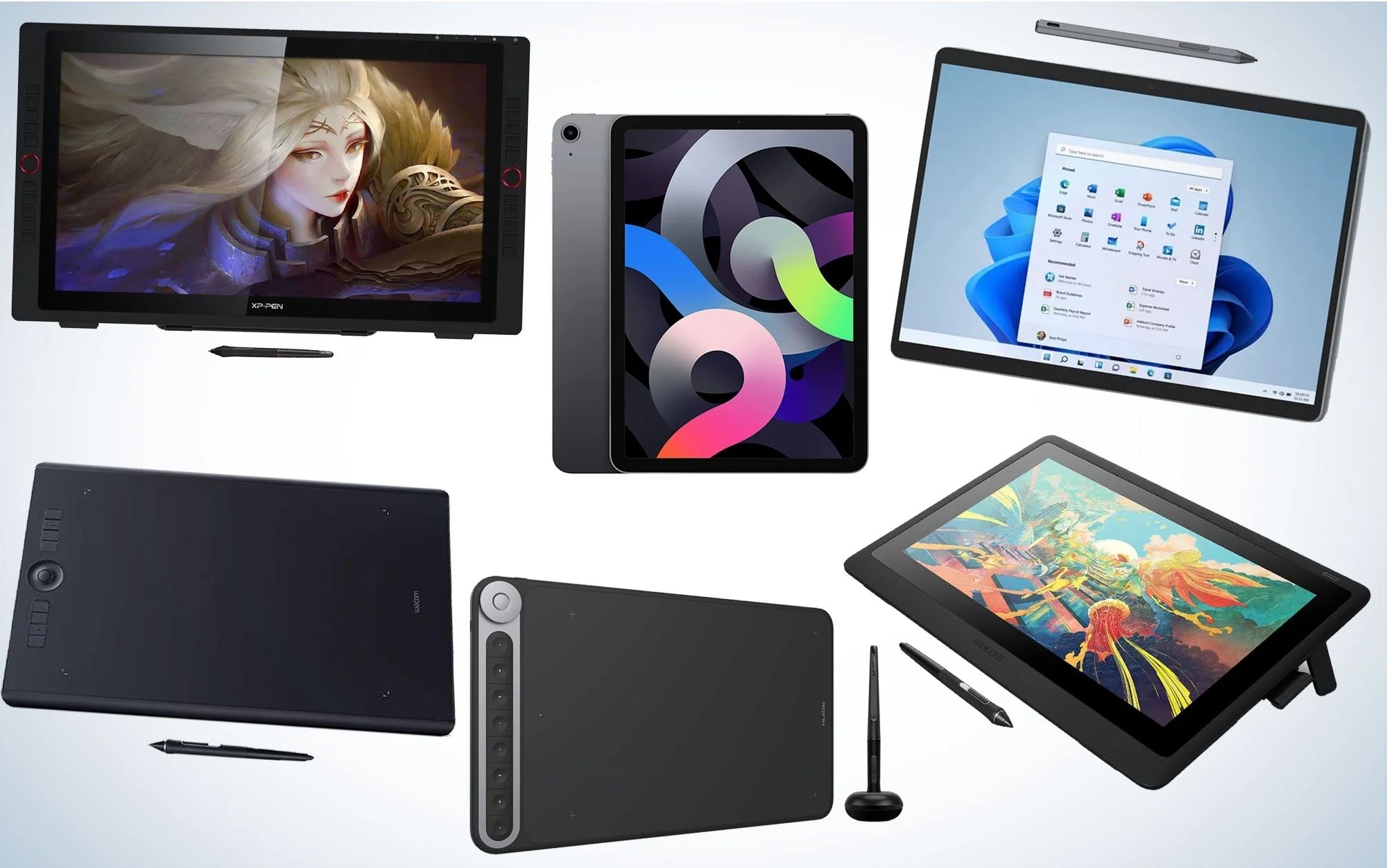
Procreate (Android version is called Procreate Pocket): While designed for smaller screens, this provides a lot of function.
Experiment and find the app that feels most comfortable for you.
The Nitty-Gritty: How to Draw
Alright, you've got your tablet, your stylus, and your app. Now what? Here's a simplified breakdown:
1.Open Your App: Choose your drawing app and fire it up.
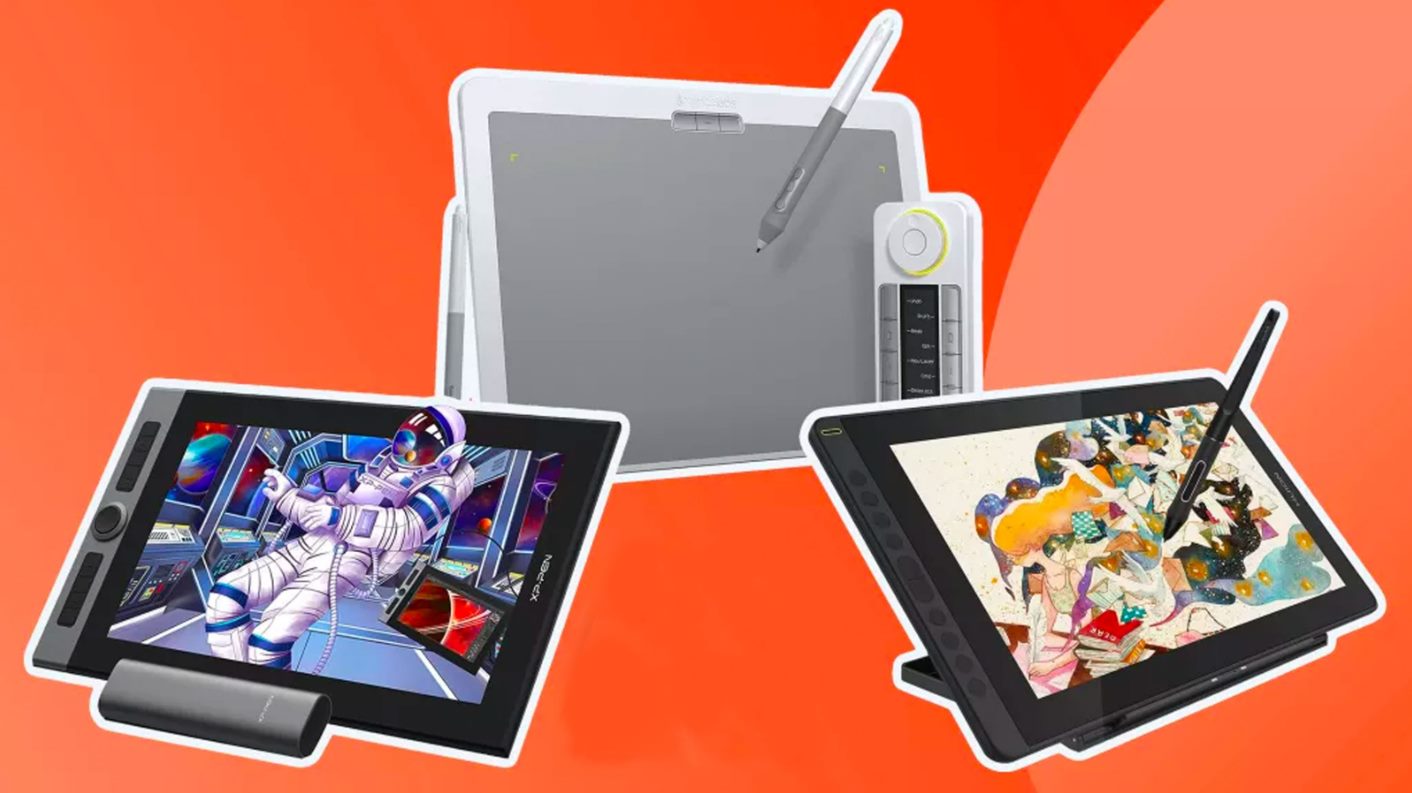
Create a New Canvas: Most apps will have a "New" or "Create" button. Choose the size of your canvas – bigger is usually better for detailed work.
3.Choose Your Brush: Experiment with different brushes to see what effects you can create. There are brushes for sketching, painting, shading, and even adding textures.
4.Start Drawing! Use your stylus to draw on the screen just like you would with a pencil on paper. Don't be afraid to make mistakes – that's what the undo button is for!
5.Experiment with Layers: Layers are like transparent sheets of paper that you can draw on top of each other. This allows you to easily edit different parts of your drawing without affecting other parts. Think of it like building a drawing piece by piece.

Save Your Work: Don't forget to save your masterpiece! Most apps allow you to save your drawings in various formats, such as JPEG or PNG.
Pro Tip: Don't be afraid to watch tutorials! YouTube is your friend. Search for tutorials on using your specific drawing app and you'll find tons of helpful tips and tricks.
Practice Makes Progress (and Pizza!)
Like any skill, drawing on a tablet takes practice. Don't expect to create a masterpiece on your first try. Just focus on having fun and experimenting. Start with simple shapes and gradually work your way up to more complex drawings.
And remember, even the most amazing artists started somewhere. They all had to practice and learn from their mistakes. So, grab your tablet, pick up your stylus, and start creating! And maybe reward yourself with a slice of pizza after a good drawing session. You deserve it!
Now go forth and unleash your inner artist! You might just surprise yourself with what you can create.