
How To Use A Apple Watch Series 3
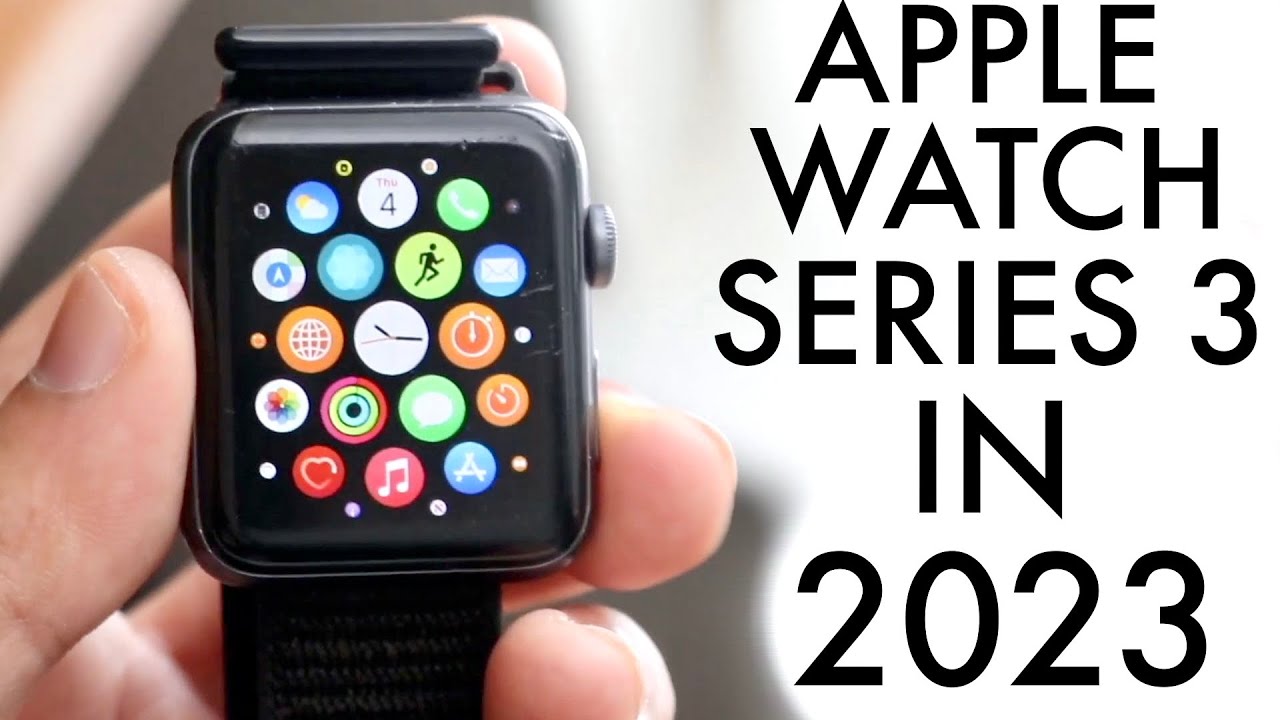
Okay, so you’ve got an Apple Watch Series 3! Awesome! Think of it as your friendly, wrist-bound sidekick, ready to make your life a tiny bit easier (and maybe a little cooler). It’s not the newest kid on the block anymore, but this watch is still a super capable piece of tech that can do a ton. Let's break down how to actually use it without getting overwhelmed.
Getting Started: Waking Up Your Wrist Buddy
First things first: slap that baby on your wrist! Make sure it's snug enough to touch your skin, but not so tight you feel like you're cutting off circulation. Think of it like a comfortable hug for your arm. To wake it up, just raise your wrist, or give the Digital Crown (that little dial on the side) a gentle press. You should see the watch face light up, ready for action.
Pro Tip: Don't be afraid to experiment with different watch bands! Swapping them out is super easy, and it’s a great way to personalize your watch and make it feel truly yours.
Must Read
Navigating the Basics: Glances and Apps
The Apple Watch interface is all about glances. Swipe up from the bottom of the watch face to access your Control Center. It's like the quick settings menu on your phone. Here you can do things like turn on Airplane Mode (perfect for that sneaky afternoon nap!), silence notifications (bliss!), or adjust the brightness (because sometimes you just need to dim the world a little).
Want to see your notifications? Swipe down from the top. They’ll appear in a list, and you can tap on them to read the full message or even reply directly from your wrist. Think of it as a much more discreet way to check if that text from your friend finally arrived.
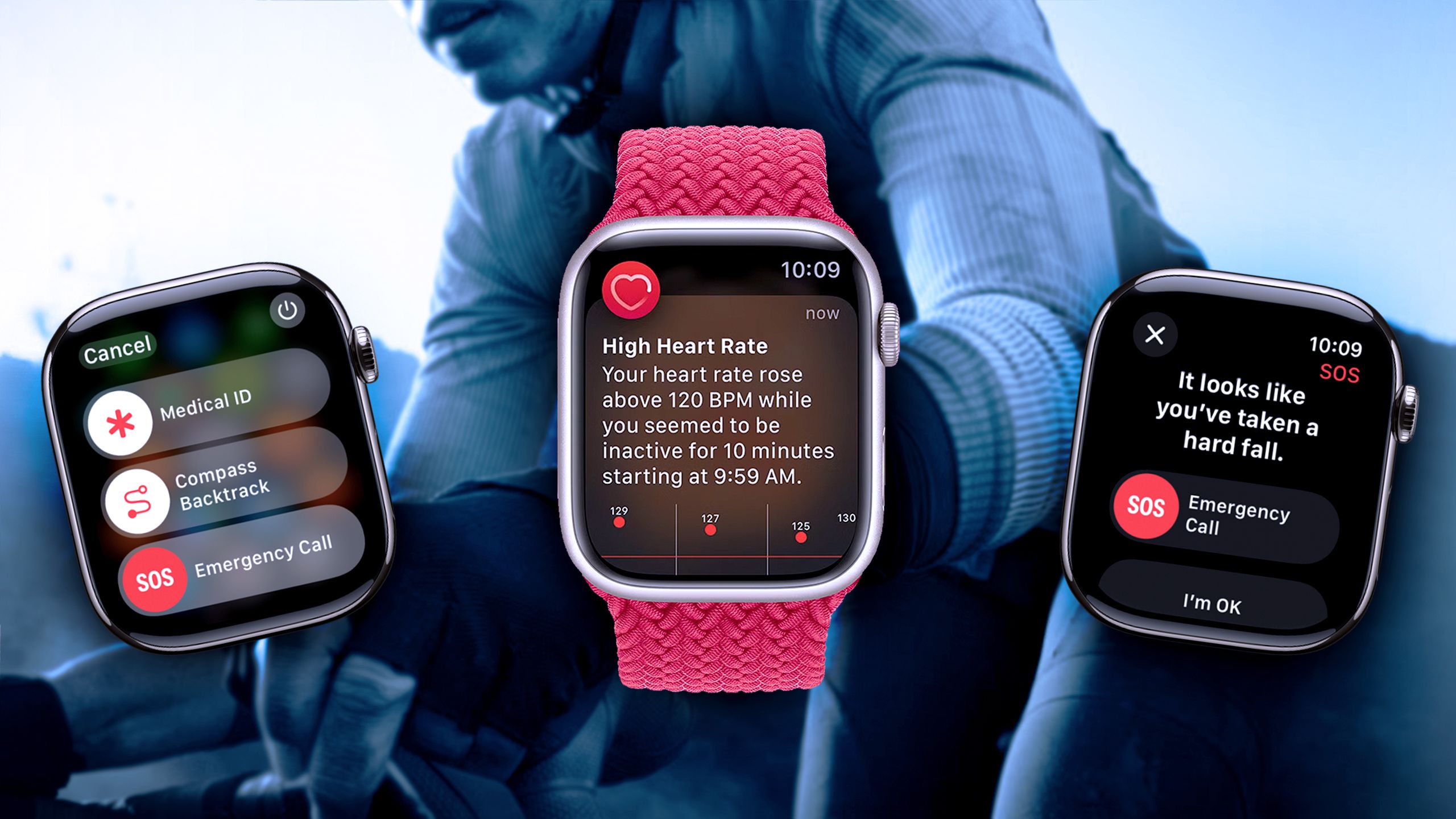
Now, let's get to the apps. Press the Digital Crown to see all your apps laid out in a honeycomb grid. You can tap on an app to open it, or use the Digital Crown to zoom in and out of the grid, making it easier to find what you're looking for. It’s kind of like having a mini iPhone on your wrist, but without the constant urge to doomscroll.
Making Calls & Sending Messages: Wrist-Based Communication
One of the coolest things about the Apple Watch is being able to make calls and send messages right from your wrist. For calls, you can use Siri ("Hey Siri, call Mom!") or find the Phone app and select a contact. You might feel a little like a secret agent talking into your wrist at first, but trust me, you'll get used to it.
Replying to messages is also a breeze. You can dictate a response (Siri's getting pretty good these days!), choose from pre-written replies, or even draw a quick emoji. Imagine you're at a noisy coffee shop, and your friend texts you. Instead of awkwardly pulling out your phone, you can just glance at your wrist and send a thumbs-up emoji. Smooth, right?

Remember: The sound quality isn't always the best, especially in noisy environments, but it's perfect for quick chats or emergencies.
Fitness Tracking: Your Personal Cheerleader
The Apple Watch Series 3 is a pretty great fitness tracker. It tracks your steps, calories burned, and active minutes throughout the day. The Activity app uses three rings to visualize your progress: Move (calories burned), Exercise (active minutes), and Stand (how often you stood up during the day). The goal is to close all three rings every day. It's like having a little personal cheerleader on your wrist, encouraging you to get off the couch and move around.
You can also use the Workout app to track specific activities like running, swimming, or cycling. The watch will track your heart rate, distance, and pace, giving you a detailed overview of your workout. Plus, it's water resistant, so you don't have to worry about getting it wet during your swim!

Life Hack: Set yourself small, achievable goals. Don't try to run a marathon on day one! Start with a brisk walk around the block and gradually increase your activity level. Your wrist-cheerleader will be right there with you, every step of the way.
Siri: Your Wrist-Based Assistant
Siri is your always-on assistant on the Apple Watch. Just raise your wrist and say "Hey Siri," followed by your command. You can ask Siri to set a timer, send a message, play a song, or even control your smart home devices. It's like having a personal genie on your wrist, ready to grant your every wish (within reason, of course).
Example: "Hey Siri, set a timer for 15 minutes." Perfect for timing those cookies you're baking! Or, "Hey Siri, what's the weather like?" Because who wants to be caught unprepared in a sudden downpour?

Personalizing Your Watch Face: Making it Your Own
One of the easiest ways to make your Apple Watch feel truly yours is to customize the watch face. You can choose from a wide variety of faces, each with its own unique style and set of complications (those little widgets that display information like the date, weather, or your next appointment).
To change the watch face, just press and hold on the current face. Then, swipe left or right to browse through the available options. Tap on a face to select it, or tap the "Customize" button to tweak the complications to your liking. It's like decorating your own little digital canvas!
The Apple Watch Series 3 might not be the newest model, but it's still a fantastic device that can make your life a little easier, a little healthier, and a little more connected. So, go ahead and explore all its features. You might be surprised at just how much this little wrist-worn wonder can do. Now go have some fun and enjoy your watch! You deserve it!