
How To Turn Off S21 Ultra
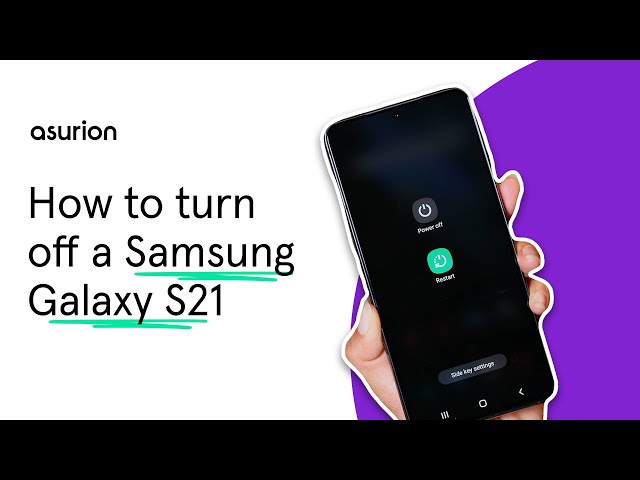
Alright, friend, let's talk about something super important... like, life-or-death important... okay, maybe not that dramatic, but still pretty useful: turning off your Samsung Galaxy S21 Ultra. You'd think it would be obvious, right? Like finding the "on" switch, but sometimes, technology throws us curveballs (usually when we're already juggling three other things!).
The Classic Power Button Press (and Hold!)
First up, the old faithful. Remember when all phones just had one big, obvious power button? Good times. The S21 Ultra has one too! It's on the right side of your phone. Go ahead, find it! I'll wait... hums a little tune. Got it? Great!
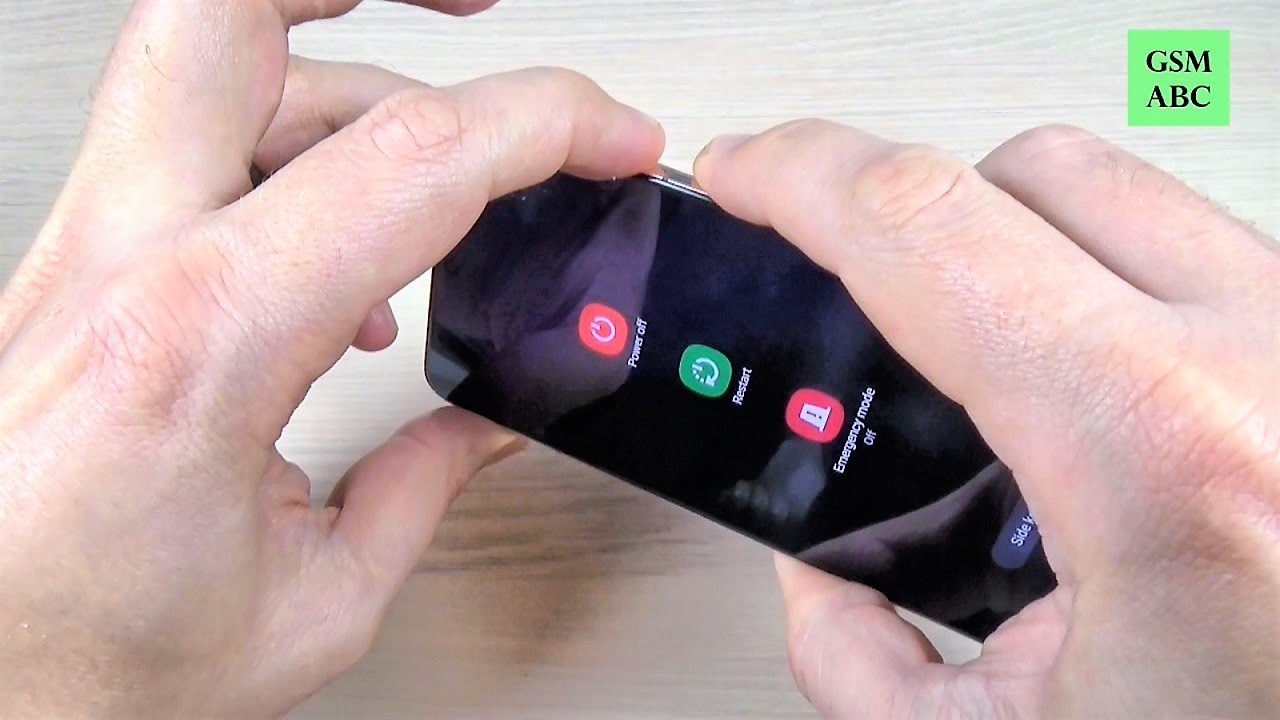
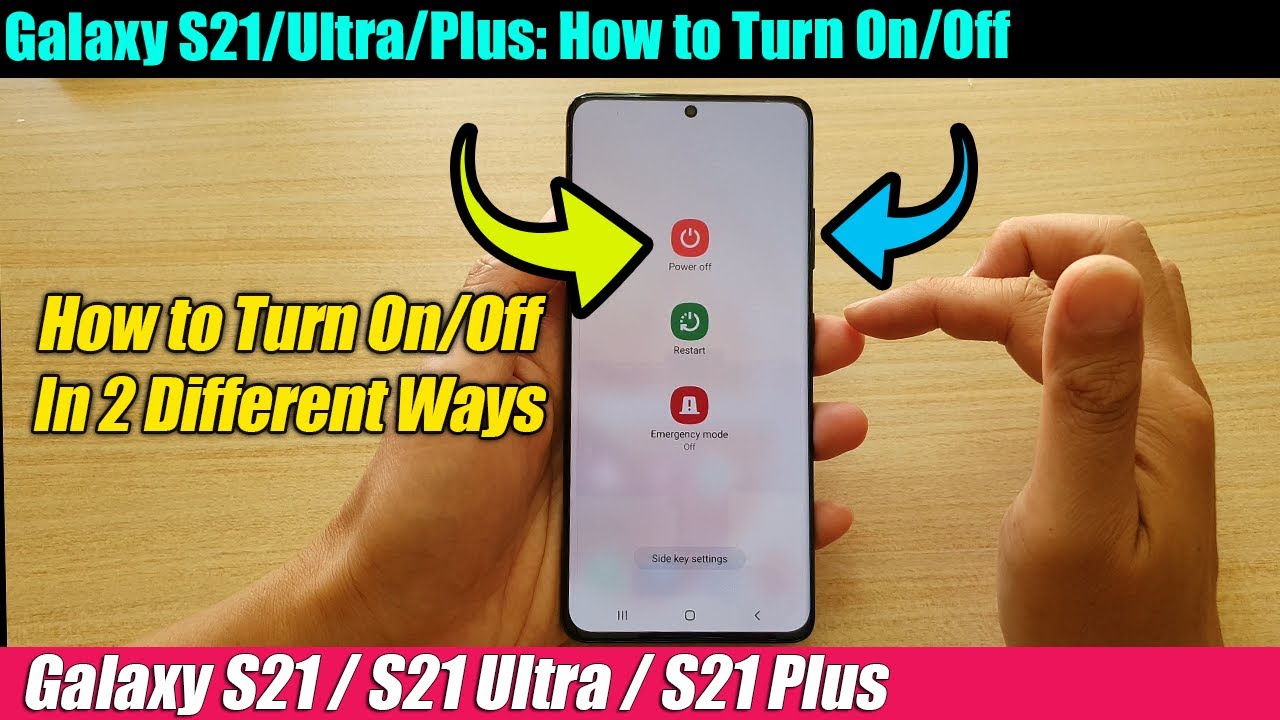
Now, here's the thing. A quick press of the power button usually just turns off the screen (puts it to sleep). To actually shut down the phone, you need to press and hold that button for a few seconds. I'm talking like, three to five seconds. Patience, young Padawan. Patience.
Must Read
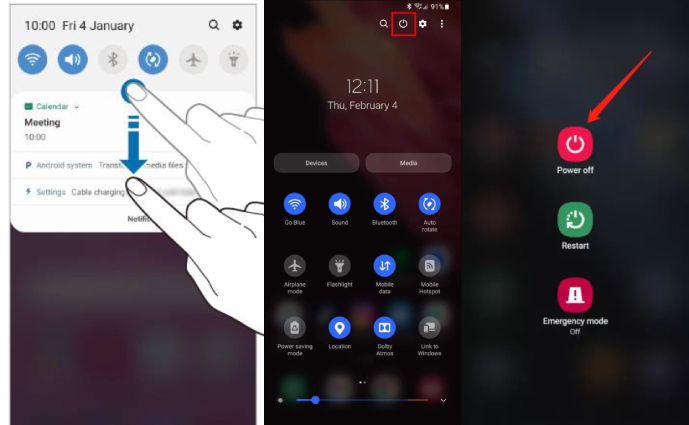
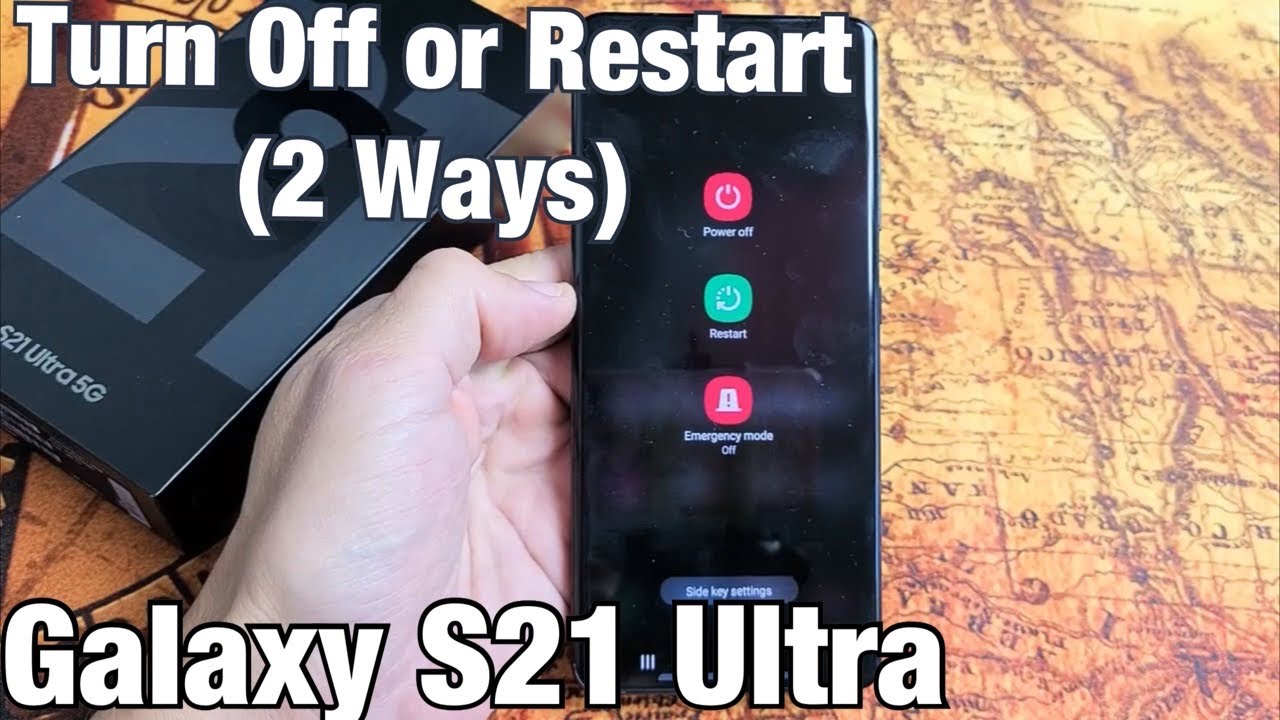
What should happen (and I say "should" because tech is sometimes a fickle beast) is a menu will pop up. You'll see options like "Power Off," "Restart," and maybe "Emergency Mode." Ignore the emergency mode for now unless, you know, there's an actual emergency. Tap that beautiful, tempting "Power Off" button.
Your phone might ask you one more time if you're really sure. It's like your phone is saying, "Are you positive you want to abandon me?!". Just tap "Power Off" again. You're strong. You can do this.
The Bixby/Side Key Customization Conundrum
Okay, this is where things can get a little tricky. See, Samsung, in their infinite wisdom, sometimes likes to let you customize what that power button (which they might call the "Side Key" now) does. Sneaky, right?
If pressing and holding the power button launches Bixby (Samsung's voice assistant) instead of the power menu, don't panic! We can fix this. Think of it as a little tech puzzle. You're a puzzle solver!
Here's how to reclaim your power button:
- Head to your phone's Settings app. You know, the one that looks like a little gear.
- Search for "Side Key" or "Power Button" in the search bar at the top. (If you can't find it, try looking under "Advanced Features").
- You should see options for what happens when you double-press the power button and what happens when you press and hold it.
- Under the "Press and Hold" section, change it from "Wake Bixby" to "Power Off Menu." Victory!
Now try pressing and holding that power button again. See? The power menu is back! You've tamed the wild Side Key!
The Secret Software Shutdown
Believe it or not, there's another way to turn off your S21 Ultra, and it doesn't involve the power button at all (handy if your power button is ever acting up!).
Swipe down from the top of your screen to bring up the notification shade. Swipe down again to expand it and reveal the Quick Settings toggles. You should see a power icon somewhere in that mess of buttons. Tap that power icon, and bam! The power menu appears. Choose "Power Off" and enjoy the sweet silence.
It's like a secret agent move, right?
Why Would You Even Want To Turn It Off?
Good question! Sometimes, a good ol' fashioned power cycle can fix minor glitches. It's like giving your phone a little digital nap. Plus, it can save battery life if you're not using it for a while.
Okay, now go forth and conquer your S21 Ultra! You are now a master of powering it off. You have the knowledge, the power (literally!), and the slightly sarcastic tone to impress all your friends. Just remember to turn it back on eventually, or you know, you won't be able to text me back.