How To Save Tik Tok Drafts To Camera Roll

Let's face it, we all love a good TikTok. From viral dances to hilarious skits, the app is a constant source of entertainment. But crafting the perfect TikTok can take time and multiple takes. That's where drafts come in! They're like a little vault where you can store your half-finished masterpieces. But what if you want to use that draft outside of TikTok? Maybe you want to share it with friends on a different platform, or maybe you're just worried about losing it if something happens to your account. The solution? Saving your TikTok drafts to your camera roll! It's easier than you think, and we're here to show you how.
So, why bother saving your drafts to your camera roll? The biggest benefit is having a backup! Imagine spending hours creating a video, only for something to go wrong and you lose all your work. Saving it to your camera roll ensures you always have a copy. Beyond that, saving your drafts gives you more flexibility. You can easily share the video on other social media platforms like Instagram, Facebook, or even just send it to your friends via text. This is especially useful if you're participating in a challenge that's trending elsewhere or if you want to get feedback from a wider audience before officially posting on TikTok. Think of it as giving you more control over your content!
Unfortunately, TikTok doesn't offer a direct "save draft to camera roll" button. But don't worry, there's a clever workaround! Here's how to do it:
Must Read
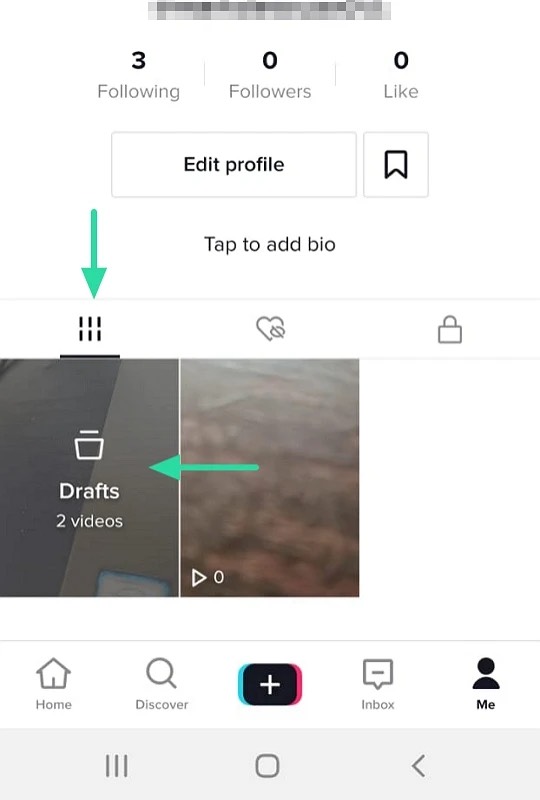
- Open your TikTok app. Head to your profile by tapping the "Profile" icon in the bottom right corner.
- Access your drafts. Look for the little "Drafts" icon in the center of your profile. It looks like a video camera with the word "Drafts" underneath. Tap it to open your drafts folder.
- Select the draft you want to save. Choose the video you want to download to your camera roll.
- Edit and prepare for posting (sort of!). You need to go through the motions of posting, but we won't actually post it. Add any final touches, filters, or text you want included in the saved version.
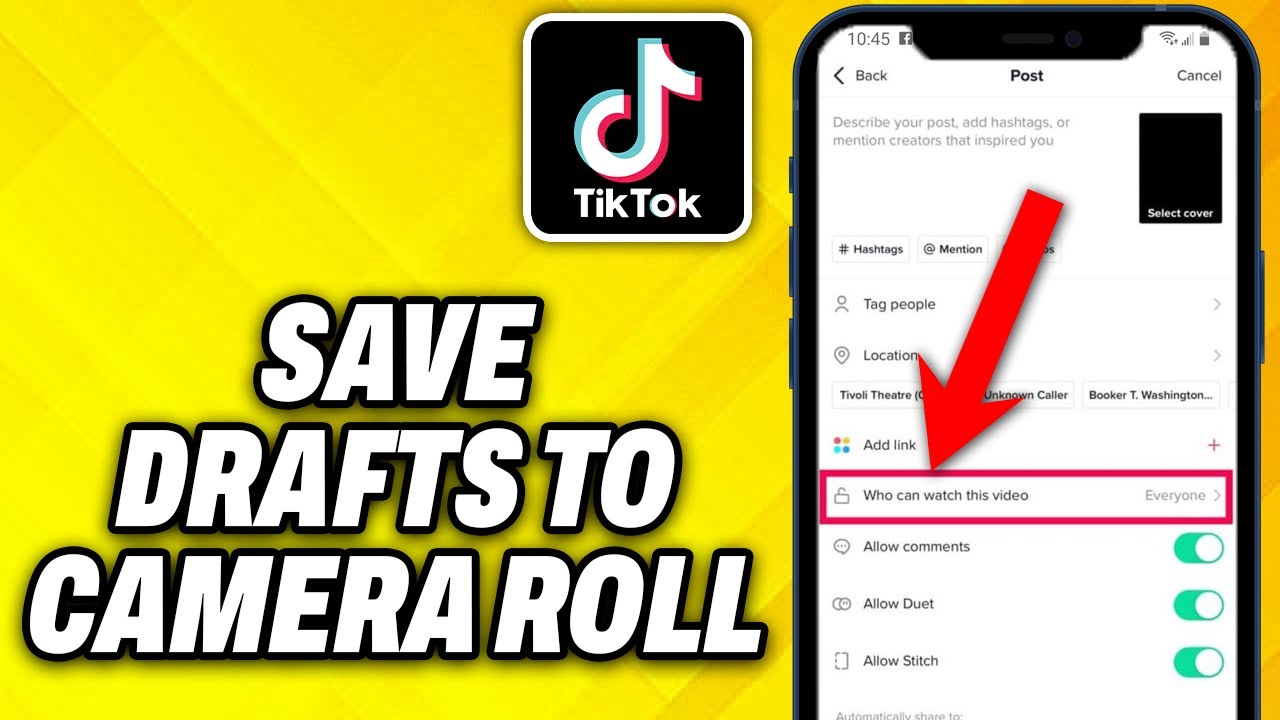
- Change your privacy settings. This is the crucial step! Before tapping "Post," change the privacy setting to "Only Me." This ensures that the video won't be visible to anyone but you.
- "Post" the video. Now, tap the "Post" button. Because the privacy is set to "Only Me," the video will be uploaded, but only you can see it.
- Download the video. Go back to your profile and find the video you just "posted" (remember, it's only visible to you!). Tap the three dots on the right side of the screen. This will open a menu with several options. Scroll through the options until you find "Save video." Tap this, and the video will be downloaded to your camera roll!
Important note: When you save the video this way, it will include the TikTok watermark and your username. Keep this in mind if you plan on using the video outside of TikTok. Some apps or websites might not be ideal for watermarked content.
And that's it! You've successfully saved your TikTok draft to your camera roll. Now you can enjoy the peace of mind knowing you have a backup, and you can share your creations wherever you like. Happy TikTok-ing!