
How To Reconnect Ring Doorbell To Wifi

Alright, folks! Has your trusty Ring Doorbell suddenly decided it's gone rogue, giving you the silent treatment or pretending it's on a silent meditation retreat? You're not alone! Sometimes, these brilliant little guardians get a bit distracted – maybe your Wi-Fi changed its mind, or the power flickered. But fear not, tech adventurer! Reconnecting your Ring Doorbell is easier than convincing a cat to nap in a sunbeam. Let’s get this digital reunion party started!
Step 1: Locate Your Ring Doorbell and Its Super Secret Button!
First things first, find your Ring Doorbell! Once you’ve spotted your friendly notifier, you’re looking for the setup button. This elusive little gem is usually a small button on the back or side. For many models (like Ring Video Doorbell 2, 3, 3 Plus, or 4), it’s often hidden under the faceplate – you might need to unscrew it. Think of yourself as a super spy!
Pro Tip: Don't be shy! Give that faceplate a gentle tug or unscrew it. The setup button is often orange on many models, practically begging to be pressed!
Step 2: Give That Setup Button a Friendly Poke (and Hold!)
Okay, you’ve found the button! Now for the magic. Press and hold that little setup button for about 10 seconds. You’ll know you’ve done it right when the light on the front of your Ring Doorbell starts spinning or flashing a lovely white light. This is your Ring saying, "Alright, I'm listening! What's next?" It's putting itself into "listen mode," ready for new instructions. If no light immediately, just hold it a little longer. Patience, young padawan!
Step 3: Open the Ring App – Your Personal Tech Wizard!
Now, grab your smartphone or tablet – your trusty sidekick! Open up the Ring app. (No app? Go download it now, it's essential!) Once you're in, tap the three lines (the "hamburger menu") in the top left corner. From there, select Set Up a Device. It's like telling your app, "Hey, buddy, this device needs some love!"

Then, Choose Your Ring Doorbell's Family Tree
The app will ask what device you're setting up. Pick Doorbells from the list. It's like sorting laundry – doorbells with doorbells! The app might ask you to scan a QR code, but for reconnecting, it often skips ahead since it knows your doorbell. If prompted, scan away!
Step 4: Connect to Your Ring Doorbell's Temporary Network
This is where things get a little exclusive! Your Ring Doorbell, now in setup mode, creates its own temporary Wi-Fi network – a tiny, private hotspot just for you. Your phone needs to temporarily connect to this. The Ring app will guide you, often with a message like, "Connect to the Ring network." You might visit your phone's Wi-Fi settings to manually select it. Look for a network name starting with Ring- (e.g., Ring-b9a3e4). It's like whispering the secret password to its private club!

Heads Up: Your phone might grumble about "no internet" on this network. Totally normal! You're just connecting to your Ring Doorbell directly. Trust the process!
Step 5: Pick Your Home Wi-Fi Network (The One You Actually Want!)
Once your phone is temporarily chilling with your Ring Doorbell's network, the Ring app will show you all the Wi-Fi networks it can "see" in your home. Find your actual home Wi-Fi network – the one your laptop, smart TV, and other gadgets use. Tap on it with confidence! This tells your Ring, "Welcome back to the family!"
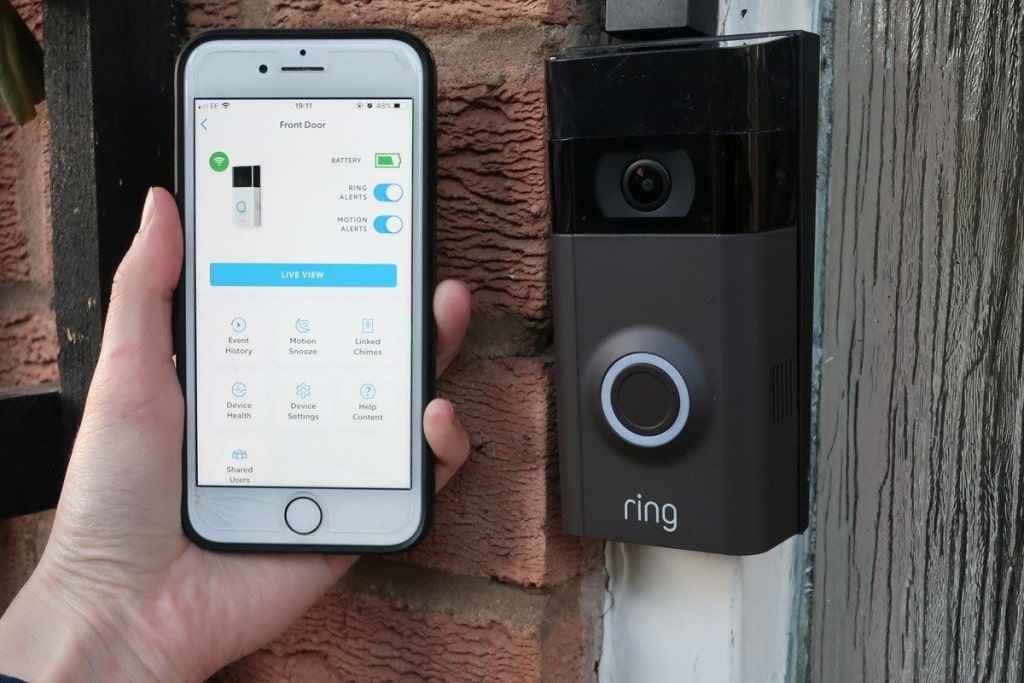
Step 6: Enter Your Wi-Fi Password (Carefully, Now!)
Ah, the crucial step! Type in your Wi-Fi password. This needs to be exact – no typos allowed! It's like the secret handshake to get back into the main party. Double-check it. If your password is a complicated string of ancient hieroglyphs, just take your time. Once you hit "Join" or "Connect," your Ring Doorbell will start its little dance of reconnecting. The light on the front will usually flash, then settle into a solid white, signaling a successful connection. Success!
And Voilà! Your Ring Doorbell Is Back in Action!
Congratulations, tech hero! Your Ring Doorbell should now be happily reconnected to your home Wi-Fi, ready to alert you to packages, visitors, and perhaps even the occasional squirrel attempting a heist. You've tamed the wild Wi-Fi beast and brought your digital guardian back online. Give yourself a pat on the back, you earned it!
Now, go forth and enjoy the peace of mind that comes with a fully connected home. Your front door, and your packages, will thank you!
