
How To Reconnect Nest Thermostat To Wifi
Okay, so you just walked past your Nest Thermostat, expecting to see that comforting little leaf or the current temp, and instead... it's giving you the cold shoulder. Maybe it's showing a little Wi-Fi symbol with a sad, sad line through it, or worse, just totally blanked out on connectivity. Ugh! It’s like your smart home suddenly got a little bit… less smart, right?
Don’t you worry your pretty little head! This happens. More often than you’d think, actually. It’s usually not a big, scary, "time to buy a new one" kind of problem. It’s more like, "Oh, the Wi-Fi had a hiccup and my Nest is just being a drama queen about it." We can totally fix this together, no tech wizardry required. Promise!
Why Did My Nest Ditch the Wi-Fi Dance Party Anyway?
Before we dive into the fix, let’s quickly ponder the mystery. Why does this even happen? Sometimes it's something totally innocent, like you just changed your Wi-Fi password (oops, forgot to tell Nest!). Or maybe you got a
Must Read
First Things First: The Quick Checks
Before we go digging into menus, let’s make sure the basics are covered. Think of it as checking if the coffee maker is plugged in before blaming the beans!
Is your Wi-Fi actually working? Seriously, check your phone or laptop. Can
Give your Nest a little reset hug. Sometimes, all it needs is a good old-fashioned reboot. Gently pull the Nest display right off its base – it’s held by magnets, so it should pop right off. Wait about 30 seconds, then snap it back on. You’ll hear a satisfying click. It’ll power back up, and sometimes, that’s all it takes to remember its Wi-Fi buddy.
The Main Event: Reconnecting Your Nest to Wi-Fi
Alright, if the quick fixes didn't work, it's time to manually guide your Nest back to its happy place. Get ready to tap and swipe!
1. Wake Up Nest! Tap on your Nest’s display to wake it up. If it's a 3rd Gen Learning Thermostat, the outer ring is your friend for navigation.
2. Head to Settings. Scroll to the right (or left, depending on your model) until you see the little gear icon for Settings. Select it. This is where all the magic happens.
3. Find Network. Inside Settings, scroll down until you find
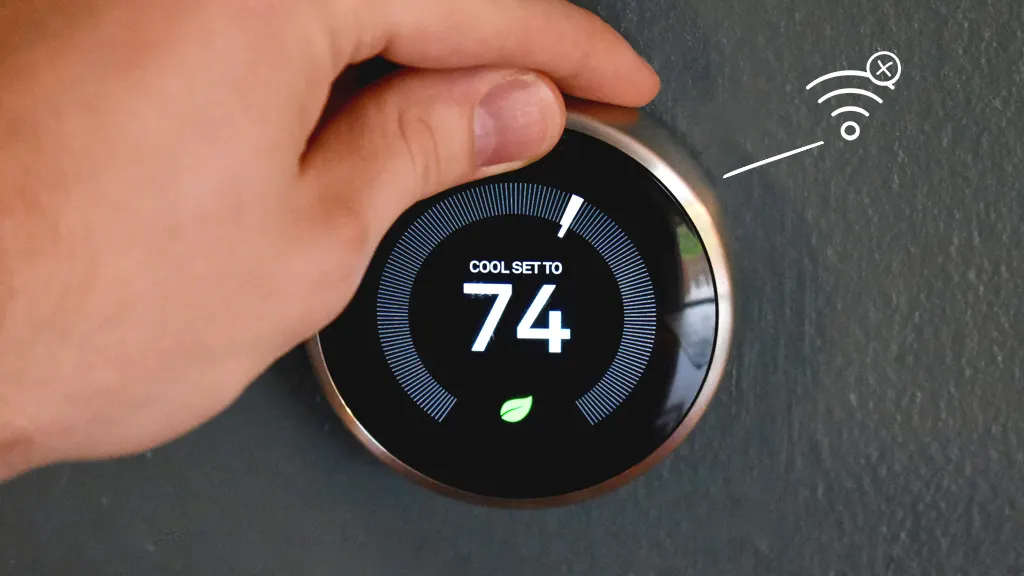
4. Scan for Networks. Your Nest will probably give you an option like "Wi-Fi Connection" or ask to "Scan for Networks." Go ahead and let it search for all the available networks in its vicinity. It’s like it’s sniffing out the best Wi-Fi signal in the room!
5. Pick Your Network. Once it shows a list, find
6. Enter the Password (Carefully!). This is usually where people get tripped up. Use the Nest’s scroll wheel or touch screen to enter your Wi-Fi password. Seriously, double, even
7. Connect! Once you’ve entered the password, select "Done" or "Connect." Your Nest will try to connect. If all goes well, you’ll get a confirmation message saying it’s

8. Check the Nest App. Hop over to your Nest app on your phone. Does it show your thermostat online now? Can you control it? If yes, give yourself a pat on the back! You’re a Wi-Fi whisperer!
Still Not Playing Nice? Advanced Troubleshooting (but still friendly!)
Okay, so you followed all that, and your Nest is still being a stubborn little mule. Don’t panic! We have a few more tricks up our sleeve.
Reboot your router
Check your Wi-Fi signal. Is your Nest super far from your router? Sometimes, even powerful Wi-Fi can struggle through thick walls. If possible, try moving your router closer to the thermostat, or vice-versa, just temporarily, to see if it connects. A Wi-Fi extender might be your next best friend if distance is the issue.
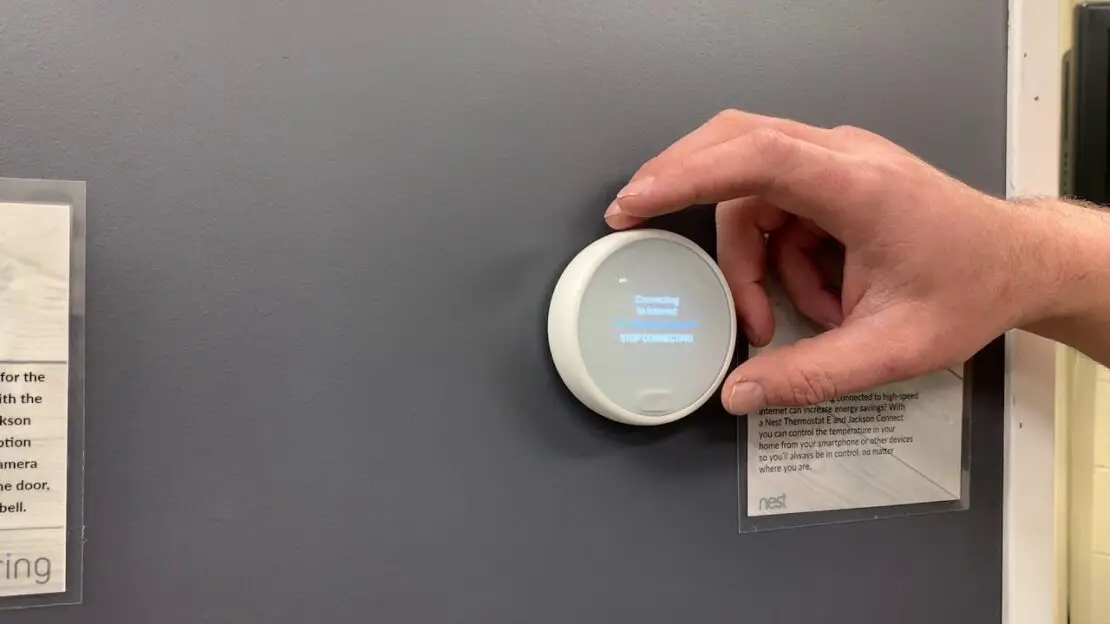
Forget the network. On some Nest models, under the Wi-Fi settings, you might see an option to "Forget Network." If your Nest is stuck trying to connect to an old or incorrect version of your network, making it forget and then re-adding it from scratch can often do the trick.
Factory Reset (The Last Resort). If absolutely
Phew! Back in Business!
See? You did it! Your Nest Thermostat is now happily chatting with your Wi-Fi again, probably sending all sorts of temperature data to the cloud and waiting for your next command. It’s always a relief when smart devices actually act... smart, isn't it?
Next time it happens (and trust me, it probably will, because Wi-Fi is just like that sometimes!), you’ll be a pro. You’ve got this!