
How To Reconnect Beats After Forgetting Device
Hey there, fellow music lovers! Ever been there? You're jamming out to your favorite tunes on your Beats headphones, feeling the rhythm, lost in the zone... and then bam! Connection lost. Or worse, you've got a brand new phone, and your Beats are staring back at you like a confused puppy. What's a music addict to do?
Don't panic! Reconnecting your Beats after forgetting the device is surprisingly simple. Think of it like teaching your headphones to recognize your phone again. It's like reintroducing two old friends who've temporarily forgotten each other. We’ve all been there, right?
Why Does This Even Happen?
Good question! There are a bunch of reasons why your Beats might need a little nudge to reconnect. Maybe you switched devices, like going from your phone to your tablet. Perhaps your phone's Bluetooth got a little wonky (it happens!). Or, sometimes, your Beats just need a good ol' fashioned reset. It’s like when your computer starts acting up; a restart usually does the trick!
Must Read
But the important thing is: It's totally fixable. And we're going to walk through it together.
The Basic Steps: The "Have You Tried Turning It Off and On Again?" Approach
Let's start with the basics. This is the tech equivalent of "did you try drinking some water?" It often works wonders!
1. Turn Bluetooth Off and On: On your phone or device, toggle Bluetooth off, wait a few seconds, and then turn it back on. Sometimes, a fresh start is all it needs. It's like giving your Bluetooth a little nap.
2. Turn Your Beats Off and On: Yep, the classic power cycle. Turn your Beats headphones completely off. Wait a few seconds (count to ten, maybe do a little dance), and then power them back up. Are they flashing? Are they blinking? This is good! It means they're ready to pair.

3. The Obvious: Make Sure They're Charged! This might sound silly, but a low battery can cause connection issues. Make sure your Beats have enough juice to play nicely. A dead battery is like trying to have a conversation with someone who's asleep – it just won't work.
The "Forget This Device" Dance: A Necessary Step
Okay, if the basic steps didn't do the trick, it's time to get a little more direct. We need to tell your phone to forget about your Beats and then rediscover them.
1. Head to Your Bluetooth Settings: On your phone or device, go to your Bluetooth settings. You'll find a list of all the devices you've paired with in the past.
2. Find Your Beats: Scroll through the list until you find your Beats headphones (they’ll probably have a name like "Beats Solo3" or "Powerbeats Pro").
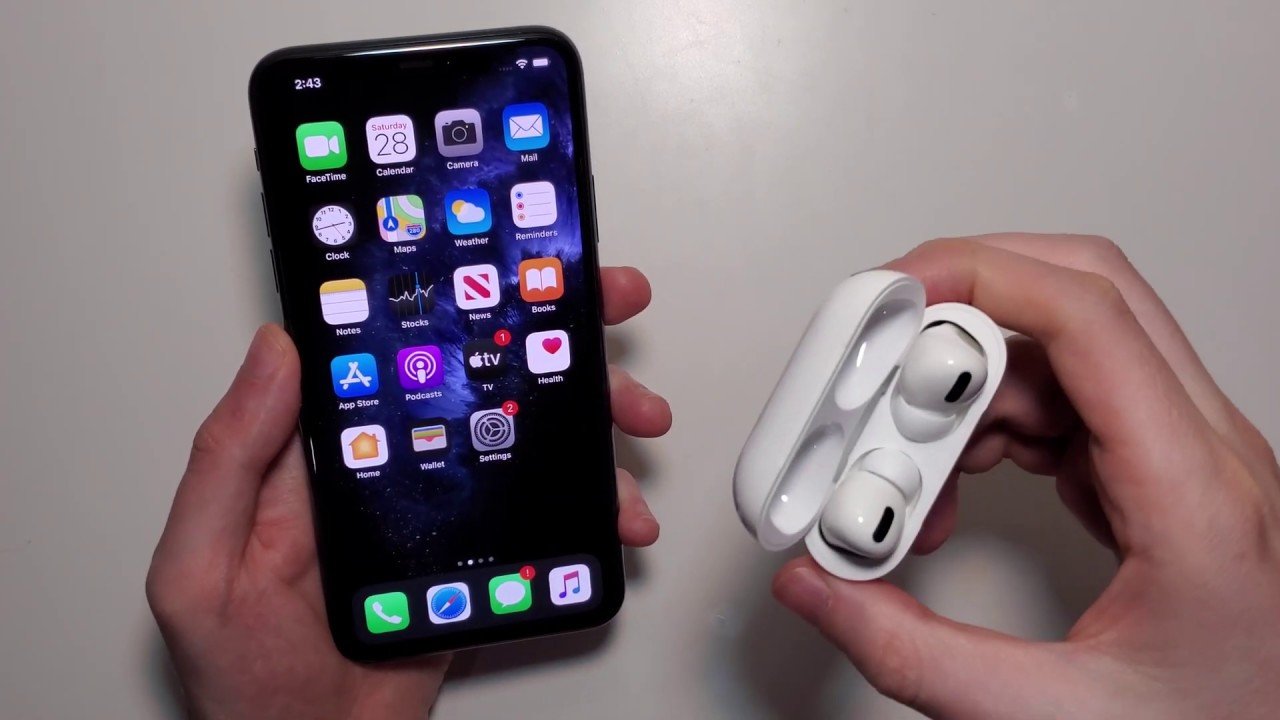
3. Forget the Device: This is the key! Tap the little "i" icon (on iPhones) or the gear icon (on Android) next to your Beats. You should see an option to "Forget This Device" or "Unpair." Tap it!
Why is this important? Because your phone might be trying to connect to your Beats using old information. Forgetting the device clears the slate and allows for a fresh connection.
The Pairing Process: Making the Magic Happen
Alright, now that your phone has forgotten your Beats, it's time to reintroduce them! Get ready for the pairing dance!
1. Put Your Beats in Pairing Mode: The exact method varies depending on your Beats model. Typically, you'll need to press and hold the power button for a few seconds until the indicator light starts flashing. Check your Beats manual for the specific instructions for your model. It’s like giving them a little wake-up call and saying, “Hey, pay attention!”
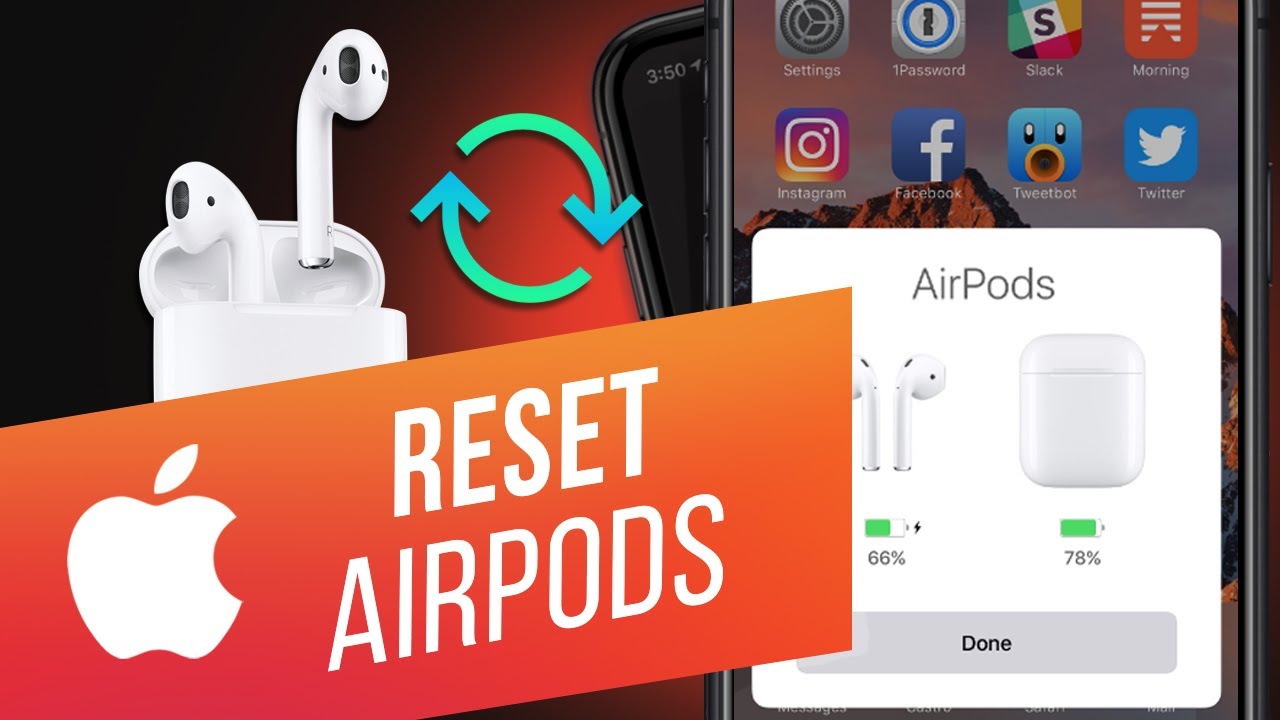
2. Scan for Devices: Back on your phone's Bluetooth settings, tap the "Scan" or "Search for Devices" button. Your Beats should appear in the list of available devices.
3. Connect! Tap on your Beats in the list. You might be prompted to enter a pairing code (usually "0000"). Follow the on-screen instructions, and voilà! Your Beats should be connected.
Advanced Troubleshooting: When Things Get Tricky
Sometimes, even after all that, things still don't work. Don't lose hope! Here are a few more tricks to try:
1. Update Your Device's Software: Make sure your phone or tablet is running the latest version of its operating system. Outdated software can sometimes cause Bluetooth connectivity issues. Think of it as making sure everyone is speaking the same language.

2. Reset Your Beats: Most Beats models have a reset button or a specific combination of button presses that will reset them to factory settings. Again, check your Beats manual for the exact procedure. This is like giving your Beats a complete brain reboot.
3. Check for Interference: Bluetooth signals can be affected by other electronic devices, like microwaves or Wi-Fi routers. Try moving to a different location to see if that helps.
The Joy of Reconnected Beats
There you have it! Reconnecting your Beats after forgetting the device is a simple process, even if it can feel a little frustrating at times. The next time you're faced with this Bluetooth dilemma, remember these steps, stay calm, and get ready to enjoy your music once again! After all, what's life without your favorite tunes blasting in your ears?
Now go forth and conquer your Bluetooth woes! Happy listening!