
How To Play Phone Video On Tv
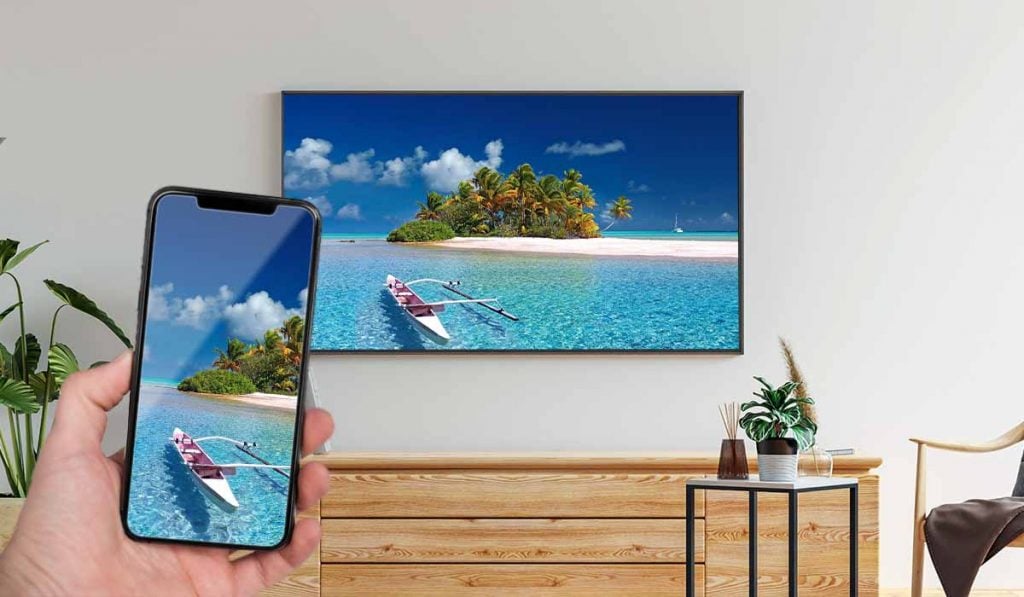
Ever found yourself squinting at a hilarious phone video, wishing you could share the full glory of that moment with everyone in the room? Or maybe you’ve captured some breathtaking vacation footage and want to relive it on a screen that truly does it justice? Well, you’re in luck! Playing phone videos on your TV is not only super easy but also incredibly rewarding. It transforms those tiny personal screens into a shared, immersive experience, making every laugh louder and every scenic view grander. It's a fantastic way to bring your digital memories to life in your living room, without needing to be a tech wizard.
The beauty of this simple trick lies in its versatility and benefits for everyone. For beginners, it's an incredibly intuitive way to upgrade your viewing pleasure; no complicated setups, just a few taps! Families will absolutely love it for impromptu movie nights featuring home videos – think baby’s first steps on a big screen, or grandpa sharing his garden’s triumphs with everyone present. It turns private moments into shared joy. And for the budding hobbyists or content creators among us, it’s perfect for reviewing your drone footage, showcasing a short film, or even just sharing your latest TikTok masterpiece on a larger display for feedback before it goes viral. It’s about making your content shine, no matter who the audience is.
So, how do you make this magic happen? There are a few fantastic ways to play phone videos on TV, catering to different setups. The most popular method today is wireless casting. If you have a smart TV or a device like a Google Chromecast, Roku, or Apple TV, your phone can wirelessly “cast” content to it. This means your phone acts like a remote, sending the video signal over your Wi-Fi network to the TV. Many video apps, including your phone’s photo gallery, YouTube, and Netflix, have a little "Cast" icon (it usually looks like a TV screen with a Wi-Fi symbol) that you just tap to send it to the big screen. Apple users can also take advantage of AirPlay for seamless mirroring or casting to Apple TV or AirPlay-compatible smart TVs. Another great option, especially if you have an older TV or prefer a more direct connection, is a wired setup using an HDMI adapter. You simply plug an adapter into your phone’s charging port, and then connect an HDMI cable from the adapter to your TV.
Must Read
Ready to give it a try? Here are some simple, practical tips to get you started. First, ensure both your phone and your TV are connected to the same Wi-Fi network if you're planning to cast wirelessly. This is crucial for them to "find" each other. Next, open the video you want to watch on your phone, and look for that unmistakable "Cast" icon. Tap it, select your TV or casting device from the list, and voilà! Your video should appear on the big screen. If you're going the wired route, make sure you have the correct HDMI adapter for your phone model (e.g., USB-C to HDMI for many Android phones, or Lightning to HDMI for iPhones). It’s usually a plug-and-play process once connected. Don't be afraid to explore your phone's settings for "Screen Mirroring" or "Smart View" options, as these can also quickly project your entire phone screen onto the TV.
Bringing your phone videos to the TV is a wonderfully simple way to enhance how you enjoy and share your digital life. Whether it’s reliving cherished memories with family, showcasing your creative projects, or simply enjoying your favorite funny clip on a larger display, the experience is always better bigger. So go ahead, cast that video, kick back, and enjoy your moments in grand style!



