
How To Get Pictures Off Phone To Computer
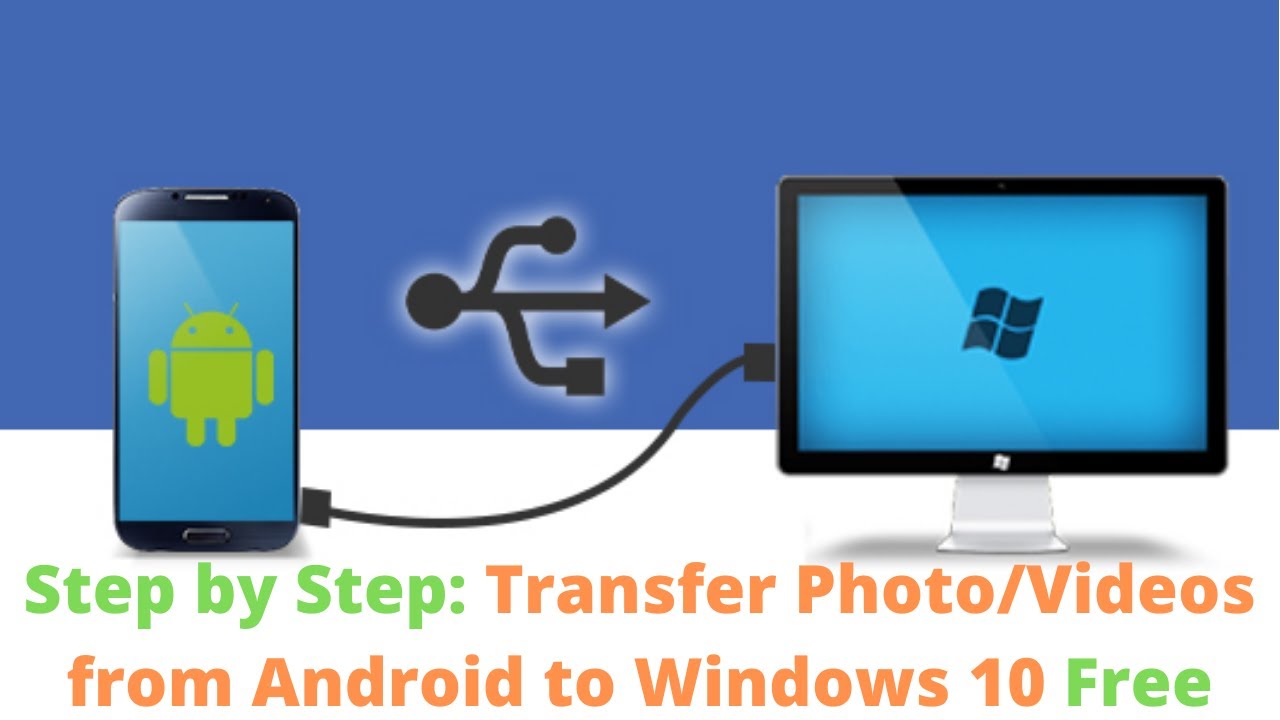
Hey there, photo fanatic! Got a phone bursting at the seams with memories? I totally get it. My phone's like a digital scrapbook – filled with blurry selfies, questionable food pics, and the occasional, genuinely artistic shot (humble brag!). But let's face it, those precious pixels deserve a bigger stage than your tiny phone screen. You need to get them onto your computer, stat!
Don't worry, it's easier than teaching your grandma to use TikTok (though, that's pretty easy these days, right?). Here are a few ways to liberate your photos from your phone's digital clutches:
Option 1: The Cable Connection (Old School Cool)
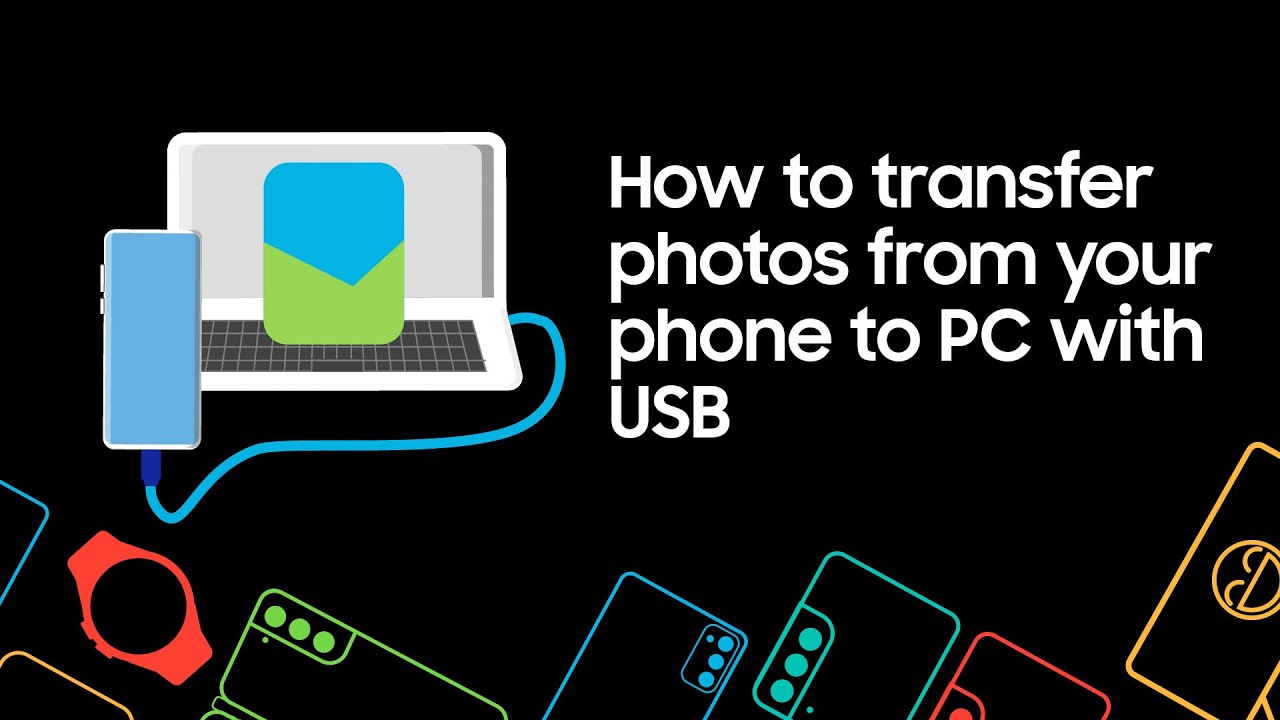
This is the classic approach. Think of it as the digital equivalent of tying two tin cans together with string... but way more effective. You'll need a USB cable – the one you probably use to charge your phone. If you can't find yours, it's probably tangled with Christmas lights and a rogue phone charger from 2008. Good luck with that!
Must Read
Here's the lowdown:
- Plug your phone into your computer. (Duh!)
- Your phone might ask if you want to "Allow access" or something similar. Say yes! (Unless you don't want your computer snooping around. Then, um, don't).
- Your computer should recognize your phone as a drive. On Windows, it usually pops up in "This PC" or "My Computer." On a Mac, it might appear on the desktop or in Finder.
- Open the phone's drive. You'll probably see folders like "DCIM" (that's where your camera photos live), "Pictures," or maybe one named after your favorite social media app.
- Copy and paste (or drag and drop) the photos you want onto your computer. Easy peasy!
Pro Tip: Create a dedicated folder on your computer for your phone photos. Future you will thank you for being so organized. Maybe even bake you a cake... okay, probably not a cake. But at least they'll silently appreciate you.

Option 2: The Cloud (Living in the Future)
Ah, the cloud! It sounds so magical, doesn't it? Like fluffy white data storage units floating in the sky. In reality, it's just someone else's computer. But hey, it works!
Most phones come with some kind of cloud storage built-in, like Google Photos (for Android) or iCloud Photos (for iPhones). These services automatically back up your photos to the cloud, so you can access them from any device.
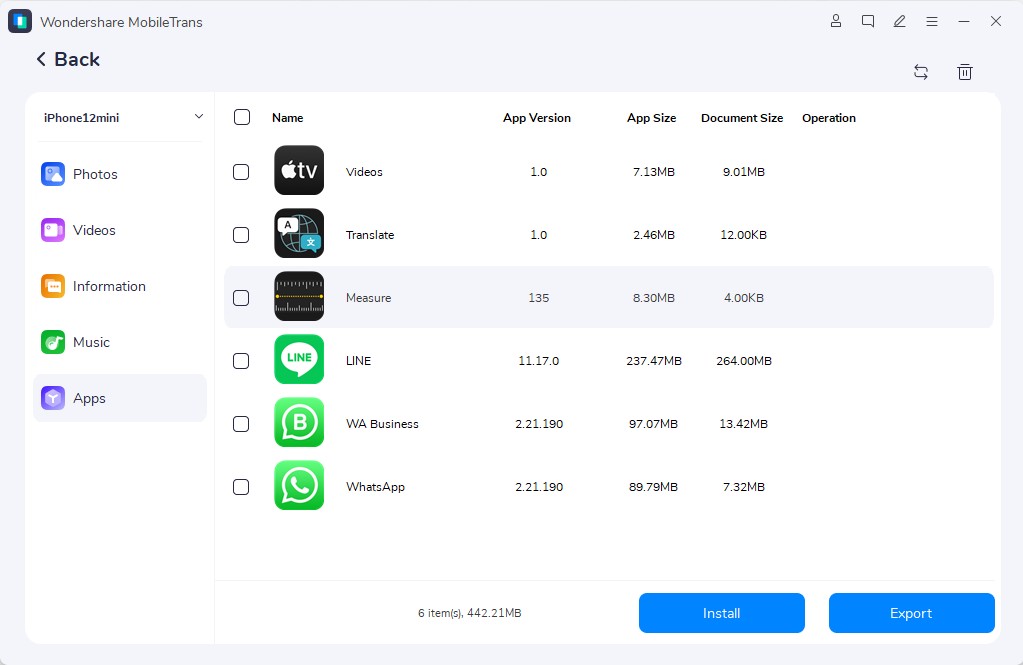
Here's the gist:
- Make sure cloud backup is enabled on your phone. Check your phone's settings (usually under "Photos" or "Backup & Sync").
- On your computer, go to the website for your cloud storage service (photos.google.com or icloud.com).
- Log in with the same account you use on your phone.
- Voila! Your photos should be there, waiting to be downloaded.
Heads Up: Cloud storage often has limited free space. You might need to pay for extra storage if you have a ton of photos. Think of it as a digital storage unit… without the spiders and questionable smells.
Option 3: Email (For When You Only Need a Few)
Okay, this isn't the most efficient method for transferring your entire photo library, but it's handy for sending a few shots to yourself (or anyone else, for that matter). It's like sending a digital postcard!
Simply attach the photos to an email and send it to your email address. Then, open the email on your computer and download the attachments. Bam! Photos transferred.
Option 4: Third-Party Apps (For the Tech-Savvy)
There are tons of apps out there designed to help you transfer files between your phone and computer. Some popular choices include AirDroid and Send Anywhere. These apps often offer extra features like wireless transfer and the ability to transfer other types of files (videos, documents, etc.).

Just download the app on both your phone and computer, follow the instructions, and you'll be transferring photos in no time. Just make sure you download these apps from reputable sources to avoid any, um, digital gremlins.
So there you have it! Four ways to rescue your photos from the clutches of your phone and bring them to the glorious expanse of your computer screen. Now you can finally edit that embarrassing selfie from last year, create a slideshow of your vacation adventures, or just bask in the glow of your photographic genius.
Go forth and conquer, my friend! Your computer (and your sanity) will thank you. And remember, every picture tells a story… even the blurry ones of your cat.